Loading article introduction…
Loading article body…
Monitoring mode and disabled AI-driven mode are different settings. In monitoring mode, ClickGuard keeps analyzing every ad click and shows the click fraud it finds, without blocking anything. With AI-driven mode turned off, its AI doesn't detect or block bad traffic at all, though your own custom rules still apply.
Disabled AI-driven mode and monitoring mode are two different settings on the AI Protection page in ClickGuard.
When you switch off AI-Driven Threat Monitoring, ClickGuard's AI stops detecting and blocking bad traffic on its own. It won't flag bad traffic coming from the website, so bots, click farms and other invalid clicks can reach your ads again, and you pay for them.
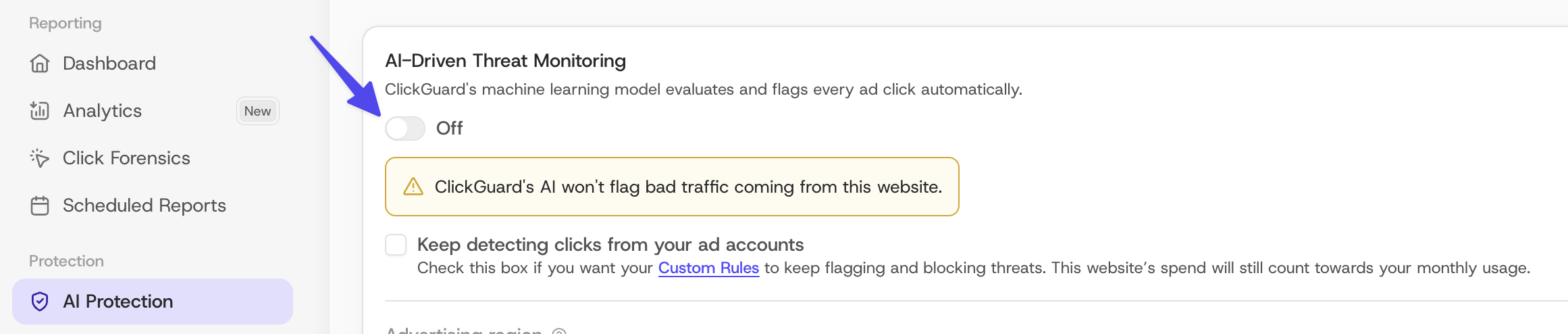
To keep your custom rules flagging and blocking bad traffic while the AI is off, check Keep detecting clicks from your ad accounts. The website's ad spend then still counts toward your monthly usage.
Turn the AI off only for a short time, for example while you test something. We don't recommend leaving it off for long.
In monitoring mode, the AI stays on: ClickGuard keeps tracking and analyzing every click on your ads and shows you the invalid traffic it finds in your dashboards, but it doesn't block anything. No IP exclusions or audience exclusions are added to your campaigns.
To use it, keep AI-Driven Threat Monitoring on and select Monitoring only under Protective Actions.
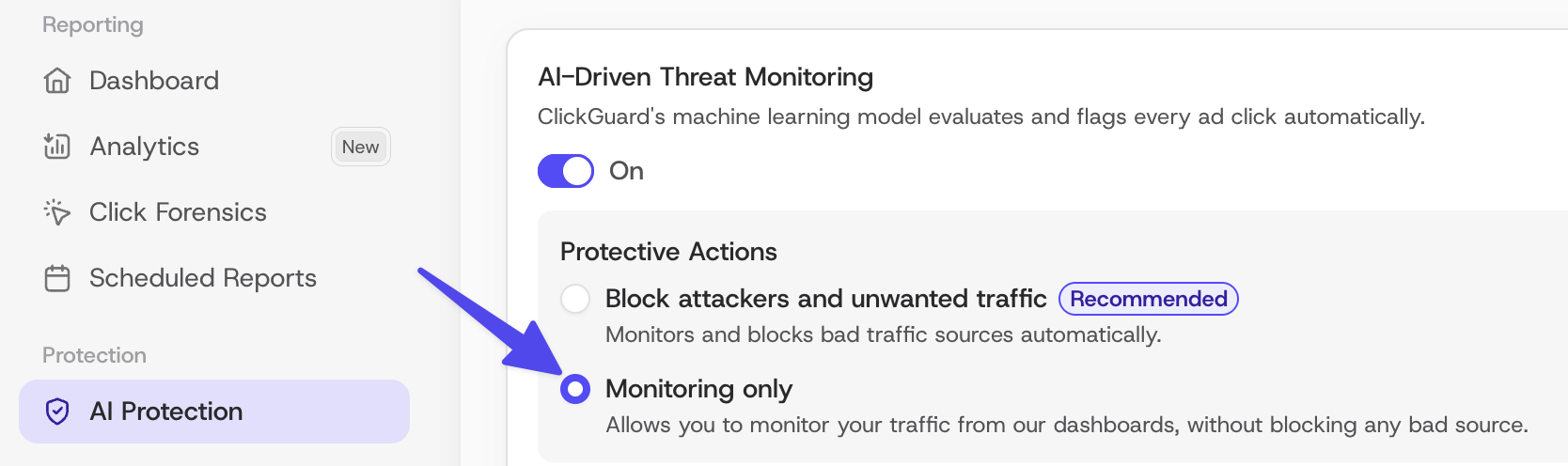
Use it to see how much click fraud reaches your ads before you turn on blocking, for example on a new website or ad account. When you're ready, select Block attackers and unwanted traffic.
See also: What is AI-Driven mode in ClickGuard.