# ClickGuard Help Center — Full public documentation
# Ad account connection status shows NO ACCESS
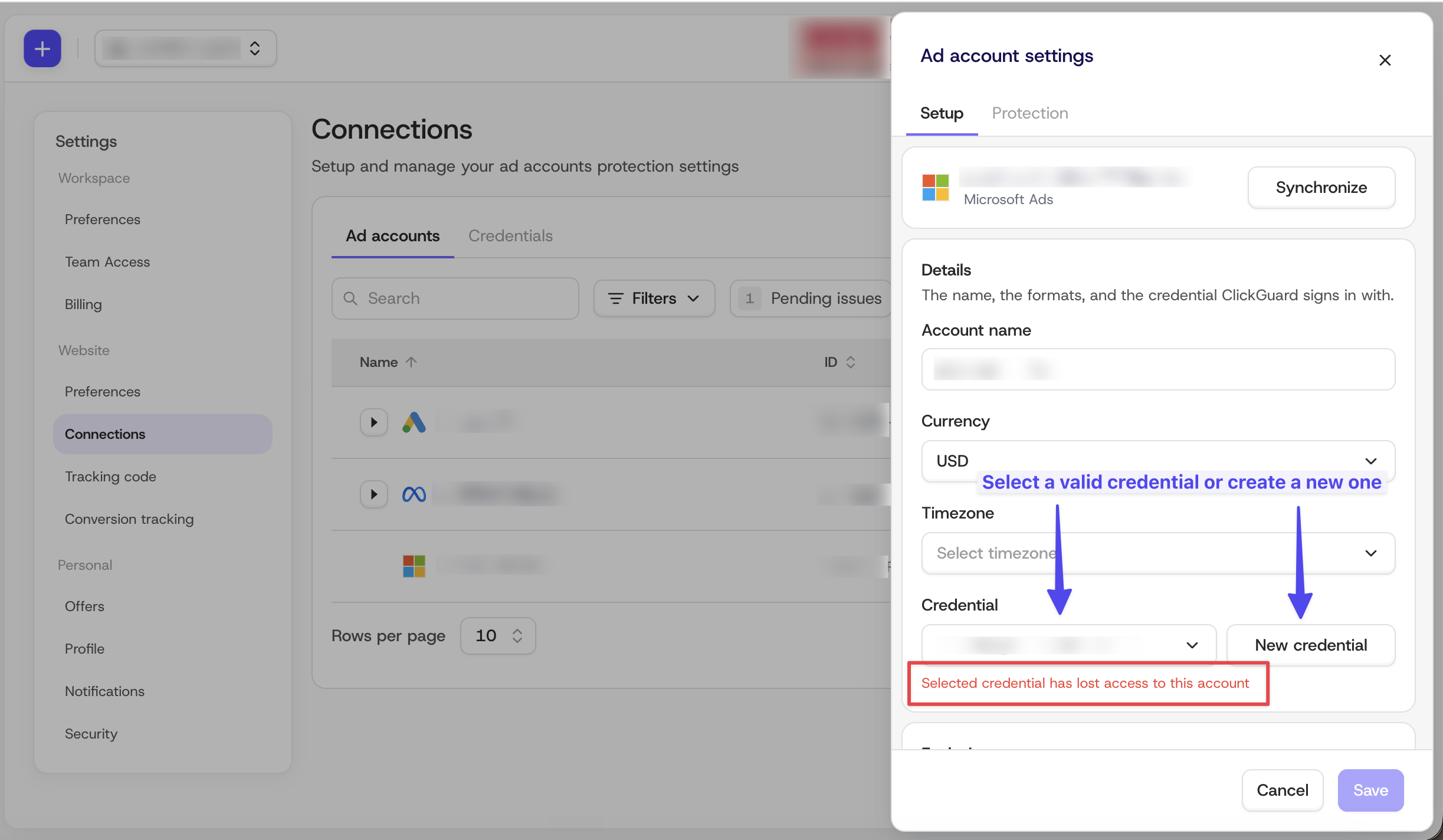
“No access” means ClickGuard can no longer reach an ad account that has Click detection turned on, so that account isn’t protected. It usually happens when the credential used to connect it lost permission. To fix it, open the account’s settings in Connections and select a valid credential or create a new one.
Source: https://www.clickguard.com/help/troubleshooting/ad-account-no-access
Published: 2026-10-28T20:38:38.030Z
Updated: 2026-10-28T20:39:05.202Z
Author: Gustavo Mello
## **What you’ll see**
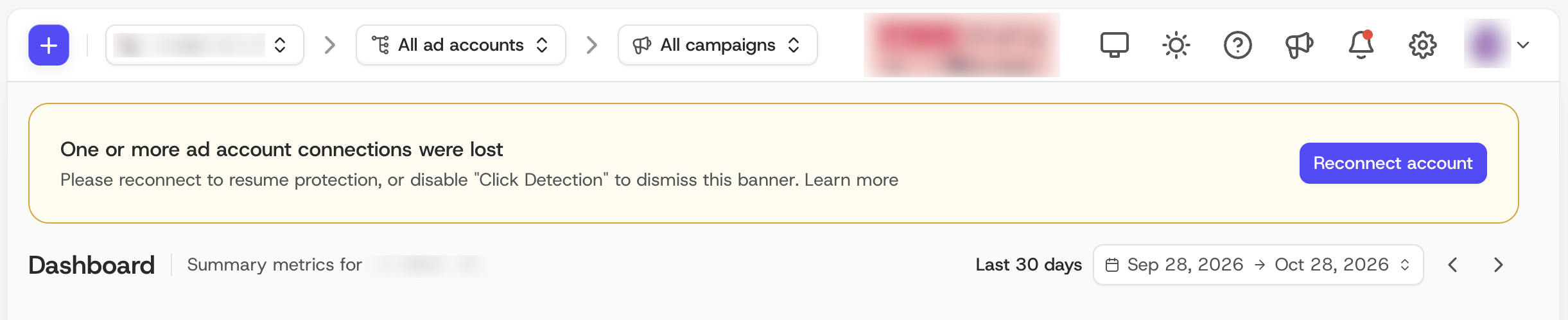
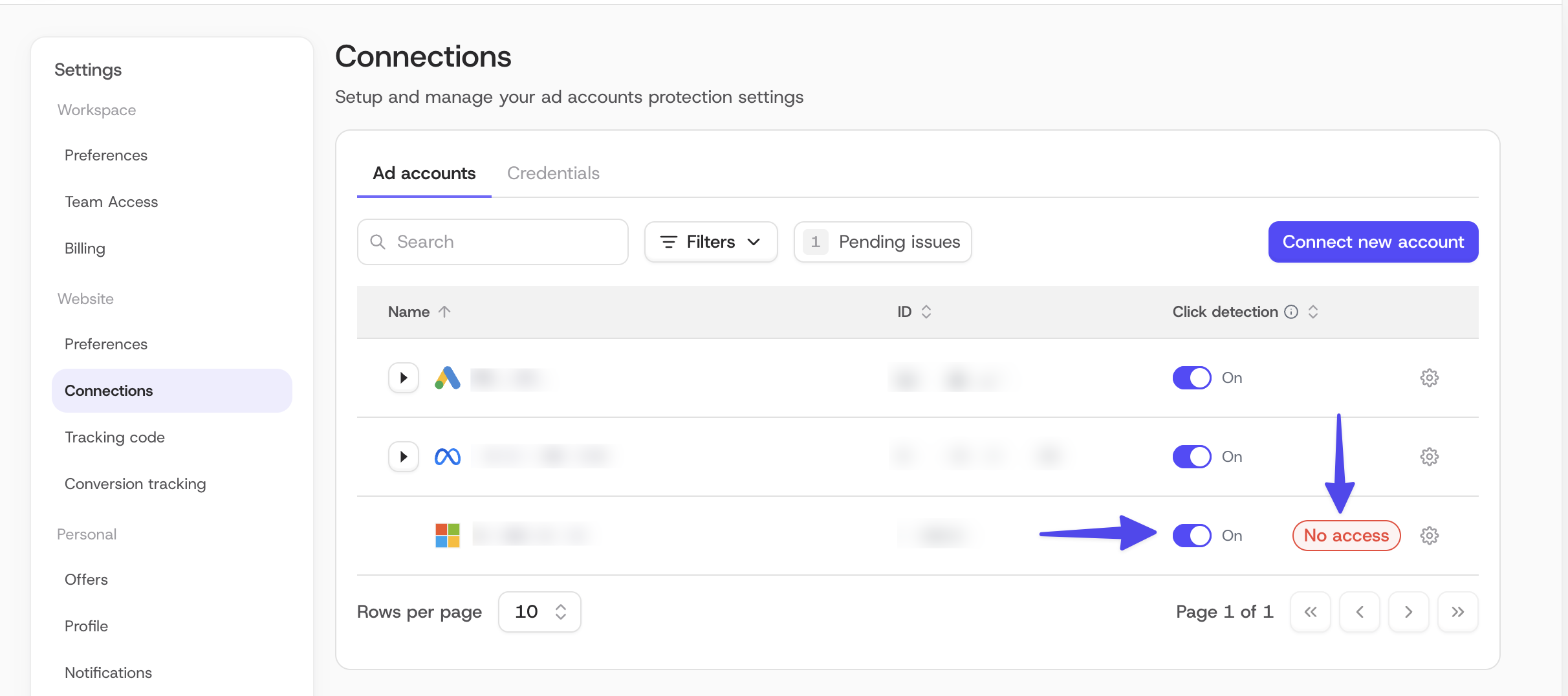
A yellow banner at the top of your dashboard saying **“Your ad account is disconnected.”** In **Settings > Connections > Ad accounts**, the affected account shows a red **No access** label next to its Click detection toggle.
## **What it means**
ClickGuard has lost access to at least one ad account that has **Click detection** turned on. We should be analyzing that account’s clicks, but we can’t reach its data. Until access is restored, the account is not protected.
## **Why it happens**
The credential ClickGuard uses to connect to the account no longer has access to it. Common causes:
- The person who originally connected the account left your company, and their email was removed from the ad account.
- You’re an agency connecting through your MCC (manager account), and the client removed your access when they left.
## **How to fix it**
1. Click the "Reconnect account" button on the banner or go to **Settings > Connections > Ad accounts**.
2. Find the account marked **No access** and click the **gear icon** next to it.
3. In the **Setup** tab, look at the **Credential** field.
4. Fix the credential:
- If a valid credential is already available, select it from the dropdown.
- If not, click **New credential** and sign in with a user who has access to the ad account.
5. Click **Save**.
Once ClickGuard can access the account again, the **No access** label and the banner go away and protection resumes.
## **If you no longer manage this account**
If the account belongs to a former client or you no longer have access to it, there’s nothing to fix. ClickGuard won’t take any action on an account it can’t access. You can still **turn off Click detection** or **delete the account** to clear the banner and keep your Connections page limited to accounts you actively protect. To learn more, see [how to disconnect my ad account](https://www.clickguard.com/help/managing-your-account/how-to-disconnect-my-ad-account).
## Related articles
- [How to disconnect my ad account](https://www.clickguard.com/help/managing-your-account/how-to-disconnect-my-ad-account.md)
- [How to add more ad accounts](https://www.clickguard.com/help/managing-your-account/how-to-add-more-ad-accounts.md)
---
# Does ClickGuard support an API or webhooks?
No, ClickGuard doesn’t currently offer a public API or webhooks, so bad-click data can’t be sent to outside systems automatically. You can export bad clicks as a CSV from Click Forensics for your BI tool or Google Ads refund requests, and ClickGuard already blocks fraudulent traffic in Google Ads, Microsoft Ads and Meta Ads.
Source: https://www.clickguard.com/help/faq/clickguard-support-api-or-webhook
Published: 2026-10-28T15:07:29.886Z
Updated: 2026-10-28T15:07:29.886Z
Author: Gustavo Mello
Not at the moment. ClickGuard doesn't offer public API access or outgoing webhooks, so bad-click data (IP address, classification reason, timestamp, website, campaign or event ID) can't be sent to outside systems automatically.
## **What you can do instead**
- Export click data as a CSV. Go to Click Forensics, choose a date range, filter to Bad clicks and click Export in the top-right corner. The CSV opens in Excel or Google Sheets, or you can import it into your own database or BI tool.
- Use the export for refund requests. The same CSV works as the click log Google asks for in a Click Quality Investigation request. See How to Request Refunds from Google Ads.
- Let ClickGuard take action for you. Most teams want bad-click data so they can block it. ClickGuard does that automatically by excluding fraudulent IPs and IP ranges in Google Ads and Microsoft Ads and blocking visitors in Meta Ads. You can check every change in Google Ads → Change History.
## **Looking ahead**
We keep expanding how ClickGuard data can be used. If an API or webhook integration would help your workflow, contact our support team and tell us what you need. Requests go straight into our product planning.
## Related articles
- [How to export click data from your ClickGuard account](https://www.clickguard.com/help/faq/how-to-export-click-data.md)
- [How to request refunds from Google Ads](https://www.clickguard.com/help/faq/how-to-request-google-ads-refunds.md)
- [How to view changes made by ClickGuard in Google Ads](https://www.clickguard.com/help/faq/view-clickguard-changes-in-google-ads.md)
- [Does ClickGuard track IPv6 addresses](https://www.clickguard.com/help/faq/does-clickguard-track-ipv6-addresses.md)
---
# What is ClickGuard
ClickGuard is a click fraud protection platform for Google Ads, Microsoft Ads and Meta Ads. It tracks every ad click, analyzes each visitor with AI to spot bots, competitors and other invalid traffic, and blocks bad sources with IP exclusions and audiences, so your budget goes to real customers.
Source: https://www.clickguard.com/help/getting-started/what-is-clickguard
Published: 2026-04-18
Updated: 2026-04-18
Author: Nikola Pejic
**ClickGuard** is a click-fraud and invalid-traffic protection platform designed mainly for **paid ads** (especially **Google, Meta and Microsoft Ads**).
ClickGuard monitors every click that comes to your ads by using:
- Tracking template
- Scripts or server-side tracking
- IP and device data collection
This allows the system to analyze who clicked, where they came from, and how they behaved.
## Detecting suspicious or invalid traffic
The platform uses automated rules and behavioral analysis to identify:
- Bots and automated clicks
- Competitor clicking
- VPN/proxy traffic
- Repeated clicks from the same user/IP
- Click farms or suspicious locations
- Low-engagement visits (bounce instantly, no interaction)
## Blocking future invalid clicks
Once suspicious traffic is detected, ClickGuard can:
- Automatically add IP exclusions in Google Ads
- Block users at the website level
- Apply audience exclusions
- Trigger custom blocking rules
This prevents those users from clicking your ads again.
## Improving ad performance
By removing fake or low-quality clicks, ClickGuard helps:
- Reduce wasted spend
- Improve conversion rate
- Improve data accuracy
- Optimize campaign performance
**In short:**
ClickGuard tracks every ad click → analyzes behavior → detects suspicious activity → blocks future invalid clicks → reports savings and insights.
## Main features
- **Server-side tracking**: tracks nearly every ad click and visit, even when browsers or ad blockers get in the way.
- **Custom reports**: build reports with the metrics that matter to you.
- **Scheduled reports**: get your reports by email automatically, on the schedule you choose.
- **Conversion tracking**: see which ad clicks turn into customers, and block visitors who never convert.
- **Custom rules**: set your own conditions for blocking clicks, on top of ClickGuard's AI.
- **Chrome extension**: see your ClickGuard protection stats right inside Google Ads.
### For agencies
- **White-labeled reports**: send your clients reports with your own branding.
- **Account overview dashboard**: see all your clients' protected websites in one place.
- **Shareable report templates**: reuse the same reports across clients, so every new client is set up in minutes.
- **Shareable custom rules templates**: apply your proven protection rules to any new client in a few clicks.
See also: [How click fraud detection works](https://www.clickguard.com/help/getting-started/how-click-fraud-detection-works).
## Related articles
- [How click fraud detection works](https://www.clickguard.com/help/getting-started/how-click-fraud-detection-works.md)
---
# What is click fraud
Click fraud is any click on your ads from someone with no interest in what you sell: bots, competitors, click farms or the same visitor again and again. You pay for each of those clicks, so it drains your budget and skews the data your campaigns learn from.
Source: https://www.clickguard.com/help/getting-started/what-is-click-fraud
Published: 2026-10-10
Updated: 2026-10-10
Author: Nikola Pejic
Every time someone clicks one of your ads, you pay for that click. Click fraud is when those clicks come from people, or programs, that were never going to buy from you. The click is real, the charge is real, but the visitor is not a customer.
## Where fraudulent clicks come from
- **Bots and automated scripts** that load pages and click ads, often from data centers, to inflate traffic or test stolen ad setups.
- **Competitors** who click your ads to drain your daily budget so their own ads show more often.
- **Click farms**, where people are paid to click ads by hand, which makes the traffic look human.
- **Low-quality placements** on websites and apps where ads sit next to buttons, so visitors click them by accident or are pushed into clicking.
- **Repeat visitors** who click the same ad again and again, sometimes behind a VPN or proxy to hide that it is the same person.
## What it costs you
The obvious cost is wasted budget: money spent on clicks that cannot turn into sales. The hidden cost is worse. Ad platforms learn from your traffic, so fake clicks teach their bidding to chase more of the same. Your reports fill with visits that never convert, conversion rates drop, and it becomes harder to tell which campaigns really work.
Ad platforms already filter some invalid clicks and refund them. That filtering is not complete, and it only looks at the click, not at what the visitor does on your website afterwards.
## Signs your ads are being targeted
- A spike in clicks with no matching rise in leads or sales.
- Visits that last a second or two, or never scroll or interact with the page.
- Many clicks from the same IP address, IP range, device or network in a short time.
- Traffic from countries or placements you do not target, or from data centers, VPNs and proxies.
- Your daily budget running out early in the day.
## How ClickGuard protects you
ClickGuard checks every paid click as it arrives. It combines what it learns about the click (the IP address, network, device and placement) with what the visitor does on your website, then scores how likely the visit is to be invalid. When a source keeps sending bad clicks, ClickGuard excludes it in your ad accounts, so it stops seeing and clicking your ads.
Learn more about the details in [How click fraud detection works](https://www.clickguard.com/help/getting-started/how-click-fraud-detection-works).
## Next step
Start with [Protecting your first website](https://www.clickguard.com/help/getting-started/protecting-your-first-website). Once the tracking code and your ad accounts are connected, ClickGuard begins checking your clicks right away.
## Related articles
- [How click fraud detection works](https://www.clickguard.com/help/getting-started/how-click-fraud-detection-works.md)
- [Protecting your first website](https://www.clickguard.com/help/getting-started/protecting-your-first-website.md)
---
# How click fraud detection works
ClickGuard detects click fraud by analyzing what each visitor does after the click, not just their IP address. Its tracking code measures mouse movement, scrolling, typing and time on site, its AI weighs behavior, device and network signals together, and it catches bots that mimic human behavior and blocks them on your ad platforms.
Source: https://www.clickguard.com/help/getting-started/how-click-fraud-detection-works
Published: 2026-10-16
Updated: 2026-10-16
Author: Nikola Pejic
ClickGuard protects your ad budget by looking at who is behind each click and what they do on your website, not only at the IP address the click came from. It collects data on every ad click and analyzes how each visitor behaves. When it finds a bad visitor, it blocks them directly on your ad platforms with **IP exclusions** and **exclusion audiences**, so they can't see your ads again.
## Beyond IP-based detection
Many click fraud tools judge a click mostly by its IP address. They block clicks from data centers, known VPNs and IPs with a bad history. That catches simple bots running on servers, but today's bots are built to get past it: they switch to a new, clean IP for every click and appear to browse from ordinary connections in your target area.
To an IP check, those clicks look like regular visitors. Here's where each IP check falls short:
| IP check | What it looks for | Why modern bots get past it |
| --- | --- | --- |
| **Data centers** | Traffic from servers and hosting providers | Bots don't have to run from a data center to click your ads |
| **VPN and proxy lists** | Known VPN, proxy and Tor addresses | New IPs aren't on the lists yet |
| **IP reputation** | IPs with a history of abuse | A fresh IP has no bad history |
| **Location** | Clicks from unexpected countries | Bots pick IPs in your target area, so they look local |
| **IP blocklists** | IPs that clicked before | Each click can come from a new IP, so the list is always a step behind |
IPs are also shared and reassigned, so the IP a bot used today may belong to a real customer next week. See [What are ISPs and ASNs](https://www.clickguard.com/help/glossary/what-are-isps-and-asns) for why blocking large consumer networks can backfire.
## General vs sophisticated invalid traffic
The ad industry splits invalid traffic into two kinds:
- **General invalid traffic (GIVT)**: crude bots, crawlers and known data center traffic. It's easy to spot, and basic IP filters catch most of it.
- **Sophisticated invalid traffic (SIVT)**: bots and fraud built to mimic real users closely enough to pass IP-based checks. Spotting it takes behavioral analysis.
IP checks deal with the first kind. ClickGuard's behavioral analysis is built for the second.
## What bot traffic does to your campaigns
- **Wasted budget**: you pay for clicks that never had a chance to convert.
- **Misleading reports**: clicks and click-through rate go up while your conversion rate drops and your cost per acquisition climbs.
- **Worse bidding**: Google's Smart Bidding and Meta's algorithm learn from the fake engagement and look for more of it.
- **Polluted audiences**: bots end up in your remarketing and lookalike audiences.
## How ClickGuard detects click fraud
ClickGuard looks at the whole visit, from the ad click to the last page view, in four steps.
### 1\. It gets data from every ad click
When you connect an ad account, ClickGuard sets up its tracking on it: a tracking template and final URL suffix on Google Ads and Microsoft Ads, and the campaign ID in your ad URLs on Meta Ads. This tells ClickGuard where each click came from: the campaign, ad group, keyword, placement and more. See [Protecting your first website](https://www.clickguard.com/help/getting-started/protecting-your-first-website) for how it's set up.
### 2\. It analyzes how each visitor behaves
ClickGuard's [tracking code](https://www.clickguard.com/help/glossary/what-is-clickguards-tracking-code) on your website doesn't just record that a visitor moved, scrolled or typed. It studies the patterns behind each action, the kind a script can't easily fake:
- **Mouse movement patterns**: how the cursor travels across the page, its speed and its pauses.
- **Scrolling patterns**: how fast and how evenly a visitor moves through your content.
- **Typing patterns**: the rhythm of typing and how forms get filled in, which looks different when a bot does it.
- **Click patterns on the page**: which elements a visitor clicks, in what order and how quickly.
- **Reading patterns**: selecting and copying text, time on site and the number of pages viewed.
ClickGuard combines these signals into interaction patterns and compares them with the patterns it expects for that campaign and device type, because people interact very differently on a phone than on a laptop. Patterns that look non-human stand out, even when each action on its own looks normal. From that, it gives every paid click an [interaction level](https://www.clickguard.com/help/faq/how-does-clickguard-track-website-interactions) and a [bot probability](https://www.clickguard.com/help/faq/how-does-clickguard-determine-bot-probability) of low, medium or high.
This is what catches bots built to look human. A bot can fake a scroll or a mouse movement, but keeping it up across a whole session is much harder: the timing, the order and the amount of interaction rarely match how real visitors use your pages. And it works whichever IP the bot came from.
### 3\. It recognizes repeat devices
The tracking code gives each browser an anonymous [device ID](https://www.clickguard.com/help/glossary/what-is-device-id-in-clickguard). It links repeat clicks from the same device across campaigns and keywords, even when the IP address changes with every click.
### 4\. Its AI weighs every signal together
ClickGuard's proprietary AI evaluates every ad click in real time, weighing behavior, device, click and network signals together, so no single check decides on its own:
- **Behavior**: interaction level, bot probability, time on site and page views.
- **Device**: repeat clicks from the same device, or no device at all.
- **Click patterns**: repeated clicks from the same source, unusual timing and location mismatches.
- **Network and IP**: IP reputation, [IP usage](https://www.clickguard.com/help/glossary/what-is-ip-usage) (home, business or hosting), data centers, VPNs, proxies and Tor.
IP data still matters: it catches the cheap bots that run from data centers. Behavior catches the ones that don't.
## Bad sources stop seeing your ads
When ClickGuard finds a malicious or wasteful source, it blocks it directly on your ad platform with **IP exclusions** and **exclusion audiences**, so it stops seeing your ads. You can also add your own custom rules on visitor behavior, for example to block visitors who spend almost no time on your site or have a high bot probability.
Your budget goes to real prospects instead, and you can see every flagged click and every exclusion in your ClickGuard dashboard.
## Frequently asked questions
### What is the difference between general and sophisticated invalid traffic?
General invalid traffic (GIVT) is crude bots and known data center sources that basic filters catch. Sophisticated invalid traffic (SIVT) is human-like activity that mimics real users closely enough to pass IP-based detection. It takes behavioral analysis to identify, which is what ClickGuard does.
### Does ClickGuard still use IP data?
Yes, as one of many signals. IP data catches traffic from data centers, VPNs, proxies and Tor, and IP exclusions are one of the ways ClickGuard blocks bad sources on your ad platforms. It just isn't the only thing ClickGuard looks at.
### Do I need the tracking code for behavioral analysis?
Yes. Without the tracking code, ClickGuard still logs and processes your ad clicks, but it can't see what visitors do on your website, so device tracking, time on site, interaction level and bot probability aren't available. See [Can ClickGuard work without the website tracking code](https://www.clickguard.com/help/faq/can-clickguard-work-without-tracking-code).
### Don't Google Ads and Meta already filter invalid clicks?
They filter part of it. But bots built to pass as ordinary users get through. ClickGuard adds a second layer that looks at what each visitor does on your website after the click.
## Related articles
- [What are ISPs and ASNs](https://www.clickguard.com/help/glossary/what-are-isps-and-asns.md)
- [Protecting your first website](https://www.clickguard.com/help/getting-started/protecting-your-first-website.md)
- [What is ClickGuard's tracking code](https://www.clickguard.com/help/glossary/what-is-clickguards-tracking-code.md)
- [How does ClickGuard track website interactions](https://www.clickguard.com/help/faq/how-does-clickguard-track-website-interactions.md)
- [How does ClickGuard determine bot probability](https://www.clickguard.com/help/faq/how-does-clickguard-determine-bot-probability.md)
- [What is device ID in ClickGuard](https://www.clickguard.com/help/glossary/what-is-device-id-in-clickguard.md)
- [What is IP usage](https://www.clickguard.com/help/glossary/what-is-ip-usage.md)
---
# Security and privacy
ClickGuard handles traffic data from your website and access to your ad accounts on your behalf. Learn what it collects, how that data is used, what ClickGuard can do in your ad accounts, who owns your data, and how to revoke its access at any time.
Source: https://www.clickguard.com/help/getting-started/security-and-privacy
Published: 2026-10-10
Updated: 2026-10-10
Author: Nikola Pejic
ClickGuard looks at the traffic your ads send to your website and connects to your ad accounts to block bad sources. Both mean handling data on your behalf, so here is what we collect, how we use it and how you stay in control.
## Terms of service and privacy policy
How ClickGuard handles your data is set out in our [Terms of Service](https://www.clickguard.com/terms-of-service) and [Privacy Policy](https://www.clickguard.com/privacy-policy). If your company needs a data processing agreement or custom terms, [contact us](https://www.clickguard.com/contact-us).
## What data does ClickGuard collect?
To tell real visitors from invalid traffic, the tracking code records information about each visit from your ads, such as the IP address, the network it comes from, the device and browser, and how the visitor interacts with your page. From your ad accounts, ClickGuard reads the data it needs to match clicks to campaigns and to apply exclusions.
ClickGuard does not collect what visitors type into your forms, and it does not record their sessions.
## Is my information private?
Yes. The data ClickGuard collects is used to protect your ads and to run and improve ClickGuard. We do not sell your data or your visitors' data.
## Do you train AI models on my data?
No. ClickGuard does not use your data, or your visitors' data, to train AI models.
## What can ClickGuard do in my ad accounts?
When you connect an ad account, you grant ClickGuard access through the ad platform's own sign-in. ClickGuard uses that access to read campaign data, set up click tracking and add or remove exclusions for sources it flags. You can see every change ClickGuard makes in your ad account's change history.
You can disconnect an ad account at any time, see [How to disconnect my ad account](https://www.clickguard.com/help/managing-your-account/how-to-disconnect-my-ad-account). To revoke access completely, see [How to remove ClickGuard's OAuth access](https://www.clickguard.com/help/managing-your-account/how-to-remove-clickguards-oauth-access). To remove a workspace and everything in it, see [How to delete a workspace](https://www.clickguard.com/help/managing-your-account/how-to-delete-a-workspace).
## Who owns my data?
You do. Your account, your settings and the data collected for your websites belong to you.
## Questions about security
If you have a question that is not answered here, or want to report a security concern, [contact us](https://www.clickguard.com/contact-us).
## Related articles
- [How to disconnect my ad account](https://www.clickguard.com/help/managing-your-account/how-to-disconnect-my-ad-account.md)
- [How to remove ClickGuard's OAuth access](https://www.clickguard.com/help/managing-your-account/how-to-remove-clickguards-oauth-access.md)
- [How to delete a workspace](https://www.clickguard.com/help/managing-your-account/how-to-delete-a-workspace.md)
---
# Protecting your first website
After you start your free trial, a setup wizard walks you through protecting your first website in a few minutes. Choose how ClickGuard starts, connect your Google Ads, Microsoft Ads or Meta Ads account, and install the tracking code, which ClickGuard can do for you with Google Tag Manager.
Source: https://www.clickguard.com/help/getting-started/protecting-your-first-website
Published: 2026-10-10
Updated: 2026-11-03T19:37:12.847Z
Author: Nikola Pejic
Once you start your free trial, a setup wizard guides you through protecting your first website, step by step. It only takes a few minutes.
## Before you start
Make sure you have:
- **Access to the ad account** you want to protect (Google Ads, Microsoft Ads or Meta Ads).
- **Access to Google Tag Manager**, so ClickGuard can install its tracking code for you. If your website doesn't use Google Tag Manager, the tracking code is a snippet added to your website, which may need a developer. The wizard can email the instructions to your developer or website manager.
## Step 1: Choose how ClickGuard starts
- **Block attackers and unwanted traffic** (recommended): ClickGuard monitors your traffic and blocks bad sources automatically.
- **Monitoring only**: ClickGuard flags bad visitors without blocking anything. It's a good way to test ClickGuard's detection and see your invalid traffic first. You can switch to full protection at any time.
## Step 2: Connect an ad account
### Google Ads and Microsoft Ads
ClickGuard tracks your ad clicks with a **tracking template** and a **final URL suffix**. The setup is automatic: ClickGuard shows you exactly what it will apply, and you just confirm.
- If your account already has a tracking template, from HubSpot for example, you can keep it or switch to ClickGuard's, which gives the most accurate click fraud detection. If you switch, turn off the automatic tracking setup in the tool that used the old template, so it doesn't overwrite ClickGuard's.
- Campaigns with their own tracking parameters are updated automatically: ClickGuard adds its parameters to the end of what they already have.
- ClickGuard doesn't change tracking settings on ad groups or ads. In the rare case you have a final URL suffix there, copy the suffix shown in the wizard and paste it at the end of each one.
### Meta Ads
- After selecting the ad account, select the **Meta pixel** you use on that website.
- Make sure you've accepted Meta's Terms of Service for audiences in Meta Ads. It's not part of ClickGuard's setup, and you've probably done it already, but ClickGuard needs it to block visitors in Meta Ads.
- Make sure your ad URLs include each campaign's ID, in a `cgcid`, `cid`, `campaign_id` or `utm_campaign` parameter. Most ads already have it.
> **Best pratice**
>
> Consider excluding **Audience** **Network** placements from your Meta Ads campaigns. These placements display ads across third-party apps and websites, where you have less control over traffic quality. This can increase your exposure to invalid clicks and fraudulent activity from publishers looking to profit from ad traffic.
For more detail on each platform, see [How to add more ad accounts](https://www.clickguard.com/help/managing-your-account/how-to-add-more-ad-accounts).
## Step 3: Install the tracking code
The last step is installing ClickGuard's tracking code on your website. It analyzes what visitors do on your site, which is what lets ClickGuard identify bad quality traffic.
With Google Tag Manager, ClickGuard installs it for you automatically. To install it yourself, see [How to install ClickGuard's tracking code](https://www.clickguard.com/help/getting-started/install-clickguards-tracking-code).
> **On a Pro or Custom plan?** You can also set up **server-side tracking**, an advanced method that sends click and visitor data from your website's server straight to ClickGuard, so browsers and ad blockers can't interfere. It tracks nearly every ad click. The wizard gives you all the instructions to set it up.
## You're all set!
When you finish the setup, you land on your ClickGuard dashboard.
For a while, ClickGuard's algorithm analyzes your incoming visitors and learns your traffic patterns. Soon you'll see the **Invalid Traffic Rate** start to fill in.
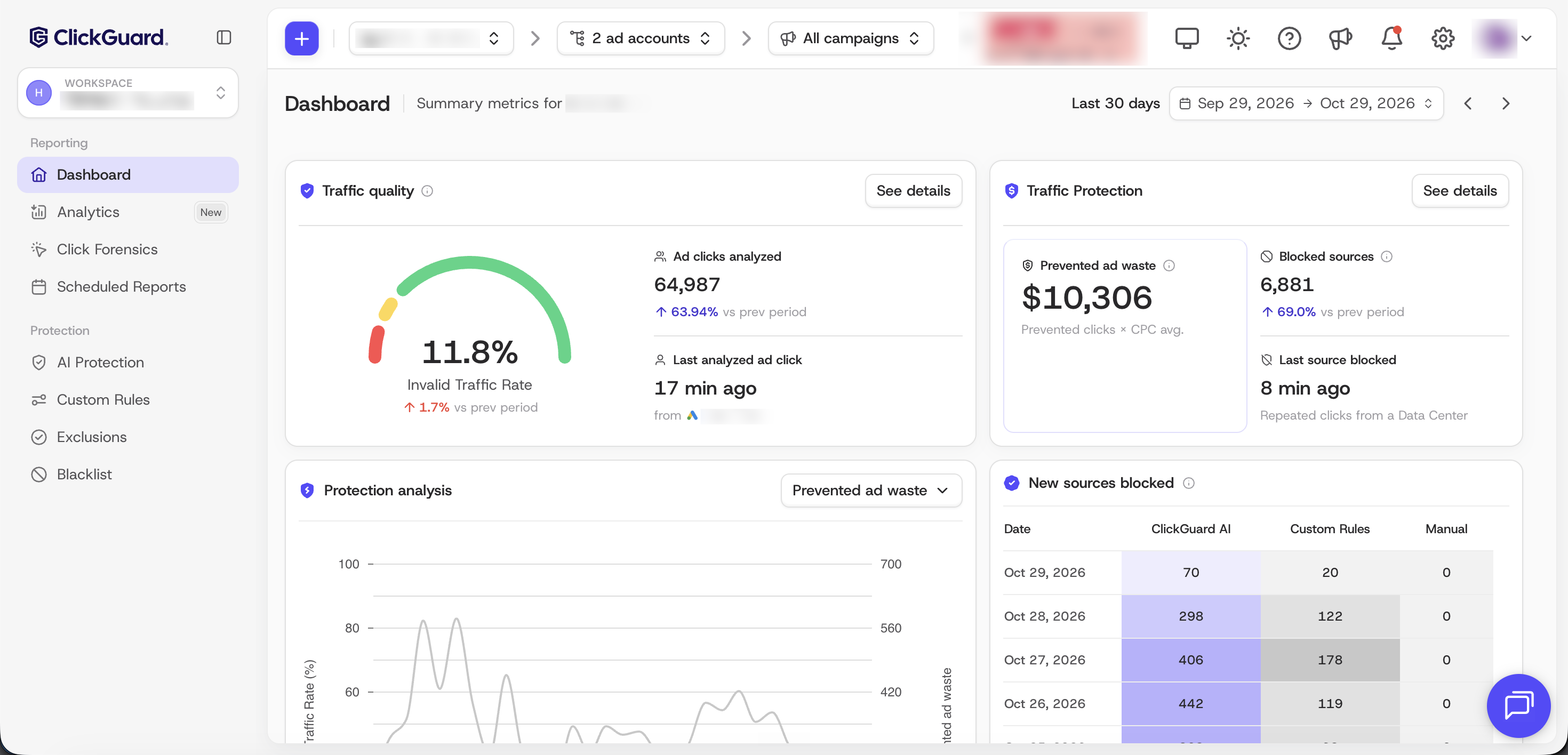
If your website is in **Monitoring** mode, **Prevented ad waste** and **Blocked sources** stay at zero. In this mode ClickGuard detects invalid traffic but doesn't block it. To start blocking, switch to full protection in the **AI Protection** menu.
## Related articles
- [How to add more ad accounts](https://www.clickguard.com/help/managing-your-account/how-to-add-more-ad-accounts.md)
- [Install ClickGuard's tracking code](https://www.clickguard.com/help/getting-started/install-clickguards-tracking-code.md)
---
# How to create a new workspace
A workspace keeps a set of websites, ad accounts and team members together, so it's handy to have one for each client or business. To add one, click the + icon next to your website's name at the top left, select Create a new workspace and follow the setup wizard.
Source: https://www.clickguard.com/help/managing-your-account/how-to-create-a-new-workspace
Published: 2026-10-10
Updated: 2026-10-10
Author: Nikola Pejic
A [workspace](https://www.clickguard.com/help/glossary/what-is-a-clickguard-workspace) keeps a set of websites, ad accounts and team members together, so it's handy to have one for each client or business. You can add a new one at any time.
## Create a new workspace
1. Click the **+** icon next to your current website's name at the top left of your dashboard.
2. Select **Create a new workspace**.
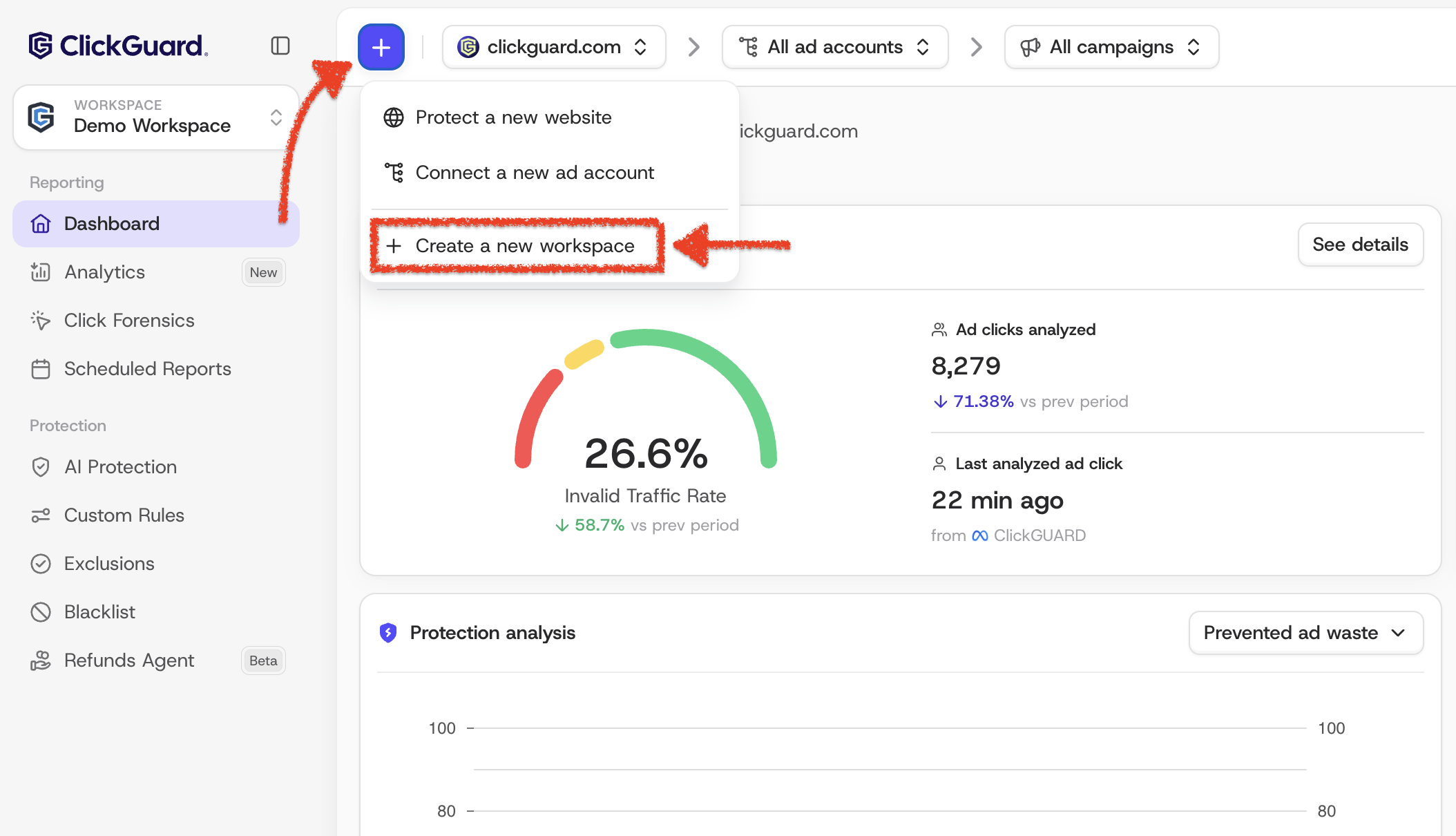
3. Follow the setup wizard. It takes you through the same steps as when you set up your first workspace.
Once it's ready, you can invite your team. See [How to add members to your workspace](https://www.clickguard.com/help/managing-your-account/how-to-add-workspace-members).
## Related articles
- [What is a ClickGuard workspace](https://www.clickguard.com/help/glossary/what-is-a-clickguard-workspace.md)
- [How to add members to your workspace](https://www.clickguard.com/help/managing-your-account/how-to-add-workspace-members.md)
---
# How to add or remove a website
Add a website from the + icon next to your website's name and select Protect a new website. To remove a website for good, go to Settings › Website › Preferences and click Delete. To pause protection for a while instead, turn off AI-Driven Threat Monitoring in AI Protection.
Source: https://www.clickguard.com/help/managing-your-account/how-to-add-or-remove-website
Published: 2026-10-10
Updated: 2026-10-10
Author: Nikola Pejic
Each website you protect with ClickGuard has its own ad accounts, settings and click data. You can add a new website at any time, remove one for good, or pause protection on one for a while.
## Add a website
1. Click the **+** icon next to your current website's name at the top left of your dashboard.
2. Select **Protect a new website**.
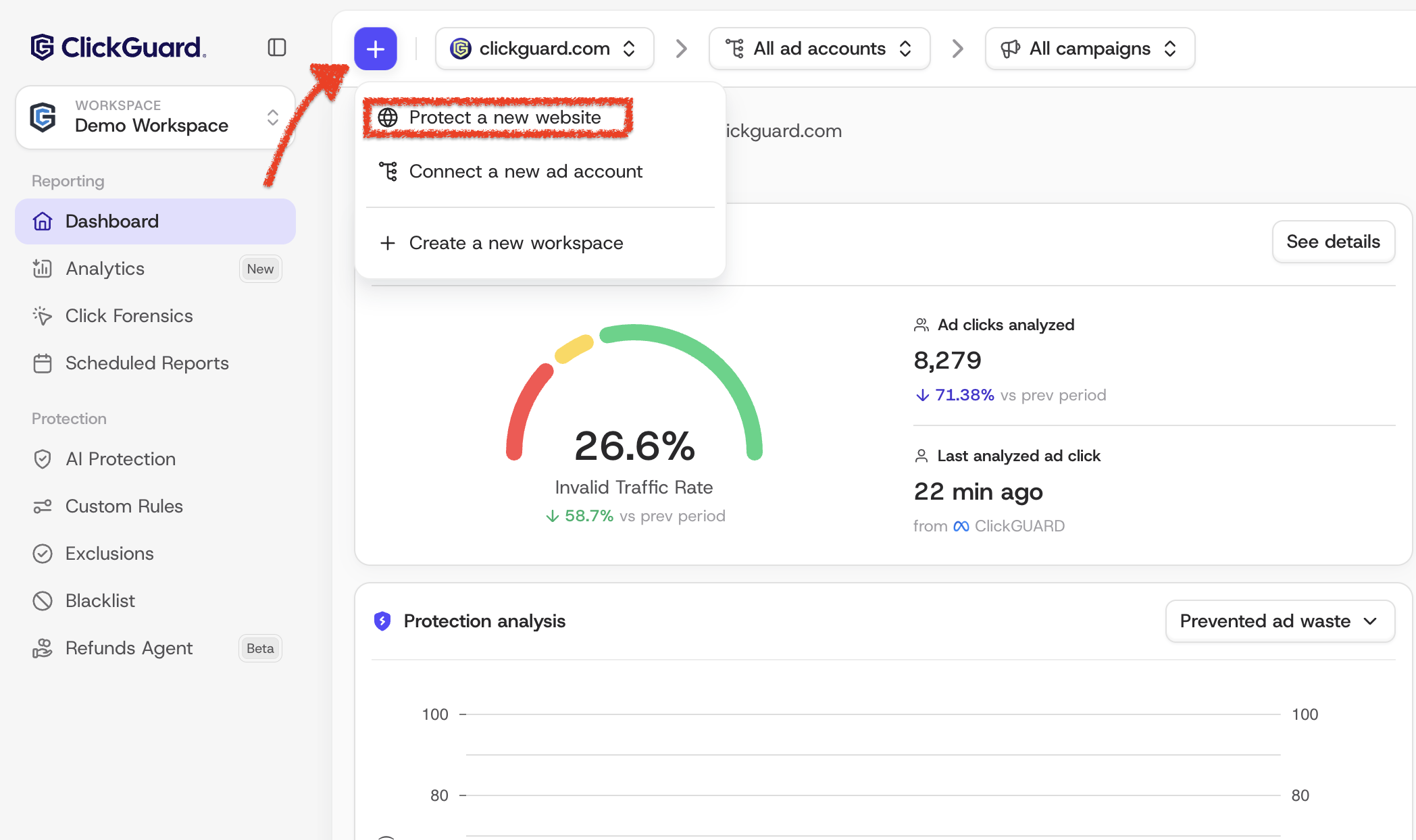
3. Enter the website's URL and connect an ad account for it.
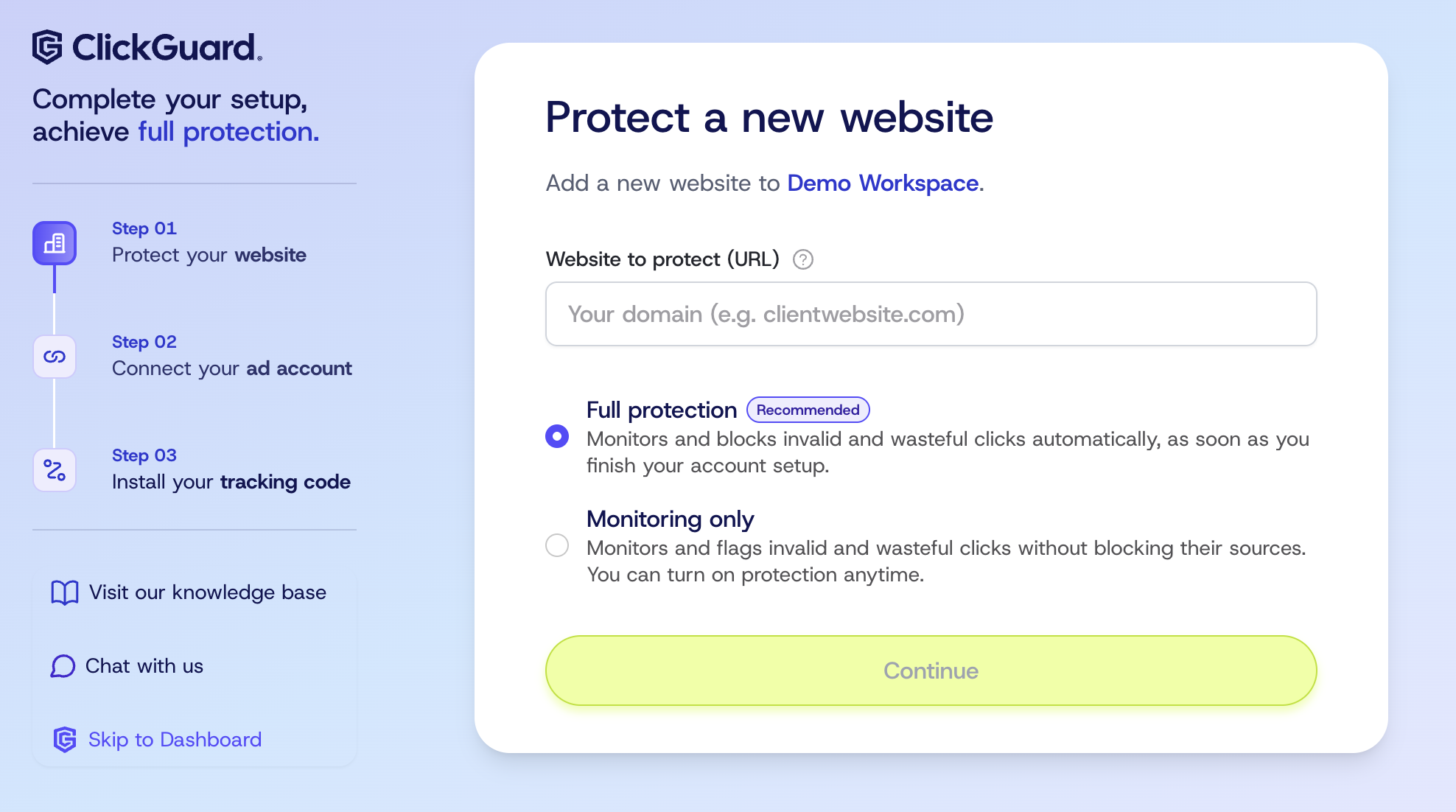
ClickGuard creates the website and starts setting up the ad account you connected right away.
**Note:** every website needs at least one ad account, so you can't add a website without connecting one.
## Remove a website
1. Open **Settings** (the gear icon at the top right).
2. Under **Website**, select **Preferences**.
3. Click **Delete** and confirm.
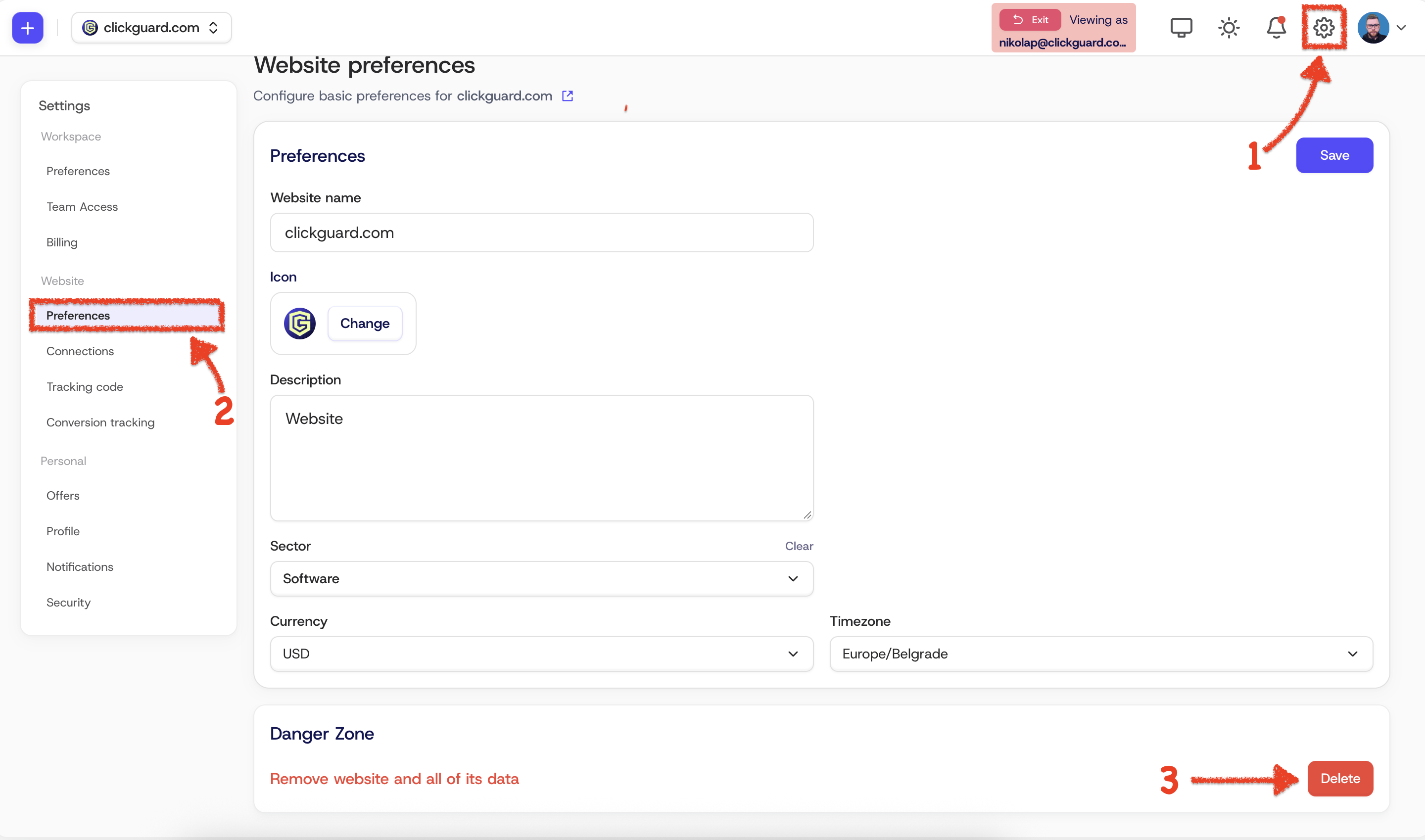
Removing a website permanently deletes it together with its connected ad accounts and all the click data ClickGuard recorded for it. This can't be undone.
## Just want a break? Turn off AI-Driven Threat Monitoring
If you only want to stop protecting a website for a while, you don't need to remove it. Turn off its threat monitoring instead:
1. Make sure the website you want to pause is selected at the top left.
2. In the left menu, under **Protection**, open **AI Protection**.
3. Switch the **AI-Driven Threat Monitoring** toggle to **Off**.
ClickGuard stops evaluating and flagging that website's ad clicks. **Click detection** is turned off for all of the website's ad accounts too, so their ad spend no longer counts toward your usage. The website keeps its ad accounts, settings and data, so you can switch monitoring back on at any time.
### Keep your custom rules running
To turn off the automatic AI protection but keep protecting the website with your custom rules, check **Keep detecting clicks from your ad accounts** right below the toggle. Your custom rules keep flagging and blocking threats, and the website's ad spend still counts toward your monthly usage.
See also: [How to add more ad accounts](https://www.clickguard.com/help/managing-your-account/how-to-add-more-ad-accounts).
## Related articles
- [How to add more ad accounts](https://www.clickguard.com/help/managing-your-account/how-to-add-more-ad-accounts.md)
---
# How to add more ad accounts
Click the + icon next to your website's name, select Connect new ad account and follow the steps for the platform. Google Ads and Microsoft Ads use ClickGuard's tracking template or URL suffix; Meta Ads needs the tracking code, accepted audience terms and the campaign ID in your ad URLs.
Source: https://www.clickguard.com/help/managing-your-account/how-to-add-more-ad-accounts
Published: 2026-10-10
Updated: 2026-11-03T19:38:09.532Z
Author: Nikola Pejic
A website can have more than one ad account, across Google Ads, Microsoft Ads and Meta Ads. You can connect more at any time.
## Connect a new ad account
1. Click the **+** icon next to your website's name at the top left.
2. Select **Connect new ad account**.
3. Choose the ad platform and follow the instructions for it.
Each platform tracks ad clicks a little differently, so here's what ClickGuard sets up for each one.
## Google Ads
1. Select the Google Ads account you want to protect, or the MCC (manager account) that has access to it.
2. If you selected an MCC, a list of the accounts under it appears. Select the account you want to protect.
3. Confirm the ad click tracking setup. ClickGuard shows exactly what it will set up on the account, explained below.
### Ad click tracking
To track your ad clicks, ClickGuard uses two settings in your Google Ads account: the **tracking template** and the **final URL suffix**. They let ClickGuard trace which campaigns, ad groups, asset groups and keywords are driving bad traffic, so exclusions are made in the right place.
At least one of them is required, but using both guarantees maximum effectiveness.
The setup is automatic. Your account may or may not already have tracking settings in place. Either way, ClickGuard shows what it found and what it will do, so you can confirm it:
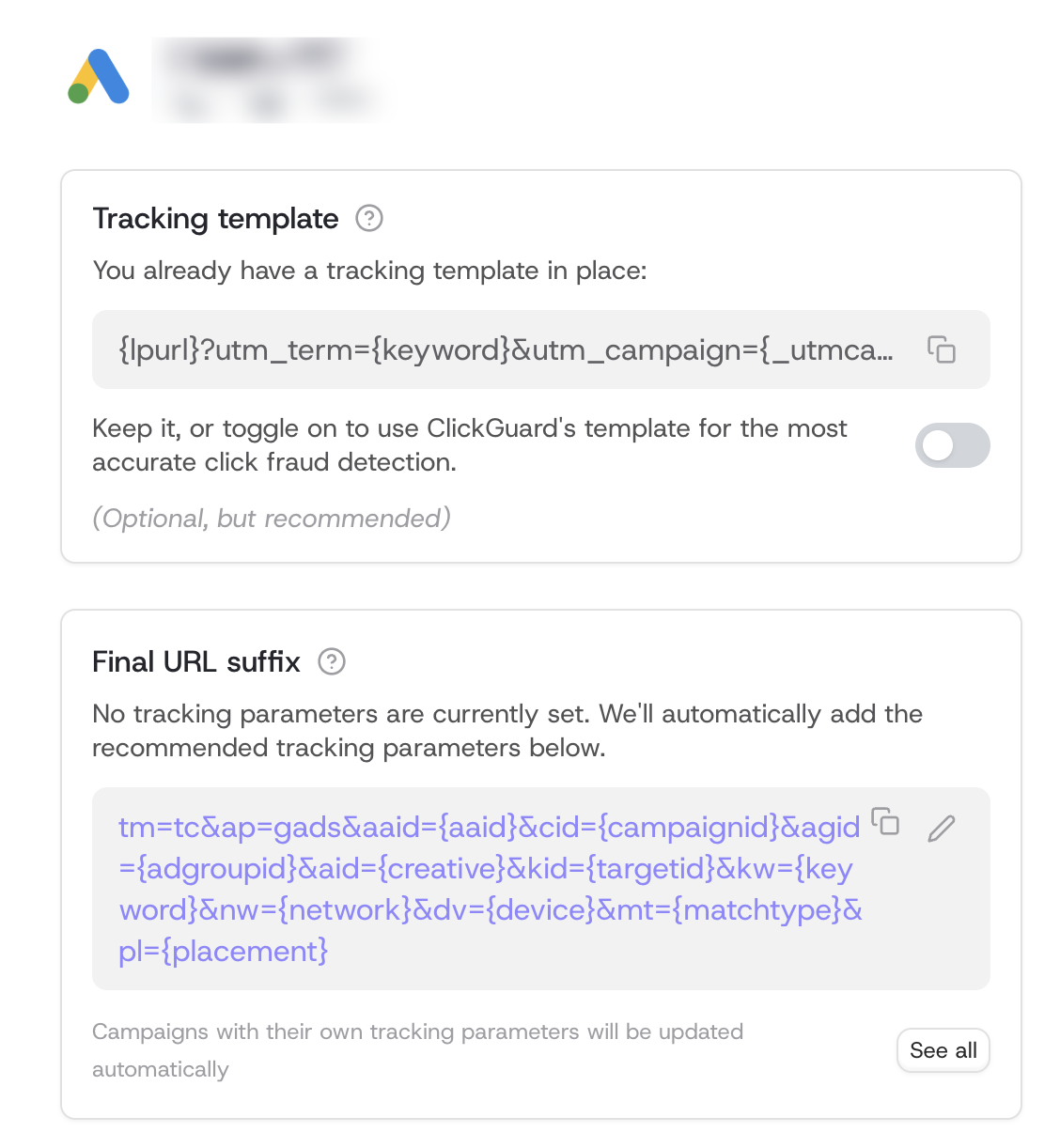
### Tracking template
If your account's tracking template is empty, ClickGuard adds its own there.
If you already have one, from HubSpot for example, ClickGuard shows it and you can choose: keep it, or toggle on **ClickGuard's template**. ClickGuard's template gives you the most accurate click fraud detection, so we recommend it, especially if your existing template is a legacy one that's no longer in use.
If you switch to ClickGuard's template, turn off the automatic tracking setup in the tool that was using your old template. Otherwise it may overwrite ClickGuard's.
### Final URL suffix
ClickGuard adds its tracking parameters to your account's final URL suffix automatically.
Campaigns with their own tracking parameters are updated automatically too. ClickGuard finds the campaigns that need its parameters and adds them to the end of what those campaigns already have, so there's nothing to remove. Click **See all** to see which campaigns will be updated.
### Tracking settings on ad groups or ads
ClickGuard doesn't change tracking settings on ad groups or individual ads. It's not a common setup, but if you have a final URL suffix on an ad group or ad, copy the final URL suffix shown on this page and paste it at the end of the suffix on each of those ad groups or ads. Otherwise ClickGuard can't analyze their clicks.
### Tracking code vs tracking template
When you set up your website, you most likely already installed ClickGuard's tracking code. To protect Google Ads and Microsoft Ads effectively, we also recommend using ClickGuard's tracking template. Tracking templates only exist in these two platforms, and the two pieces do different jobs:
| | Tracking code | Tracking template |
| --- | --- | --- |
| **Where it lives** | On your website | In your Google Ads or Microsoft Ads account (with the final URL suffix) |
| **What it tells ClickGuard** | What visitors do on your site: pages they visit, time on site, interactions and device details | Where each ad click came from: campaign, ad group, keyword, placement and more |
| **How it's set up** | Installed once per website | Set up for each Google Ads and Microsoft Ads account when you connect it |
You need both: the tracking template tells ClickGuard where a click came from, and the tracking code tells it what that visitor did next. See [How to install ClickGuard's tracking code](https://www.clickguard.com/help/getting-started/install-clickguards-tracking-code).
For more, see [Google Ads clicks not showing in ClickGuard](https://www.clickguard.com/help/troubleshooting/google-ads-clicks-not-showing) and [Use a custom tracking template with ClickGuard](https://www.clickguard.com/help/faq/custom-tracking-template-with-clickguard).
## Microsoft Ads
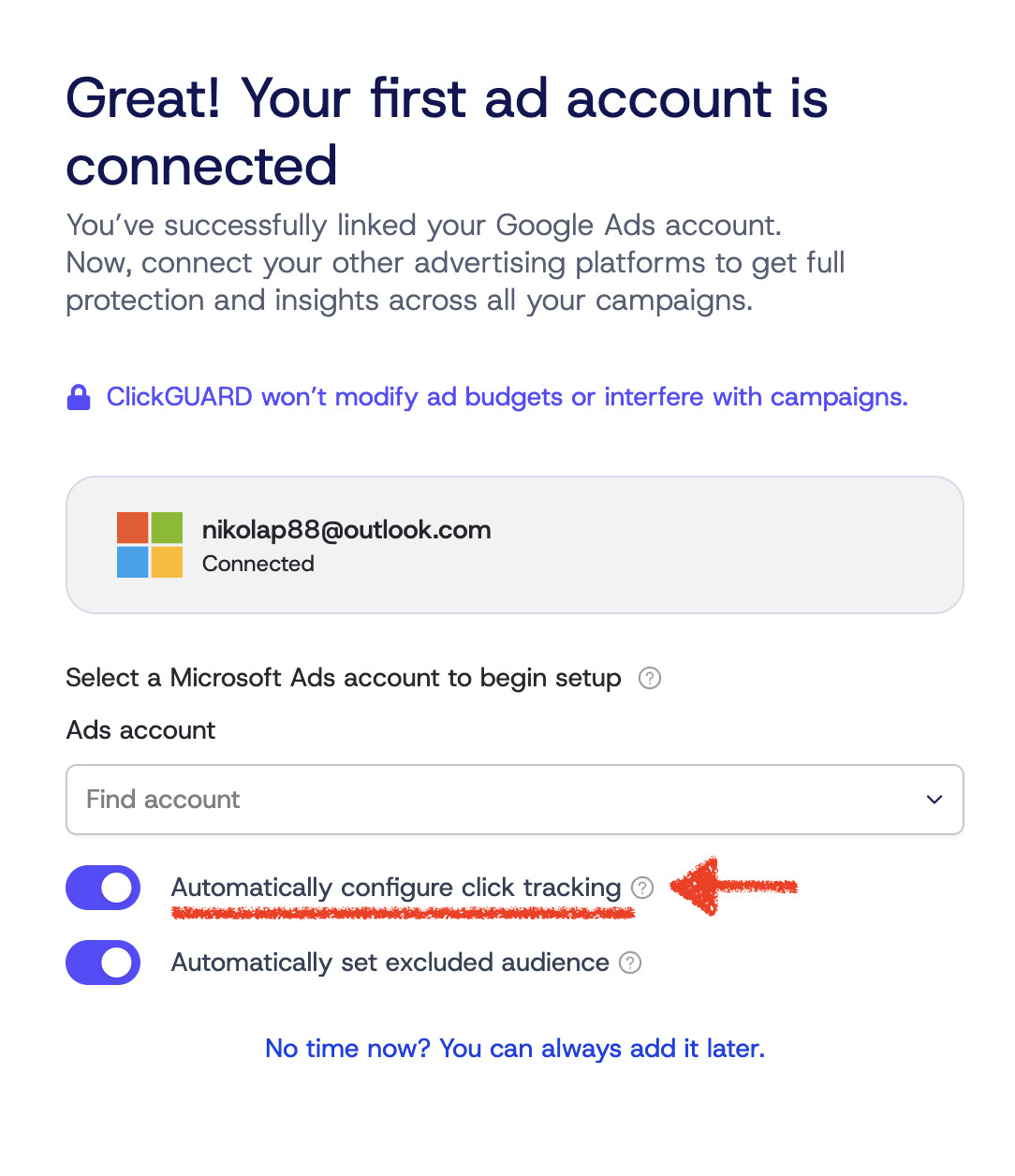
When you connect a Microsoft Ads account, keep **Automatically configure click tracking** selected. ClickGuard then places its tracking template in your account-level tracking template field. This is the recommended setup.
If you already use a tracking template, from HubSpot for example, you can track clicks with ClickGuard's URL suffix only, just like in Google Ads. See [Microsoft Ads clicks not showing in ClickGuard](https://www.clickguard.com/help/troubleshooting/microsoft-ads-clicks-not-showing).
## Meta Ads
When you connect a Meta Ads account, after selecting the ad account, select the **Meta pixel** you use on that website from the dropdown on the same page.
Meta Ads doesn't use a tracking template. ClickGuard reads your Meta Ads clicks through the [tracking code](https://www.clickguard.com/help/getting-started/install-clickguards-tracking-code) on your website, so make sure it's installed. Then make sure of two things in Meta Ads. You've probably set both up already:
1. **Meta's Terms of Service for audiences are accepted.** This isn't part of ClickGuard's setup; it's done in Meta Ads. ClickGuard blocks visitors in Meta Ads through audiences, so it needs them accepted. See [How does ClickGuard block visitors in Meta Ads](https://www.clickguard.com/help/faq/how-clickguard-blocks-meta-ads-visitors).
2. **Your ad URLs include the campaign ID.** ClickGuard needs each campaign's ID in the URL, in one of these parameters: `cgcid`, `cid`, `campaign_id` or `utm_campaign`. Most ads already have it; if yours don't, add one of these (you only need one):
```
cgcid={{campaign.id}}
cid={{campaign.id}}
campaign_id={{campaign.id}}
utm_campaign={{campaign.id}}
```
> **💡 Best pratices**
>
> Consider excluding **Audience** **Network** placements from your Meta Ads campaigns. These placements display ads across third-party apps and websites, where you have less control over traffic quality. This can increase your exposure to invalid clicks and fraudulent activity from publishers looking to profit from ad traffic.
## Related articles
- [Install ClickGuard's tracking code](https://www.clickguard.com/help/getting-started/install-clickguards-tracking-code.md)
- [Google Ads clicks not showing in ClickGuard](https://www.clickguard.com/help/troubleshooting/google-ads-clicks-not-showing.md)
- [Use a custom tracking template with ClickGuard](https://www.clickguard.com/help/faq/custom-tracking-template-with-clickguard.md)
- [Microsoft Ads clicks not showing in ClickGuard](https://www.clickguard.com/help/troubleshooting/microsoft-ads-clicks-not-showing.md)
- [How does ClickGuard block visitors in Meta Ads](https://www.clickguard.com/help/faq/how-clickguard-blocks-meta-ads-visitors.md)
---
# Google Ads clicks not showing in ClickGuard
If your Google Ads clicks aren't showing up in ClickGuard, the usual causes are a missing or replaced tracking template, missing tracking parameters, tracking settings on campaigns, ad groups or ads, call-only ads, or a suspended account. Your ad account's Ad click tracking setup points out most of them.
Source: https://www.clickguard.com/help/troubleshooting/google-ads-clicks-not-showing
Published: 2026-10-12
Updated: 2026-10-12
Author: Nikola Pejic
If your Google Ads clicks aren't showing up in ClickGuard, several things could be causing it. Below are the most common reasons and how to fix them.
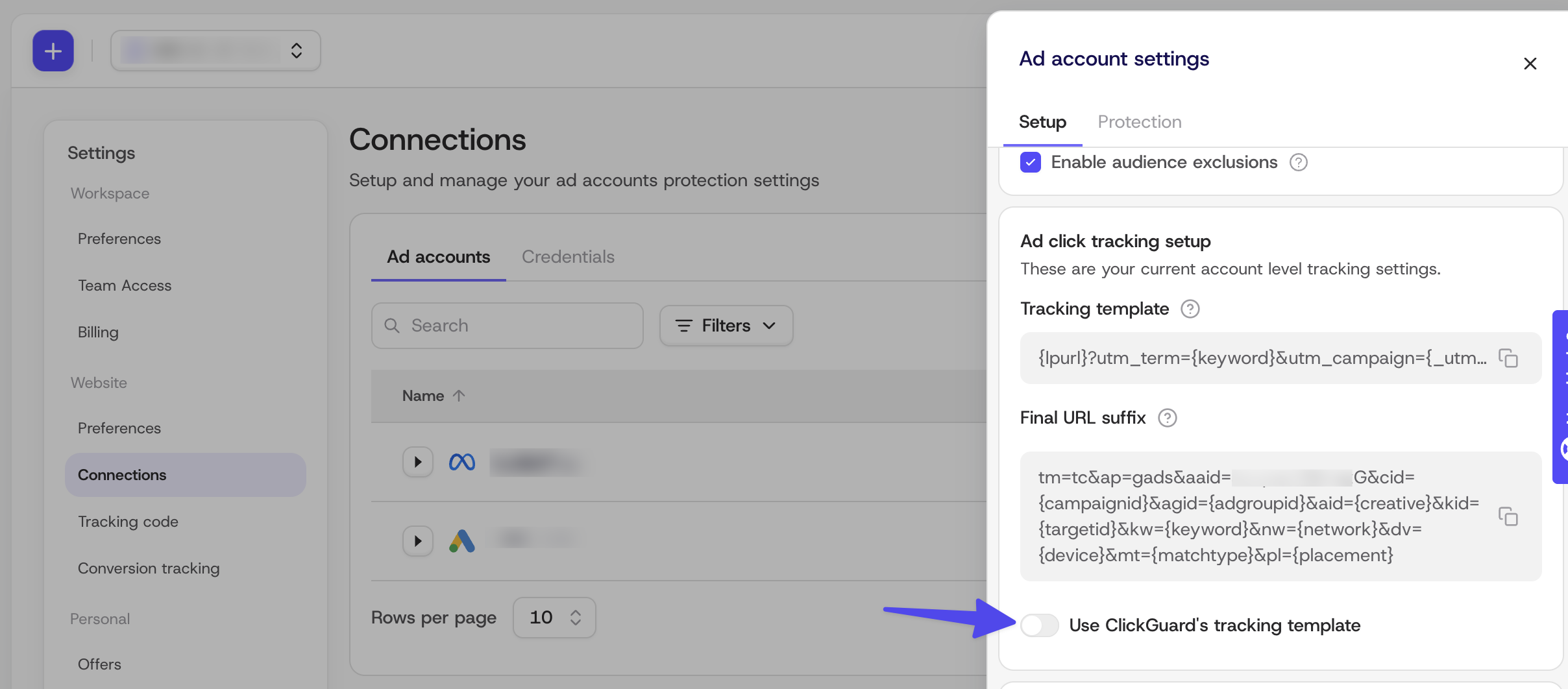
Most of them show up in your ad account's settings. Go to **Settings** › **Connections** › **Ad accounts** and click your Google Ads account. The **Ad click tracking setup** section reads the tracking template and final URL suffix currently set on your Google Ads account, and points out anything that's wrong with them.
## 1\. ClickGuard's tracking template isn't installed
ClickGuard tracks your ad clicks through two settings in your Google Ads account: the tracking template and the final URL suffix. They tell ClickGuard which campaign, ad group and keyword each click came from. If you chose not to let ClickGuard set them up when you connected the account, it can't track your clicks.
**Solution:**
- In **Ad click tracking setup**, turn on **Use ClickGuard's tracking template** and click **Save changes**.
- Prefer to set it up yourself? Copy the tracking template and final URL suffix from that section and paste them into the account-level tracking settings in Google Ads. Each account has its own tracking template, so copy it from the account you're setting up.
- Want to keep another tool's template, HubSpot for example? Turn off **Use ClickGuard's tracking template** and click **Save changes**. ClickGuard updates your existing URL parameters so they keep working without its tracking template. Keep in mind this isn't the most robust way to track clicks: ClickGuard's tracking template gives you the most accurate detection.
## 2\. Another tool replaced your tracking template
Tools with access to your Google Ads account can overwrite the tracking template with their own. If **Use ClickGuard's tracking template** is on but the account's tracking template isn't ClickGuard's, you'll see an error in **Ad click tracking setup**.
**Solution:**
- Click **Save changes** and ClickGuard puts its template back.
- Turn off the automatic tracking setup in the other tool, or it will keep overwriting ClickGuard's.
- Not sure which tool did it? Check **Change history** in Google Ads to see who changed the tracking template.
## 3\. ClickGuard's tracking parameters are missing
If your final URL suffix is missing some of ClickGuard's parameters, **Ad click tracking setup** points that out too.
**Solution:**
- Click **Save changes**. ClickGuard adds its parameters and keeps the ones you already have.
## 4\. Campaigns, ad groups or ads have their own tracking settings
Google Ads lets you set tracking at the account, campaign, ad group and ad level. Settings on a campaign, ad group or ad take priority over the ones on your account, so they can override ClickGuard's parameters.
**Solution:**
In Google Ads, check whether any of your campaigns, ad groups or ads has its own tracking template or final URL suffix. For each one you find, either:
- **Remove it if it's no longer in use.** Tracking settings are often left behind by someone who managed the account before.
- **Add ClickGuard's parameters to the end of it.** Copy the final URL suffix from **Ad click tracking setup** and paste it at the end of the existing one.
## 5\. Your ads are call-only
Call-only ads don't send people to a website: the person calls you straight from the ad. With no visit to your site, there's no click for ClickGuard to log. This is a limit of the ad format, not of ClickGuard.
## 6\. Your Google Ads account is suspended or under review
While your Google Ads account is suspended or under review, no click data reaches ClickGuard.
**Solution:**
- Log in to Google Ads and check for a suspension or policy issue.
- Follow Google's steps to resolve it.
## Test your tracking
Once you've fixed the cause, you can test the tracking template straight away in Google Ads:
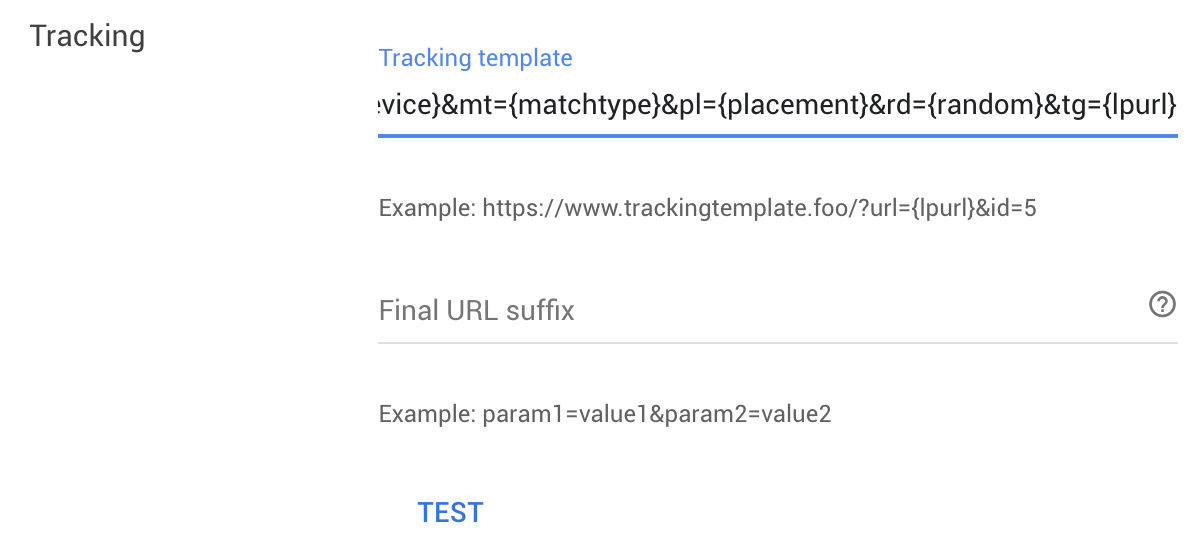
1. In Google Ads, open the account or campaign settings where ClickGuard's tracking template is installed.
2. Under **Tracking**, click **Test**.
### The test succeeds
Google Ads confirms that tracking worked and your landing page was found.
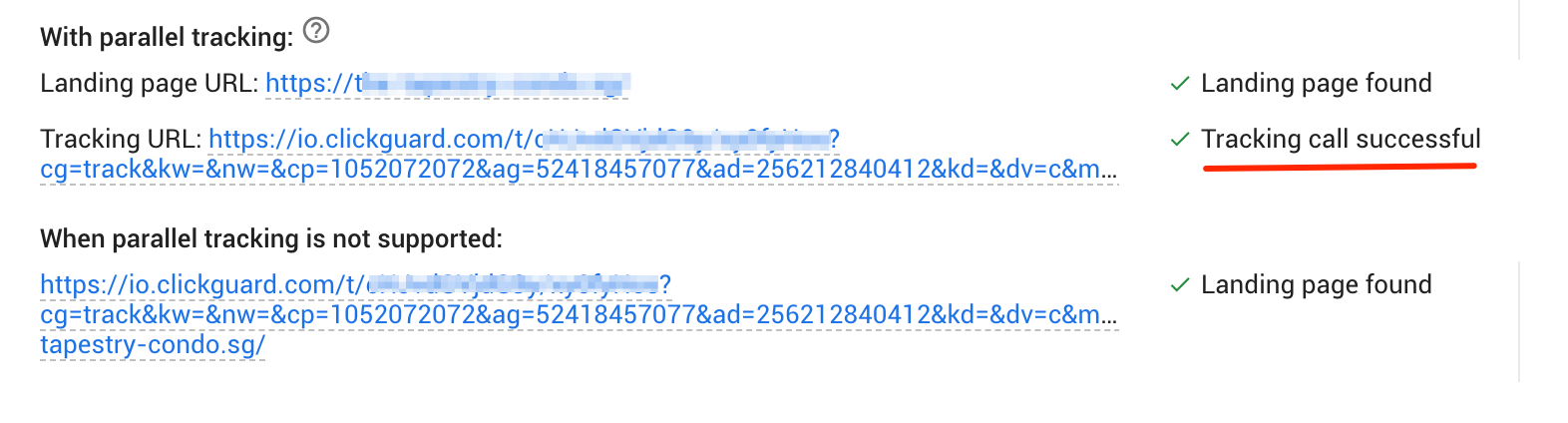
Unless ClickGuard is set to ignore Google's ad bot, the test click also shows up in ClickGuard as an ADBOT click.
### The test fails
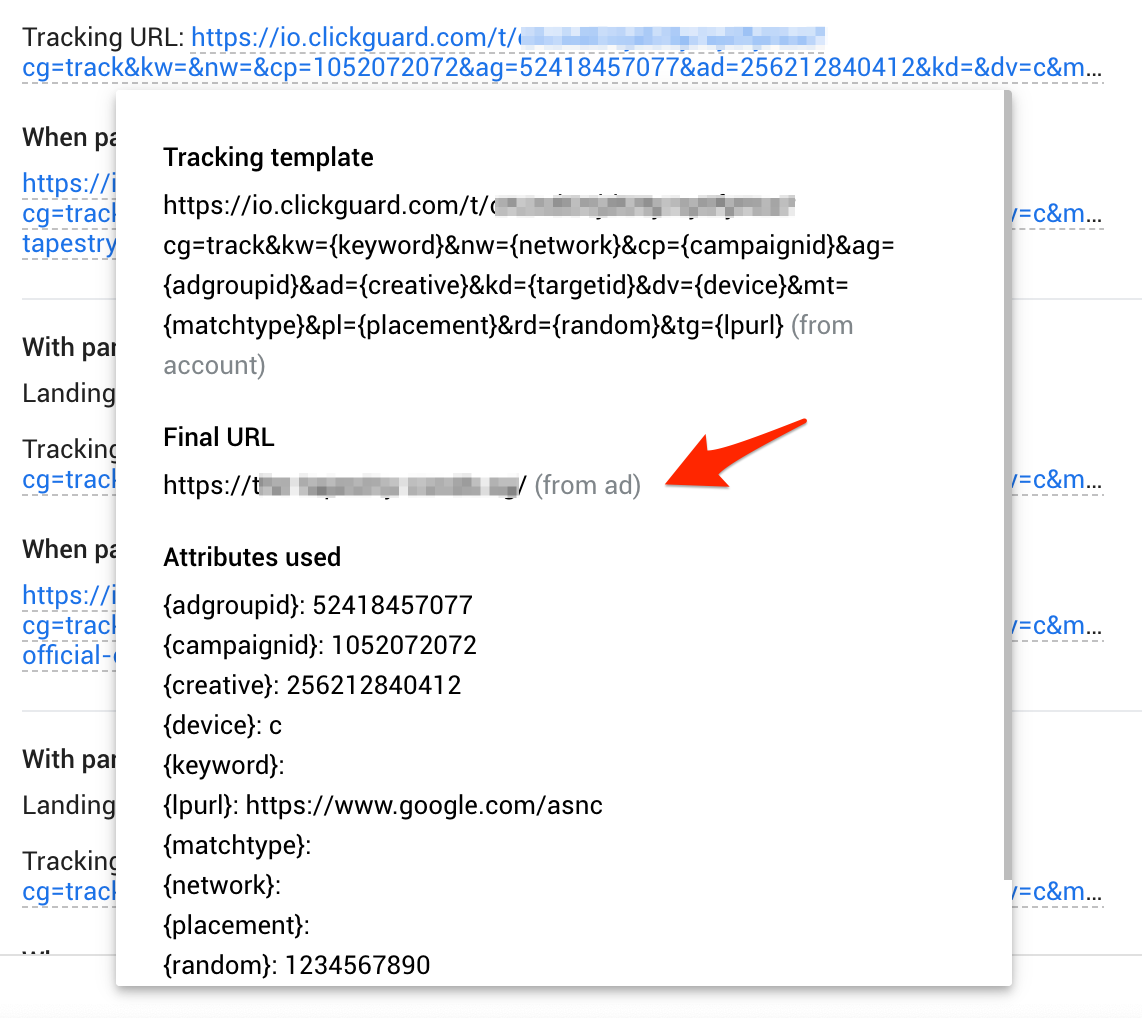
A failed test usually means Google couldn't reach your final URL (your landing page).
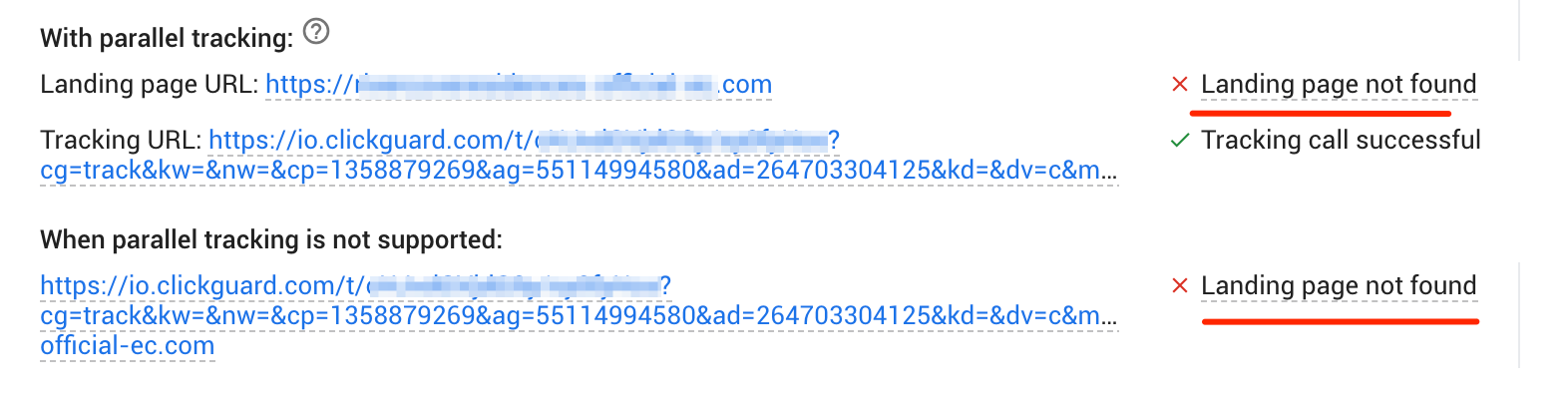
Hover over the tracking template URL to see each step of the tracking trail and where it broke.
Still not seeing your clicks? Contact us at [support@clickguard.com](mailto:support@clickguard.com).
See also: [What is Google Ads' tracking template](https://www.clickguard.com/help/glossary/what-is-google-ads-tracking-template).
## Related articles
- [What is Google Ads' tracking template](https://www.clickguard.com/help/glossary/what-is-google-ads-tracking-template.md)
---
# Meta Ads clicks not showing in ClickGuard
If your Meta Ads clicks aren't showing up in ClickGuard, check four things, in this order: the credential still has access to the ad account, click detection is turned on, the tracking code is installed on your website, and your ad URLs include the campaign ID that ClickGuard needs.
Source: https://www.clickguard.com/help/troubleshooting/meta-ads-clicks-not-showing
Published: 2026-10-12
Updated: 2026-10-12
Author: Nikola Pejic
If your Meta Ads clicks aren't showing up in ClickGuard, several things could be causing it. Below are the most common reasons, in the order to check them, and how to fix them.
Most of these settings are in **Settings** › **Connections** › **Ad accounts**. Click your Meta Ads account there to open its **Ad account settings**.
## 1\. The credential lost access to the ad account
This is the most common cause. ClickGuard connects to Meta Ads through a credential: the Facebook user who connected the account. If that user was removed from the ad account or lost their permissions, or the login expired, ClickGuard can no longer read the account.
**Solution:**
- In the ad account settings, check the **Credential**.
- If it no longer works, click **New credential** and sign in with a Facebook user who has access to the ad account.
- You can see all your credentials in the **Credentials** tab next to Ad accounts.
## 2\. Click detection is turned off
While click detection is off for an ad account, ClickGuard doesn't analyze its clicks.
**Solution:**
- In **Settings** › **Connections** › **Ad accounts**, turn on click detection for your Meta Ads account.
## 3\. The tracking code isn't installed
Meta Ads doesn't use a tracking template. ClickGuard reads your Meta Ads clicks through the tracking code on your website, which picks up the parameters Meta Ads passes to your landing page.
**Solution:**
- Install the tracking code on every page your ads link to. See [How to install ClickGuard's tracking code](https://www.clickguard.com/help/getting-started/install-clickguards-tracking-code).
## 4\. Your ad URLs don't include the campaign ID
ClickGuard needs each campaign's ID in the URL, in one of these parameters: `cgcid`, `cid`, `campaign_id` or `utm_campaign`. Most ads already have it.
**Solution:**
- If yours don't, add one of these to your ad URL parameters (you only need one):
```
cgcid={{campaign.id}}
cid={{campaign.id}}
campaign_id={{campaign.id}}
utm_campaign={{campaign.id}}
```
Clicks showing up, but visitors aren't being blocked? See [Exclusions not working](https://www.clickguard.com/help/troubleshooting/exclusions-not-working).
For the full setup when you connect a Meta Ads account, see [How to add more ad accounts](https://www.clickguard.com/help/managing-your-account/how-to-add-more-ad-accounts).
## Related articles
- [Install ClickGuard's tracking code](https://www.clickguard.com/help/getting-started/install-clickguards-tracking-code.md)
- [Exclusions not working](https://www.clickguard.com/help/troubleshooting/exclusions-not-working.md)
- [How to add more ad accounts](https://www.clickguard.com/help/managing-your-account/how-to-add-more-ad-accounts.md)
---
# Microsoft Ads clicks not showing in ClickGuard
If your Microsoft Ads clicks aren't showing in ClickGuard, check the tracking template first. When you link the account, choose Automatically configure click tracking so ClickGuard places its template in the account-level Tracking Template field. Templates set on campaigns, ad groups or ads override it, so ClickGuard can't see those clicks.
Source: https://www.clickguard.com/help/troubleshooting/microsoft-ads-clicks-not-showing
Published: 2026-04-18
Updated: 2026-04-18
Author: Nikola Pejic
During the initial account linking you will be offered an option to Automatically configure click tracking.
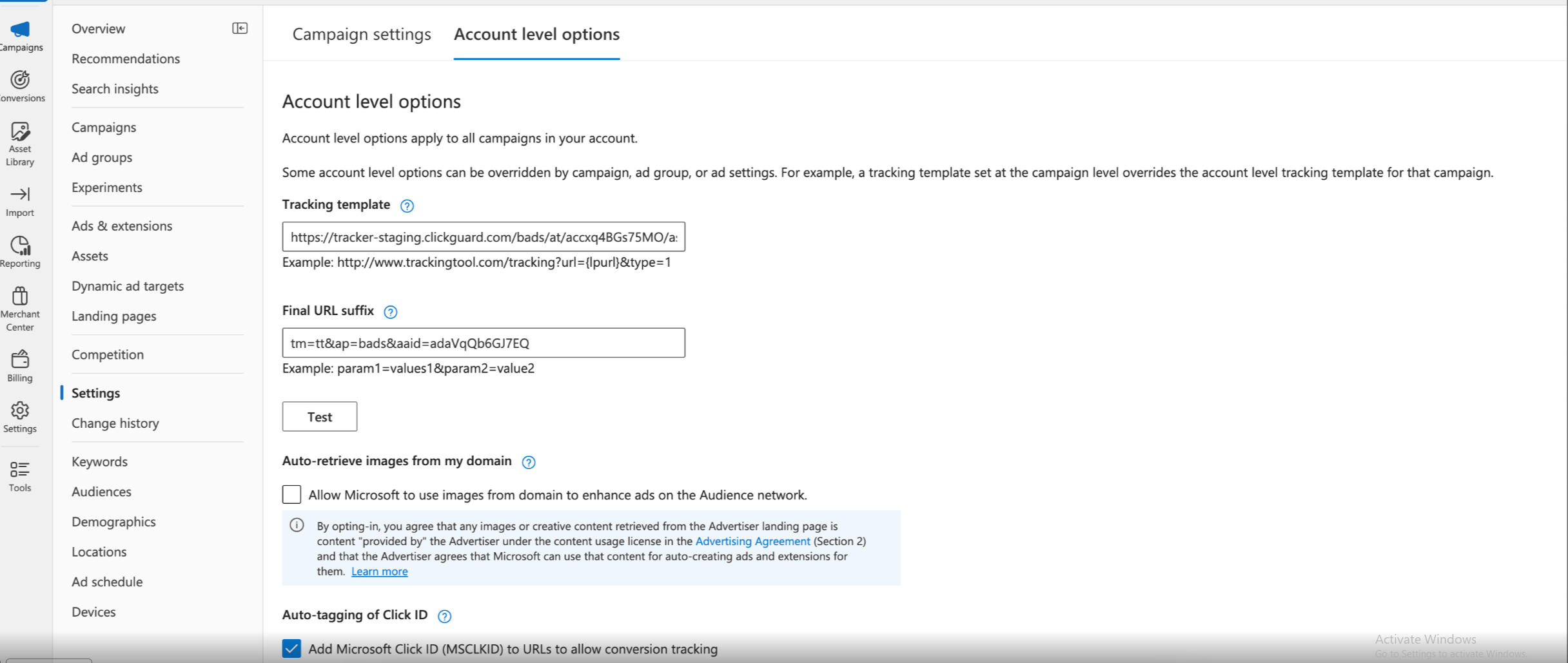
This will automatically place our tracking template in the account level Tracking Template field.
This is a recommended method of installing Tracking Template.
In order to work, tracking template must be placed at the account level Tracking Template field and it should look like this:
In case you have unchecked this option at the beginning, you may change it when account is created.
To enable the automatic setup of click tracking, go to **Connections** then **Ad Accounts**, select your Microsoft Ads account, and click on **Configure** button. On the new window page, select as shown in the screenshot below and Save it.

## Are there alternatives?
Yes, if you're already using a tracking template (__ie. HubSpot__), you can configure click tracking with URL suffix only, that way the system will track clicks from the landing page as they happen.

## Can I configure tracking manually in Microsoft Ads?
You can manually set the tracking template and final URL suffix on the account level tracking field in your Google Ads. Tracking template code is unique for each account and can be found by going to **Settings** → **PPC accounts** → **Configure** then under **Click Tracking** change to **Manual setup**, the tracking template code will be just below which you can copy.
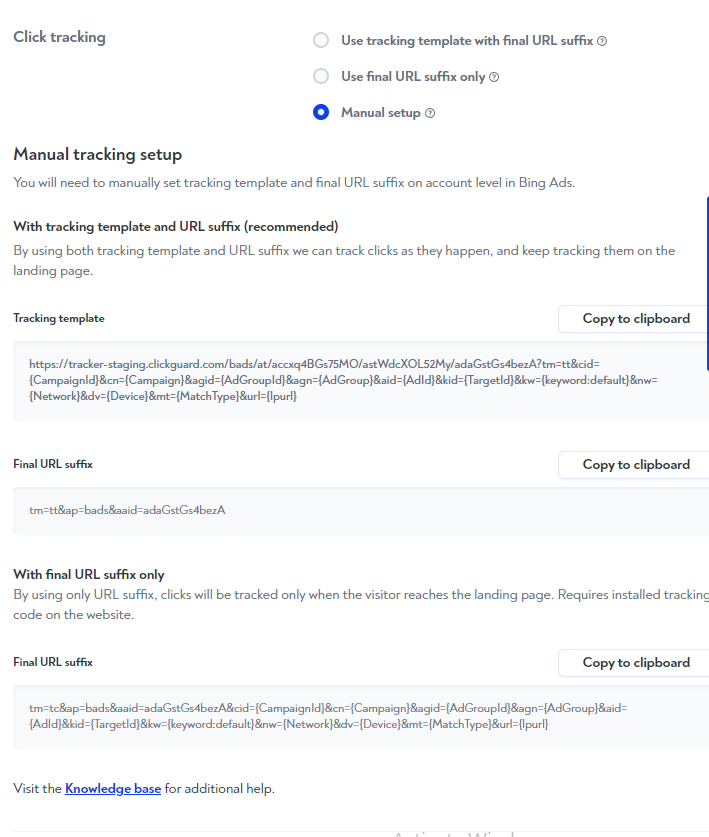
_**Note:**_ __Tracking template code is unique and different for each account__
See also: [Low-level tracking templates override account-level](https://www.clickguard.com/help/faq/low-level-tracking-templates-override).
## Related articles
- [Low-level tracking templates override account-level](https://www.clickguard.com/help/faq/low-level-tracking-templates-override.md)
---
# How to add members to your workspace
Add team members in Settings › Team access and choose which workspaces each one can see. There are two roles: a Manager can change protection settings, create custom rules and manage data and invoices, while an Analyst can only view data and reports, without changing any settings.
Source: https://www.clickguard.com/help/managing-your-account/how-to-add-workspace-members
Published: 2026-10-01
Updated: 2026-10-01
Author: Nikola Pejic
You can assign team members to one or more workspaces you are managing with ClickGuard.
Go to your **Settings** → **Team access** tab where you can add and manage team members and their permissions for your workspace(s).
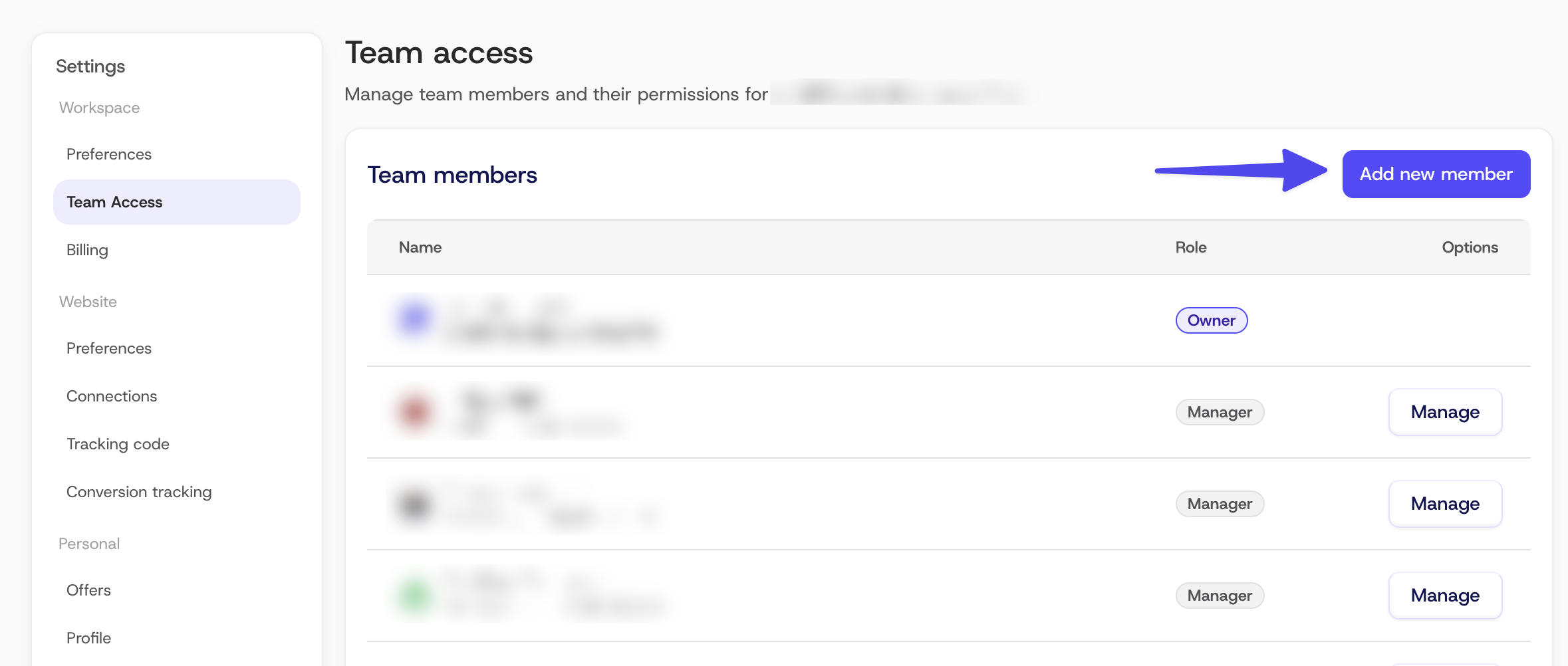
There are two types of team members:
- **Manager** - can change or update the protection settings, create custom rules, and manage the data and invoices.
- **Analyst** - they don't have the option to change or update settings, but instead can only review and analyze the data of active PPC account(s).
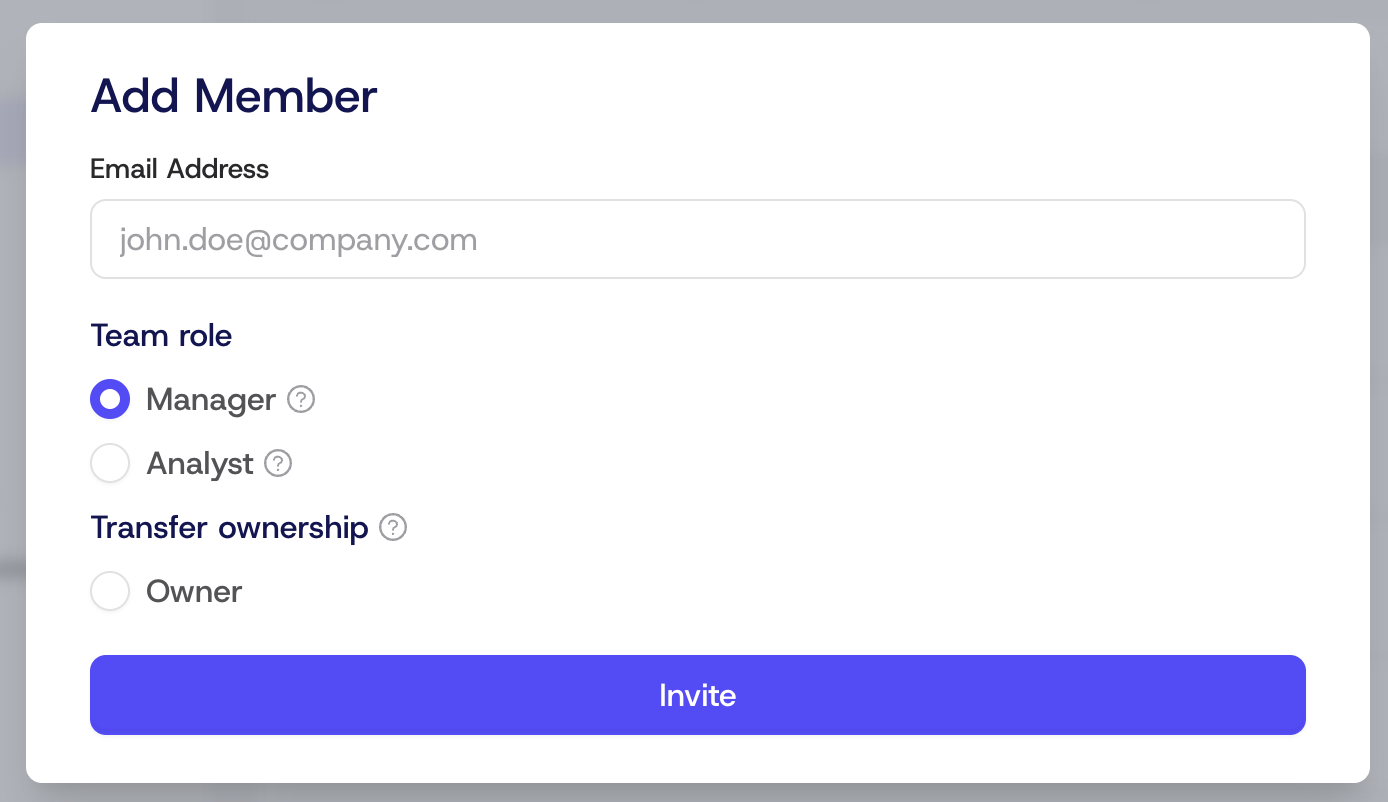
After you write down the email address of a person you want to add as a team member and click on the Invite button, they will get an instant email to accept the invitation. Their user type (**Manager** or **Analyst**) will determine their access level.
See also: [What is a ClickGuard workspace](https://www.clickguard.com/help/glossary/what-is-a-clickguard-workspace).
## Related articles
- [What is a ClickGuard workspace](https://www.clickguard.com/help/glossary/what-is-a-clickguard-workspace.md)
---
# How ClickGuard usage limits work
Your plan includes a monthly ad spend limit, counted on ad accounts with Click detection on. Going over it moves you to the next ad spend level if Auto upgrade is on; otherwise clicks are still logged but protection pauses until usage resets or you upgrade.
Source: https://www.clickguard.com/help/billing-and-subscriptions/how-clickguard-usage-limits-work
Published: 2026-10-10
Updated: 2026-10-10
Author: Nikola Pejic
Your ClickGuard plan includes a monthly **ad spend limit**: the amount of ad spend ClickGuard protects for you each month. Each plan tier comes with several ad spend levels, so you can pick the one that matches your budget.
## What counts toward your usage
Your usage is the ad spend of every connected ad account that has **Click detection** turned on, from one billing date to the next.
Usage resets every month, even on a quarterly or yearly plan. It resets on the same day each month as your billing date: if your trial ended on the 15th, your usage resets on the 15th of every month.
- When you connect a new ad account, only its ad spend from the moment you connect it counts. Spend from before that doesn't.
- Ad accounts with Click detection turned off don't count. See [How to disconnect my ad account](https://www.clickguard.com/help/managing-your-account/how-to-disconnect-my-ad-account) to pause one.
- Turning off **AI-Driven Threat Monitoring** for a website turns off Click detection for all its ad accounts too, unless you keep detecting clicks for your custom rules. See [How to add or remove a website](https://www.clickguard.com/help/managing-your-account/how-to-add-or-remove-website).
## What happens when you go over your limit
With **Auto upgrade ad spend limit** turned on, whenever your ad spend goes over your limit, ClickGuard automatically moves you to the next ad spend level within your plan tier, so your protection keeps running. You can turn it on or off in **Settings** › **Billing**.
If **Auto upgrade ad spend limit** is off, or you're already on the highest ad spend level of your plan tier, ClickGuard keeps logging your clicks, but protection is paused: it stops blocking invalid traffic until your monthly usage resets, or until you upgrade to a plan with a higher limit.
To keep your protection running, move to a higher ad spend level or plan tier, or request a custom plan.
## Upgrading your plan
You can change your plan tier, billing cycle and ad spend level at any time. See How to upgrade my ClickGuard subscription.
## Related articles
- [How to disconnect my ad account](https://www.clickguard.com/help/managing-your-account/how-to-disconnect-my-ad-account.md)
- [How to add or remove a website](https://www.clickguard.com/help/managing-your-account/how-to-add-or-remove-website.md)
---
# How to cancel my ClickGuard subscription
Cancel your ClickGuard subscription in Settings › Billing: scroll to Cancel plan, click Cancel and follow the steps to confirm. You keep full access to your plan's features until the end of your current billing period, shown as Next billing date in Your subscription.
Source: https://www.clickguard.com/help/billing-and-subscriptions/how-to-cancel-my-clickguard-subscription
Published: 2026-10-10
Updated: 2026-10-10
Author: Nikola Pejic
## Cancel your subscription
1. Open **Settings** (the gear icon at the top right).
2. Under **Workspace**, select **Billing**.
3. Scroll to **Cancel plan** at the bottom of the page and click **Cancel**.
4. Follow the steps to confirm.
After you cancel, you keep full access to your plan's features until the end of your current billing period. You can see that date as **Next billing date** in **Your subscription**.
## Stop protection before your plan ends
Cancelling doesn't pause your protection: ClickGuard keeps protecting your websites while your plan is still active. To stop protection on a website sooner:
1. Make sure the website is selected at the top left.
2. In the left menu, under **Protection**, open **AI Protection**.
3. Switch the **AI-Driven Threat Monitoring** toggle to **Off**.
This also turns off click detection for all the website's ad accounts. Repeat it for each website you want to pause.
## Remove ClickGuard completely
Once your plan ends, ClickGuard stops taking any new action on your websites and ad accounts. To also remove ClickGuard's connections and access:
- [How to disconnect my ad account](https://www.clickguard.com/help/managing-your-account/how-to-disconnect-my-ad-account)
- [How to remove ClickGuard's OAuth access](https://www.clickguard.com/help/managing-your-account/how-to-remove-clickguards-oauth-access)
**Need to protect more ad spend instead?** You don't have to cancel to get a plan that fits. See How to upgrade my ClickGuard subscription.
## Related articles
- [How to disconnect my ad account](https://www.clickguard.com/help/managing-your-account/how-to-disconnect-my-ad-account.md)
- [How to remove ClickGuard's OAuth access](https://www.clickguard.com/help/managing-your-account/how-to-remove-clickguards-oauth-access.md)
---
# How to download invoices from your ClickGuard account
Every invoice for the charges ClickGuard made to your payment method is on your Billing page. Open Settings, select Billing under Workspace, scroll down to Billing history and click Download next to the invoice you need. You can download past invoices at any time, for your records or your accountant.
Source: https://www.clickguard.com/help/billing-and-subscriptions/how-to-download-invoices
Published: 2026-10-10
Updated: 2026-10-10
Author: Nikola Pejic
You can view and download every invoice for the charges ClickGuard made to your payment method, right from your Billing page.
## Download an invoice
1. Open **Settings** (the gear icon at the top right).
2. Under **Workspace**, select **Billing**.
3. Scroll down to **Billing history**.
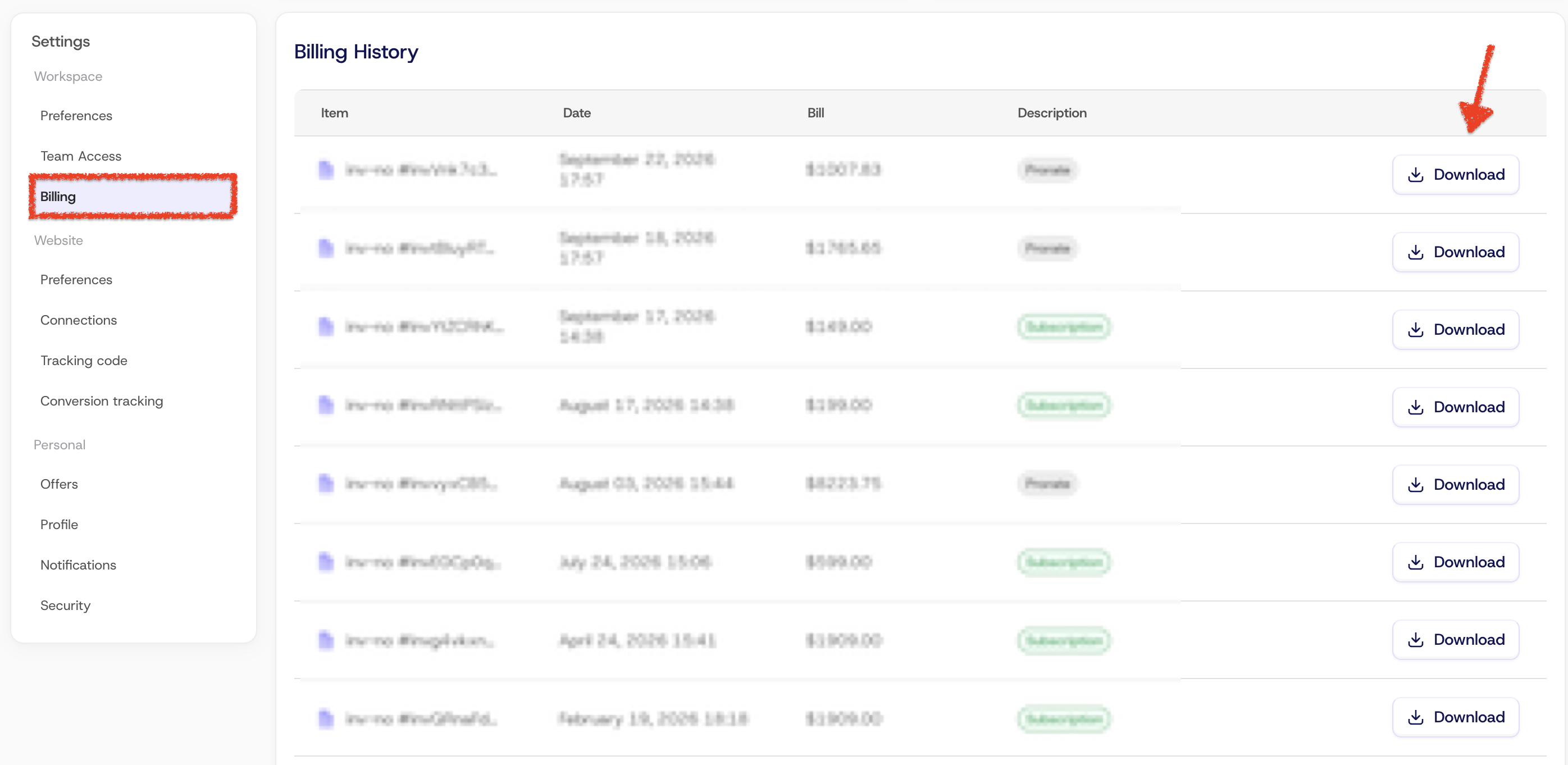
4. Click **Download** next to the invoice you need.
See also: How to upgrade my ClickGuard subscription.
---
# What are IPs and IP ranges
An IP range is a group of consecutive IP addresses grouped under a single definition. Internet service providers (ISPs) keep reserved ranges and assign addresses from them to users on their networks. Ranges can be written in several formats, like a start and end address or CIDR notation, and blocking one covers every address inside it.
Source: https://www.clickguard.com/help/glossary/what-are-ips-and-ip-ranges
Published: 2026-04-07
Updated: 2026-04-07
Author: Nikola Pejic
**An IP address range** is a collection of consecutive IP addresses grouped under a single definition. Internet Service Providers (ISPs) maintain reserved IP ranges from which they assign addresses to users on their networks.
## How are IP ranges represented?
IP ranges can be expressed in several formats. The example below shows a private IPv4 range spanning 65,536 addresses — from `192.168.0.0` to `192.168.255.255` — in both common formats:
`Wildcard 192.168.*.*`
`CIDR 192.168.0.0/16`
## How does ClickGuard use IP ranges?
ClickGuard captures the public IP addresses of devices that interact with your ads using the Google Ads tracking template. These addresses are then grouped into IP ranges, enabling ClickGuard to apply targeted protective and optimization actions to your Google Ads campaigns — such as excluding ranges associated with low-quality or fraudulent traffic.
See also: [What is CIDR notation](https://www.clickguard.com/help/glossary/what-is-cidr-notation).
## Related articles
- [What is CIDR notation](https://www.clickguard.com/help/glossary/what-is-cidr-notation.md)
---
# What are ISPs and ASNs
An ISP is the company that connects a visitor to the internet. An ASN identifies the network an IP address belongs to, like an ISP, a data center or a hosting provider. Both help tell real visitors from automated traffic.
Source: https://www.clickguard.com/help/glossary/what-are-isps-and-asns
Published: 2026-10-11
Updated: 2026-10-11
Author: Nikola Pejic
Every visitor reaches your website through a network. The ISP and the ASN tell you whose network it is, which helps tell real visitors from automated traffic.
## ISP
An ISP (Internet Service Provider) is the company that connects a visitor to the internet, like a home broadband or mobile carrier. Most real visitors browse from a residential or mobile ISP.
## ASN
An ASN (Autonomous System Number) is a number that identifies a network run by a single organization. That organization can be an ISP, but also a data center, a cloud or hosting provider, or a large company. Every [IP address](https://www.clickguard.com/help/glossary/what-are-ips-and-ip-ranges) belongs to an ASN.
## Why they matter for click fraud
Bots and click farms often run from data centers, hosting providers and VPN networks rather than from home or mobile connections. When many bad clicks share the same ISP or ASN, that network is likely a source of invalid traffic.
## Blocking an ISP or ASN
If you need to, you can create a custom rule in ClickGuard to block a specific ISP or ASN. Add other triggers to the rule to make it more precise, so you only block the traffic that matches all of them and not every visitor on that network.
Be careful with large residential or mobile ISPs: many of your real customers use them, so blocking one entirely can stop real people from seeing your ads.
## Related articles
- [What are IPs and IP ranges](https://www.clickguard.com/help/glossary/what-are-ips-and-ip-ranges.md)
---
# What is IP usage
IP usage shows what kind of network each ad click came from: Consumer, Corporate, Hosting or Reserved, or a dash when no type is known. Add it as a dimension in Analytics to see where bad traffic comes from. Hosting traffic comes from data centers and is almost always bad.
Source: https://www.clickguard.com/help/glossary/what-is-ip-usage
Published: 2026-10-13
Updated: 2026-10-13
Author: Nikola Pejic
IP usage shows what type of network each of your ad clicks came from. Use it to spot where bad traffic is coming from.
- **Where to find it:** in the **Dimensional analysis** table in Analytics, click **Add dimension** and select **IP usage**.
- **Why it matters:** traffic from some network types, especially Hosting, is far more likely to be bad traffic.
## IP usage values
There are four types, plus a dash for clicks with no type.
| Value | What it means |
| --- | --- |
| **Consumer** | A home or mobile internet connection from a regular ISP |
| **Corporate** | A business or organization network |
| **Hosting** | A data center, cloud server or hosting provider. Real users rarely click ads from here, so bad traffic rates are usually near 100%. |
| **Reserved** | The IP is reserved by its internet provider for a specific use, such as consumer or data center |
| **– (dash)** | No network type is available for that IP |
## Reserved vs dash
Both labels come from ClickGuard's IP intelligence data, but they mean different things.
- **Reserved** is a known network type. The IP is set aside by its internet provider.
- **– (dash)** means there's no network type for that IP, so the field is left blank.
## Reading the numbers
Reserved and dash rows usually hold very few clicks, so their rates swing to extremes.
- For example, in a Performance Max campaign: dash has 3 clicks at 0.0% bad traffic, and Reserved has 2 clicks at 100.0% with 2 sources blocked.
- A 100% or 0% rate on a handful of clicks is not a trend. Judge by click volume first.
- Focus on the Consumer, Corporate and Hosting rows. They carry almost all traffic.
## FAQ
### Why do I see a dash (–) instead of a type?
There's no network type for that IP. This affects a very small share of clicks.
### Is Reserved traffic bad?
Not by itself. Check the click count first. Small rows can show 0% or 100% from just a few clicks.
### Why is Hosting traffic almost always blocked?
Hosting IPs belong to data centers and cloud servers. Real customers rarely click ads from them, so they're a strong sign of bots.
See also: [What are IPs and IP ranges](https://www.clickguard.com/help/glossary/what-are-ips-and-ip-ranges).
## Related articles
- [What are IPs and IP ranges](https://www.clickguard.com/help/glossary/what-are-ips-and-ip-ranges.md)
---
# How to disconnect my ad account
Remove an ad account from a website in Settings › Website › Connections: open the account, go to Danger zone and click Delete. To pause ClickGuard for a while instead, turn off the account's Click detection toggle. The account itself stays untouched on the ad platform.
Source: https://www.clickguard.com/help/managing-your-account/how-to-disconnect-my-ad-account
Published: 2026-10-10
Updated: 2026-10-28T20:14:47.626Z
Author: Nikola Pejic
Disconnecting an ad account removes it from one website in ClickGuard. ClickGuard stops protecting that account's campaigns for the website. Nothing changes in the account on the ad platform itself.
## Just want a break? Turn off click detection
If you only want to stop ClickGuard detection on an ad account for a while, you don't need to disconnect it. Turn off its click detection instead:
1. Open **Settings** (the gear icon at the top right).
2. Under **Website**, select **Connections**, and stay on the **Ad accounts** tab.
3. Switch the account's **Click detection** toggle to **Off**.
ClickGuard stops seeing that account's clicks, and its ad spend no longer counts toward your usage. The account stays connected with all its settings, so you can switch click detection back on at any time.
## Disconnect an ad account
1. Open **Settings** (the gear icon at the top right).
2. Under **Website**, select **Connections**, and stay on the **Ad accounts** tab.
3. Click the gear icon at the end of the ad account's row to open its details.
4. Scroll to **Danger zone** and click **Delete**.
5. Confirm with **Delete**.
You need permission to edit the website's connections. If the **Delete** button is greyed out, ask the workspace Owner.
## What happens next
- ClickGuard stops checking clicks and adding exclusions for that ad account on the website.
- The ad account, its campaigns and its settings stay as they are on the ad platform.
- You can connect the account again whenever you want.
## Remove ClickGuard's access completely
Disconnecting an ad account doesn't revoke the sign-in access you gave ClickGuard on the ad platform. To remove it too, see [How to remove ClickGuard's OAuth access](https://www.clickguard.com/help/managing-your-account/how-to-remove-clickguards-oauth-access).
## Related articles
- [How to remove ClickGuard's OAuth access](https://www.clickguard.com/help/managing-your-account/how-to-remove-clickguards-oauth-access.md)
---
# Click count in ClickGuard does not match Google Ads report
If you notice a discrepancy between the number of ad clicks reported in ClickGuard and those shown in Google Ads, don’t worry—this is a common occurrence. The differences typically result from how each platform logs, processes, and filters click data.
Source: https://www.clickguard.com/help/troubleshooting/click-count-does-not-match-google-ads
Published: 2026-10-01
Updated: 2026-10-01
Author: Nikola Pejic
If you notice a discrepancy between the number of ad clicks reported in ClickGuard and those shown in Google Ads, don’t worry—this is a common occurrence. The differences typically result from how each platform logs, processes, and filters click data.
Below are the two main scenarios and what they mean:
## 1\. Google Ads is showing more clicks than ClickGuard
This usually indicates that **some clicks never passed through ClickGuard's tracking template**, and therefore, ClickGuard was unable to track or log them.
#### Why this happens:
- Clicks may have bypassed ClickGuard due to a misconfigured or missing tracking template.
- If you’re using a custom tracking template or have set different templates at the campaign, ad group, or ad level, they may override ClickGuard's template.
#### What you can do:
- Double-check that ClickGuard's tracking template is correctly installed at the **account level** in Google Ads.
- Remove or align any lower-level (campaign/ad group/ad) tracking templates to ensure all clicks route through ClickGuard.
__⚠️ Important: Once a click bypasses the tracking template, it cannot be retroactively tracked by ClickGuard.__
## 2\. Google Ads is showing fewer clicks than ClickGuard
If ClickGuard reports more clicks than Google Ads, it means ClickGuard **recorded all activity**, but Google chose not to report some of it.
#### Why this happens:
- Google often retroactively filters out what it deems to be **invalid clicks** (e.g., bots, double clicks, or suspicious behavior).
- These clicks are either excluded from reports or removed after initial logging.
- ClickGuard, however, provides full transparency by **logging every click** that passes through its tracking system—even those later disregarded by Google.
__✅ ClickGuard guarantees 100% visibility into all clicks that route through its tracking, regardless of how Google classifies them later.__
Discrepancies in click reporting are often not errors, but the result of differing tracking philosophies:
- **Google Ads** may hide or remove certain clicks to protect advertisers.
- **ClickGuard** shows **all clicks** for full transparency and control.
If you're unsure whether your tracking template is properly configured or need help interpreting reports, contact [ClickGuard support](https://www.clickguard.com/contact-us) for assistance.
See also: [What are invalid clicks](https://www.clickguard.com/help/glossary/what-are-invalid-clicks).
## Related articles
- [What are invalid clicks](https://www.clickguard.com/help/glossary/what-are-invalid-clicks.md)
---
# Exclusions not working
If ClickGuard's exclusions stay Pending, or blocked visitors still reach your ads, check the usual causes: a sync issue, missing permissions, Google still processing the change, too many exclusions, a Google Ads audience under 100 members, or your Meta audience settings. Each one has its own fix below.
Source: https://www.clickguard.com/help/troubleshooting/exclusions-not-working
Published: 2026-09-30
Updated: 2026-09-30
Author: Nikola Pejic
ClickGuard blocks visitors with IP exclusions and with audiences excluded from your campaigns. If your exclusions stay **Pending**, or visitors ClickGuard blocked still reach your ads, several things could be causing it. Below are the most common reasons and how to fix them.
## What does Pending mean?
A Pending exclusion is one ClickGuard has registered but that isn't applied in your ad account yet. Causes 1 to 4 below are the usual reasons.
## 1\. ClickGuard can't sync with your Google Ads account
If ClickGuard can't communicate properly with your Google Ads account, exclusions stay Pending.
**Solution:**
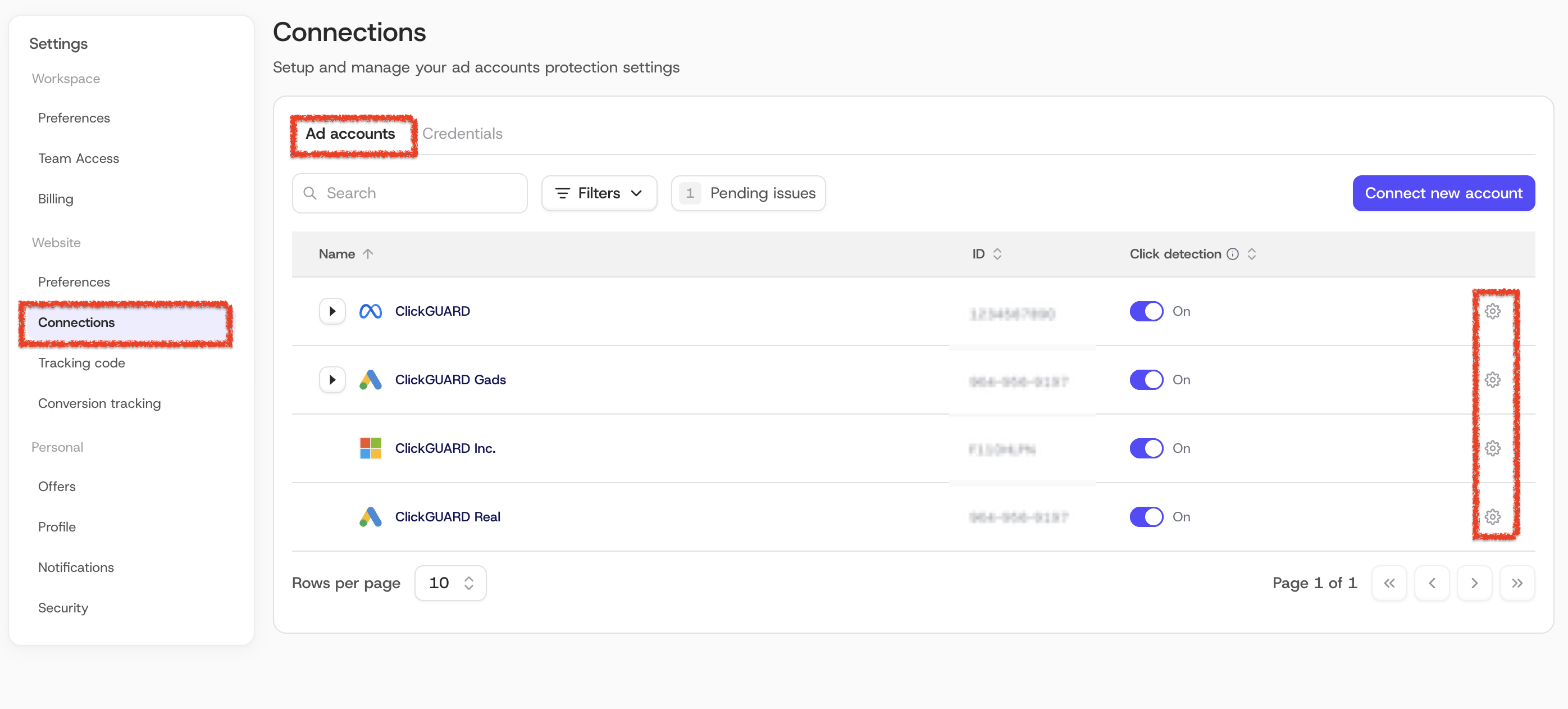
- Go to **Settings** › **Connections** › **Ad accounts** and click your Google Ads account.
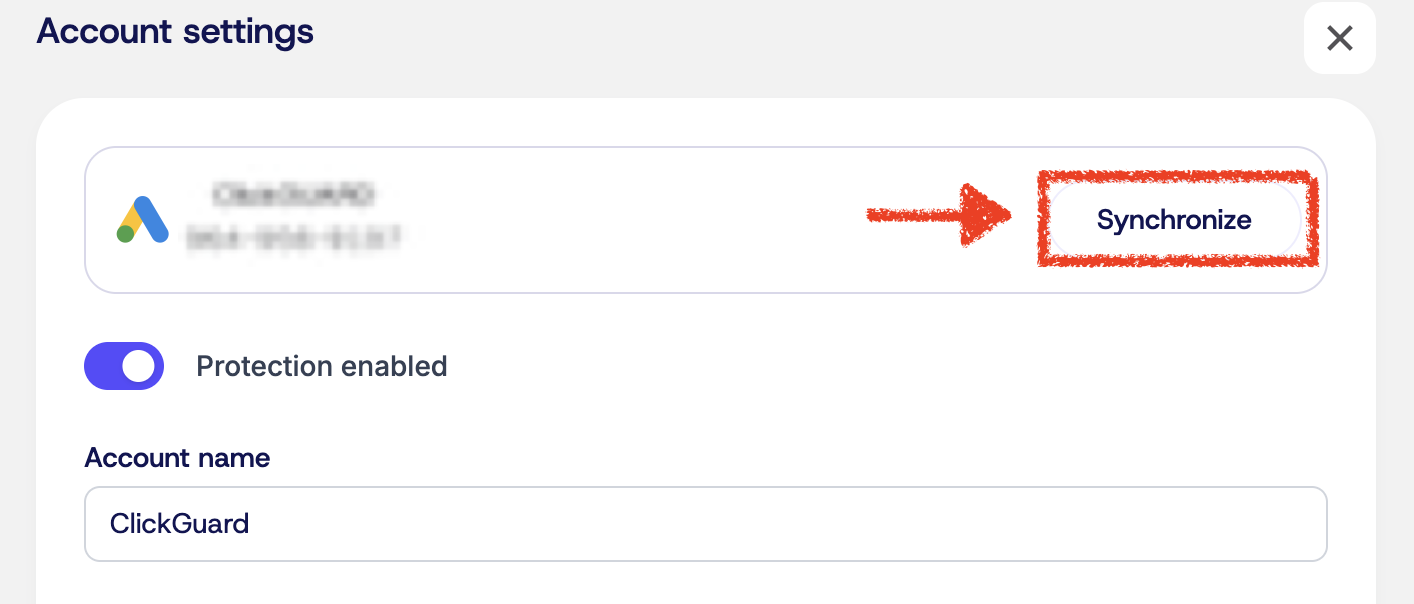
- Click **Synchronize**.
- Wait a few minutes for the sync to finish.
## 2\. The connected user doesn't have enough access
If the Google Ads user connected to ClickGuard only has read access, ClickGuard can't add exclusions.
**Solution:**
- Connect the account with a user who has **Admin** or **Standard** access in Google Ads.
## 3\. Google is still processing the exclusions
Even when everything is set up correctly, Google can take a few minutes to apply exclusions.
**Solution:**
- Wait 10 to 30 minutes and check again.
- Check **Change history** in Google Ads to see when the exclusions were applied.
## 4\. You've reached Google's exclusion limit
Google Ads limits how many IP addresses can be excluded per campaign.
**Solution:**
- There's nothing to do: ClickGuard removes the oldest exclusions automatically to make room for new ones.
## 5\. Your Google Ads audience is still too small
Besides IP exclusions, ClickGuard blocks visitors by adding them to an audience that's excluded from your campaigns. Google only starts applying an audience once it has at least 100 members, so a new audience, or one on an account with little traffic, can take a while to kick in.
**Solution:**
- There's nothing to fix. ClickGuard keeps adding the visitors it blocks, and Google starts excluding them as soon as the audience is big enough.
## 6\. Meta's Terms of Service for audiences aren't accepted
ClickGuard blocks visitors in Meta Ads through audiences, and Meta only lets it create them once its Terms of Service for custom audiences are accepted. See [How does ClickGuard block visitors in Meta Ads](https://www.clickguard.com/help/faq/how-clickguard-blocks-meta-ads-visitors).
**Solution:**
- Accept the terms in Meta Ads. Someone with access to the ad account has to do it there, not in ClickGuard.
## 7\. Excluded audiences aren't set on your Meta ad sets
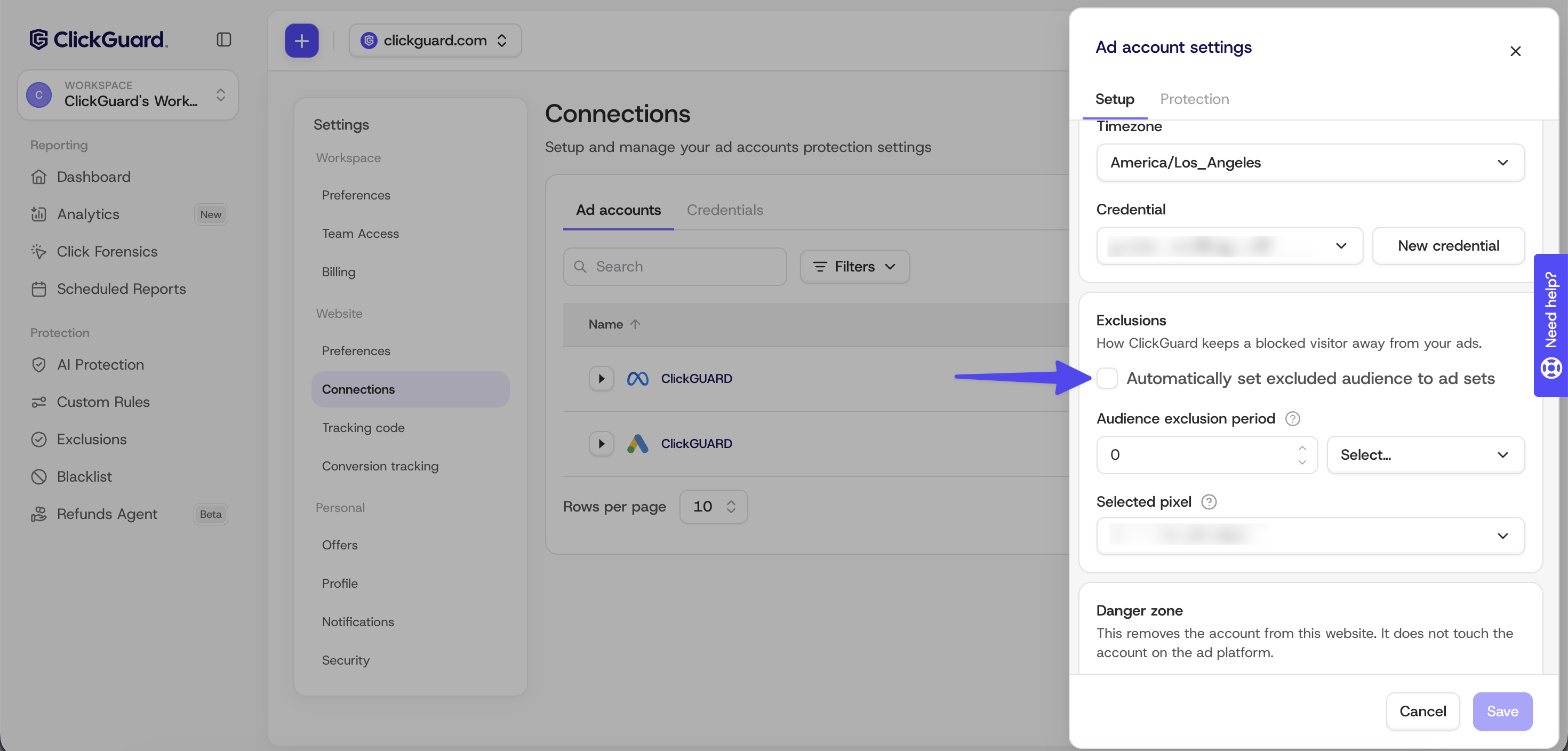
If **Automatically set excluded audience to ad sets** is unchecked, ClickGuard still builds the audience but doesn't add it to your ad sets, so blocked visitors can still see your ads.
**Solution:**
- Go to **Settings** › **Connections** › **Ad accounts** and click your Meta Ads account.
- Under **Exclusions**, check **Automatically set excluded audience to ad sets** and save.
## 8\. No Meta pixel is selected
ClickGuard builds the Meta excluded audience from your Meta pixel, so without one there's nothing to exclude.
**Solution:**
- Under **Selected pixel**, in the same section, select the Meta pixel you use on this website.
Exclusions still not working? Contact [support@clickguard.com](mailto:support@clickguard.com) with a screenshot of the pending exclusions, your ad account ID and when the exclusions were created.
## Related articles
- [How does ClickGuard block visitors in Meta Ads](https://www.clickguard.com/help/faq/how-clickguard-blocks-meta-ads-visitors.md)
---
# Check tracking code installation
After you install ClickGuard's tracking code, check that it's working in three ways. The Action required banner in ClickGuard disappears once the code is detected. Organic traffic shows up in the Live monitoring tab on the Click Forensics page. And paid clicks start showing device and behavior data, like time spent on page and bot probability.
Source: https://www.clickguard.com/help/troubleshooting/check-tracking-code-installation
Published: 2026-04-15
Updated: 2026-04-15
Author: Nikola Pejic
After installing the tracking code, it's essential to verify that it’s functioning properly. There are a few methods you can use to confirm that the tracking code is up and running as expected.
## 1\. Check the tracking code banner
If ClickGuard can't detect the tracking code on your website, you'll see an **Action required: tracking code not detected** banner. It means the code is either missing or not set up correctly. Click **Start verification** to check the installation, or talk to our support team for help.

Once ClickGuard detects the tracking code is installed and working, the banner disappears.
## 2\. Monitor organic clicks
Another way to verify the tracking code is functioning is by checking for organic traffic. Go to the **Click Forensics** page, switch to the **Live monitoring** tab, and select **Organic traffic**. If organic traffic is visible in the live monitoring, this confirms that the tracking code is actively collecting data.
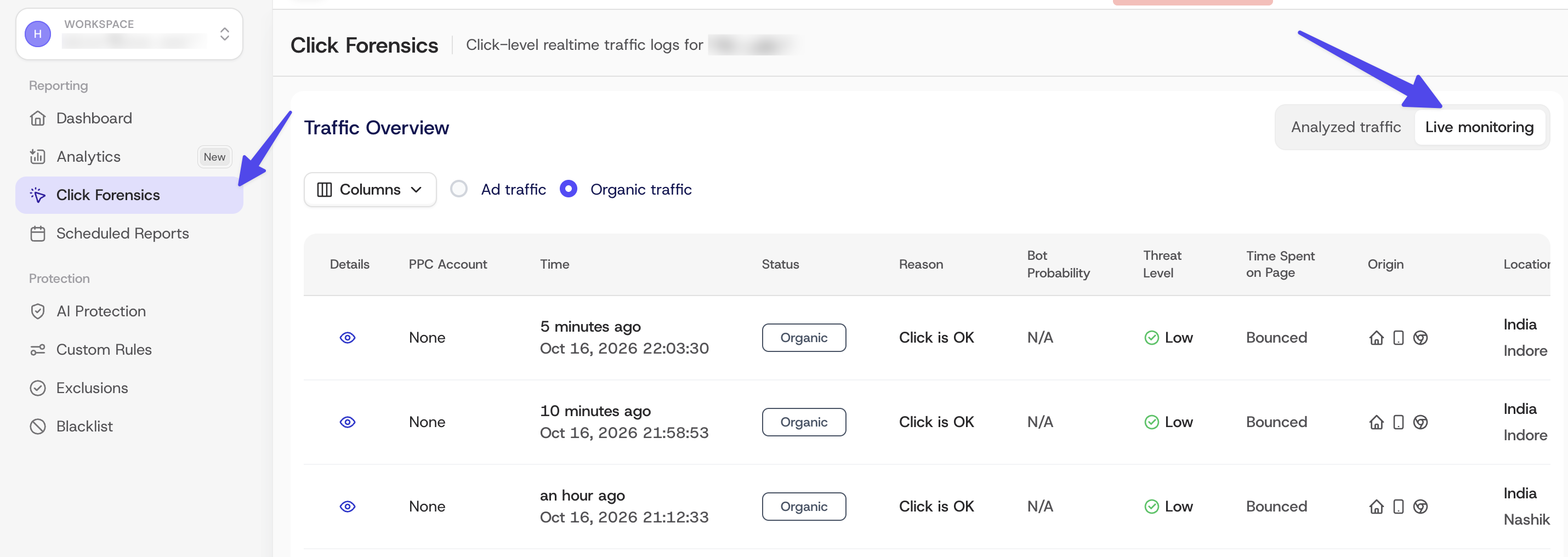
## 3\. Analyze behavior data for paid clicks
To ensure visitor behavior is being accurately tracked for paid clicks, go to the **Click Forensics** page and select **Ad traffic**. You should begin to see device and behavior data, such as **Time spent on page** and **Bot probability**, which indicates that the tracking code is functioning correctly for paid traffic.
By following these steps, you can be confident that your tracking code is successfully capturing the necessary data to support your ClickGuard operations.
See also: [Install ClickGuard's tracking code](https://www.clickguard.com/help/getting-started/install-clickguards-tracking-code).
## Related articles
- [Install ClickGuard's tracking code](https://www.clickguard.com/help/getting-started/install-clickguards-tracking-code.md)
---
# Can't access my ClickGuard account
If you can't log in to ClickGuard, the most common cause is a forgotten password: click Forgot password on the login page and follow the reset email. Also check your email and password for typos, and try clearing your browser cache. For 2FA problems or a restricted account, contact our support team.
Source: https://www.clickguard.com/help/troubleshooting/cant-access-my-clickguard-account
Published: 2026-10-01
Updated: 2026-10-01
Author: Nikola Pejic
If you're having trouble accessing your ClickGuard account, here are the most common reasons and steps to help you get back in:
## 1\. Forgotten password
If you’ve forgotten your password:
1. Go to the [ClickGuard login page](https://app.clickguard.com/).
2. Click "Forgot Password?" below the login form.
3. Enter your email address and check your inbox for the reset link.
4. Follow the instructions in the email to set a new password.
📌 **Note:** The reset link is valid for a limited time. Be sure to check your **Spam or Promotions** folder if you don’t see it.
## 2\. Incorrect email or password
- Double-check for any typos in your email or password.
- Ensure **Caps Lock** is not on.
## 3\. Account access restricted or deactivated
If your account has been **suspended, deactivated**, or access is otherwise restricted, you may see an error message or get redirected.
➡️ In this case, please [contact our support team](https://www.clickguard.com/contact-us), and we’ll investigate the issue as quickly as possible.
## 4\. Two-factor authentication (2FA) issues
If your account uses 2FA and you’re locked out due to:
- Lost device
- Expired authenticator codes
- Problems with your authentication app
Please reach out to support and include your registered email address so we can help verify your identity and reset your 2FA settings if necessary.
## 5\. Browser or network issues
Sometimes, login problems are caused by local factors:
- Try clearing your browser cache and cookies - Click [HERE](https://www.refreshyourcache.com/en/home/) for instructions on how to clear it, depending on your browser type
- Use a different browser or device
- Ensure you're not behind a firewall or VPN that could interfere
## 🚨 Still can’t access your account?
If none of the above resolves the issue, please [submit a support request](https://www.clickguard.com/contact-us) with the subject line:
**“Urgent: Can’t Access My Account”**
Include the following:
- The email address you use to log in
- A brief description of the issue
- Any relevant screenshots or error messages
See also: [Security and privacy](https://www.clickguard.com/help/getting-started/security-and-privacy).
## Related articles
- [Security and privacy](https://www.clickguard.com/help/getting-started/security-and-privacy.md)
---
# ClickGuard affiliate program
The ClickGuard affiliate program pays you up to 35% recurring commission for 12 months on every customer you refer. Share your personal tracking link in your newsletter, videos, blog or directly with clients. Referrals are tracked with a 60-day cookie window, and payouts go out twice a week.
Source: https://www.clickguard.com/help/affiliates/clickguard-affiliate-program
Published: 2026-10-10
Updated: 2026-10-10
Author: Nikola Pejic
The ClickGuard affiliate program lets you earn recurring commission by recommending ClickGuard to businesses and agencies that run paid ads. Every customer you refer pays you a share of their subscription every month, for a full year.
## What it means to be a ClickGuard affiliate
You get a personal tracking link and share it wherever your audience is: your newsletter, YouTube channel, blog, or directly with clients. When someone signs up through your link and becomes a paying customer, you earn commission on their plan.
Joining takes a few minutes through Referly, our affiliate platform. There's no approval wait, and you can start promoting right away.
## Benefits
- **Up to 35% recurring commission** for 12 months per referral. You start at 20% and move up to 25%, 30% and 35% as your referrals grow.
- **60-day cookie window**, so you still get credit when someone signs up weeks after clicking your link.
- **Paid twice a week**, every Monday and Friday via PayPal, with no payout minimum. Each conversion clears a 30-day verification window first.
- **Referral multiplier**: earn 20% of the commissions of every affiliate you bring in, on top of your own. Their rate is never reduced.
- **Starter kit from day one**: email copy, social captions, content ideas and a video walkthrough of the product.
- **Real-time dashboard** in Referly to track every click, conversion and commission.
- **An easy product to recommend**: every referral starts with a 7-day free trial, no credit card required.
To join or learn more, visit the [ClickGuard affiliate program page](https://www.clickguard.com/affiliate-program).
See also: [What is ClickGuard](https://www.clickguard.com/help/getting-started/what-is-clickguard).
## Related articles
- [What is ClickGuard](https://www.clickguard.com/help/getting-started/what-is-clickguard.md)
---
# How to remove ClickGuard's OAuth access
You remove ClickGuard's OAuth access in your Google account, not in ClickGuard. Go to Security, open Manage third-party access, find ClickGuard and choose Remove access. This doesn't cancel your ClickGuard subscription or trial, so cancel your plan separately if you also want to stop being billed.
Source: https://www.clickguard.com/help/managing-your-account/how-to-remove-clickguards-oauth-access
Published: 2026-10-05
Updated: 2026-10-05
Author: Nikola Pejic
To remove ClickGuard's oAuth access to your Google account, follow these steps:
- Log in to your Google account
- Go to "**Security**" (link in the sidebar)
- Scroll down to "**Third-party apps with account access**" and select "**Manage third-party access**"
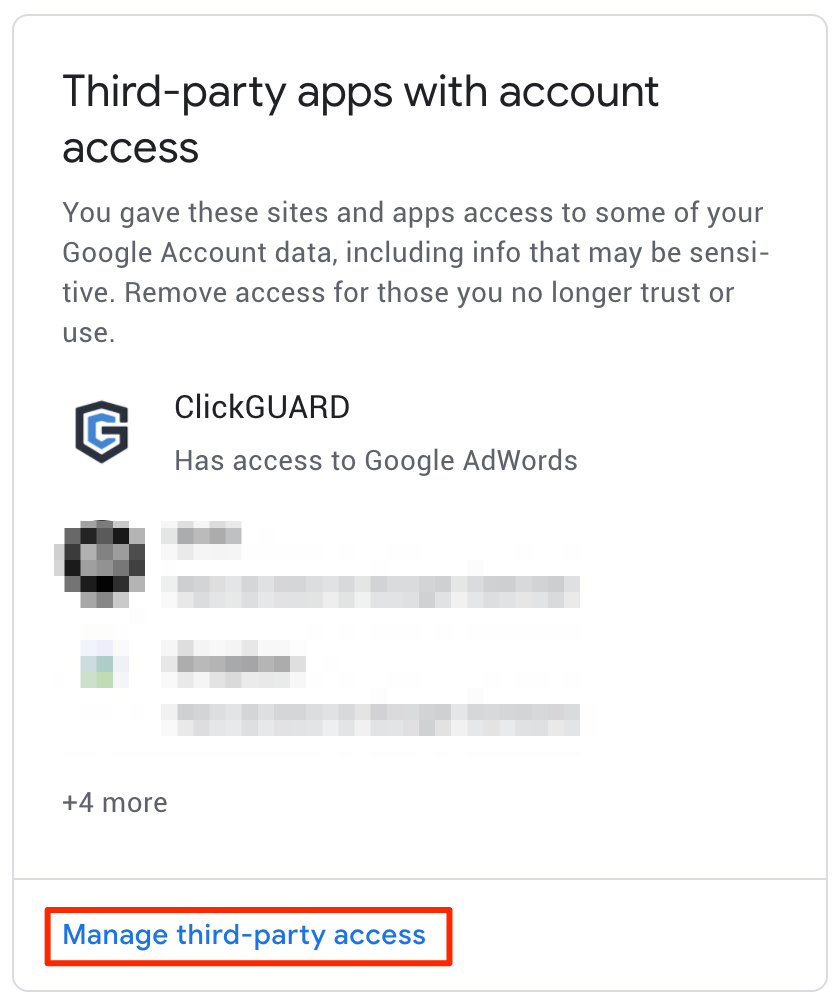
- Find ClickGuard on the list and choose "**Remove Access**"
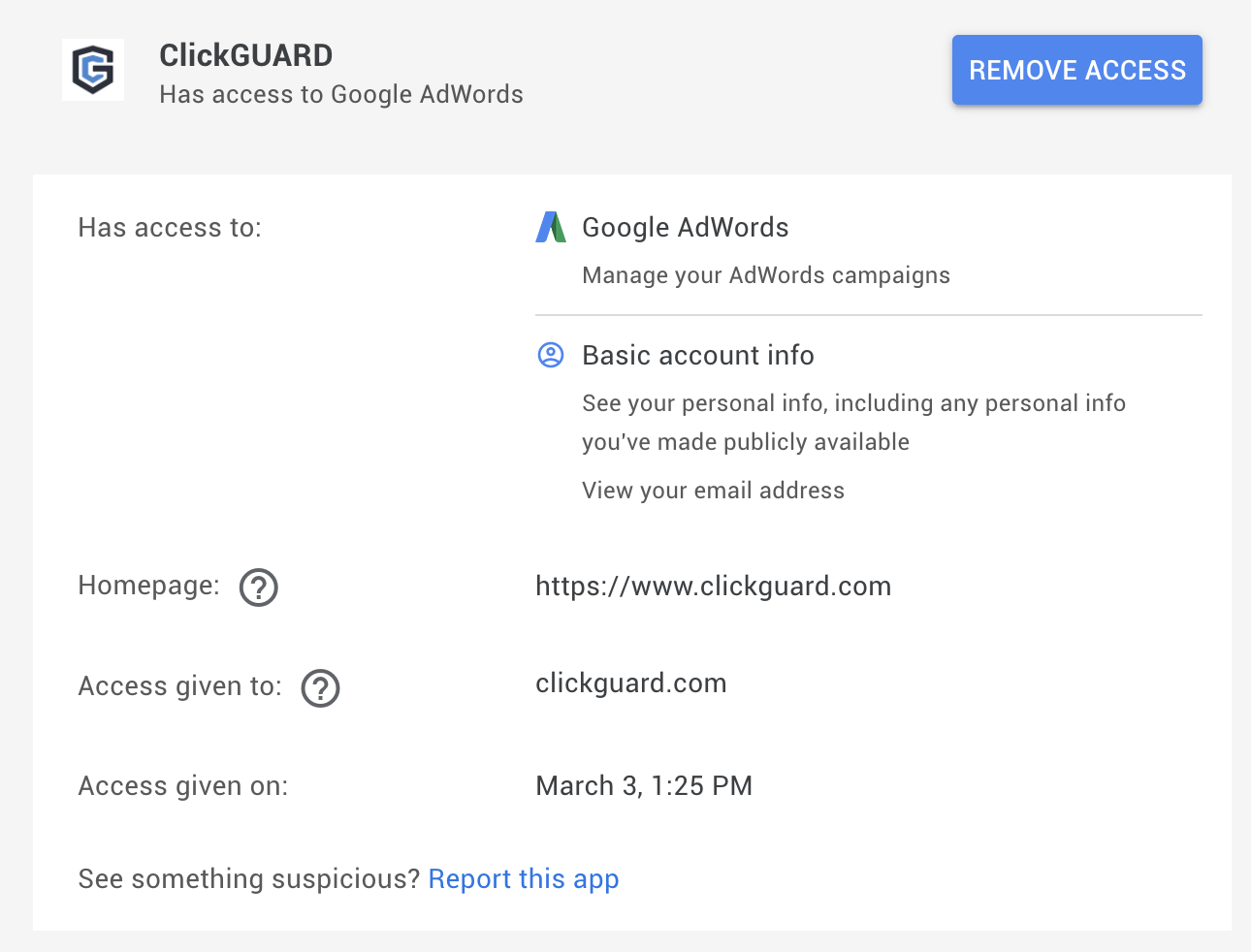
**Important:** Removing ClickGuard's access to your Google Ads does not stop your ClickGuard subscription or TRIAL.
See also: [Manager (MCC) access vs Google OAuth access](https://www.clickguard.com/help/glossary/mcc-access-vs-google-oauth-access).
## Related articles
- [Manager (MCC) access vs Google OAuth access](https://www.clickguard.com/help/glossary/mcc-access-vs-google-oauth-access.md)
---
# How to delete a workspace
Only the workspace Owner can delete a workspace. Open Settings, go to Danger Zone and click Delete next to Remove workspace and all its data. Every website and ad account in the workspace is removed with it, and this cannot be undone.
Source: https://www.clickguard.com/help/managing-your-account/how-to-delete-a-workspace
Published: 2026-10-10
Updated: 2026-10-10
Author: Nikola Pejic
Deleting a workspace removes it from ClickGuard together with everything in it: its websites, their connected ad accounts and their data. It can't be undone, so make sure it's the workspace you mean before you confirm.
## Before you delete
- Only the workspace **Owner** can delete a workspace.
- If you only want to stop protecting one website or one ad account, remove just that instead. See [How to disconnect my ad account](https://www.clickguard.com/help/managing-your-account/how-to-disconnect-my-ad-account).
## Delete a workspace
1. Switch to the workspace you want to delete.
2. Open **Settings** (the gear icon at the top right). Under **Workspace**, select **Preferences**.
3. Scroll to **Danger Zone** and, next to **Remove workspace and all its data**, click **Delete**.
4. Read the confirmation and click **Delete** to proceed.
## What happens next
The workspace, its websites and its ad accounts are removed from ClickGuard. Your ad accounts stay as they are on the ad platforms. To also remove the access you gave ClickGuard there, see [How to remove ClickGuard's OAuth access](https://www.clickguard.com/help/managing-your-account/how-to-remove-clickguards-oauth-access).
## Related articles
- [How to disconnect my ad account](https://www.clickguard.com/help/managing-your-account/how-to-disconnect-my-ad-account.md)
- [How to remove ClickGuard's OAuth access](https://www.clickguard.com/help/managing-your-account/how-to-remove-clickguards-oauth-access.md)
---
# What is a ClickGuard workspace
A ClickGuard workspace is your central hub for everything in ClickGuard: the websites you protect, their ad accounts, your team members and your billing. You can own several workspaces, each with its own subscription, which makes them handy for keeping each client or business separate, and you can invite team members to each one.
Source: https://www.clickguard.com/help/glossary/what-is-a-clickguard-workspace
Published: 2026-04-18
Updated: 2026-04-18
Author: Nikola Pejic
The ClickGuard **workspace** is your central hub for managing all aspects of your ClickGuard activities, from setting up protected websites to handling team members and configuring billing options.
## Workspace ownership and access
As a user, you have the flexibility to own multiple workspaces, each with its own unique settings and structure. Additionally, you can be added as a team member to other users' workspaces, enabling seamless collaboration across projects. Learn how to add and manage additional workspaces to optimize your account structure.
## Viewing and managing a workspace
To view a workspace, navigate to the **Workspaces** page and select the desired workspace. Here, you can access different sections for comprehensive workspace management:
- **Sites**: Manage the websites you are protecting.
- **Billing**: Review billing details, adjust subscription settings, and view invoices.
- **Team Members**: Manage access and roles of team members within the workspace.
- **PPC Access**: Control and configure your connections to various PPC platforms.
- **Workspace Settings**: Adjust the basic settings of the workspace for customization and optimization.
## Billing information
Your subscription is linked to your workspace. When activating a workspace, the protection plan you select will be applied to all the websites managed under that specific workspace.
**Note**: If you own multiple workspaces, each one requires a separate subscription. This structure ensures that the protection and services you receive are tailored to the specific needs of each workspace independently.
See also: [How to create a new workspace](https://www.clickguard.com/help/managing-your-account/how-to-create-a-new-workspace).
## Related articles
- [How to create a new workspace](https://www.clickguard.com/help/managing-your-account/how-to-create-a-new-workspace.md)
---
# Does ClickGuard support Search campaigns
Yes. ClickGuard fully supports Google Ads Search campaigns. It tracks every ad click, spots invalid traffic such as bots and repeat clickers, and excludes their IP addresses and IP ranges automatically, so your budget goes to the people who are actually searching for what you sell.
Source: https://www.clickguard.com/help/faq/does-clickguard-support-search-campaigns
Published: 2026-04-18
Updated: 2026-04-18
Author: Nikola Pejic
**Yes.** ClickGuard fully supports Search campaigns. It tracks every ad click and excludes invalid traffic with IP and IP range exclusions.
## Maximizing Search campaign performance with ClickGuard
Search campaigns allow you to place ads across Google’s extensive network of search results, targeting individuals actively searching for products or services online. This makes Search campaigns a valuable tool for driving targeted traffic and potential customers to your business.
However, Search campaigns are particularly vulnerable to click fraud, often generating a substantial amount of wasteful ad traffic that can quickly drain your advertising budget without delivering meaningful results.
## Protecting your budget with ClickGuard
ClickGuard enables you to safeguard your Search campaigns by implementing automated rules that effectively combat click fraud. Through IP and IP address range exclusions, you can actively block fraudulent or wasteful clicks, ensuring that your ad spend is used to reach legitimate prospects.
This not only protects your budget but also optimizes the performance of your Search campaigns by reducing unnecessary ad spend and focusing on real, high-quality traffic.
With ClickGuard's advanced tools, you can maintain control over your Search campaigns, reducing the negative impact of click fraud and maximizing your return on investment.
See also: [Does ClickGuard support Display campaigns](https://www.clickguard.com/help/faq/does-clickguard-support-display-campaigns).
## Related articles
- [Does ClickGuard support Display campaigns](https://www.clickguard.com/help/faq/does-clickguard-support-display-campaigns.md)
---
# Does ClickGuard support Display campaigns
Yes. ClickGuard fully supports Google Ads Display campaigns. It tracks every ad click, excludes invalid traffic by IP address and IP range, and excludes the low-quality ad placements on websites, apps and videos that send clicks without results, so your budget reaches real people.
Source: https://www.clickguard.com/help/faq/does-clickguard-support-display-campaigns
Published: 2026-04-18
Updated: 2026-04-18
Author: Nikola Pejic
**Yes.** ClickGuard fully supports Display campaigns. It excludes invalid traffic by IP address and IP range, and it excludes low-quality ad placements too.
## Maximizing Display campaign effectiveness with ClickGuard
Display campaigns enable you to reach potential customers outside of Google’s search engine results, utilizing engaging text, image, and video banners that are shown across a wide variety of websites, apps, and video platforms. These ads appear as users browse the web, use mobile apps, or watch online videos, giving your brand significant visibility.
However, Display ads are highly susceptible to click fraud, with unscrupulous ad publishers often generating large volumes of non-converting, wasteful traffic that drains your advertising budget without delivering real value.
## Protecting your Display campaigns with ClickGuard
ClickGuard empowers you to protect your Display campaigns by setting up automated rules that utilize IP and IP address range exclusions, as well as ad placement exclusions. This advanced level of control allows you to block fraudulent clicks and exclude low-quality ad placements that fail to drive meaningful results.
By actively identifying and mitigating click fraud, ClickGuard ensures that your Display advertising budget is spent on genuine traffic, optimizing your campaigns for better performance and higher ROI. With ClickGuard, you can effectively eliminate wasteful ad clicks and enhance the overall efficiency of your Display campaigns.
See also: [What is an ad placement](https://www.clickguard.com/help/glossary/what-is-an-ad-placement).
## Related articles
- [What is an ad placement](https://www.clickguard.com/help/glossary/what-is-an-ad-placement.md)
---
# Does ClickGuard support Shopping campaigns
Yes. ClickGuard fully supports Google Ads Shopping campaigns. It tracks every click on your product ads, spots invalid traffic such as competitors and bots, and excludes their IP addresses and IP ranges automatically, so your budget goes to real shoppers who can buy.
Source: https://www.clickguard.com/help/faq/does-clickguard-support-shopping-campaigns
Published: 2026-04-18
Updated: 2026-04-18
Author: Nikola Pejic
**Yes.** ClickGuard fully supports Shopping campaigns. It tracks every ad click and excludes invalid traffic, competitor clicks included, with IP and IP range exclusions.
## Maximizing eCommerce success with Shopping campaigns
Shopping campaigns offer a highly effective way to showcase your products directly in search results, featuring key details such as images, prices, and customer ratings. These visually engaging ads are essential for eCommerce businesses, providing a direct and compelling path to attract potential buyers and drive sales.
However, the competitive nature of eCommerce makes Shopping campaigns particularly vulnerable to competitor click fraud. This fraudulent activity results in a significant amount of wasteful ad traffic, rapidly depleting your advertising budget without delivering actual sales or valuable customer engagement.
## Protecting your Shopping campaigns with ClickGuard
ClickGuard enables you to defend your Shopping campaigns against click fraud by setting up automated rules that leverage IP and IP address range exclusions. These rules allow you to proactively block fraudulent clicks, ensuring that your ad spend is not wasted on competitors or irrelevant traffic.
By optimizing your Shopping campaigns with ClickGuard's advanced protection, you can minimize the impact of click fraud, allowing your budget to be focused on genuine traffic that converts into sales. This not only enhances the efficiency of your campaigns but also ensures that your advertising investment drives real, revenue-generating results.
See also: [Does ClickGuard support Search campaigns](https://www.clickguard.com/help/faq/does-clickguard-support-search-campaigns).
## Related articles
- [Does ClickGuard support Search campaigns](https://www.clickguard.com/help/faq/does-clickguard-support-search-campaigns.md)
---
# Does ClickGuard support Video (YouTube) campaigns
Yes. ClickGuard supports Google Ads Video (YouTube) campaigns. It tracks their ad clicks through a tracking template and blocks invalid traffic with account-level IP exclusions, because Google Ads doesn't accept IP exclusions on a single Video campaign. Account-level exclusions cover every campaign in the account.
Source: https://www.clickguard.com/help/faq/does-clickguard-support-video-youtube-campaigns
Published: 2026-04-18
Updated: 2026-04-18
Author: Nikola Pejic
**Yes.** ClickGuard supports Video (YouTube) campaigns. It tracks their ad clicks and blocks invalid traffic with account-level IP exclusions.
## Advertising with Video ads on YouTube
YouTube, owned by Google, is one of the most-visited websites in the world, offering advertisers a significant opportunity to engage with a vast audience. By using Video Ads, you can directly promote your brand on YouTube, leveraging its wide reach to attract potential customers.
## ClickGuard's click forensics for Video campaigns
ClickGuard supports the tracking of Video campaigns through the use of a tracking template. This enables you to gain access to click forensics, allowing you to closely monitor and evaluate the performance of your Video campaigns. With these insights, you can make informed adjustments to optimize your campaign's effectiveness.
## How ClickGuard protects Video campaigns
Google Ads doesn't accept IP exclusions on a single Video campaign. ClickGuard adds its IP exclusions at the account level instead, and account-level exclusions apply to every campaign in the account, Video campaigns included.
**Note:** YouTube can also be an ad placement in Display campaigns, where ClickGuard excludes IP addresses, IP ranges and ad placements.
See also: [Does ClickGuard support Display campaigns](https://www.clickguard.com/help/faq/does-clickguard-support-display-campaigns).
## Related articles
- [Does ClickGuard support Display campaigns](https://www.clickguard.com/help/faq/does-clickguard-support-display-campaigns.md)
---
# Does ClickGuard support Smart campaigns
Yes. ClickGuard supports Google Ads Smart campaigns, which replaced AdWords Express. Google fully manages Smart campaigns and doesn't accept campaign-level exclusions in them, so ClickGuard blocks invalid traffic with account-level IP exclusions, which cover every campaign in the account, and tracks clicks with an account-level tracking template.
Source: https://www.clickguard.com/help/faq/does-clickguard-support-smart-campaigns
Published: 2026-04-18
Updated: 2026-04-18
Author: Nikola Pejic
**Yes.** ClickGuard supports Smart campaigns, with account-level IP exclusions.
Smart campaigns are fully managed by Google Ads. Outside of the ad itself and the budget you can't change them, and they don't accept campaign criteria such as negative keywords, placement exclusions or campaign-level IP exclusions.
## How ClickGuard protects Smart campaigns
ClickGuard tracks Smart campaigns when the tracking template is installed at the account level. To block invalid traffic, it adds IP exclusions at the account level, and account-level exclusions apply to every campaign in the account, Smart campaigns included.
## AdWords Express is now Smart campaigns
AdWords Express no longer exists: Google turned it into Smart campaigns. If you used AdWords Express, your campaigns are now Smart campaigns, and ClickGuard protects them the same way.
See also: [Does ClickGuard support Search campaigns](https://www.clickguard.com/help/faq/does-clickguard-support-search-campaigns).
## Related articles
- [Does ClickGuard support Search campaigns](https://www.clickguard.com/help/faq/does-clickguard-support-search-campaigns.md)
---
# Does ClickGuard support Microsoft Advertising
Yes. ClickGuard fully supports Microsoft Advertising, bringing the same click fraud protection it offers for Google Ads and Meta Ads to your Microsoft campaigns. Connect your Microsoft Ads account, let ClickGuard set up its tracking template, and it tracks every ad click and blocks invalid traffic sources automatically.
Source: https://www.clickguard.com/help/faq/does-clickguard-support-microsoft-advertising
Published: 2026-04-01
Updated: 2026-04-01
Author: Nikola Pejic
**Yes.** ClickGuard fully supports **Microsoft Advertising**, with the same click fraud protection it offers for Google Ads and Meta Ads.
As a major search engine with a growing user base, Microsoft Ads provides advertisers with access to a significant pool of potential customers, making it crucial to ensure your ad spend is safeguarded against fraudulent activities.
## Real-time click forensics and fraud detection
With ClickGuard integrated into your Microsoft Advertising campaigns, you gain access to advanced click forensics that monitors, detects, and blocks invalid or fraudulent clicks in real-time.
Our solution provides detailed insights into the origins of clicks, allowing you to analyze traffic behavior and quickly identify any suspicious patterns. This ensures your ad budget is spent on genuine prospects, maximizing the efficiency and ROI of your campaigns.
## IP blocking and exclusion management
ClickGuard allows for precise control over your campaigns by enabling IP address and IP range exclusions on Microsoft Ads. You can protect your ads from repeated, suspicious clicks by blocking malicious IPs, ensuring that bad actors or automated bots are prevented from draining your budget.
## Automated rules and optimization
Our platform offers the ability to create custom automated rules that optimize your Microsoft Advertising campaigns continuously. With ClickGuard, you can set up intelligent, rule-based defenses to automatically adjust bids, pause underperforming ads, or exclude high-risk sources. This proactive approach helps you maintain top-performing campaigns while preventing click fraud and waste.
## Why choose ClickGuard for Microsoft Ads?
By incorporating ClickGuard into your Microsoft Advertising strategy, you’re investing in a robust solution that guarantees the protection of your ad spend. Whether you’re a small business or a large enterprise, our platform offers scalable fraud prevention tailored to your needs, ensuring every dollar is spent effectively.
See also: [Microsoft Ads clicks not showing in ClickGuard](https://www.clickguard.com/help/troubleshooting/microsoft-ads-clicks-not-showing).
## Related articles
- [Microsoft Ads clicks not showing in ClickGuard](https://www.clickguard.com/help/troubleshooting/microsoft-ads-clicks-not-showing.md)
---
# Does ClickGuard support App campaigns
No. ClickGuard doesn't support Google App campaigns, which promote mobile apps across Search, Google Play, YouTube, Discover and the Display Network. If you also promote your app with other campaign types, like Search, Display or Shopping, ClickGuard tracks and protects those campaigns.
Source: https://www.clickguard.com/help/faq/does-clickguard-support-app-campaigns
Published: 2026-04-18
Updated: 2026-04-18
Author: Nikola Pejic
**No.** ClickGuard doesn't support App campaigns.
## Promoting mobile apps with Google App campaigns
Google’s App Campaigns offer a streamlined approach to promoting mobile apps across a wide range of Google-owned platforms, including Search, Google Play, YouTube, Discover on Google Search, and the Google Display Network.
These campaigns simplify the process by automating ad creation and optimization, making it easier for businesses to reach potential users across multiple channels.
## Current ClickGuard support for App campaigns
ClickGuard doesn't support Google App campaigns. However, if you are promoting your app through other campaign types, such as Search, Display, or Shopping, ClickGuard can still protect and optimize your advertising efforts.
Our advanced click fraud protection and campaign optimization tools ensure that your ads are reaching genuine users and maximizing ROI.
See also: [Does ClickGuard support Search campaigns](https://www.clickguard.com/help/faq/does-clickguard-support-search-campaigns).
## Related articles
- [Does ClickGuard support Search campaigns](https://www.clickguard.com/help/faq/does-clickguard-support-search-campaigns.md)
---
# What is the difference between IPv4 and IPv6
IPv4 and IPv6 are the two versions of the Internet Protocol that give devices their addresses. IPv4 uses 32-bit addresses like 201.54.112.60, which allows just over 4 billion of them. IPv6 uses much longer 128-bit addresses, created because the internet was running out of IPv4 ones. ClickGuard tracks and blocks both.
Source: https://www.clickguard.com/help/glossary/ipv4-vs-ipv6
Published: 2026-04-18
Updated: 2026-04-18
Author: Nikola Pejic
## What is IPv4 (Internet Protocol version 4)?
`201.54.112.60`
IPv4 is the most widely deployed Internet protocol used to connect devices to the Internet. IPv4 uses a 32-bit address scheme allowing for a total of 2^32 addresses (just over 4 billion addresses).
With the growth of the Internet, it is expected that the number of unused IPv4 addresses will eventually run out because every device -- including computers, smartphones, and game consoles -- that connects to the Internet requires an address.
## What is IPv6 (Internet Protocol version 6)?
`2001:db8:85a3:0:0:8a2e:370:7334`
The Internet Protocol version 6 (IPv6) was designed as an evolutionary upgrade to the Internet Protocol and will, in fact, coexist with the older IPv4 for some time. IPv6 was designed to allow the Internet to grow steadily, both in terms of the number of hosts connected and the total amount of data traffic transmitted.
## What is the difference?
An IPv4 address is a binary number but can be stored as text for human readers. For example, a 32-bit numeric address (IPv4) is written in decimal as four numbers separated by periods. Each number can be zero to 255. For example, 1.160.10.240 could be an IP address.
IPv6 addresses are 128-bit IP address written in hexadecimal and separated by colons. An example IPv6 address could be written like this: 3ffe:1900:4545:3:200:f8ff:fe21:67cf.

## What are the benefits of IPv6?
While increasing the pool of addresses is one of the most often-talked-about benefits of IPv6, there are other important technological changes in IPv6 that will improve the IP protocol:
- No more NAT (Network Address Translation)
- Auto-configuration
- No more private address collisions
- Better multicast routing
- Simpler header format
- Simplified, more efficient routing
- The true quality of service (QoS), also called "flow labeling"
- Built-in authentication and privacy support
- Flexible options and extensions
- Easier administration (say goodbye to DHCP)
See also: [What is an IP address](https://www.clickguard.com/help/glossary/what-is-an-ip-address).
## Related articles
- [What is an IP address](https://www.clickguard.com/help/glossary/what-is-an-ip-address.md)
---
# What is an ad placement
Ad placements are the websites, mobile apps and videos on Google's Display Network where your display ads can appear. A placement can be a whole website, specific pages, a single ad unit or an app. You can choose managed placements to target specific places, and exclude placements that send you invalid traffic.
Source: https://www.clickguard.com/help/glossary/what-is-an-ad-placement
Published: 2026-04-18
Updated: 2026-04-18
Author: Nikola Pejic
Ad placements are websites and mobile apps on Google's Display Network where your (display) ads can appear.
Within the **Display Network**, a placement can represent an entire website, specific pages from a website, an individual ad unit on a single page, a video, a mobile phone app, and more.
You can also choose specific locations where you would like your ads to show by adding managed placements. You can also let Google choose placements for you automatically - based on your keywords or other targeting methods.
## Ad placements in ClickGuard
ClickGuard registers ad placements while tracking your ad clicks. You can see your placements within Click Reports > Placements and dig into placement forensics.
You can also exclude ad placements with ClickGuard to **prevent your ads from showing on low-performing and fraudulent websites and shady applications**. This is done both by leveraging automated rules or manually.
See also: [What happens when an ad placement is excluded in Google Ads](https://www.clickguard.com/help/faq/what-happens-when-placement-is-excluded).
## Related articles
- [What happens when an ad placement is excluded in Google Ads](https://www.clickguard.com/help/faq/what-happens-when-placement-is-excluded.md)
---
# What is a proxy, VPN, or Tor
A proxy, a VPN and Tor all hide a visitor's real IP address, so their traffic looks like it comes from somewhere else. People use them for privacy or to reach region-locked content, but fraudsters use them too, to click your ads again and again from what looks like different places. ClickGuard detects all three.
Source: https://www.clickguard.com/help/glossary/what-is-proxy-vpn-tor
Published: 2026-04-18
Updated: 2026-04-18
Author: Nikola Pejic
## Proxy
A proxy server is an application between you and the Internet (eg. a computer or virtual machine) that hides your IP address. By using it, you are able to mask the activity to make it appear as if it was originating from a different location.
Proxies are used to access region-locked content and to remain anonymous online, as well as for nefarious activities including fraud.
## VPN
VPN stands for **Virtual Private Network**. This method allows you to create a secure connection to another network over the Internet using software built into your operating system or a 3rd party application/service.
VPNs are often used to access region-restricted websites, shield a person's browsing activity from prying eyes on public Wi-Fi, and more. They are also used to cover nefarious activities, such as click fraud.
## Tor
Tor browser is an application that comes with built-in anonymization features such as VPN, encryption and blocking of tracking.
The idea behind the project is to protect the common people from tracking by various government and private enterprises. However, over time it became super popular with various malicious and nefarious users. It is often used for click fraud.
## What's the difference between a proxy and a VPN?
A proxy does not encrypt data, meaning it will not increase security, while a VPN does.
See also: [How ClickGuard detects VPN, proxy, and Tor traffic](https://www.clickguard.com/help/faq/how-clickguard-detects-vpn-proxy-tor).
## Related articles
- [How ClickGuard detects VPN, proxy, and Tor traffic](https://www.clickguard.com/help/faq/how-clickguard-detects-vpn-proxy-tor.md)
---
# What are invalid clicks
Invalid clicks are clicks Google considers unintentional or coming from malicious software, like its own ad bot checking your landing page. Google filters many of them out, so they don't appear in Google Ads and you aren't charged. ClickGuard still records them, which is one reason its numbers can differ from your Google Ads reports.
Source: https://www.clickguard.com/help/glossary/what-are-invalid-clicks
Published: 2026-10-06
Updated: 2026-10-06
Author: Nikola Pejic
Google considers Invalid clicks are clicks that are unintentional or clicks that are coming from malicious software.
Here are examples of what **Google** considers to be an Invalid click:
- **Google ad bot clicks.** ClickGuard records them. They don't appear in Google Ads, and you aren't charged for them, but the clicks did happen.
- **Clicks from previously blocked IP addresses.** This typically happens when a bot saves the ad URL and keeps clicking it, even after its IP has been blocked and the ad is no longer being served to it.
- **Duplicate GCLIDs.** This is the most common Invalid click you'll see. It happens when someone saves the ad URL and clicks it repeatedly, or clicks a search ad, uses the browser's "back" button, and clicks it again, repeating the process indefinitely.
Impressions intended to artificially lower an advertiser's clickthrough rate **(CTR)** Clicks tagged as Invalid in ClickGuard are **not the same as Google Ads' Invalid clicks!**
There are several reasons why clicks could be categorized as Invalid in ClickGuard, and here are a few:
- Accidental clicks that provide no value, such as the second click of a double-click
- Manual clicks intended to increase an advertiser's costs
- Manual clicks intended to increase profit for the website owners hosting your ads
- Clicks and impressions from automated tools, robots, or other deceptive software
- Clicks outside of your advertising region
- Impressions intended to artificially lower an advertiser's click-through rate (CTR)
## Are invalid clicks hurting your business?
Not in all cases. But remember - we're talking about clicks tagged as Invalid in ClickGuard, not Invalid clicks reported by Google Ads. Those other might (and likely will) hurt you.
Fortunately, as you keep using ClickGuard the number of Invalid clicks in Google Ads will likely significantly decrease.
## Why doesn't Google Ads prevent clicks with duplicate GCLID?
In reality, they will also tag those clicks as Invalid and either not charge you for them or refund you. But they can't really prevent them because of the way URL tracking works.
If someone or something saves the Ad URL (that starts with ClickGuard's tracking template) there's nothing to prevent them from making repetitive clicks.
See also: [What is click fraud](https://www.clickguard.com/help/getting-started/what-is-click-fraud).
## Related articles
- [What is click fraud](https://www.clickguard.com/help/getting-started/what-is-click-fraud.md)
---
# What is a MAC address
MAC stands for Media Access Control, and a MAC address is a unique identifier assigned to a network interface controller (NIC). A NIC can be part of an Ethernet adapter, Wi-Fi module, or Bluetooth module used to connect a device to a network. Essentially, a MAC address serves as the hardware address of the network adapter.
Source: https://www.clickguard.com/help/glossary/what-is-a-mac-address
Published: 2026-04-18
Updated: 2026-04-18
Author: Nikola Pejic
MAC stands for **Media Access Control**, and a MAC address is a unique identifier assigned to a **network interface controller (NIC)**. A NIC can be part of an Ethernet adapter, Wi-Fi module, or Bluetooth module used to connect a device to a network. Essentially, a MAC address serves as the hardware address of the network adapter.
A typical MAC address consists of six groups of two hexadecimal digits, which may be separated by hyphens, colons, or sometimes displayed without separators:
`00:0a:95:9d:68:16`
Without a MAC address, distinguishing between different network hardware adapters that share the same IP address would be impossible.
## Is a MAC address accessible on the Internet?
A MAC address is an **internal identifier within a private network**, used to facilitate communication between devices. Typically, it is **not visible or accessible outside its local network segment**. The MAC address of a device on a global network is not available to other devices outside that network.
See also: [What is an IP address](https://www.clickguard.com/help/glossary/what-is-an-ip-address).
## Related articles
- [What is an IP address](https://www.clickguard.com/help/glossary/what-is-an-ip-address.md)
---
# What is a GCLID
GCLID stands for Google Click Identifier, a unique tracking parameter Google adds to every ad click when auto-tagging is on. Google uses it to pass click information between Google Ads and Google Analytics. ClickGuard uses it too, to identify each individual ad click, so it can monitor and analyze every visit from your ads.
Source: https://www.clickguard.com/help/glossary/what-is-a-gclid
Published: 2026-04-18
Updated: 2026-04-18
Author: Nikola Pejic
GCLID stands for **Google Click Identifier**, a unique tracking parameter that Google uses to transfer information between your Google Ads and Google Analytics accounts.
This parameter allows Google Analytics to track and provide detailed information about a specific user's session. It is also utilized by ClickGuard to identify individual ad clicks for monitoring and
analysis.
The GCLID is automatically appended to the final URL of your ads when the **"auto-tagging"** feature is enabled in your Google Ads account.
See also: [What is Google Ads' final URL suffix](https://www.clickguard.com/help/glossary/google-ads-final-url-suffix).
## Related articles
- [What is Google Ads' final URL suffix](https://www.clickguard.com/help/glossary/google-ads-final-url-suffix.md)
---
# What is an IP address
An IP address, short for Internet Protocol address, is the address of a device on a network, like a computer or router. It's what lets devices find each other across the internet. ClickGuard logs the IP address of every ad click and checks it against fraud data, so it can spot and block bad sources.
Source: https://www.clickguard.com/help/glossary/what-is-an-ip-address
Published: 2026-04-18
Updated: 2026-04-18
Author: Nikola Pejic
IP stands for **Internet Protocol**. An IP (Internet Protocol) address is the address of a specific network hardware (computer, router, switch, hub, etc). It is necessary for connecting a computer to other devices on a network and all over the world (via the Internet).
Specific network adapters (hardware used to connect to a network) have their own addresses, called MAC addresses.
An IP Address is made up of numbers or characters. The format depends on the version of the protocol, which can be IPv4 or IPv6. So an IP address would be like this:
`IPv4 201.54.112.60`
`IPv6 2001:db8:85a3:0:0:8a2e:370:7334`
IP addresses can be:
- **public** or **private** - based on the location of the network (private being used inside a network and public outside of a network)
- static or and dynamic (static being persistently tied to a specific network or device and dynamic being temporarily assigned to a network or device)
A collection of IP addresses is called an IP range.
## How does ClickGuard use IP addresses?
ClickGuard logs public IP addresses of devices making ad clicks by using the Google Ads tracking template. This allows the system to perform protective and optimization actions on Google Ads campaigns - by excluding IP addresses related to low-performing or fraudulent ad traffic.
See also: [What are IPs and IP ranges](https://www.clickguard.com/help/glossary/what-are-ips-and-ip-ranges).
## Related articles
- [What are IPs and IP ranges](https://www.clickguard.com/help/glossary/what-are-ips-and-ip-ranges.md)
---
# Install ClickGuard's tracking code
The ClickGuard tracking code goes on every page of your website, so ClickGuard sees each visit from your ads. ClickGuard can install it for you with Google Tag Manager while you set up your website's protection, or you can install it yourself: manually, on Shopify, on Wix or in Google Tag Manager.
Source: https://www.clickguard.com/help/getting-started/install-clickguards-tracking-code
Published: 2026-10-05
Updated: 2026-10-05
Author: Nikola Pejic
The ClickGuard tracking code goes on every page of your website, so ClickGuard sees each visit from your ads. The easiest way to install it is to let ClickGuard do it for you with Google Tag Manager while you set up your website's protection.
## Let ClickGuard install it with Google Tag Manager
When you reach the tracking code step while configuring your website's protection:
1. Select **Install with Google Tag Manager**.
2. Under **Authorized with**, select a credential that has access to the Google Tag Manager account you want to use. If you don't have one yet, click **New authorization**.
3. Select the **GTM Account**, the **Container** and the **Workspace**.
4. Click **Install Tracking Code**.
ClickGuard creates a new tag with your tracking code and publishes it to the workspace you selected, so there's nothing else to do. If someone else manages your Google Tag Manager, click **Invite a team member to complete this step**.
If you prefer to install the code yourself, pick the option below that fits how your site is managed.
## Install it manually
Follow the steps below to install the tracking code properly:
### Step 1: Copy your unique tracking code
1. Log in to your ClickGuard account.
2. Navigate to **Settings** › **Tracking code** › **Standard tracking**.
3. Select **Install manually**.
4. Copy the provided JavaScript tracking snippet. This code is _unique_ to your account and website.
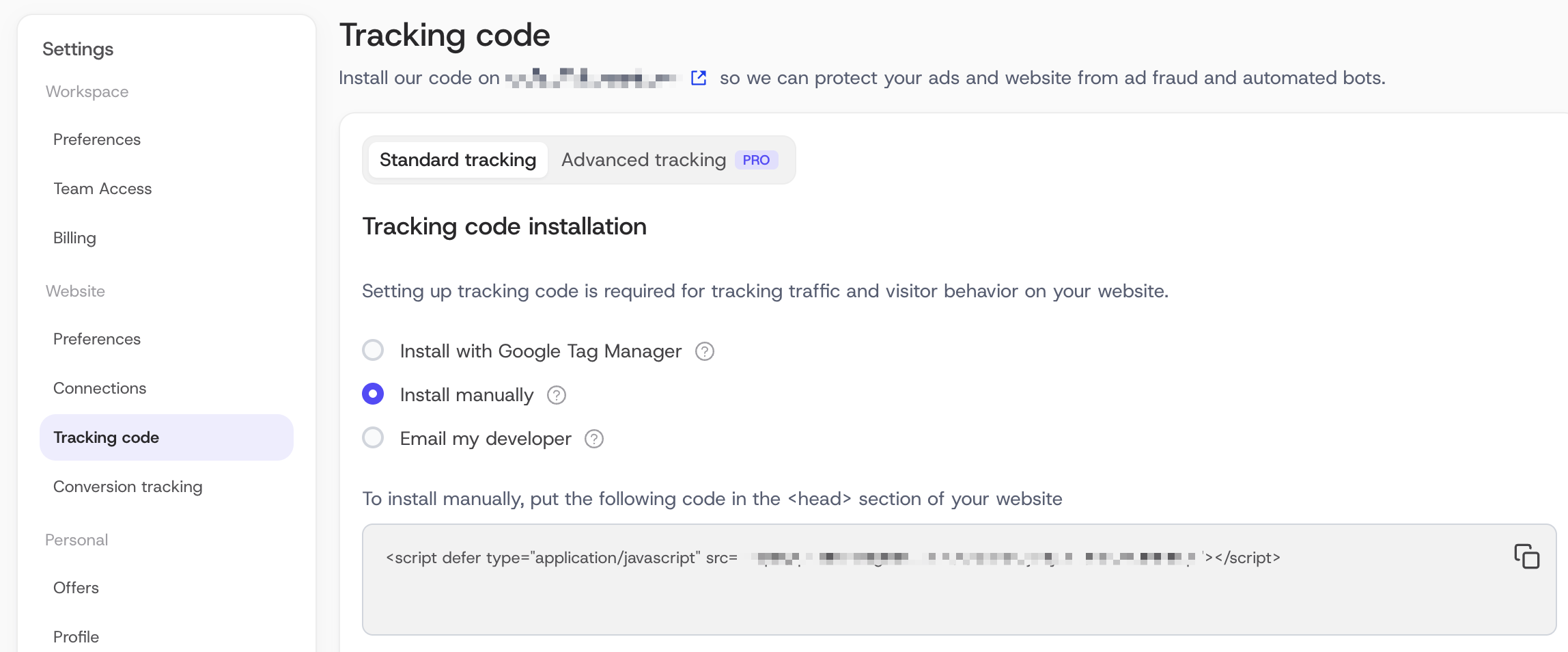
### Step 2: Add the code to your website
The tracking code must be placed immediately before the closing `` tag on every page where you wish to track activity.
**Static HTML websites**
Paste the tracking code into the `` section of each HTML file.
```
```
**CMS-based websites (e.g., WordPress)**
- Access your theme settings or install a plugin that supports custom script injection into the ``.
- Paste the tracking code and save your changes.
## Install it on Shopify
On Shopify, the tracking code goes in your store's theme. Log in to your Shopify store and follow these steps.
**Note:** ClickGuard can't track visitor behavior on Shopify's checkout page. If you're on Shopify Plus, ask your Merchant Success Manager how to add the code to checkout too.
### Step 1: Open your online store
In your Shopify dashboard, click **Online Store**.
### Step 2: Edit your theme's code
Click **Themes**, then the **Actions** button at the top right, and choose **Edit code**.
### Step 3: Find the closing body tag
Under **Layout**, select **theme.liquid** and scroll down until you find the closing `` tag.
### Step 4: Paste the tracking code
Paste your ClickGuard tracking code just before the closing `` tag. You can copy it from **Settings** › **Website** › **Tracking code**.
### Step 5: Save and publish
Click **Save**, then publish your theme to apply the change.
## Install it on Wix
**Note:** this works only for Wix sites with a connected domain.
### Step 1: Go to Settings
Open **Settings** in your Wix site's dashboard.
### Step 2: Open Tracking & Analytics
Under **Advanced Settings**, click the **Tracking & Analytics** tab.
### Step 3: Add a custom tool
Click **\+ New Tool** and select **Custom** from the dropdown.
### Step 4: Paste the tracking code
Paste your ClickGuard tracking code into the box. You can copy it from **Settings** › **Website** › **Tracking code**.
### Step 5: Select the domain
Select the domain you're adding the code to. This option only appears if you have more than one domain.
### Step 6: Name the code
Give it a name you'll recognise, for example “ClickGuard”.
### Step 7: Load it on all pages
Select **All Pages** so ClickGuard can track visitor behavior across your site, and choose **Load code once**. Under **Place Code in**, select **Body - end**.
### Step 8: Save your changes
Click **Apply**. ClickGuard can now track visitor behavior on your Wix site.
## Install it with Google Tag Manager yourself
If you're using **Google Tag Manager (GTM)** to manage website scripts, you can easily install the ClickGuard tracking code without touching your site's source code directly. Follow the steps below to complete the setup.
### Step 1: Create a new tag in Google Tag Manager
1. Open your [Google Tag Manager account](https://tagmanager.google.com/).
2. Select the appropriate container for your website.
3. Click on **Tags** in the left-hand menu, then click **New Tag**.
4. Name your tag (e.g., _ClickGuard Tracking_).
### Step 2: Copy your ClickGuard tracking code
1. Log in to your [ClickGuard Account dashboard](https://app.clickguard.com/).
2. Navigate to **Settings** › **Tracking code** › **Standard tracking**.
3. Copy the full JavaScript tracking snippet provided for your account.
### Step 3: Configure the tag
1. Click **Tag Configuration**.
2. Choose **Custom HTML** as the tag type.
3. Paste the ClickGuard tracking code into the HTML field.
### Step 4: Set the trigger
1. Click **Triggering**.
2. Select the trigger type: **All Pages** – this ensures the tracking code loads on every page of your website.
### Step 5: Save and publish
- Click **Save** to finish creating the tag.
- Click **Submit** in the top-right corner of GTM.
- Add a version name (e.g., _ClickGuard Installation_) and click **Publish**.
Your ClickGuard tracking code is now active via Google Tag Manager. ClickGuard will begin monitoring visitor sessions and protecting your ad campaigns immediately.
## Verify the installation
Once the code has been added:
1. Visit your website and navigate through several pages.
2. Return to your ClickGuard dashboard.
3. Go to **Clicks** › **Live monitoring** › **Organic traffic** to confirm that organic clicks are being tracked.
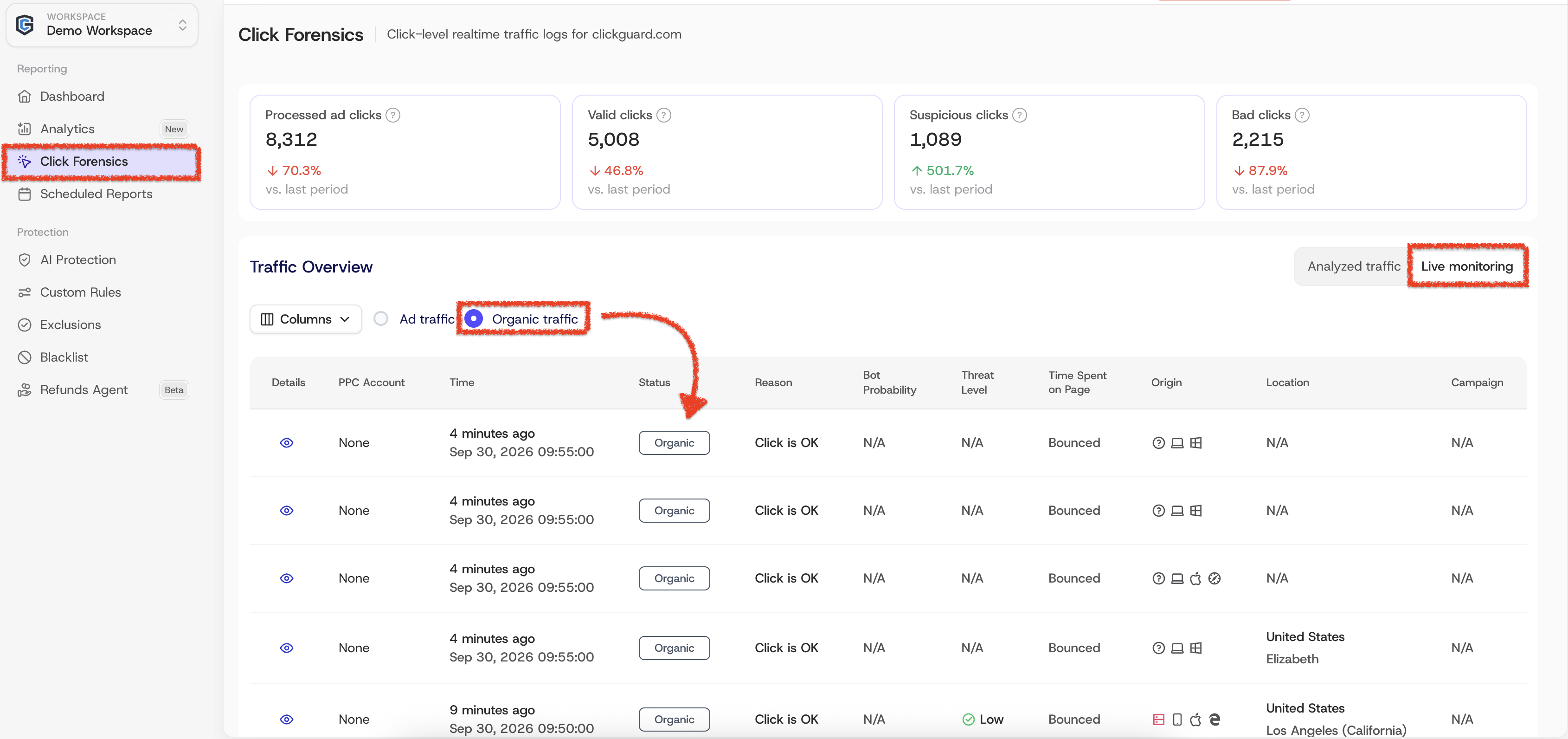
If no data appears after a few minutes, verify that the script is correctly placed and is not being blocked by browser extensions or cookie consent settings.
> **Important:** add the tracking code to your website's global layout or template so it loads on every page. That way no visit goes unrecorded.
Once installed, ClickGuard will begin analyzing and protecting your traffic in real time. If you encounter any issues during installation, please contact [ClickGuard support](https://www.clickguard.com/contact-us).
See also: [Check tracking code installation](https://www.clickguard.com/help/troubleshooting/check-tracking-code-installation).
## Related articles
- [Check tracking code installation](https://www.clickguard.com/help/troubleshooting/check-tracking-code-installation.md)
---
# ClickGuard extension
The ClickGuard Extension brings your click fraud protection stats directly into Google Ads and Meta Ads – bad clicks, blocked sources, prevented ad waste, and more – without leaving the platform. It adds a dedicated set of ClickGuard columns to your Campaigns performance table, right alongside your standard metrics.
Source: https://www.clickguard.com/help/getting-started/clickguard-extension
Published: 2026-05-08
Updated: 2026-11-09T17:04:26.159Z
Author: Nikola Pejic
The **ClickGuard Extension** brings your click fraud protection stats **directly into Google Ads** and **Meta Ads** – bad clicks, blocked sources, prevented ad waste, and more – without leaving the platform. It adds a dedicated set of ClickGuard columns to your Campaigns performance table, right alongside your standard metrics.
## Setup
### Step 1 – Install the extension
Open Chrome and go to the [ClickGuard Extension page on the Chrome Web Store](https://chromewebstore.google.com/detail/clickguard-ai/mlfckffanpidplofdehopinomopjkmem). Click **Add to Chrome**, then confirm by clicking **Add extension** in the dialog that appears. The ClickGuard icon will appear in your Chrome extensions bar once it's installed.
> **Pro tip:**
> Pin the extension to your toolbar for quick access. Click the puzzle piece icon in the top-right corner of Chrome, find ClickGuard in the list, and click the pin icon next to it. The ClickGuard icon will stay visible in your toolbar at all times.
### Step 2 – Sign in to your ClickGuard account via the extension
Click the ClickGuard icon in your browser's extensions bar and log in. The extension panel gives you a snapshot of your website's fraud protection metrics – bad clicks, blocked sources, and more – for any connected website, without opening the full platform.
_Available on all plans._
### Step 3 – ClickGuard stats in the ad platforms
**3.1 Google Ads**
**Click the ClickGuard icon** in your extensions bar and make sure the "Display ClickGuard data in Google Ads" toggle is ON. This advanced feature is available for **Standard**, **Pro** and **Custom** plans and works both on standard and MCC accounts.
Navigate to **Google Ads >** **Campaigns > Campaigns > Campaigns**. You'll see a set of purple ClickGuard columns added to the Campaign Performance table.
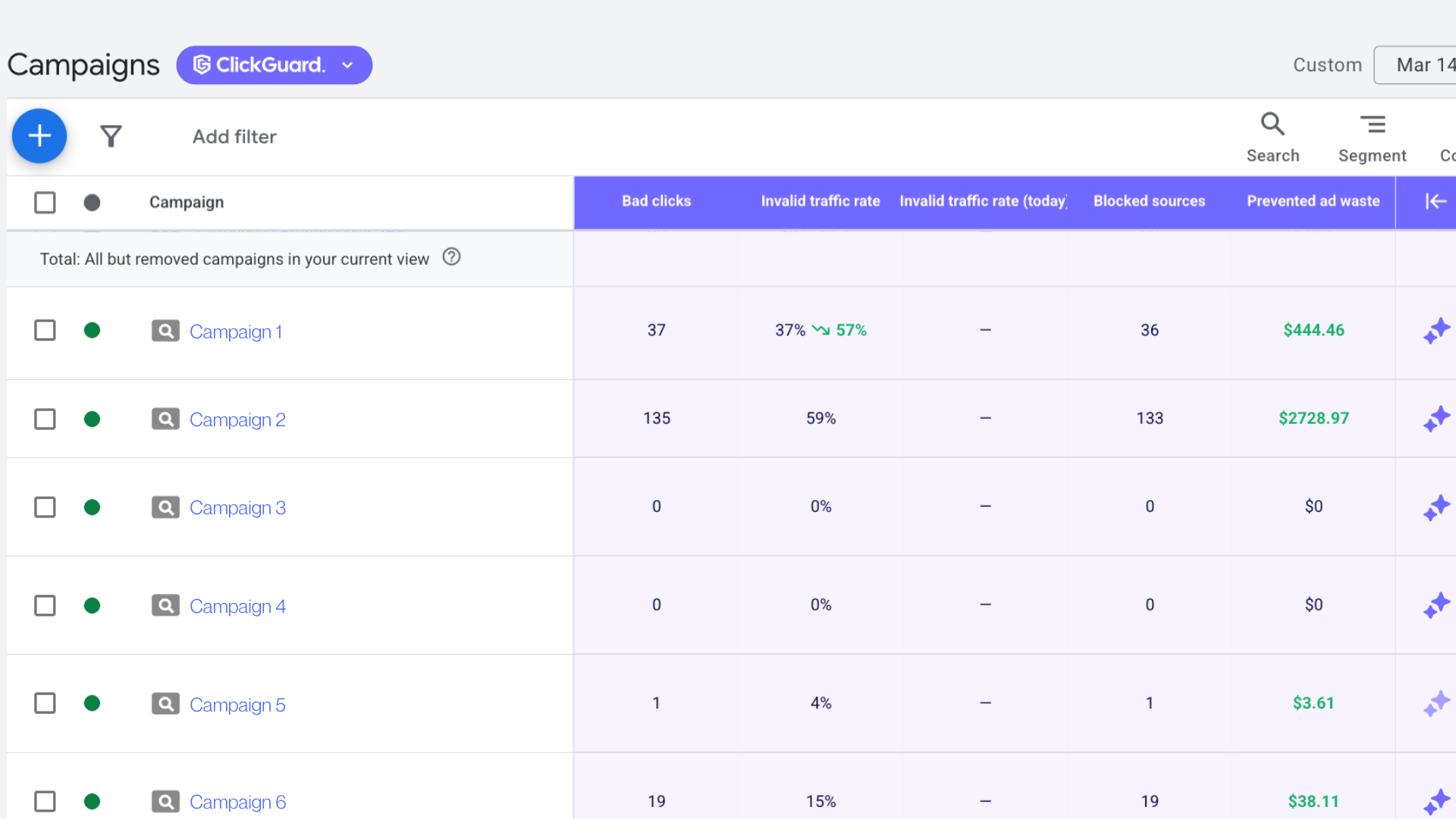
**3.2 Meta Ads**
The same feature is available on Meta Ads. Simply navigate to the Campaigns tab to view ClickGuard’s traffic‑quality stats alongside your campaigns.
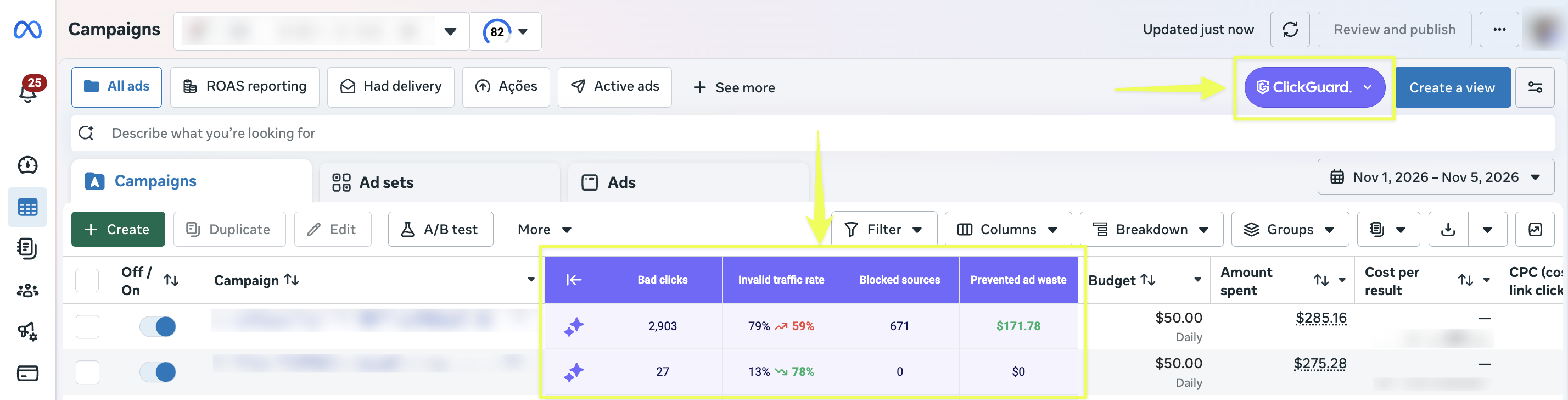
> **Pro tip:**
>
> If you want to take a screenshot of the ad platform without ClickGuard stats visible, click the ClickGuard icon in your extensions bar and disable "**Show ClickGuard data in my ad platforms"**. The columns will be hidden instantly. Re-enable the toggle when you're done.
>
> 
* * *
## Using the extension
1. Click the **ClickGuard icon** in the Campaigns table header.
2. Click **Select columns**.
3. Toggle on the metrics you want to see
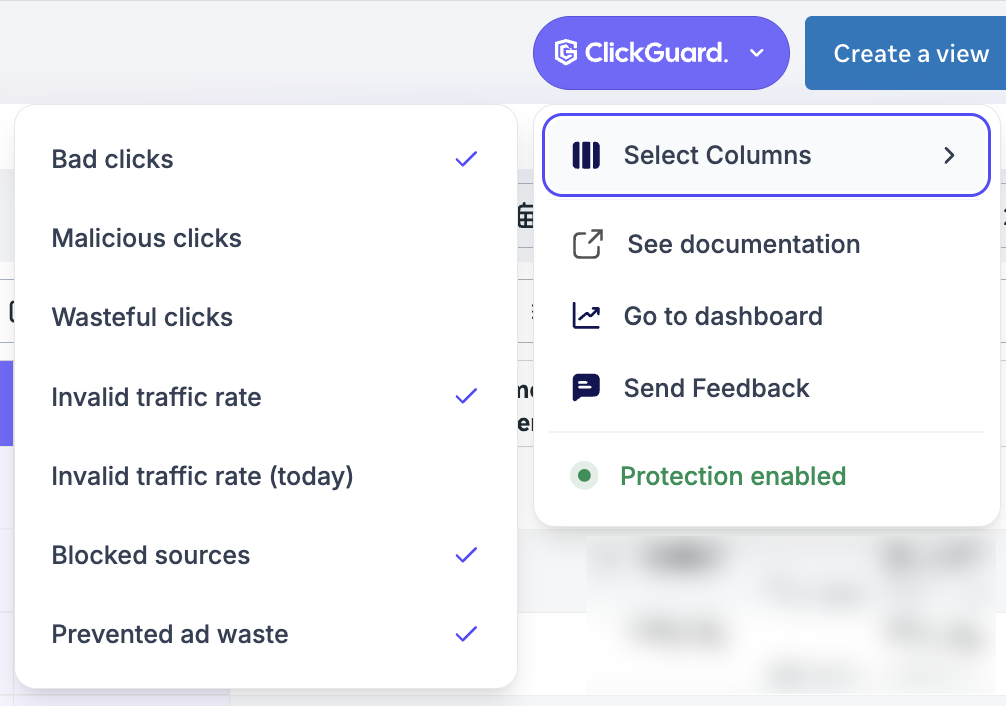
- **Bad clicks** – All clicks ClickGuard classified as either malicious or wasteful.
- **Malicious clicks** – Clicks coming from bots, botnets, click farms, and other sources with clear fraudulent intent.
- **Wasteful clicks** – Clicks from users who don't convert consistently, or who have already converted. What counts as wasteful is based on your algorithm configuration inside the ClickGuard platform.
- **Invalid traffic rate** – The share of bad clicks out of all ad clicks processed by ClickGuard, expressed as a percentage.
- **Invalid traffic rate (today)** – The same rate, but always calculated for today only, regardless of the date range selected in the ad platform you're seeing the data.
- **Blocked sources** – The number of distinct traffic sources ClickGuard has blocked. One source may have generated multiple bad clicks before being blocked.
- **Prevented ad waste** – An estimate of the spend saved by blocking those sources. Calculated as blocked sources × average CPC of the campaigns where those sources last clicked.
All metrics reflect the date range currently selected in the ad platform – except **Invalid traffic rate (today)**, which always shows data for the current day only.
## FAQ
**Q: I logged in to the Extension but don't see any workspaces. Why?**
**A:** Your workspace must be on an active paid plan or free trial to access the Extension Dashboard. If your trial has expired or your subscription is inactive, the Extension won't display any workspaces.
**Q: The ClickGuard columns aren't showing up in my Campaigns table. What should I check?**
**A:** Make sure the **Show ClickGuard data in my ad platforms** toggle is enabled in the extension panel. If it's on but columns still aren't appearing, try refreshing the Google/Meta Ads page. If the issue persists, log in to the ClickGuard platform, select your workspace and website, and go to **Settings > Connections > Ad Accounts** page to confirm your ad account is connected.
**Q: Why does "Invalid traffic rate (today)" show a different number than the other metrics for the same period?**
**A:** That's by design. The "today" metric always reflects the current day only – it ignores the date range selected in the ad platform. All other metrics follow that range.
**Q: I manage multiple clients. Can I switch between workspaces inside the extension?**
**A:** Yes. Use the workspace and website dropdowns inside the extension panel to switch between workspaces and websites.
**Q: Why is Prevented ad waste showing $0 for some campaigns?**
**A:** Prevented ad waste is only calculated when ClickGuard has blocked sources that previously clicked on that campaign. If no sources were blocked in the selected date range, the value will be $0.
See also: [What is ClickGuard](https://www.clickguard.com/help/getting-started/what-is-clickguard)
## Related articles
- [What is ClickGuard](https://www.clickguard.com/help/getting-started/what-is-clickguard.md)
---
# What is Google Ads' tracking template
The tracking template is a setting within Google Ads that makes it possible for users to track ad clicks. It’s an instruction to Google Ads on how to form ad URLs.Configuring the tracking template in Google Ads is required in order for ClickGuard to track ad clicks.
Source: https://www.clickguard.com/help/glossary/what-is-google-ads-tracking-template
Published: 2026-04-15
Updated: 2026-04-15
Author: Nikola Pejic
The tracking template is a setting within Google Ads that makes it possible for users to track ad clicks. It’s an instruction to Google Ads on how to form ad URLs.
Configuring the tracking template in Google Ads is required in order for ClickGuard to track ad clicks.
## Is admin access required?
No. ClickGuard really only needs "standard" access to be able to block IP addresses and exclude placements. Read more about account access levels in Google Ads [here](https://support.google.com/google-ads/answer/9978556?sjid=9301599676570109444-EU&visit_id=638337742443920907-2381150348&rd=1).
See also: [Why does ClickGuard require the tracking template](https://www.clickguard.com/help/faq/why-clickguard-requires-tracking-template).
## Related articles
- [Why does ClickGuard require the tracking template](https://www.clickguard.com/help/faq/why-clickguard-requires-tracking-template.md)
---
# What is parallel tracking in Google Ads
Parallel tracking sends people who click your Google Ads straight to your landing page, while click tracking runs in the background through your tracking template. Pages load faster, so fewer visitors leave before they arrive. ClickGuard fully supports parallel tracking, so you don't need to change anything for ClickGuard to keep tracking every click.
Source: https://www.clickguard.com/help/glossary/what-is-google-ads-parallel-tracking
Published: 2026-04-18
Updated: 2026-04-18
Author: Nikola Pejic
Parallel tracking is a method that ensures when customers click on your ads, they are directed immediately to your landing page while click tracking and measurement occur in the background. ClickGuard fully supports this functionality, enabling a smoother, more efficient user experience.
With parallel tracking, ads lead users directly to landing pages while tracking is executed via tracking templates simultaneously. This process runs independently of the user's path after clicking on the ad, eliminating the need for redirects and ensuring there is no delay in the user journey due to slow tracking mechanisms.
Even when parallel tracking is not in use, ClickGuard's click tracking is designed to be exceptionally fast, operating in less than 6 milliseconds. This speed is so minimal that it remains undetectable to users, ensuring a seamless experience.
## When does parallel tracking apply?
Parallel tracking is supported by a limited range of devices and browsers, primarily on Android smartphones. However, it may not be universally available on all platforms, making it important to understand where it is most effective.
## Is parallel tracking mandatory?
Parallel tracking is mandatory for certain campaign types, including Search, Shopping, and Display campaigns. For Video campaigns, however, parallel tracking is optional, allowing for greater flexibility depending on your campaign strategy.
By utilizing parallel tracking with ClickGuard, you ensure faster load times, improved user experiences, and efficient click tracking without the risk of slowdowns or unnecessary redirects.
See also: [Does ClickGuard work with Google Ads parallel tracking](https://www.clickguard.com/help/faq/does-clickguard-work-with-parallel-tracking).
## Related articles
- [Does ClickGuard work with Google Ads parallel tracking](https://www.clickguard.com/help/faq/does-clickguard-work-with-parallel-tracking.md)
---
# Standard Google Ads account vs manager (MCC) account
A standard Google Ads account is an advertiser's account with Google, used to advertise one or more websites across Google's range of advertising channels.A manager (MCC) account is a Google Ads account that you can use to view and manage multiple Google Ads accounts, including other manager accounts, from a single account.
Source: https://www.clickguard.com/help/glossary/standard-vs-manager-mcc-account
Published: 2026-04-01
Updated: 2026-04-01
Author: Nikola Pejic
A standard Google Ads account is an advertiser's account with Google, used to advertise one or more websites across Google's range of advertising channels.
A manager (MCC) account is a Google Ads account that you can use to view and manage multiple Google Ads accounts, including other manager accounts, from a single account.
## Limitations of MCC accounts
There are several limitations for manager accounts:
- The maximum number of active Google Ads accounts your manager account can be linked to at any given time depends on your account’s monthly spending from the last 12 months.
- A Google Ads account can't be directly managed by more than 5 manager accounts.
- A manager account can't be directly managed by more than 1 other manager account.
- Your client account structure can be no greater than 6 levels deep.
- A Google Ads account can't be linked to more than one manager account in the same MCC hierarchy.
See also: [Why approve ClickGuard as a manager for Google Ads](https://www.clickguard.com/help/faq/why-approve-clickguard-as-manager).
## Related articles
- [Why approve ClickGuard as a manager for Google Ads](https://www.clickguard.com/help/faq/why-approve-clickguard-as-manager.md)
---
# Manager (MCC) access vs Google OAuth access
ClickGuard can access a Google Ads account in three ways: directly through your Google account with OAuth, through manager (MCC) access, or through a linked MCC account. All three are valid and safe, and each lets ClickGuard protect your account. Manager access is the preferred option for advanced, data-driven users.
Source: https://www.clickguard.com/help/glossary/mcc-access-vs-google-oauth-access
Published: 2026-04-15
Updated: 2026-04-15
Author: Nikola Pejic
There are 3 ways ClickGuard can access to protect and optimize a Google Ads account:
- direct access via your Google account
- manager (MCC) access - preferred for advanced data-driven users
- access via linked MCC account
All access types are valid and safe and they all ensure ClickGuard can work with your Google Ads.
## Direct (oAauth) access
When you're using your Google account (email) to manage a Google Ads account, you can authorize ClickGuard with that Google account (email) to provide us access to any Google Ads accounts you're directly managing (including MCC/Manager accounts).
The above is widely known as Google oAuth and it makes the process of linking your account significantly faster.
All changes to your campaigns made by ClickGuard will appear in your Google Ads Change History as made by the user you authorized.
It's important to note that when you don't add your Google Ads account to ClickGuard's MCC hierarchy our team is unable to pride on-boarding assistance and immediate support, as we are unable to access your Google Ads UI.
## Manager (MCC - My client center) access
When you **add your Google Ads account to our manager (MCC) hierarchy**, ClickGuard can access your account to protect and optimize your campaigns.
This is the preferred way of integrating ClickGuard for advanced data-driven users as it allows our support team to assist you with setup and provide better insight into what's going on with your Google Ads account. Simply put, with your permission, our team is able to access your Google Ads UI and provide immediate support.
All changes to your campaigns made by ClickGuard will appear in your Google Ads Change History as made by a ClickGuard user.
## Access via linked MCC
You can link your manager (MCC) account with ClickGuard either by adding it to ClickGuard's MCC hierarchy or by authorizing your Google account with access to the given manager account.
When you link a manager account with ClickGuard, regardless of the access type you opted for, ClickGuard can access all Google Ads accounts managed by your MCC account.
See also: [Standard Google Ads account vs manager (MCC) account](https://www.clickguard.com/help/glossary/standard-vs-manager-mcc-account).
## Related articles
- [Standard Google Ads account vs manager (MCC) account](https://www.clickguard.com/help/glossary/standard-vs-manager-mcc-account.md)
---
# What is CIDR notation
CIDR, short for Classless Inter-Domain Routing, is a way to write an IP address or a whole IP range in one short form, like 192.168.0.0/24. The number after the slash says how many bits identify the network, which sets the size of the range. It works for both IPv4 and IPv6.
Source: https://www.clickguard.com/help/glossary/what-is-cidr-notation
Published: 2026-09-30
Updated: 2026-09-30
Author: Nikola Pejic
CIDR stands for **Classless Inter-Domain Routing**. It is a set of Internet protocol standards that is used to create unique identifiers for networks and individual devices. Basically, CIDR notation is used to represent individual IP addresses or IP ranges.
CIDR is used for both IPv4 and IPv6 addresses and ranges.
CIDR IP addresses consist of two groups of numbers (bits). The primary bit group is the **network address**, and it is used to identify a **network or a sub-network (subnet)**. The secondary bit group is the host identifier.
## CIDR examples
CIDR representing a single IPv4 address 192.168.10.50:
`192.168.10.50/32`
CIDR representing an IPv4 address range 192.168.10.0 - 192.168.10.255:
`192.168.10.0/24`
CIDR representing an IPv4 address range 192.168.0.0 - 192.168.255.255:
`192.168.0.0/16`
CIDR representing an IPv6 address range 2001:4860:4860:0000:0000:0000:0000:8888 - 2001:4860:FFFF:FFFF:FFFF:FFFF:FFFF:FFFF:
`2001:4860::/32`
## CIDR tools
When working with CIDR notation, we recommend using tools available online:
- CIDR to IPv4 Conversion
- CIDR to IPv6 Conversion
These tools will help you switch back and forth between human-readable IP format and machine-readable CIDR format.
## How does ClickGuard use the CIDR format?
ClickGuard fully supports blocking IP addresses and ranges using the CIDR format. This makes it possible to perform **very specific IP range blocks** (e.g. preventing an entire ISP's network from seeing ads by blocking out all their assigned CIDR ranges).
See also: [What are IPs and IP ranges](https://www.clickguard.com/help/glossary/what-are-ips-and-ip-ranges).
## Related articles
- [What are IPs and IP ranges](https://www.clickguard.com/help/glossary/what-are-ips-and-ip-ranges.md)
---
# Does ClickGuard support Call-only ads and extensions
No. Call-only ads and call extensions lead to a phone call straight from Google's search results instead of a visit to your website, so there's no click for ClickGuard to track or analyze. ClickGuard can't protect them, but it keeps protecting your Search, Display and other campaigns in the same account.
Source: https://www.clickguard.com/help/faq/does-clickguard-support-call-only-ads
Published: 2026-04-18
Updated: 2026-04-18
Author: Nikola Pejic
**No.** ClickGuard doesn't support Call-only ads and call extensions.
Call-only ads are designed to result in calls made directly from Google's search result page, as opposed to search or display ads, where the ad impression results in a click. The same goes for call-only extensions, as they offer the same click-to-call functionality for call-ready devices (e.g. smartphones).
While ClickGuard can track and process ad clicks, the system cannot track calls, as the data available upon clicks (e.g. IP address) is not obtainable during phone calls. Without actionable data, the system is unable to perform campaign optimizations. Therefore, ClickGuard's **optimization tools do not support call-only ads and extensions.**
See also: [Google Ads clicks not showing in ClickGuard](https://www.clickguard.com/help/troubleshooting/google-ads-clicks-not-showing).
## Related articles
- [Google Ads clicks not showing in ClickGuard](https://www.clickguard.com/help/troubleshooting/google-ads-clicks-not-showing.md)
---
# Does ClickGuard support Google AdSense and Google Ads
No. Google AdSense and Google AdMob are services for publishers who show ads on their websites and apps. ClickGuard works with advertisers, the people who buy ads, and protects their campaigns on Google Ads, Meta Ads and Microsoft Ads. It can't protect the ads you show as a publisher.
Source: https://www.clickguard.com/help/faq/does-clickguard-support-google-adsense
Published: 2026-04-18
Updated: 2026-04-18
Author: Nikola Pejic
**No.** Google AdSense and Google AdMob are services for **ad publishers**. ClickGuard works with ad buyers, the **advertisers**, and protects their campaigns on **Google Ads, Meta Ads and Microsoft Ads**.
## Have you adopted ads.txt?
Ad publishers can be seriously hurt by click fraud, starting with ad vendors blacklisting their web assets and preventing them from being able to show ads. ClickGuard recommends looking into ads.txt, which helps by specifying a mechanism for ad publishers to list their authorized digital sellers, in order to fight against fraud and misrepresented domains.
See also: [What is ClickGuard](https://www.clickguard.com/help/getting-started/what-is-clickguard).
## Related articles
- [What is ClickGuard](https://www.clickguard.com/help/getting-started/what-is-clickguard.md)
---
# Does ClickGuard support LinkedIn ads
No. ClickGuard isn't integrated with LinkedIn Ads. It currently works with Google Ads, Meta Ads (Facebook) and Microsoft Ads, where it automatically detects and blocks fraudulent and low-quality traffic. If you also advertise on those platforms, you can protect all your campaigns there from one ClickGuard workspace.
Source: https://www.clickguard.com/help/faq/does-clickguard-support-linkedin-ads
Published: 2026-04-18
Updated: 2026-04-18
Author: Nikola Pejic
**No.** ClickGuard doesn't support LinkedIn ads.
ClickGuard is currently integrated with the following ad platforms:
- **Google Ads**
- **Meta Ads** (Facebook)
- **Microsoft Ads**
These integrations allow ClickGuard to automatically detect and block fraudulent or low-quality clicks from paid campaigns running on these platforms.
**Looking Ahead**
We understand the importance of LinkedIn as an advertising channel and are actively exploring future support. You can stay up to date on LinkedIn Ads support and other feature releases by following:
- Our [official website](https://www.clickguard.com/)
- Our social media platforms on [LinkedIn](https://www.linkedin.com/company/clickguard), [Instagram](https://www.instagram.com/clickguard/), [Facebook](https://www.facebook.com/ClickGUARD), [X](https://x.com/ClickGUARD), and [Threads](https://www.threads.com/@clickguard)
- Product update announcements within your ClickGuard account dashboard
See also: [Does ClickGuard support X (Twitter) ads](https://www.clickguard.com/help/faq/does-clickguard-support-x-twitter-ads).
## Related articles
- [Does ClickGuard support X (Twitter) ads](https://www.clickguard.com/help/faq/does-clickguard-support-x-twitter-ads.md)
---
# Does ClickGuard support X (Twitter) ads
No. ClickGuard doesn't support X (Twitter) Ads yet. It protects campaigns on Google Ads, Meta Ads and Microsoft Ads. X Ads protection is on our roadmap, and we'll share an update as soon as it's available. Until then, you can protect all your campaigns on the three supported platforms.
Source: https://www.clickguard.com/help/faq/does-clickguard-support-x-twitter-ads
Published: 2026-10-10
Updated: 2026-10-10
Author: Nikola Pejic
**No.** ClickGuard doesn't support X (Twitter) Ads yet. It currently protects campaigns on **Google Ads**, **Meta Ads** and **Microsoft Ads**.
Protection for **X (Twitter) Ads** is on our roadmap, but it isn't supported yet. We'll share an update as soon as it's available.
See also: [Does ClickGuard support LinkedIn ads](https://www.clickguard.com/help/faq/does-clickguard-support-linkedin-ads).
## Related articles
- [Does ClickGuard support LinkedIn ads](https://www.clickguard.com/help/faq/does-clickguard-support-linkedin-ads.md)
---
# Why approve ClickGuard as a manager for Google Ads
ClickGuard needs access to your Google Ads account to protect and optimize your campaigns, for example to add IP exclusions. You can give it access in two ways: approve ClickGuard's manager (MCC) account as a manager of your account, or connect your account directly through your Google account.
Source: https://www.clickguard.com/help/faq/why-approve-clickguard-as-manager
Published: 2026-04-15
Updated: 2026-04-15
Author: Nikola Pejic
In order for ClickGuard to be able to protect and optimize your Google Ads campaigns we need to be able to access the account. This can be done in two ways:
- via ClickGuard's manager (MCC) account - by adding ClickGuard as a manager
- via oAuth - by authorizing your Google account to be used by ClickGuard
## When is approval necessary?
If you added a Google Ads account to ClickGuard via ClickGuard's manager (MCC) account during setup or through your Accounts page, **we sent an invite to that Google Ads account**.
Only upon you accepting the invite ClickGuard is able to initialize your account and enable protection and optimization to be activated.
See also: [Manager (MCC) access vs Google OAuth access](https://www.clickguard.com/help/glossary/mcc-access-vs-google-oauth-access).
## Related articles
- [Manager (MCC) access vs Google OAuth access](https://www.clickguard.com/help/glossary/mcc-access-vs-google-oauth-access.md)
---
# How to enable support access to your Google Ads account
If you connected Google Ads through OAuth, our support team can't see the account, so sometimes they can't help you configure it. Invite ClickGuard's support email to your Google Ads account with Read only access. Accounts linked through ClickGuard's manager account already give us access, so they don't need this.
Source: https://www.clickguard.com/help/faq/enable-google-ads-support-access
Published: 2026-04-18
Updated: 2026-04-18
Author: Nikola Pejic
If you've linked Google Ads with ClickGuard by adding it to ClickGuard's manager account, we can already access it, therefore this manual is reserved for accounts added via oAuth.
There are cases when ClickGuard is unable to help you configure your Google Ads account without temporarily accessing your Google Ads account. In these cases, we might ask you to provide temporary access to your account for our support team. In order to do so, please follow these steps:
Login to Google Ads and go to "**Admin**"→ "**Access and security**"→ "**Users**":
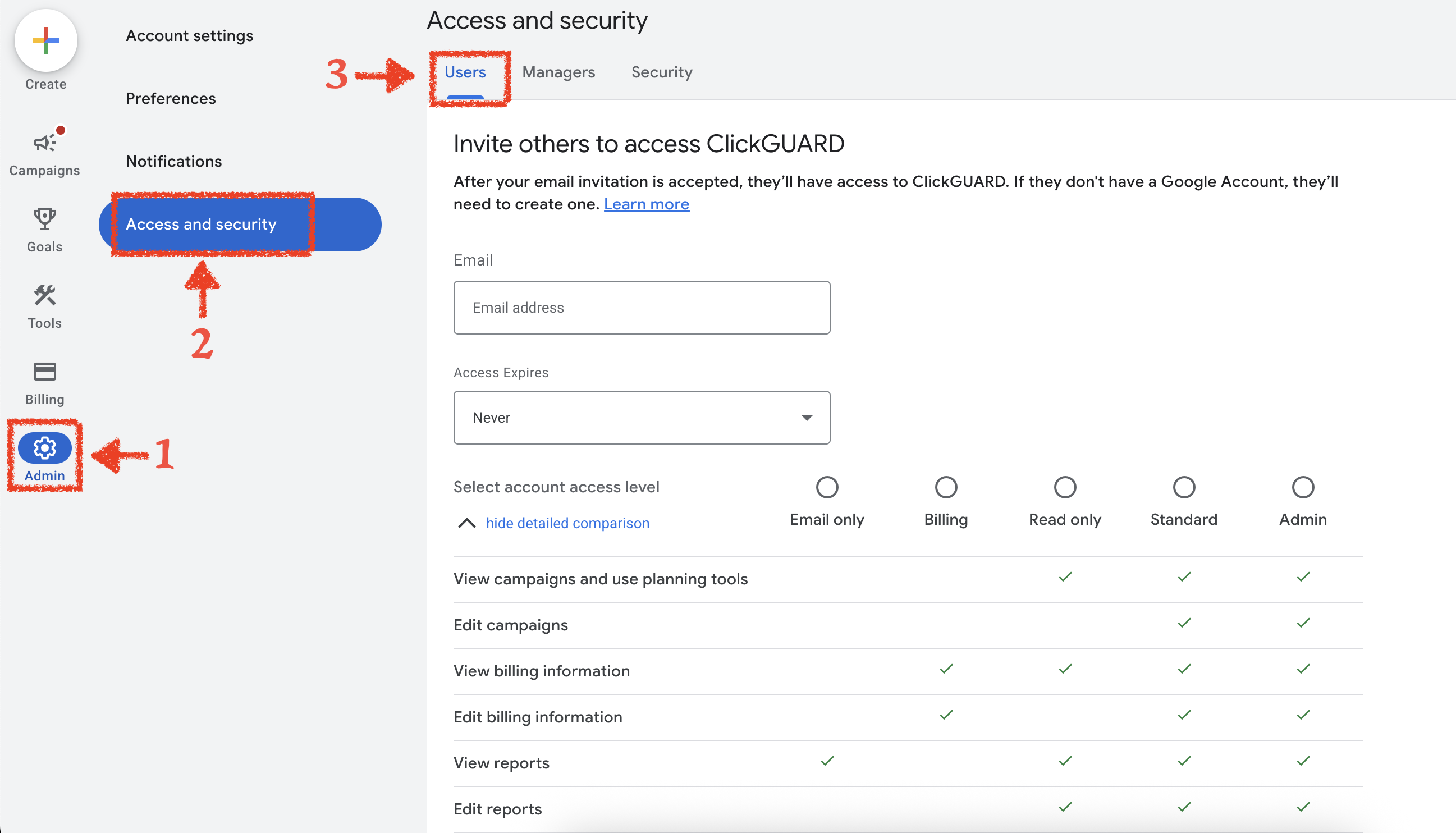
Within the "Users" tab, add the [support@clickguard.com](mailto:support@clickguard.com), select "Read only" access and send the invitation.
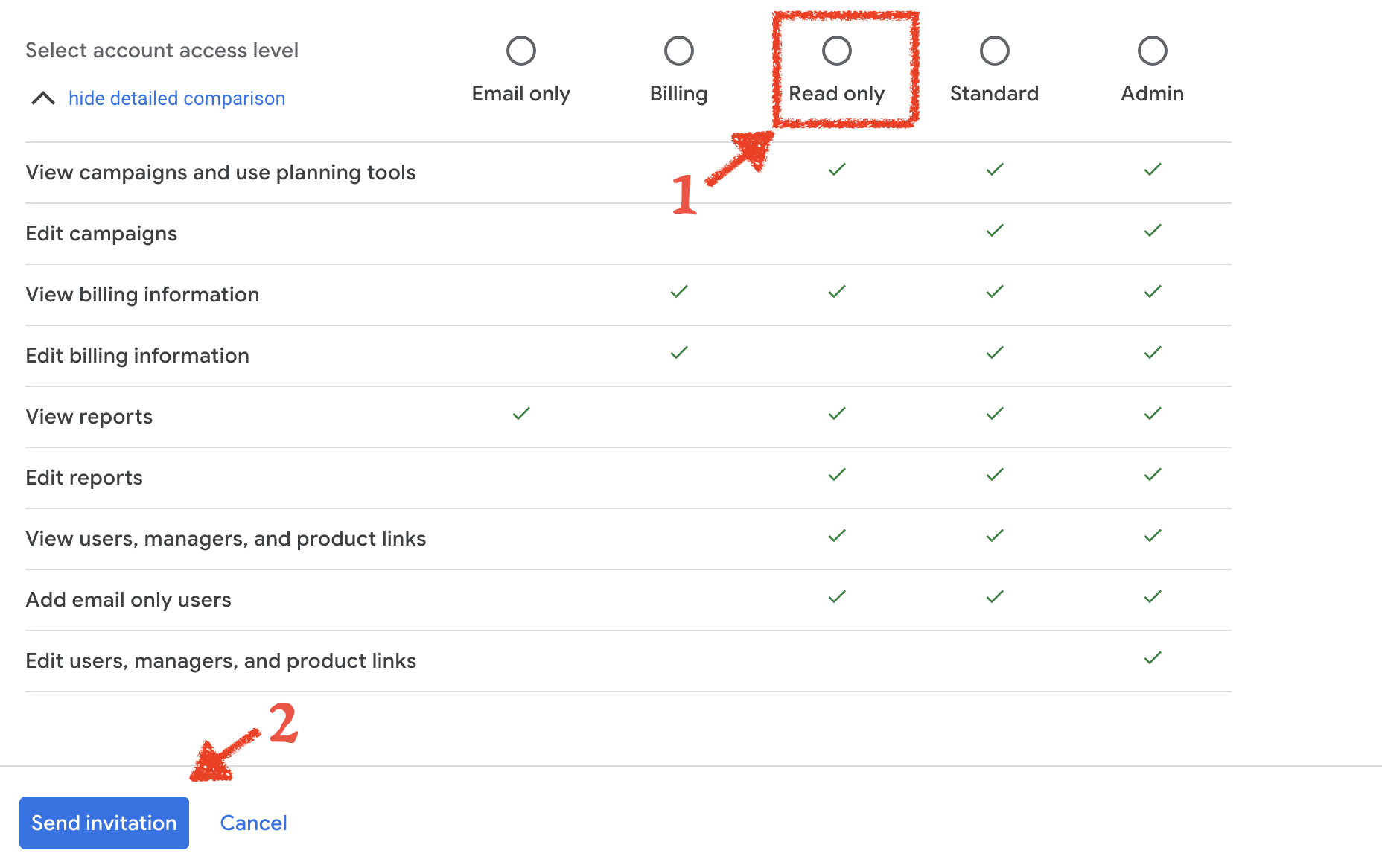
## ClickGuard support
After our support team accepts the invite, we will have access to your Ads account and will be able to better assist you.
## Remove access after support
You can remove access after receiving support. It is not required for ClickGuard to work with your Google Ads account.
See also: [How to fix support access invitation error in Google Ads](https://www.clickguard.com/help/faq/fix-support-access-invitation-error).
## Related articles
- [How to fix support access invitation error in Google Ads](https://www.clickguard.com/help/faq/fix-support-access-invitation-error.md)
---
# How to fix support access invitation error in Google Ads
Google Ads shows this error when the domain of the email you're inviting isn't in your account's allowed domains list. To fix it, open your Google Ads security settings, add the domain of the email address to the allowed domains, save, and then send the support access invitation again.
Source: https://www.clickguard.com/help/faq/fix-support-access-invitation-error
Published: 2026-04-18
Updated: 2026-04-18
Author: Nikola Pejic
### How to fix "This email address isn't in an allowed domain. to make changes to the allowed domain list, update your security settings." in your Google Ads account.
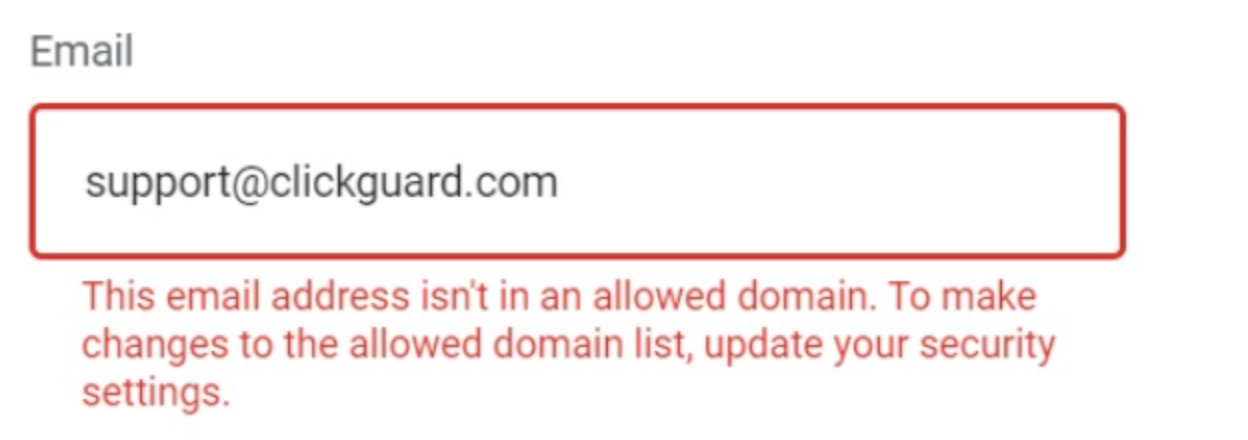
This error happens when the domain of the email address you're trying to add is not in your allowed domains list.
You just need to follow these few simple steps:
### STEP 1
Copy the domain of the email you want to add to your Google Ads account. For example: [support@clickguard.com](mailto:support@clickguard.com); the domain here is **clickguard.com**
### STEP 2
Go to your **ADMIN** settings, then click on **Access and Security** → **Security** → **Allowed domains**
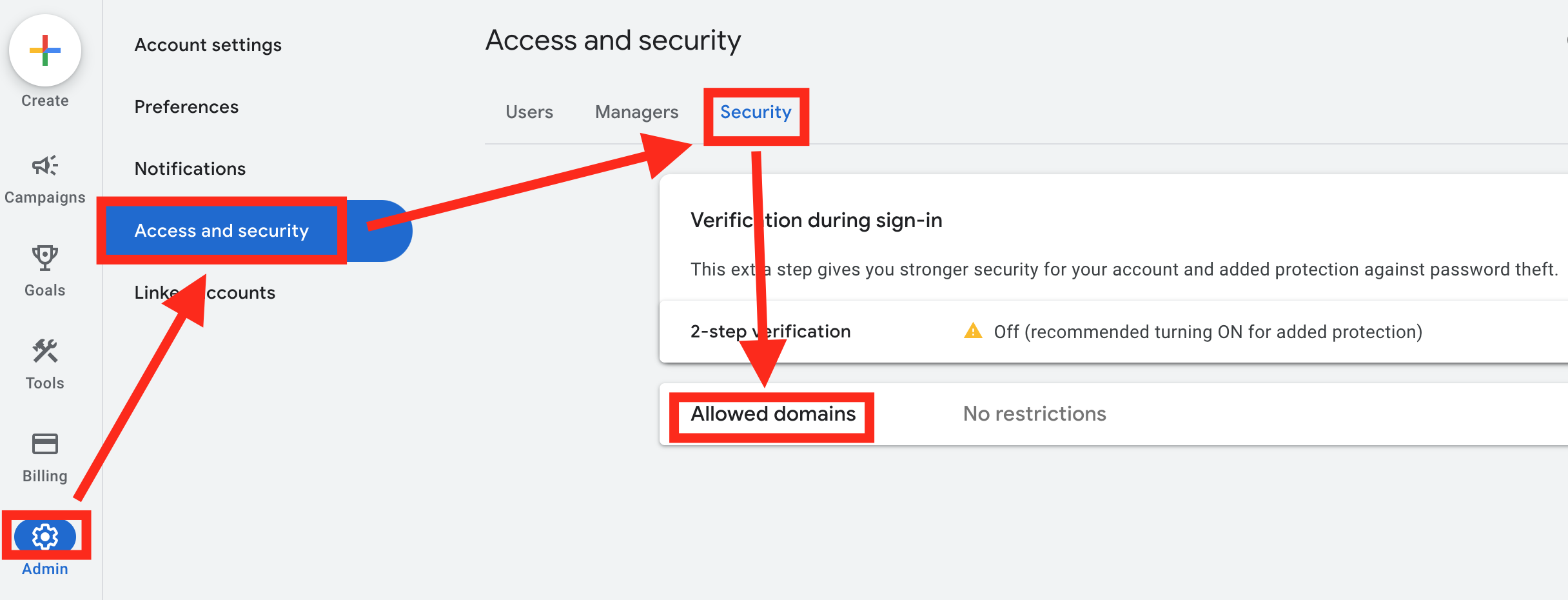
### STEP 3
Once you click on Allowed domains, just paste the domain of the email you want to add.
Then click **SAVE**.
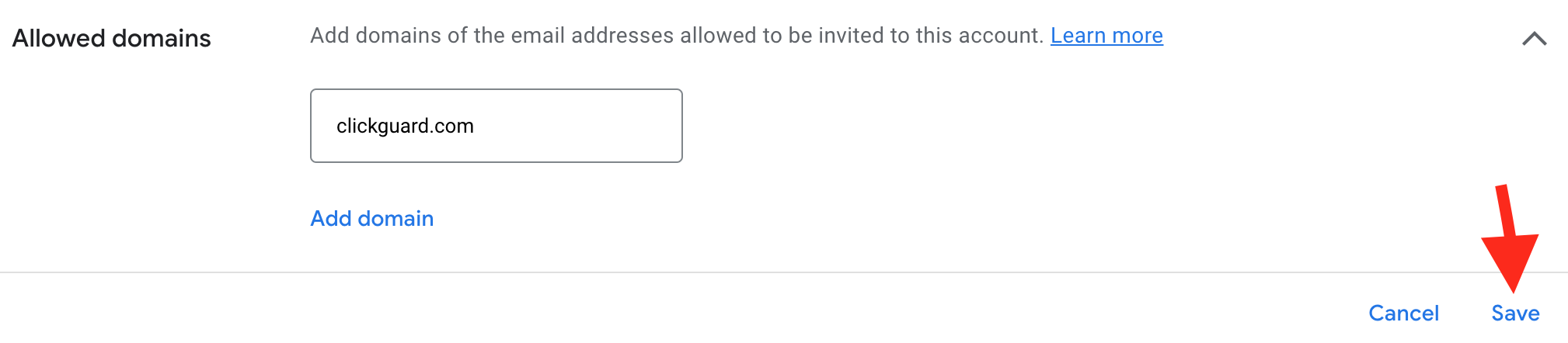
### STEP 4
Try granting access again.
See also: [How to enable support access to your Google Ads account](https://www.clickguard.com/help/faq/enable-google-ads-support-access).
## Related articles
- [How to enable support access to your Google Ads account](https://www.clickguard.com/help/faq/enable-google-ads-support-access.md)
---
# Why does ClickGuard use the website tracking code
ClickGuard uses the website tracking code to follow devices across several ad clicks and to measure how visitors behave on your website. That takes protection beyond a simple counter that blocks IP addresses after a set number of clicks, so ClickGuard's rules can catch fraud that changes IP addresses or behaves like a bot.
Source: https://www.clickguard.com/help/faq/why-clickguard-uses-website-tracking-code
Published: 2026-04-18
Updated: 2026-04-18
Author: Nikola Pejic
By tracking devices across multiple ad clicks you’re able to take your protection and campaign optimization beyond the scope of a simple click counter that tracks IP addresses and blocks them based on defined thresholds.
ClickGuard rules can be configured to monitor devices as well making it easy to catch repetitive ad clicks made from by the same source and block them.
By measuring time spent on site after an ad click you are able to define a special threshold where you automatically block the IP addresses of visitors clicking on your ads and not spending any or enough time on the landing page or site. That is usually a clear indicator of bad ad traffic.
The same goes for the site interaction metrics, page visits counter, and bot probability - you are getting the ability to detect and deal with various clicking patterns that bring no results.
You’re also able to track conversion events with ClickGuard making it possible for you to block visitors that often click on your ads but never convert.
See also: [What is ClickGuard's tracking code](https://www.clickguard.com/help/glossary/what-is-clickguards-tracking-code).
## Related articles
- [What is ClickGuard's tracking code](https://www.clickguard.com/help/glossary/what-is-clickguards-tracking-code.md)
---
# Can ClickGuard work without the website tracking code
Yes. The Google Ads tracking template is enough for ClickGuard to log and process your ad clicks and apply some protection rules. Without the website tracking code, though, you lose the rules and settings that rely on visitor behavior and device tracking, so your protection catches less invalid traffic.
Source: https://www.clickguard.com/help/faq/can-clickguard-work-without-tracking-code
Published: 2026-04-18
Updated: 2026-04-18
Author: Nikola Pejic
Yes. Using the Google Ads tracking template is enough for ClickGuard to log and process clicks and apply (some) protection rules. However, without the tracking code, **you won’t benefit from several useful rules and settings**, such as:
- Device tracking
- Time on-site rules
- No Device rules
- Conversion rules
This is why is is highly recommended to install and use the website tracking code on your website(s).
See also: [Why does ClickGuard use the website tracking code](https://www.clickguard.com/help/faq/why-clickguard-uses-website-tracking-code).
## Related articles
- [Why does ClickGuard use the website tracking code](https://www.clickguard.com/help/faq/why-clickguard-uses-website-tracking-code.md)
---
# Is ClickGuard tracking visible to my visitors
No. ClickGuard's click tracking takes around 6 milliseconds, so your visitors won't notice it or the redirect to your landing page that follows. A tech-savvy visitor could spot ClickGuard's tracking parameters in the URL, but nothing on the page changes and the visit works exactly as it would without ClickGuard.
Source: https://www.clickguard.com/help/faq/is-clickguard-tracking-visible-to-visitors
Published: 2026-04-18
Updated: 2026-04-18
Author: Nikola Pejic
Click tracking is not visible to visitors since the entire process takes up around **6 milliseconds** making it invisible to the naked eye.
Your customers will not notice the redirect to your landing page that happens after tracking is completed. A tech-savvy visitor who is monitoring web traffic will be able to register both ClickGuard's and Google’s own tracking, by using the software. However, this is not the behavior of the vast majority of Internet users.
With parallel tracking in Google Ads, ClickGuard's tracking is **not visible even to machines**.
See also: [Does ClickGuard's tracking code influence page load speed](https://www.clickguard.com/help/faq/does-tracking-code-influence-page-speed).
## Related articles
- [Does ClickGuard's tracking code influence page load speed](https://www.clickguard.com/help/faq/does-tracking-code-influence-page-speed.md)
---
# Does ClickGuard's tracking code influence page load speed
No. ClickGuard's website tracking code has no impact on page load speed. It loads asynchronously, so it never delays your page's main content, and it doesn't change your page's layout or visible elements. Visitors see your pages load exactly as fast as they did before you installed it.
Source: https://www.clickguard.com/help/faq/does-tracking-code-influence-page-speed
Published: 2026-04-18
Updated: 2026-04-18
Author: Nikola Pejic
The ClickGuard website tracking code has **no impact on page load times** due to the following:
- It is loaded **asynchronously**, ensuring it does not delay the loading of the main page content.
- It does not alter the visual layout of the page, except when a popup warning is shown to offenders, which only occurs after the page has fully loaded.
## How is the code loaded asynchronously?
By making the script asynchronous, ClickGuard instructs the browser not to wait for the script to load before continuing with other tasks. This approach, recommended by Google's speed optimization guidelines, involves adding the `async` attribute to the script tag.
This tells the browser not to block the construction of the **Document Object Model** (DOM) while waiting for the script, which improves page performance.
The modern industry standard for optimizing speed is to load JavaScript tags asynchronously. This allows the JavaScript to run in parallel with the rest of the page content, meaning that even if the tracking script is slow to load or respond, it will not affect the overall loading speed of the page.
See also: [What is ClickGuard's tracking code](https://www.clickguard.com/help/glossary/what-is-clickguards-tracking-code).
## Related articles
- [What is ClickGuard's tracking code](https://www.clickguard.com/help/glossary/what-is-clickguards-tracking-code.md)
---
# How to install the Google tag (gtag.js)
The Google tag, gtag.js, is a single tag you add to your website to use several Google products, like Google Ads and Google Analytics, instead of managing a separate tag for each. Install it once in the head of every page, or through Google Tag Manager, and each product can use it.
Source: https://www.clickguard.com/help/faq/how-to-install-the-google-tag
Published: 2026-09-30
Updated: 2026-09-30
Author: Nikola Pejic
The Google tag (gtag.js) is a single tag you can add to your website to use a variety of Google products and services (e.g., Google Ads, Google Analytics, Campaign Manager, Display & Video 360, Search Ads 360). Instead of managing multiple tags for different Google product accounts, you can use the Google tag across your entire website and connect the tag to multiple destinations.
## Add the Google tag to your website
To start collecting data with the Google tag:
1. Open a Google product you use and access the Google tag screen.
2. Copy your Google tag ID.
3. Paste your Google tag ID in the code sample below. Place the Google tag snippet immediately after the opening `` HTML tag on every page you want to measure.
```
```
## NOTE:
Even if you have Google Tag Manager installed and working on your website, that does not mean you have Google Tag installed. This tag is mandatory for ClickGuard to start populating Audience exclusions.
See also: [What is ClickGuard's tracking code](https://www.clickguard.com/help/glossary/what-is-clickguards-tracking-code).
## Related articles
- [What is ClickGuard's tracking code](https://www.clickguard.com/help/glossary/what-is-clickguards-tracking-code.md)
---
# How ClickGuard tracks page visits
With the website tracking code on your landing pages, ClickGuard tracks every page a visitor opens after clicking your ad. Tracking starts the moment the code loads, and each page load counts as a visit. Page visits help ClickGuard tell engaged visitors from bots that land and leave without looking around.
Source: https://www.clickguard.com/help/faq/how-clickguard-tracks-page-visits
Published: 2026-04-18
Updated: 2026-04-18
Author: Nikola Pejic
When you install the website tracking code on your landing page(s), ClickGuard can track every single page visit on your website after an ad click
Tracking page views (visits) starts from the very moment our website tracking code loads. This is counted as a single-page view, which differs from many other tracking providers (namely, Google Analytics), where the visitor must visit at least one page other than the landing page. This doesn't work well for one-page websites.
Every time the visitor goes to another page on the website, ClickGuard will count the page view (visit) as long as the visitor maintains the **browser session** (has their browser open).
## How is this information used?
Knowing the number of pages visitors view on your website after an ad click is actionable data you can use in Visitor Behavior rules.
See also: [How does ClickGuard track time on website](https://www.clickguard.com/help/faq/how-clickguard-tracks-time-on-website).
## Related articles
- [How does ClickGuard track time on website](https://www.clickguard.com/help/faq/how-clickguard-tracks-time-on-website.md)
---
# How does ClickGuard track time on website
ClickGuard measures time on website with its tracking code. The clock starts the moment the code loads on your landing page and runs for the whole browser session, until the visitor closes the browser. Very short visits are a common sign of bots, so time on site helps ClickGuard spot invalid traffic.
Source: https://www.clickguard.com/help/faq/how-clickguard-tracks-time-on-website
Published: 2026-04-18
Updated: 2026-04-18
Author: Nikola Pejic
When you install the website tracking code on your landing page(s), ClickGuard can measure the time visitors spend on your website.
Measuring time on site starts from the very moment our website tracking code loads. ClickGuard then tracks the **entire browser session** up until the point the visitor closes the browser and measures the time the user has spent browsing your landing page and the rest of the site.
## How is this information used?
Knowing the time visitors spend on your website after an ad click is actionable data you can use in Visitor Behavior rules.
See also: [How ClickGuard tracks page visits](https://www.clickguard.com/help/faq/how-clickguard-tracks-page-visits).
## Related articles
- [How ClickGuard tracks page visits](https://www.clickguard.com/help/faq/how-clickguard-tracks-page-visits.md)
---
# How does ClickGuard track website interactions
With the tracking code on your landing pages, ClickGuard measures how each visitor interacts with your website, including clicks, scrolling, mouse movement and keyboard use. Real people interact in ways bots rarely copy, so these interactions help ClickGuard tell genuine visitors from automated traffic and block the sources that waste your spend.
Source: https://www.clickguard.com/help/faq/how-does-clickguard-track-website-interactions
Published: 2026-04-18
Updated: 2026-04-18
Author: Nikola Pejic
When you install the website tracking code on your landing page(s), ClickGuard can measure visitor's interaction with your website.
ClickGuard tracks different interaction metrics, including (but not limited to):
- clicks on page elements
- focusing and interacting with forms
- scrolling through the page
- selecting and copying text from the page
By streamlining these metrics into an intelligent algorithm, ClickGuard is able to create interaction patterns that can be compared with previously recorded behavior patterns.
The output is an interaction matrix:
- **no interaction** - there was no interaction
- **low interaction** - visitor interaction was lower than expected for the given campaign and device type
- **medium interaction** - visitor's interaction was around the expected level of interaction for the given campaign and device type
- **high interaction** - visitor interaction was higher than expected for the given campaign and device type
The given metrics are also used to determine bot probability.
## How accurate is interaction data?
Interaction level is provided with extreme accuracy, due to the versatility of the way ClickGuard gauges interaction:
- ClickGuard maintains **expected interaction patterns for every single ad campaign** - because different campaigns might have different conversation funnels, and for **every single device type** - because interactions are extremely different on mobile phones, tablets, and laptop/desktop devices.
- One of the important aspects of user interaction that ClickGuard takes into consideration is time spent on the site (session time) because users can't realistically interact with the site much in a short amount of time.
## How is this information used?
Knowing the level (or absence of) interaction with your website after an ad click is actionable data you can use in Visitor Behavior rules.
See also: [How does ClickGuard determine bot probability](https://www.clickguard.com/help/faq/how-does-clickguard-determine-bot-probability).
## Related articles
- [How does ClickGuard determine bot probability](https://www.clickguard.com/help/faq/how-does-clickguard-determine-bot-probability.md)
---
# Does ClickGuard support web session recording
No, ClickGuard doesn't record web sessions. Dedicated tools already do that, and watching hundreds of recordings isn't a practical way to spot fraud. Instead, ClickGuard's tracking code measures visitor behavior automatically, like time on site, page visits and interactions, and uses it to detect bots and invalid traffic for you.
Source: https://www.clickguard.com/help/faq/does-clickguard-support-web-session-recording
Published: 2026-04-18
Updated: 2026-04-18
Author: Nikola Pejic
ClickGuard does not record web sessions. There are many services out there that specialize in this functionality and deliver recordings for the purpose of understanding how users interact with your website.
Reviewing hundreds or thousands of web session recordings is an **extremely tedious and unscalable way** of fighting click fraud and dealing with unwanted ad traffic. After reviewing a recording, you would have to manually block out the click source in case it doesn't meet your criteria.
Instead, ClickGuard uses the website tracking code installed on your website to **track visitor behavior**, including:
- time spent on site
- page visits
- user interaction
- determine bots
- device ID
With ClickGuard, the tracked behavior metrics are actionable through Simple Behavior or Advanced Behavior rules that **automate the process** of mitigating the effects of click fraud and dealing with non-converting and wasteful clicks - automatically.
See also: [What is visitor behavior tracking in ClickGuard](https://www.clickguard.com/help/glossary/what-is-visitor-behavior-tracking).
## Related articles
- [What is visitor behavior tracking in ClickGuard](https://www.clickguard.com/help/glossary/what-is-visitor-behavior-tracking.md)
---
# Why does ClickGuard require the tracking template
ClickGuard needs the Google Ads tracking template because it's the only method that guarantees every paid ad click gets logged. With every click recorded, ClickGuard can run its forensic analysis on each one and block the sources of invalid traffic. Without the template, clicks go missing and protection has gaps.
Source: https://www.clickguard.com/help/faq/why-clickguard-requires-tracking-template
Published: 2026-04-18
Updated: 2026-04-18
Author: Nikola Pejic
ClickGuard utilizes the Google Ads tracking template to log ad clicks for your campaigns, ensuring comprehensive monitoring.
This approach is the only method that guarantees ClickGuard **will log all paid ad clicks**, enabling it to apply forensic analysis and implement the configured protection rules effectively.
It's important to note that the tracking template provided by ClickGuard must be placed in the tracking template field at the account level in your Google Ads account, not on the lower levels (campaign, ad group, or ad level).
See also: [What is Google Ads' tracking template](https://www.clickguard.com/help/glossary/what-is-google-ads-tracking-template).
## Related articles
- [What is Google Ads' tracking template](https://www.clickguard.com/help/glossary/what-is-google-ads-tracking-template.md)
---
# Does ClickGuard work with Google Ads parallel tracking
Yes, ClickGuard's Google Ads tracking template is fully compatible with parallel tracking. The key difference with parallel tracking is that ClickGuard no longer acts as a proxy to forward visitors to landing pages. Instead, it logs and processes click information in the background.
Source: https://www.clickguard.com/help/faq/does-clickguard-work-with-parallel-tracking
Published: 2026-04-18
Updated: 2026-04-18
Author: Nikola Pejic
Yes, ClickGuard's **Google Ads tracking template** is fully compatible with **parallel tracking**. The key difference with parallel tracking is that ClickGuard no longer acts as a proxy to forward visitors to landing pages. Instead, it logs and processes click information in the background.
## Are there any issues with custom tracking templates?
Even if you're using custom tracking templates at the account or lower levels, ClickGuard's tracking will still function correctly with parallel tracking, provided you use ClickGuard's **template merge tool**.
For optimal performance, it is recommended to remove any tracking templates below the account level and move custom URL parameters to the **Final URL suffix** setting in Google Ads. This ensures smooth integration without conflicts.
See also: [What is parallel tracking in Google Ads](https://www.clickguard.com/help/glossary/what-is-google-ads-parallel-tracking).
## Related articles
- [What is parallel tracking in Google Ads](https://www.clickguard.com/help/glossary/what-is-google-ads-parallel-tracking.md)
---
# Use a custom tracking template with ClickGuard
If you're using a 3rd party tracking template (e.g. for Facebook Ads), use our template merge tool to get a merged template. If you're using a custom tracking template to add UTM parameters to your landing page, simply follow the steps below to move these parameters to the final URL suffix in Google Ads.
Source: https://www.clickguard.com/help/faq/custom-tracking-template-with-clickguard
Published: 2026-04-18
Updated: 2026-04-18
Author: Nikola Pejic
If you're using a 3rd party tracking template (e.g. for Facebook Ads), use our template merge tool to get a merged template. If you're using a custom tracking template to add UTM parameters to your landing page, simply follow the steps below to move these parameters to the final URL suffix in Google Ads.
## Move tracking parameters to the final URL suffix

### Step 1 - Get your custom tracking template
Grab your current tracking template from your account, campaign or ad group in Google Ads. It will look something like this:
```
{lpurl}?campaign={campaignid}&keyword={keyword}
```
### Step 2 - Grab only URL parameters from the template
You can do this by removing the **{lpurl}?** part of the template to get:
```
campaign={campaignid}&keyword={keyword}
```
### Step 3 - Paste URL parameters into the URL suffix
Now simply paste the result of step 2 into the "Final URL Suffix" field in your account or campaign settings and **save changes**.
**Note:** If there's our suffix on the account-level you can merge your parameter with our final URL suffix. You do that by using ampersand (**&**) symbol, so it should look like this after it's merged:
```
campaign={campaignid}&keyword={keyword}&tm=tt&ap=gads&aaid=adaA8cTxsUD3m
```
As you can see, after **{keyword}** we added **&** followed by ClickGuard's final URL suffix __tm=tt&ap=gads&aaid=adaA8cTxsUD3m__
## Why use the final URL suffix?
Google introduced the final URL suffix as a part of its efforts to make it easy to implement of 3rd party tracking by using multiple tracking templates or parallel tracking.
They are used to clearly distinguish between URL parameters that are used to determine the content of a page from parameters that are used for tracking purposes on your own site.
Some of the perks of using the final URL suffix are:
- they work in parallel with tracking templates
- they can be configured on any level (e.g. account level and campaign level)
See also: [How to check custom tracking templates in Google Ads](https://www.clickguard.com/help/faq/how-to-check-custom-tracking-templates).
## Related articles
- [How to check custom tracking templates in Google Ads](https://www.clickguard.com/help/faq/how-to-check-custom-tracking-templates.md)
---
# How to check custom tracking templates in Google Ads
Custom tracking templates and other trackers can override ClickGuard's, so check each level of your Google Ads account where one could be set. At account level, go to Admin › Account settings › Tracking: ClickGuard's tracking template and final URL suffix should be there. Then check your campaigns and ads for templates of their own.
Source: https://www.clickguard.com/help/faq/how-to-check-custom-tracking-templates
Published: 2026-06-18
Updated: 2026-06-18
Author: Nikola Pejic
## Checking the tracking template on the account level
1. In your Google Ads account, click the **Admin** icon
2. Click [**Account settings**](https://ads.google.com/aw/settings/account)
3. Click on **Tracking**
4. You should have ClickGuard's tracking template and Final URL suffix there, which is required for the system to log all paid ad clicks
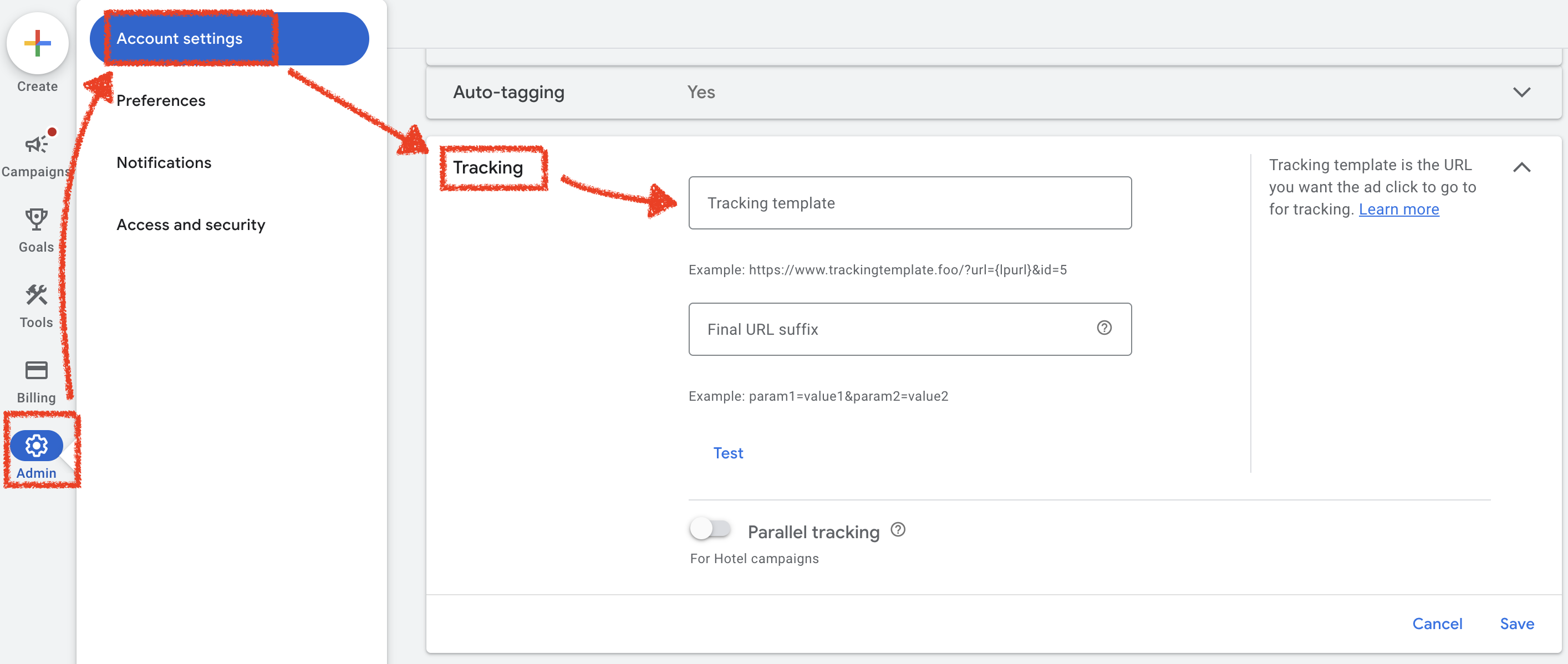
## Checking the tracking template on the campaign level
1. In your Google Ads account, click the **Campaigns** icon
2. Click the **Campaigns** drop-down in the section menu
3. Click [**Campaigns**](https://ads.google.com/aw/campaigns)
4. Click on the **Edit settings** icon when it appears next to the campaign name
5. Scroll down to **Campaign URL options**
6. If you have anything set there, remove the parameters from the **Tracking template** field and move them to the **Final URL suffix field** by removing **{lpurl}?** part and then moving everything after that to the Final URL suffix so that ClickGuard's tracking template on the account-level can work seamlessly.
7. Click **Save**
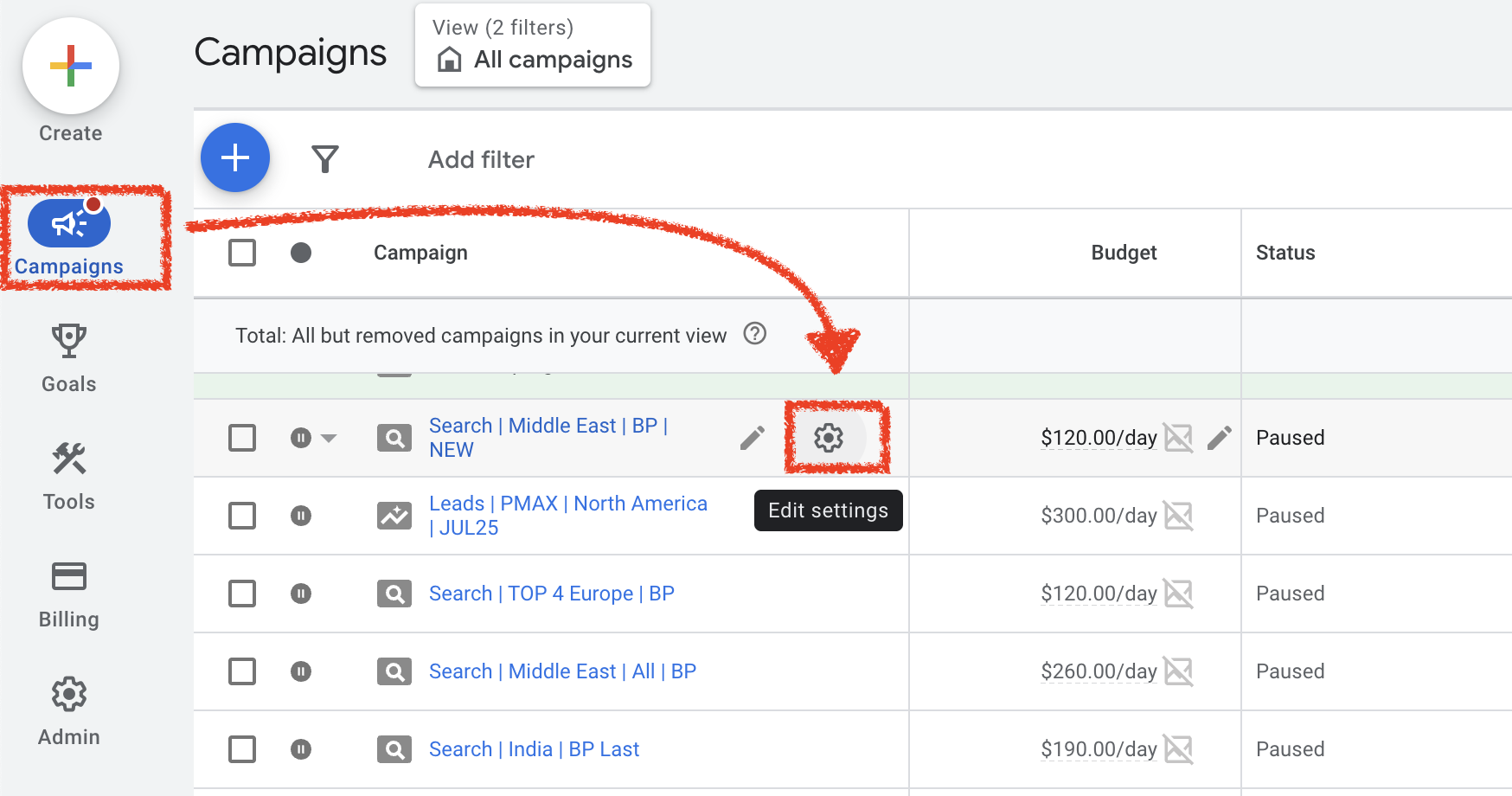
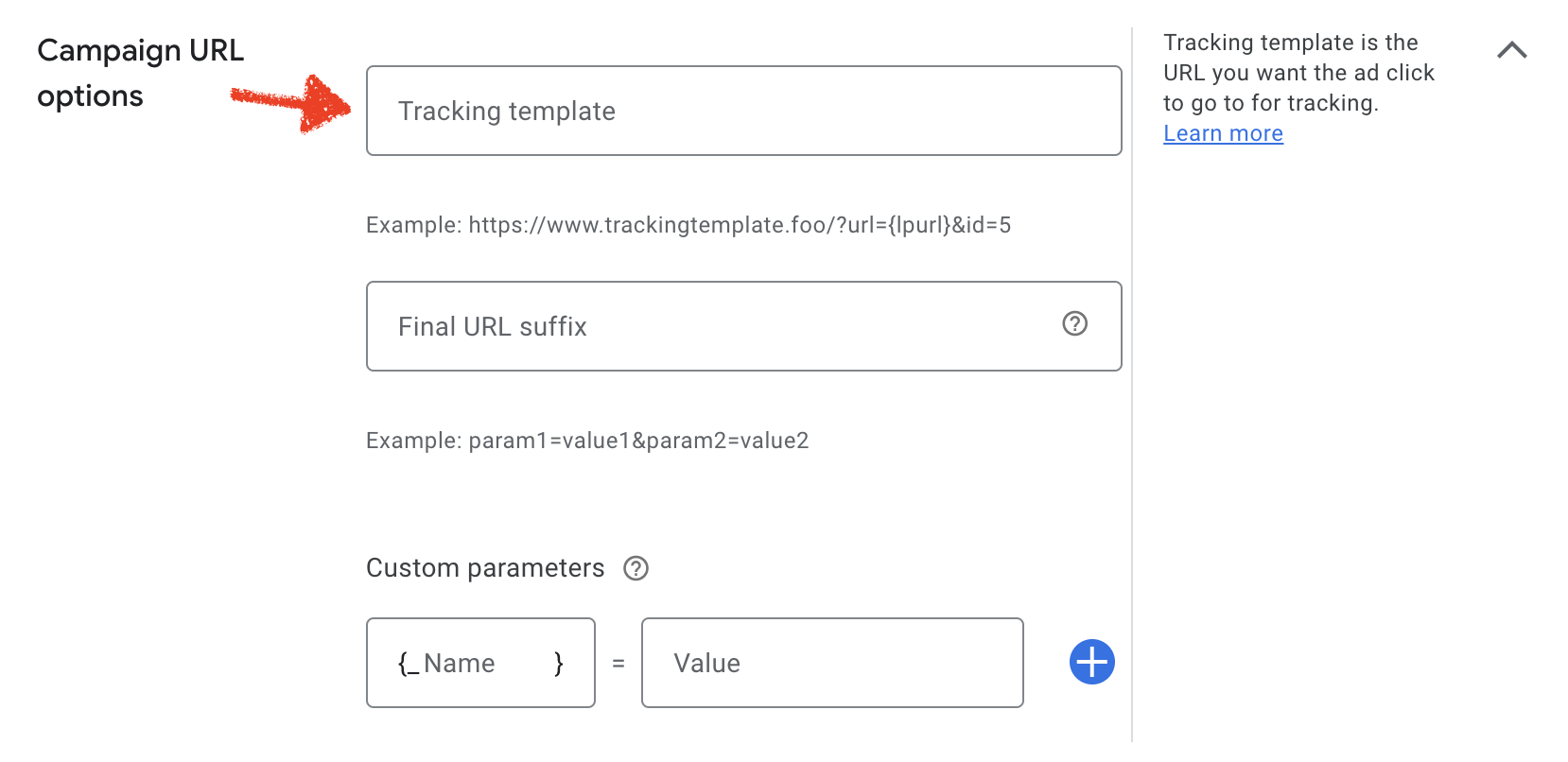
## Checking the tracking template on the ad level
1. In your Google Ads account, click the **Campaigns** icon
2. Click the **Campaigns** drop-down in the section menu
3. Click [**Ad groups**](https://https://ads.google.com/aw/adgroups)
4. Click on the **Edit settings** icon when it appears next to the ad group name
5. Expand **Ad Group URL options**
6. If you have anything set there, remove the parameters from the **Tracking template** field and move them to the **Final URL suffix field** by removing **{lpurl}?** part and then moving everything after that to the Final URL suffix so that ClickGuard's tracking template on the account-level can work seamlessly.
7. Click **Save**
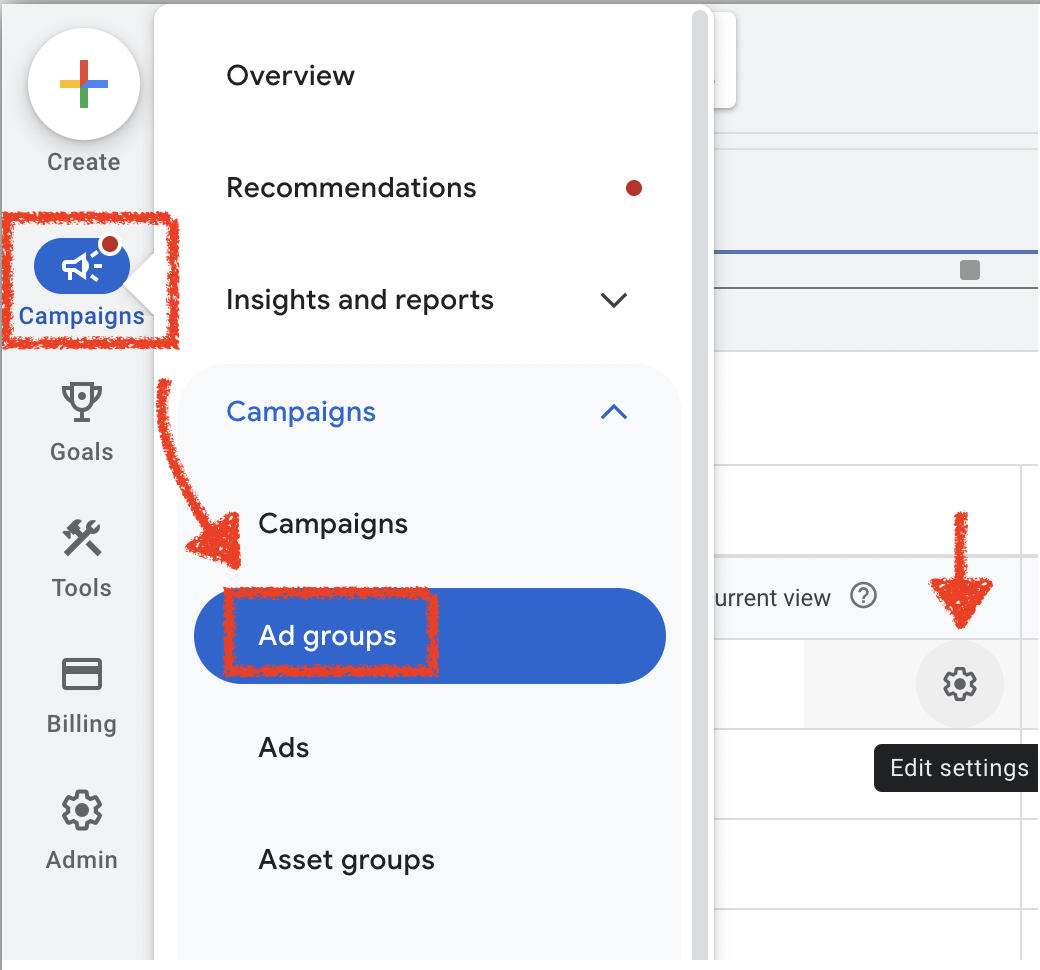
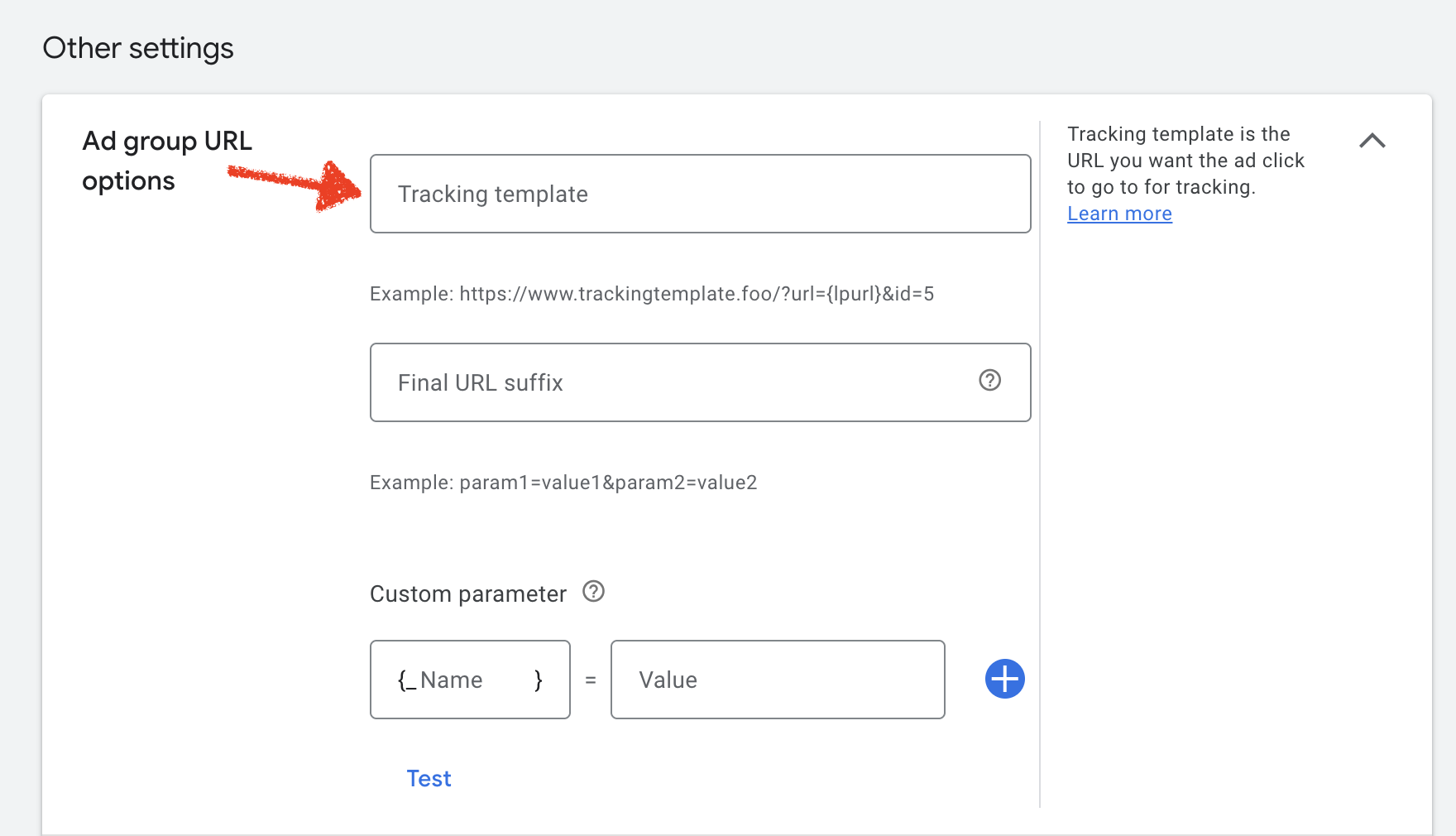
See also: [Low-level tracking templates override account-level](https://www.clickguard.com/help/faq/low-level-tracking-templates-override).
## Related articles
- [Low-level tracking templates override account-level](https://www.clickguard.com/help/faq/low-level-tracking-templates-override.md)
---
# Low-level tracking templates override account-level
ClickGuard uses an account-level tracking template in Google Ads to track Ad clicks. If you have a tracking template on a lower level (campaign, ad group, ad) the lower-level tracking template will be used and the account-level tracking template will be ignored.
Source: https://www.clickguard.com/help/faq/low-level-tracking-templates-override
Published: 2026-09-30
Updated: 2026-09-30
Author: Nikola Pejic
ClickGuard uses an account-level tracking template in Google Ads to track Ad clicks. If you have a tracking template on a lower level (campaign, ad group, ad) the lower-level tracking template will be used and the account-level tracking template will be ignored.
This can be solved in a multitude of ways.
## (1) low-level tracking template not required
For starters, if you do not need the lower-level tracking templates (which might be a leftover from previous configurations) you can simply [remove all lower-level tracking templates](https://clickguard-4sqp.help.userguiding.com/en/articles/21555-how-to-check-custom-tracking-templates-and-other) and have ClickGuard's work as the only one.
If you are benefitting from the low-level tracking templates, the optimal approach is determined based on why you are using them in the first place:
## (2) using a tracking template to add UTM parameters to the landing page
You are likely using a tracking template that looks like this:
```
{lpurl}?param1=value1¶m2=value2
```
Your goal is to add additional parameters to your final URL suffix for the purpose of on-site or server-side tracking (for example - you need the campaign name so you can properly record conversions).
This fix is super easy, as all you have to do is **leverage the final URL suffix** for the entity or entities that have a tracking template (for example: your campaigns). You'll basically move the additional parameters from the tracking template to the URL suffix and then remove the tracking template altogether.
Click [here](https://clickguard-4sqp.help.userguiding.com/en/articles/21815-how-to-use-a-custom-tracking-template-in-parallel) to learn how to use the final URL suffix. Do this **for all campaigns** (or other entities) where you're using a tracking template to get additional parameters into your final URL suffix and it will work alongside ClickGuard's tracking.
See also: [How to check custom tracking templates in Google Ads](https://www.clickguard.com/help/faq/how-to-check-custom-tracking-templates).
## Related articles
- [How to check custom tracking templates in Google Ads](https://www.clickguard.com/help/faq/how-to-check-custom-tracking-templates.md)
---
# Custom URL parameters and ClickGuard compatibility
ClickGuard doesn't strip or remove your custom URL parameters. When someone clicks your ad, it keeps every parameter and passes it through to your landing page, so the URL arrives exactly as you set it. Your UTM tags and other tracking tools keep working alongside ClickGuard.
Source: https://www.clickguard.com/help/faq/custom-url-parameters-and-clickguard-compatibility
Published: 2026-04-18
Updated: 2026-04-18
Author: Nikola Pejic
ClickGuard does not strip or remove customer URL parameters.
When a user visits a website protected by ClickGuard, the software preserves all customer URL parameters and passes them through to the destination URL. This ensures that the user's original URL remains intact and that any customer information or session data is preserved.
ClickGuard's protection mechanism is designed to be transparent and non-intrusive, and it does not modify or alter the original URL in any way. This means that all customer URL parameters, such as session IDs, customer IDs, or other custom parameters, are passed through to the destination URL unchanged.
By preserving customer URL parameters, ClickGuard ensures that customers can continue to access the website as they normally would, without any disruptions or errors. This helps to maintain a seamless user experience and can help to prevent issues such as lost sessions or incomplete transactions.
See also: [Use a custom tracking template with ClickGuard](https://www.clickguard.com/help/faq/custom-tracking-template-with-clickguard).
## Related articles
- [Use a custom tracking template with ClickGuard](https://www.clickguard.com/help/faq/custom-tracking-template-with-clickguard.md)
---
# How does ClickGuard determine bot probability
ClickGuard estimates bot probability from how each visitor interacts with your website. Its tracking code measures clicks, mouse movement, scrolling and other interactions, and compares them with how real people behave. Visitors who act like automated scripts get a high bot probability, which ClickGuard uses to detect and block invalid traffic.
Source: https://www.clickguard.com/help/faq/how-does-clickguard-determine-bot-probability
Published: 2026-04-18
Updated: 2026-04-18
Author: Nikola Pejic
When you install the website tracking code on your landing page(s), ClickGuard is able to gauge the probability that the visitor is a bot.
Our tracking code tracks a range of different site interaction metrics such as clicks, mouse movement, interaction with different elements on the page, typing, interactions with forms, and many more.
The system can determine the probability that the visitor is a bot by combining all metrics into interaction patterns and running them through an intelligent algorithm. The output is a bot probability matrix:
- **low probability:** the visitor is most likely not a bot
- **medium probability:** the visitor is showing some characteristics of bot interaction, but not enough to consider them - a bot
- **high probability:** the visitor is most likely a bot
See also: [How does ClickGuard track website interactions](https://www.clickguard.com/help/faq/how-does-clickguard-track-website-interactions).
## Related articles
- [How does ClickGuard track website interactions](https://www.clickguard.com/help/faq/how-does-clickguard-track-website-interactions.md)
---
# How does ClickGuard check IP addresses
ClickGuard checks the IP address of everyone, people and bots, who clicks your ads. It uses a suite of geolocation and anti-fraud services to learn details like the IP's location, internet provider, network type and whether it's a known proxy or threat, then uses them to decide which sources to block.
Source: https://www.clickguard.com/help/faq/how-does-clickguard-check-ip-addresses
Published: 2026-04-15
Updated: 2026-04-15
Author: Nikola Pejic
ClickGuard uses a **suite of geo-location and anti-fraud services** to retrieve detailed information about the IP address of people (and bots) that click on your ads.
The information includes, but is not limited to:
- ISP (Internet Service Provider)
- geographical location of the IP address (city-level / postal code accuracy)
- s IP blacklisted (various malware and anti-fraud blacklists)?
- Does the IP address belong to a public proxy / VPN or Tor browser?
- The threat level of the IP address
## How can you use this information?
With ClickGuard, all information about an IP address is made actionable through automated rules. You can set different thresholds for different combinations of conditions. For example, you can limit the number of clicks that a certain IP address can make if it is a proxy or block all clicks that come from IPs that are located outside of your targeted location.
See also: [What is an IP address threat level](https://www.clickguard.com/help/glossary/what-is-ip-address-threat-level).
## Related articles
- [What is an IP address threat level](https://www.clickguard.com/help/glossary/what-is-ip-address-threat-level.md)
---
# IP address tracking in ClickGuard
ClickGuard logs the IP address of every ad click through your Google Ads tracking template, and of organic visits through the website tracking code. It checks each IP against billions of data points, like known proxies, data centers and blacklists, to judge its risk and decide which sources to block with IP exclusions.
Source: https://www.clickguard.com/help/faq/ip-address-tracking-in-clickguard
Published: 2026-04-18
Updated: 2026-04-18
Author: Nikola Pejic
ClickGuard logs the IP addresses of devices making ad clicks by tracking clicks via the Google Ads tracking template. IP addresses of devices that generate organic traffic on your website are also logged via the website tracking code.
Logging and processing IP addresses, running them against several billion different nodes of information available about specific IP addresses, IP ranges, and their past behavior is crucial to combating click fraud and reducing wasteful ad traffic.
ClickGuard is able to protect Google Ads campaigns from click fraud and optimize them against unwanted and low-performing sources by preventing IP addresses from seeing ads by leveraging IP exclusions in Google Ads.
See also: [How does ClickGuard check IP addresses](https://www.clickguard.com/help/faq/how-does-clickguard-check-ip-addresses).
## Related articles
- [How does ClickGuard check IP addresses](https://www.clickguard.com/help/faq/how-does-clickguard-check-ip-addresses.md)
---
# Does ClickGuard track IPv6 addresses
Yes. ClickGuard tracks both IPv4 and IPv6 addresses, and it never converts an IPv6 address into an IPv4 one, as some systems do. Every ad click keeps its real address, so ClickGuard can analyze it and block the source with IP exclusions, whether it's an IPv4 or an IPv6 address.
Source: https://www.clickguard.com/help/faq/does-clickguard-track-ipv6-addresses
Published: 2026-04-18
Updated: 2026-04-18
Author: Nikola Pejic
**Yes**. ClickGuard tracks both IPv4 and IPv6 addresses.
## Does ClickGuard ever represent IPv6 as IPv4?
No. While there are systems that will "convert" IPv6 addresses to IPv4 (actually transform them into a lower-capacity address space), ClickGuard always shows IP addresses in their full form.
Systems that show IPv6 addresses as IPv4 actually lose information as the IPv4 address they are showing is an address of a hosting node that operates within the IPv6 address space meaning a single IPv4 address shown by the system in question can actually represent millions of different IPv6 addresses.
See also: [What is the difference between IPv4 and IPv6](https://www.clickguard.com/help/glossary/ipv4-vs-ipv6).
## Related articles
- [What is the difference between IPv4 and IPv6](https://www.clickguard.com/help/glossary/ipv4-vs-ipv6.md)
---
# How ClickGuard determines IP address location
ClickGuard finds the location of an IP address by combining several geolocation services. Each one keeps a database of where internet providers' IP addresses are used. IP addresses are mostly dynamic and often change location, so no service can be 100% accurate, and combining them gives ClickGuard the best estimate.
Source: https://www.clickguard.com/help/faq/how-clickguard-determines-ip-address-location
Published: 2026-04-18
Updated: 2026-04-18
Author: Nikola Pejic
ClickGuard uses a **combination of geolocation services** to geo-locate IP addresses.
## How accurate is the geo-location process?
All geo-location services use and maintain databases of geo-locations for Internet Service Providers. IP addresses are overwhelmingly dynamic and often change locations, therefore no service can claim a 100% accuracy in geo-locating an IP address.
Here's an accuracy estimation guaranteed by services used by ClickGuard:
- Country: **95% - 99%** accurate
- Region (State): **55% - 80%** accurate
- City: **50% - 75%** accurate
See also: [How does ClickGuard check IP addresses](https://www.clickguard.com/help/faq/how-does-clickguard-check-ip-addresses).
## Related articles
- [How does ClickGuard check IP addresses](https://www.clickguard.com/help/faq/how-does-clickguard-check-ip-addresses.md)
---
# How ClickGuard detects VPN, proxy, and Tor traffic
ClickGuard detects VPN, proxy and Tor traffic by checking each IP address against several services that track which addresses belong to public proxies, VPN providers and Tor exit nodes. When an ad click comes from one of them, ClickGuard flags it, because hiding a real location is a common sign of click fraud.
Source: https://www.clickguard.com/help/faq/how-clickguard-detects-vpn-proxy-tor
Published: 2026-04-18
Updated: 2026-04-18
Author: Nikola Pejic
ClickGuard uses different services to retrieve information about an IP address, which includes knowledge that an IP address is used by a public proxy or VPN - or Tor browser.
## How accurate is the proxy detection process?
VPN / proxy providers constantly add new IP address ranges to their IP portfolio, which is necessary for them in order to deliver the service for their users (e.g. overcome geographical limitations in consuming content).
Therefore **proxy detection can never be 100% accurate** and different services will vary in accuracy - usually in detecting newly "proxied" IP addresses as proxies. When it comes to quantifying the accuracy it quickly becomes an impossible process since proxy detection services do not provide such information (everybody claims to be the "most accurate" and kinda leave it at that).
See also: [What is a proxy, VPN, or Tor](https://www.clickguard.com/help/glossary/what-is-proxy-vpn-tor).
## Related articles
- [What is a proxy, VPN, or Tor](https://www.clickguard.com/help/glossary/what-is-proxy-vpn-tor.md)
---
# How does ClickGuard track unique devices
ClickGuard tracks unique devices with its website tracking code. It stores a device ID in the visitor's browser local storage, which lets it recognize the same device across several ad clicks, campaigns and keywords, even when the IP address changes. That way it can block a device that keeps clicking your ads.
Source: https://www.clickguard.com/help/faq/how-does-clickguard-track-unique-devices
Published: 2026-04-18
Updated: 2026-04-18
Author: Nikola Pejic
When you install the website tracking code on your landing page(s), ClickGuard is able to track visitors' devices (browsers).
ClickGuard uses browser local storage to store a Device ID that is used to track visitors across multiple ad clicks, campaigns, keywords, etc. You can later use this information to detect repetitive Ad clicks from the same browser (device).
With ClickGuard you can create and define a specific "No Device" rule which triggers when ClickGuard is unable to detect the device from mobile, tablet, and computer, in which case it would be flagged as no device detected, as well as use "device" as a source in almost any other rule type to focus the rule on unique devices.
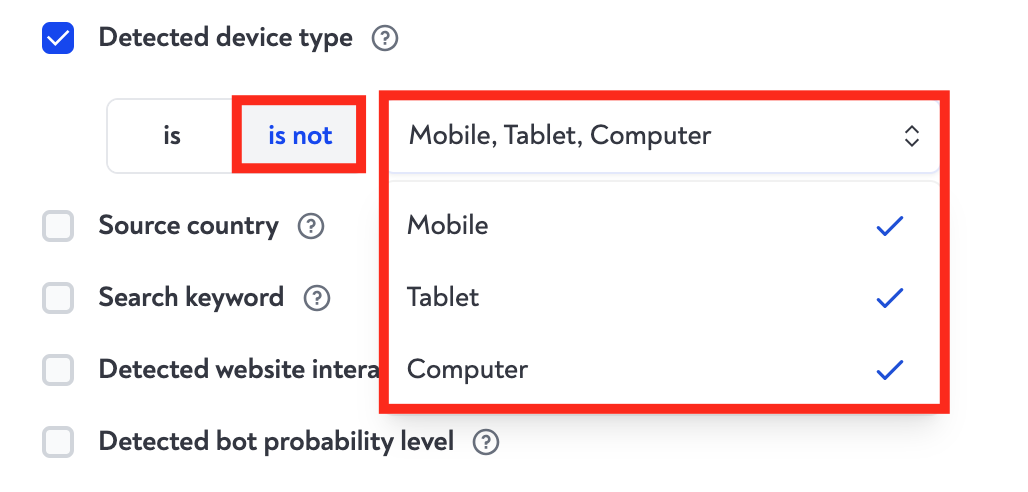
See also: [What is device ID in ClickGuard](https://www.clickguard.com/help/glossary/what-is-device-id-in-clickguard).
## Related articles
- [What is device ID in ClickGuard](https://www.clickguard.com/help/glossary/what-is-device-id-in-clickguard.md)
---
# Browser fingerprinting and device tracking in ClickGuard
Browser fingerprinting builds a profile of each visitor from details of their browser or device. It raised privacy concerns, so almost all popular browsers now block or sabotage it, which makes it unreliable. ClickGuard doesn't rely on it. It tracks unique devices with a device ID stored in the visitor's browser instead.
Source: https://www.clickguard.com/help/faq/browser-fingerprinting-and-device-tracking
Published: 2026-04-18
Updated: 2026-04-18
Author: Nikola Pejic
Browser (device) fingerprinting is used by various tracking services to create unique profiles for website visitors based on the specifics of their browser or device.
The process has raised many privacy concerns over the years both in the cyber security and consumer space. This is why almost all popular browsers either **disable or sabotage the process, rendering it useless**.
__ClickGuard does not rely on browser fingerprinting and does not collect information that could be used to create unique visitor profiles.__
See also: [What is device ID in ClickGuard](https://www.clickguard.com/help/glossary/what-is-device-id-in-clickguard).
## Related articles
- [What is device ID in ClickGuard](https://www.clickguard.com/help/glossary/what-is-device-id-in-clickguard.md)
---
# Disabled AI-driven vs monitoring mode
Monitoring mode and disabled AI-driven mode are different settings. In monitoring mode, ClickGuard keeps analyzing every ad click and shows the click fraud it finds, without blocking anything. With AI-driven mode turned off, its AI doesn't detect or block bad traffic at all, though your own custom rules still apply.
Source: https://www.clickguard.com/help/faq/disabled-ai-driven-vs-monitoring-mode
Published: 2026-10-01
Updated: 2026-10-01
Author: Nikola Pejic
Disabled AI-driven mode and monitoring mode are two different settings on the **AI Protection** page in ClickGuard.
## Disabled AI-driven mode
When you switch off **AI-Driven Threat Monitoring**, ClickGuard's AI stops detecting and blocking bad traffic on its own. It won't flag bad traffic coming from the website, so bots, click farms and other invalid clicks can reach your ads again, and you pay for them.
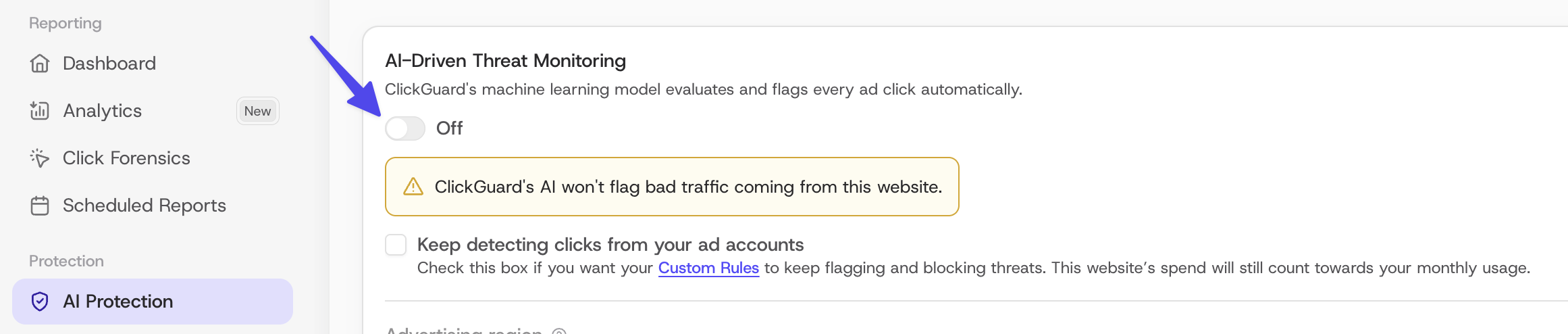
To keep your custom rules flagging and blocking bad traffic while the AI is off, check **Keep detecting clicks from your ad accounts**. The website's ad spend then still counts toward your monthly usage.
Turn the AI off only for a short time, for example while you test something. We **don't recommend** leaving it off for long.
## Monitoring mode
In monitoring mode, the AI stays on: ClickGuard keeps tracking and analyzing every click on your ads and shows you the invalid traffic it finds in your dashboards, but it doesn't block anything. No IP exclusions or audience exclusions are added to your campaigns.
To use it, keep **AI-Driven Threat Monitoring** on and select **Monitoring only** under **Protective Actions**.
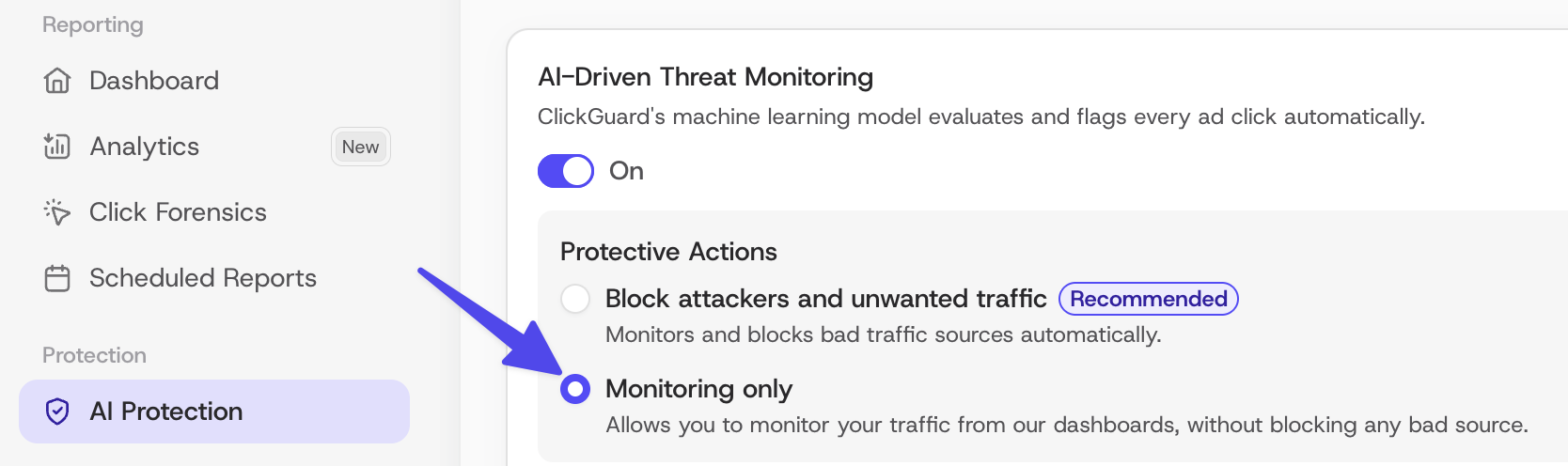
Use it to see how much click fraud reaches your ads before you turn on blocking, for example on a new website or ad account. When you're ready, select **Block attackers and unwanted traffic**.
## In short
- **Disabled AI-driven mode:** ClickGuard's AI doesn't detect or block anything; only your custom rules can still apply.
- **Monitoring mode:** ClickGuard's AI finds click fraud and reports it, without blocking.
See also: [What is AI-Driven mode in ClickGuard](https://www.clickguard.com/help/glossary/what-is-ai-driven-mode).
## Related articles
- [What is AI-Driven mode in ClickGuard](https://www.clickguard.com/help/glossary/what-is-ai-driven-mode.md)
---
# How does ClickGuard make exclusions in Google Ads
When you block a source in ClickGuard, or one of its protection rules does, ClickGuard tells Google Ads to create an exclusion record for the affected campaigns. Google then stops showing your ads to that IP address, IP range or placement in those campaigns, until the exclusion expires or you remove it.
Source: https://www.clickguard.com/help/faq/how-clickguard-makes-google-ads-exclusions
Published: 2026-06-29
Updated: 2026-06-29
Author: Nikola Pejic
When an exclusion is created in ClickGuard, manually or when protection settings (rules) are triggered, ClickGuard instructs Google Ads to create an exclusion record for the affected campaign(s).
These instructions include:
- IP address blocks
- IP range blocks
- Audience exclusions
- App & domain placement exclusions
In the back, ClickGuard sends a command to Google via Google Ads API and awaits for the response to **confirm that the given entity is excluded**.
See also: [How does ClickGuard remove exclusions in Google Ads](https://www.clickguard.com/help/faq/how-clickguard-removes-google-ads-exclusions).
## Related articles
- [How does ClickGuard remove exclusions in Google Ads](https://www.clickguard.com/help/faq/how-clickguard-removes-google-ads-exclusions.md)
---
# How fast does ClickGuard block in Google Ads
In most cases, ClickGuard blocks instantly: it creates the exclusion in Google Ads as soon as a blocking action is triggered. When clicks and blocking actions are very frequent, Google can take a little longer to process the changes, so an exclusion may show as Pending for a short while.
Source: https://www.clickguard.com/help/faq/how-fast-clickguard-blocks-google-ads
Published: 2026-04-18
Updated: 2026-04-18
Author: Nikola Pejic
**In most cases blocking is instant**, meaning ClickGuard will make the exclusion in Google Ads immediately upon the blocking action being triggered.
However, especially when ad clicks and blocking actions are frequent, Google API presents technical limitations that could delay the exclusion.
Blocking speed can depend on several factors:
- Google API availability and stress (frequency of changes being made) - waiting for the API to accept the clock can create a delay
- If the campaign that is being updated is at its blocking limit - in this case, the block will be pending until ClickGuard is able to clean up and release some blocking room
- Overall account stress (frequency of changes account-wide), for example when blocking for a large number of campaigns simultaneously
See also: [Exclusions not working](https://www.clickguard.com/help/troubleshooting/exclusions-not-working).
## Related articles
- [Exclusions not working](https://www.clickguard.com/help/troubleshooting/exclusions-not-working.md)
---
# What happens when an IP is blocked in Google Ads
When ClickGuard blocks an IP address or IP range in Google Ads, Google stops showing your ads to people on that IP or range in the affected campaigns. No new impressions or clicks come from it there, so you stop paying for them. Your other campaigns and past data stay the same.
Source: https://www.clickguard.com/help/faq/what-happens-when-ip-is-blocked
Published: 2026-04-15
Updated: 2026-04-15
Author: Nikola Pejic
When ClickGuard blocks an IP address or IP address range in Google Ads, Google will cease displaying ads to users from that IP or IP range for the affected campaign(s).
As a result, **no new ad impressions** will be generated for any campaign where the specified IP or IP range is blocked.
## How does ClickGuard block the IP / IP range?
ClickGuard implements the block based on your predefined rules or through manual intervention by adding an exclusion entry to the affected campaign(s) using the Google Ads API.
## Where can you view the blocked IP / IP range?
You can monitor all exclusions through the Blacklist dashboard in ClickGuard, as well as from the Exclusions tab. Additionally, you can view these exclusions within your Google Ads campaign settings.
## Can I see a log of this action?
You can see every block action in your Change History:

If your Google Ads account is linked through ClickGuard's MCC (My Client Center), the change will be recorded under ClickGuard's email address. Conversely, if the account is linked via OAuth, the history entry will log your Google email address.
See also: [Google Ads limit of blocked IP addresses per campaign](https://www.clickguard.com/help/faq/google-ads-blocked-ip-limit).
## Related articles
- [Google Ads limit of blocked IP addresses per campaign](https://www.clickguard.com/help/faq/google-ads-blocked-ip-limit.md)
---
# Google Ads limit of blocked IP addresses per campaign
Google Ads lets you exclude up to 500 IP addresses or IP ranges per campaign, which limits click fraud protection. ClickGuard works around it by managing your blocking list so there's always room for new blocks: it cleans up older exclusions based on factors like severity, and re-blocks an IP if it clicks again.
Source: https://www.clickguard.com/help/faq/google-ads-blocked-ip-limit
Published: 2026-09-30
Updated: 2026-09-30
Author: Nikola Pejic
Google Ads permits the exclusion of up to **500 IP** addresses or IP ranges per campaign. While this limitation is one of the constraints of the platform, it significantly impacts click fraud protection.
## How does ClickGuard work around the 500 IP limit?
ClickGuard intelligently optimizes the management of your blocking list to ensure:
- There is always capacity for new blocks.
- Existing blocks remain effective as needed.
To maintain an effective blocking list, ClickGuard performs regular and ad-hoc cleanups based on various factors, including but not limited to:
- The severity of the reason for blocking the IP/range.
- The duration of the block (expiration date or permanency).
- The specific campaign involved.
By keeping your blocking list current, ClickGuard ensures robust protection against evolving threats.
## What if an unblocked IP continues to generate clicks?
This can occur, but ClickGuard will promptly re-block the IP if it detects additional clicks. The re-blocking will be applied with increased severity to enhance the cleanup process.
## Can cleanup be prevented for a specific IP address or range?
Yes, you can designate any block as permanent through the block/exclusion forensics feature, ensuring that it is not subject to automatic cleanup.
See also: [How to view blocked IPs and IP ranges in Google Ads](https://www.clickguard.com/help/faq/view-blocked-ips-in-google-ads).
## Related articles
- [How to view blocked IPs and IP ranges in Google Ads](https://www.clickguard.com/help/faq/view-blocked-ips-in-google-ads.md)
---
# How to view blocked IPs and IP ranges in Google Ads
You can see every IP address and IP range excluded from a Google Ads campaign in that campaign's settings. Sign in to Google Ads, open the campaign, go to its settings and expand IP exclusions. The list includes the exclusions ClickGuard made, alongside any you added yourself.
Source: https://www.clickguard.com/help/faq/view-blocked-ips-in-google-ads
Published: 2026-04-18
Updated: 2026-04-18
Author: Nikola Pejic
You can see all IP and IP range exclusions for a specific campaign in Google Ads by visiting campaign settings. To do that, follow these steps:
## 1\. Sign in to Google Ads:
- Go to the [Google Ads website](https://ads.google.com/) and log in with your credentials.
## 2\. Navigate to campaign settings:
- Select the campaign you want to review by clicking on the campaign name from the list.
## 3\. Access IP exclusions:
- In the campaign setting, click on "Settings" in the left-hand menu.
- Scroll down to the "Additional settings" section and find the "IP exclusions" option.
## 4\. Review blocked IPs:
Click on "IP exclusions" to view the list of blocked IP addresses and IP ranges.
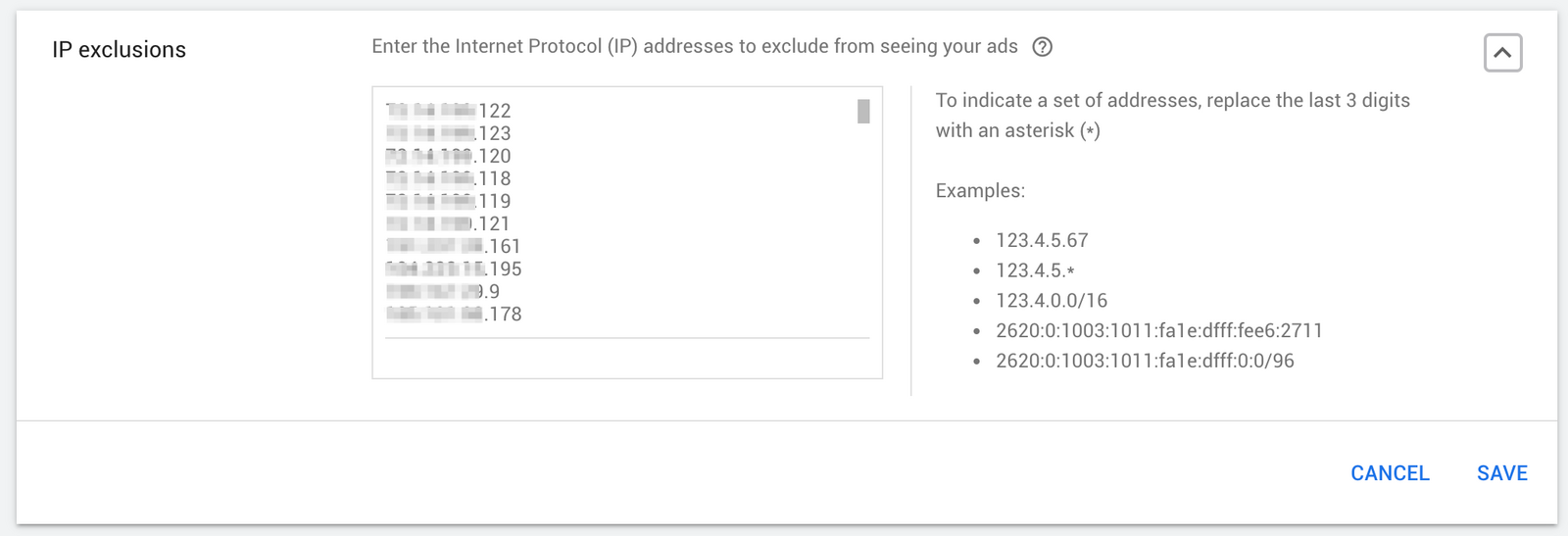
These steps will allow you to view and manage the IPs and IP ranges that have been excluded from seeing your ads in Google Ads.
See also: [What happens when an IP is blocked in Google Ads](https://www.clickguard.com/help/faq/what-happens-when-ip-is-blocked).
## Related articles
- [What happens when an IP is blocked in Google Ads](https://www.clickguard.com/help/faq/what-happens-when-ip-is-blocked.md)
---
# What happens when an ad placement is excluded in Google Ads
When ClickGuard excludes an ad placement in Google Ads, Google will stop showing ads on that placement - for the campaign(s) where the exclusion occurred.This means no new ad impressions will be generated on this placement for every campaign where it was excluded.
Source: https://www.clickguard.com/help/faq/what-happens-when-placement-is-excluded
Published: 2026-04-18
Updated: 2026-04-18
Author: Nikola Pejic
When ClickGuard excludes an ad placement in Google Ads, Google **will stop showing ads** on that placement - **for the campaign(s) where the exclusion occurred.**
This means **no new ad impressions will be generated** on this placement for every campaign where it was excluded.
## How did ClickGuard exclude the placement?
Based on your rules or a manual exclusion action, ClickGuard added an exclusion entry within the placement exclusion list of the affected campaign(s). This is done by using Google Ads API.
## Where can I see that the ad placement was excluded?
You can track all exclusions within your Exclusions Dashboard in ClickGuard. You can also find them in your Google Ads within the Exclusions section for the given campaign(s).
You can see every ad placement exclusion action in your Change History.
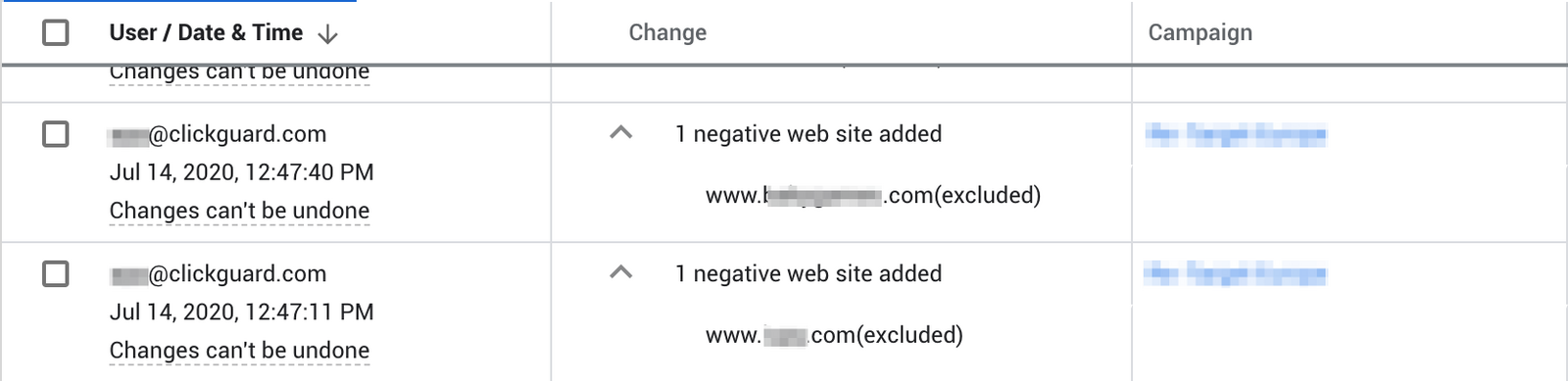
If your Google Ads account is linked via ClickGuard's MCC the change will be logged with ClickGuard's email address. On the other hand, if the account is linked via oAuth, your Google email address will be logged on the history entry.
See also: [How to view excluded ad placements in Google Ads](https://www.clickguard.com/help/faq/how-to-view-excluded-ad-placements).
## Related articles
- [How to view excluded ad placements in Google Ads](https://www.clickguard.com/help/faq/how-to-view-excluded-ad-placements.md)
---
# How to view excluded ad placements in Google Ads
You can see every placement excluded from a Google Ads campaign in its Exclusions section. Select the campaign you want to check, then go to Placements and Exclusions in the left sidebar menu. The list shows the websites, apps and videos ClickGuard excluded, along with any you added yourself.
Source: https://www.clickguard.com/help/faq/how-to-view-excluded-ad-placements
Published: 2026-04-18
Updated: 2026-04-18
Author: Nikola Pejic
You can see all placement exclusions for a specific campaign in Google Ads within the Exclusions section.
Select the campaign you want to check and go to "Placements" -> "Exclusions" in your left sidebar menu:
You will find the placement within your list of exclusions:
See also: [What is an ad placement](https://www.clickguard.com/help/glossary/what-is-an-ad-placement).
## Related articles
- [What is an ad placement](https://www.clickguard.com/help/glossary/what-is-an-ad-placement.md)
---
# How does ClickGuard remove exclusions in Google Ads
When an exclusion period ends for an IP address, IP range or ad placement, or you unblock it yourself, ClickGuard tells Google Ads to remove the exclusion from the affected campaigns. It does this automatically, so expired exclusions don't pile up and use the limited exclusion space in your campaigns.
Source: https://www.clickguard.com/help/faq/how-clickguard-removes-google-ads-exclusions
Published: 2026-04-18
Updated: 2026-04-18
Author: Nikola Pejic
When the exclusion period for an IP address, IP range, or an ad placement expires, or you decide to manually un-exclude (unblock) an entity with ClickGuard, **the system instructs Google to remove the exclusion record from the affected campaign(s).**
In the back, ClickGuard sends a message to Google via Google Ads API and awaits the response **to confirm that the given entity is removed from the exclusion list.**
Every single exclusion is tracked via the **Exclusions** dashboard tab, so you can see when the entity was excluded and when it was removed from the exclusion list.
See also: [How does ClickGuard make exclusions in Google Ads](https://www.clickguard.com/help/faq/how-clickguard-makes-google-ads-exclusions).
## Related articles
- [How does ClickGuard make exclusions in Google Ads](https://www.clickguard.com/help/faq/how-clickguard-makes-google-ads-exclusions.md)
---
# How to view changes made by ClickGuard in Google Ads
Every change ClickGuard makes in your Google Ads account is logged in the account's change history. You can always tell ClickGuard's changes apart from those made by you or other users with access to the account, so you can review exactly what ClickGuard did, and when, at any time.
Source: https://www.clickguard.com/help/faq/view-clickguard-changes-in-google-ads
Published: 2026-04-18
Updated: 2026-04-18
Author: Nikola Pejic
When ClickGuard makes changes to your Google Ads account they remain logged within your change history.
You will always be able to differentiate between changes made by you or other users who have access to your Ads account. This is not possible when you authorize a service to access your Ads via oAuth as changes made by these services are logged under your own account email - as if you made them yourself.
To view changes, just click on the "**Change history**" link in your Google Ads sidebar. You will be able to see all changes to your Ads account:
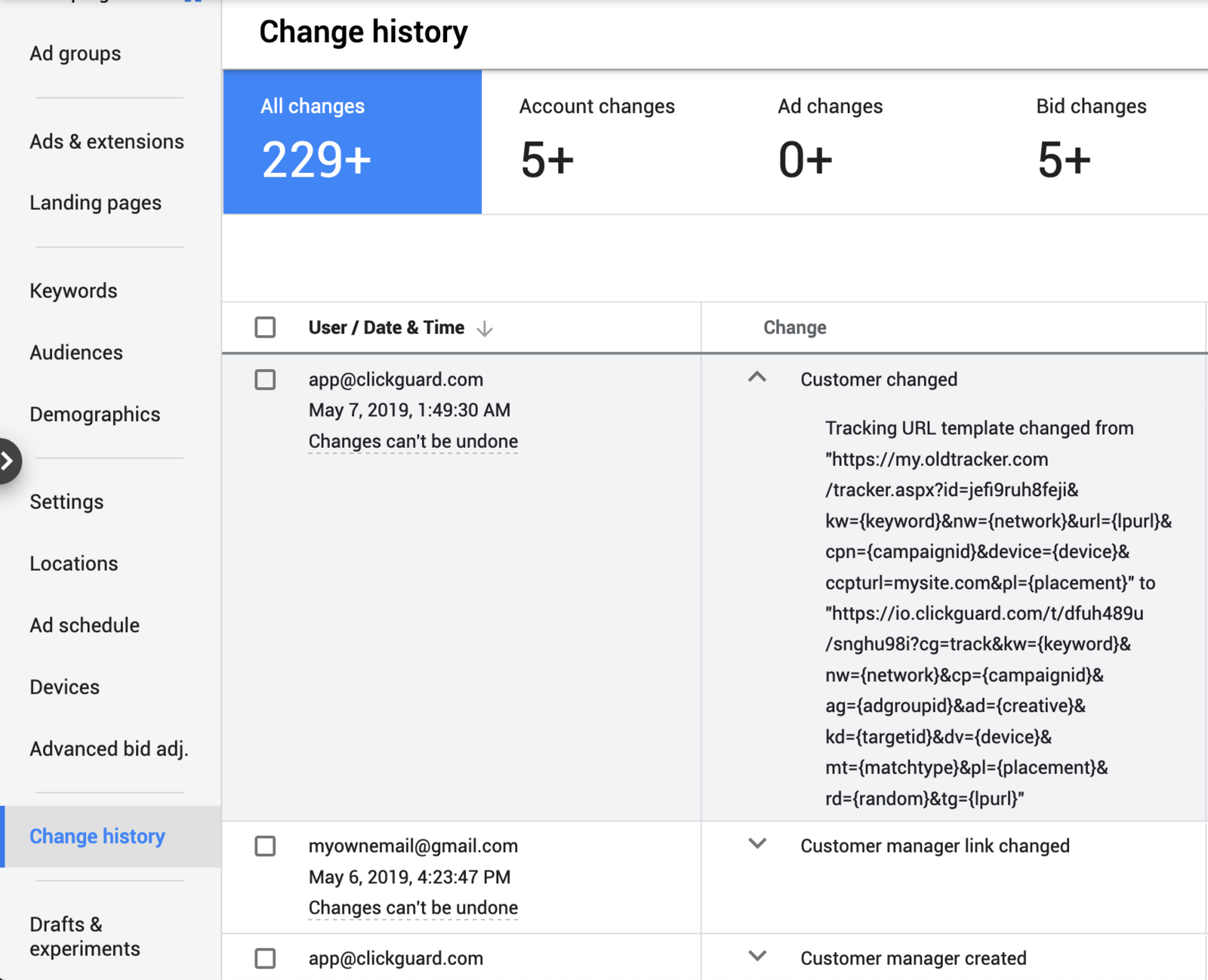
See also: [How does ClickGuard make exclusions in Google Ads](https://www.clickguard.com/help/faq/how-clickguard-makes-google-ads-exclusions).
## Related articles
- [How does ClickGuard make exclusions in Google Ads](https://www.clickguard.com/help/faq/how-clickguard-makes-google-ads-exclusions.md)
---
# How to ignore specific campaigns in ClickGuard
To turn off ClickGuard's protection for one or more campaigns, open Settings from the dashboard menu and go to Connections › Ad accounts. Expand the ad account's campaign list and switch off the campaigns you want ClickGuard to ignore. The rest of the ad account stays protected, and you can turn them back on anytime.
Source: https://www.clickguard.com/help/faq/how-to-ignore-specific-campaigns
Published: 2026-09-30
Updated: 2026-09-30
Author: Nikola Pejic
Suppose you want to turn off ClickGuard's protection and optimization services for a specific campaign(s). In that case, follow these steps:
**1)** Navigate to your account **Settings** from the dashboard menu
**2)** Go to **Connections** → **Ad accounts**
**3)** Expand the view list for a selected Ad account
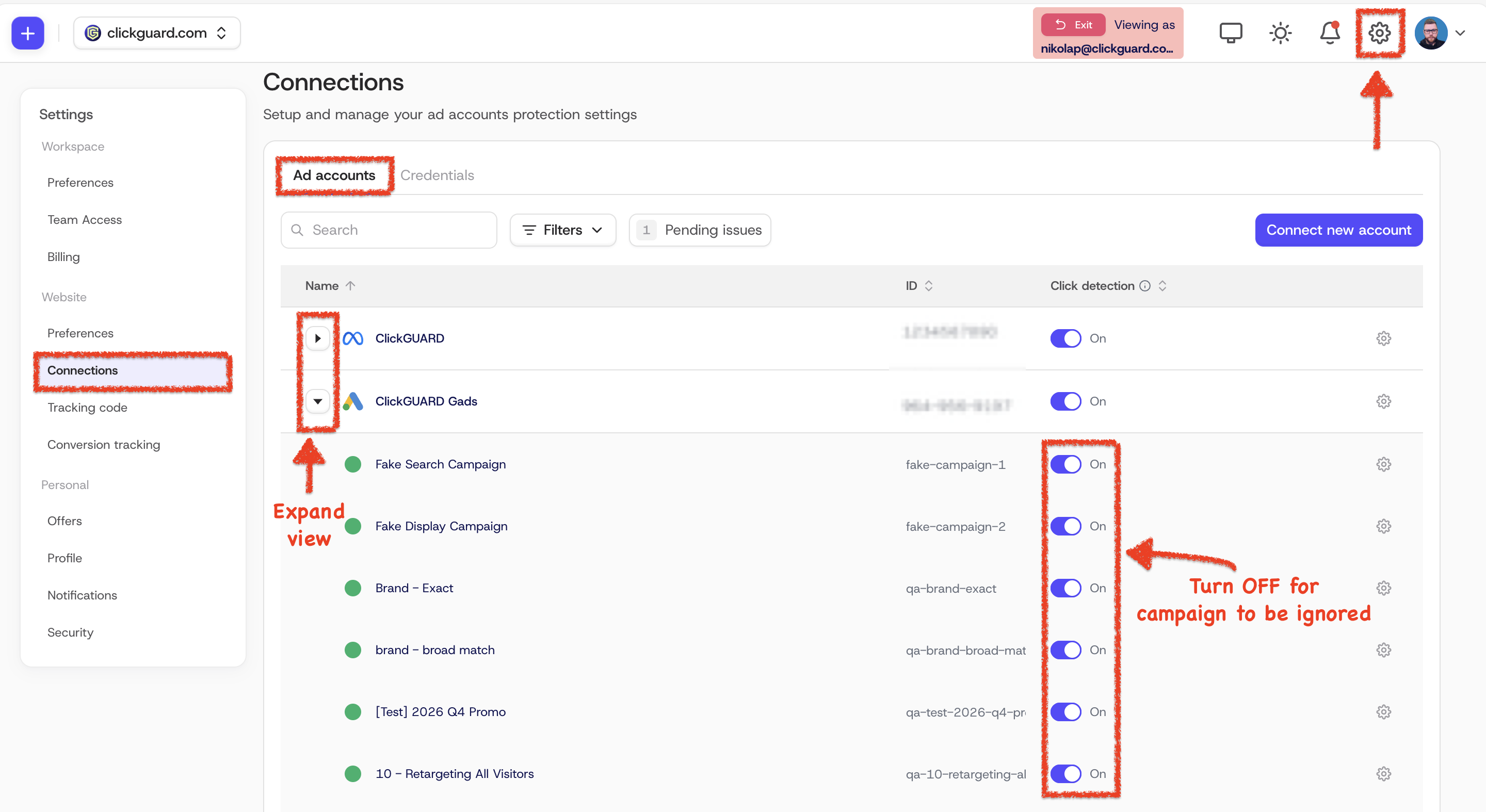
**4)** If you want specific campaign to be ignored by the system, just toggle it OFF to be disabled
This will stop ClickGuard from processing clicks or applying protection rules to the selected campaigns, and it won't be counted toward the ad spend limit.
See also: [How to disconnect my ad account](https://www.clickguard.com/help/managing-your-account/how-to-disconnect-my-ad-account).
## Related articles
- [How to disconnect my ad account](https://www.clickguard.com/help/managing-your-account/how-to-disconnect-my-ad-account.md)
---
# How to create exclusions for Microsoft Ads
To let ClickGuard create audience exclusions in Microsoft Ads, install the Universal Event Tracking (UET) tag on every page of your website. Copy the script from UET Tracking Script in your ClickGuard Settings and add it to your site. ClickGuard then uses it to create audience exclusions and manage your campaigns.
Source: https://www.clickguard.com/help/faq/how-to-create-microsoft-ads-exclusions
Published: 2026-09-30
Updated: 2026-09-30
Author: Nikola Pejic
To enable the system to create audience exclusions, it is necessary to install a UET (Universal Event Tracking) tag script on all the pages of your website.
You can retrieve the UET tag script by following these steps:
1. Navigate to the **Settings** section within your ClickGuard account dashboard.
2. Go to **Connections → Ad accounts**.
3. Click the **Configuration** button for the Microsoft Ads account for which you want to set up exclusions.
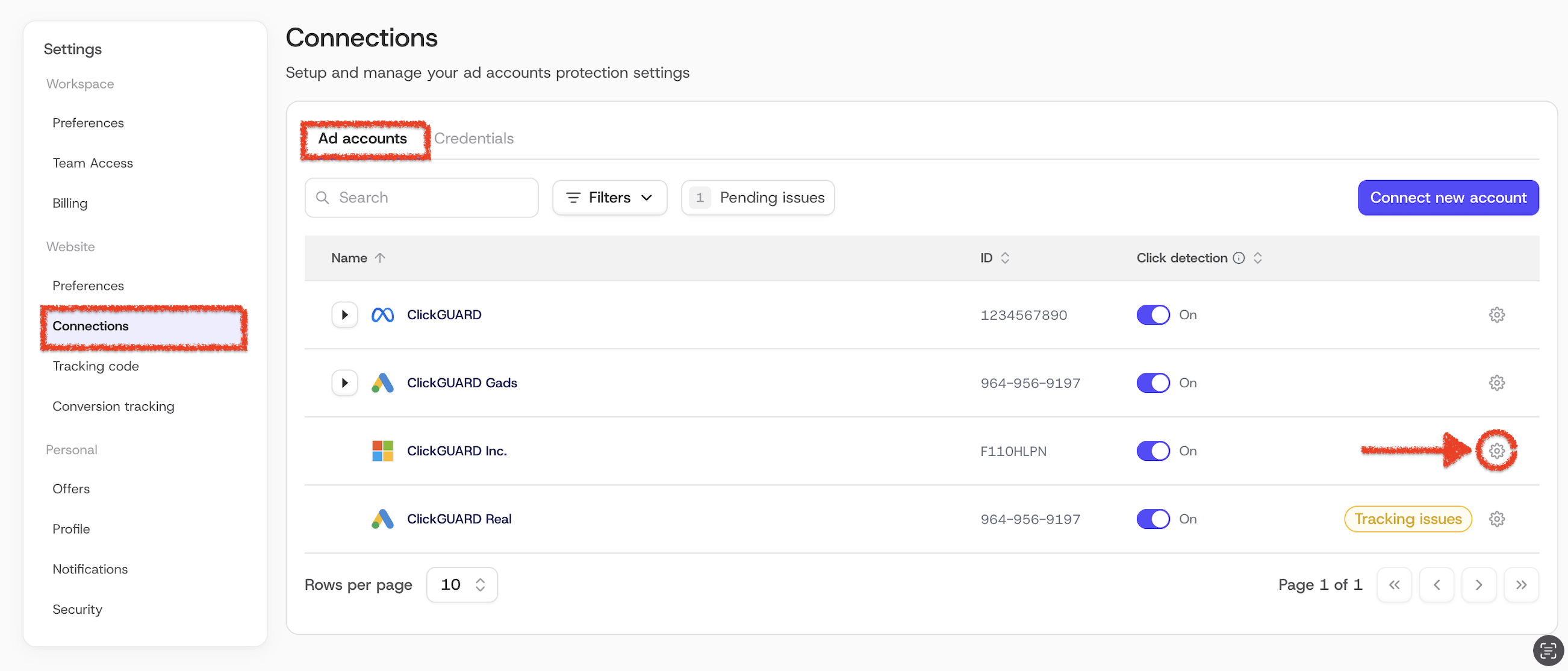
4\. Under the **UET Tracking Script**, copy the complete script code.

This UET script is essential for ClickGuard to accurately create audience exclusions and manage your campaigns effectively. Once you have copied the script, it should be placed between the `` tags on every page of your website. This ensures that all relevant data is tracked, allowing for precise audience targeting and exclusion management.
This script can also be installed via Google Tag Manager (GTM), the same way as ClickGuard's tracking code.
**Important:**
__The UET script is unique for each Microsoft Ad account.__
See also: [Does ClickGuard support Microsoft Advertising](https://www.clickguard.com/help/faq/does-clickguard-support-microsoft-advertising).
## Related articles
- [Does ClickGuard support Microsoft Advertising](https://www.clickguard.com/help/faq/does-clickguard-support-microsoft-advertising.md)
---
# How does ClickGuard block visitors in Meta Ads
ClickGuard blocks visitors in Meta Ads with audiences. It adds the visitors it flags to a custom audience in your Meta Ads account, then excludes that audience from your ad sets by updating their targeting. Those visitors stop seeing your ads, so you no longer pay for their clicks.
Source: https://www.clickguard.com/help/faq/how-clickguard-blocks-meta-ads-visitors
Published: 2026-04-18
Updated: 2026-04-18
Author: Nikola Pejic
In Meta Ads, you can prevent specific visitors from seeing your ads by adding them to a custom audience and excluding that audience from your ad sets through updated targeting specifications.
ClickGuard blocks visitors in Meta Ads through a sophisticated process that leverages custom audiences and automated targeting exclusions. Here’s how it works:
1. **Custom Audience Creation:** During the initial setup of ClickGuard, a new custom audience is created within Meta Ads. This audience is specifically designated for collecting visitors who exhibit suspicious or fraudulent behavior.
2. **Rule Activation and Event Tracking:** When an ad click triggers one of ClickGuard's predefined protection rules—such as detecting patterns indicative of click fraud—an event is sent to Meta Ads to identify the visitor responsible for the suspicious activity.
3. **Visitor Inclusion in Custom Audience:** The identified visitor is then added to the custom audience created by ClickGuard. This custom audience serves as a blacklist for undesirable traffic.
4. **Automatic Exclusion from Ad Sets:** Since this custom audience is excluded from your ad sets, visitors included in it will be automatically blocked from seeing your ads in the future. This is achieved by updating the targeting specifications of your ad sets to exclude the custom audience, preventing these flagged visitors from interacting with your ads again.
By utilizing this approach, ClickGuard effectively manages and filters out invalid or fraudulent traffic, helping to protect your advertising budget and optimize the performance of your Meta Ads campaigns.
See also: [Meta Ads clicks not showing in ClickGuard](https://www.clickguard.com/help/troubleshooting/meta-ads-clicks-not-showing).
## Related articles
- [Meta Ads clicks not showing in ClickGuard](https://www.clickguard.com/help/troubleshooting/meta-ads-clicks-not-showing.md)
---
# Improving ROAS with ClickGuard for Meta Ads
ClickGuard improves your Meta Ads return on ad spend by cutting the invalid clicks you pay for. It detects bots and other bad traffic, blocks them with excluded audiences, and keeps your data clean, so Meta's algorithm learns from real visitors and more of your budget reaches people who can convert.
Source: https://www.clickguard.com/help/faq/improving-meta-ads-roas
Published: 2026-04-18
Updated: 2026-04-18
Author: Nikola Pejic
To improve Meta ad's Return on Ad Spend (**ROAS**) with ClickGuard, here’s how the service helps and what points you can emphasize when discussing it:
## 1\. Eliminating invalid clicks
- **How it works**: ClickGuard helps filter out invalid traffic (such as bots, click farms, or accidental clicks) that would otherwise waste ad spend. Meta ads can sometimes attract low-quality clicks, especially when scaling campaigns or targeting broad audiences. By blocking these fraudulent clicks, the budget is directed toward real, valuable users.
- **Result**: This ensures your budget is spent only on potential customers, maximizing the chances of generating conversions and increasing ROAS.
## 2\. Audience optimization
- **How it works**: Invalid traffic skews the data Meta’s ad algorithm uses to optimize ads. By removing these irrelevant clicks, ClickGuard ensures Meta gets accurate feedback on audience engagement and ad performance. This enables the algorithm to better target genuine, high-value users.
- **Result**: With better data, Meta can better optimize your ads for engagement and conversion, improving ROAS.
## 3\. Enhanced targeting efficiency
- **How it works**: ClickGuard provides detailed insights into traffic sources, helping you identify patterns of fraudulent behavior. You can then exclude these sources from your Meta campaigns (or refine targeting), ensuring you only pay for traffic that has a real chance of converting.
- **Result**: More precise targeting reduces wasteful spending and improves your cost per acquisition (CPA), thereby enhancing ROAS.
## 4\. Long-term performance tracking
- **How it works**: ClickGuard continuously monitors ad campaigns for signs of fraud. Over time, this ensures your Meta ads maintain a high standard of traffic quality, leading to consistently better ROAS.
- **Result**: Better long-term performance means higher profitability from Meta ads, reducing fluctuations in campaign results.
## 5\. Increased trust in Meta Ads investment
- **How it works**: Marketers are often hesitant to increase their ad budgets due to the fear of attracting fraudulent traffic. With ClickGuard's protection in place, there’s increased confidence in scaling Meta campaigns because you know the traffic quality will be preserved.
- **Result**: Scaling campaigns safely, without worrying about fraud, improves the efficiency of ad spend and boosts overall ROAS.
By leveraging ClickGuard's fraud protection, businesses can ensure that their Meta ads drive more valuable clicks, leading to higher conversions and a more efficient ad spend.
See also: [How does ClickGuard block visitors in Meta Ads](https://www.clickguard.com/help/faq/how-clickguard-blocks-meta-ads-visitors).
## Related articles
- [How does ClickGuard block visitors in Meta Ads](https://www.clickguard.com/help/faq/how-clickguard-blocks-meta-ads-visitors.md)
---
# How to export click data from your ClickGuard account
You can export your click data from the Click Forensics page in ClickGuard. Click Export in the upper-right corner, above the data table, and the data downloads as a CSV file. It uses the filters and date range you've applied, and opens in Excel, Google Sheets or any other spreadsheet tool.
Source: https://www.clickguard.com/help/faq/how-to-export-click-data
Published: 2026-10-01
Updated: 2026-10-01
Author: Nikola Pejic
You can export your click data directly from ClickGuard's **Click Forensics** section by clicking the **“Export”** button located in the upper-right corner above the data table.
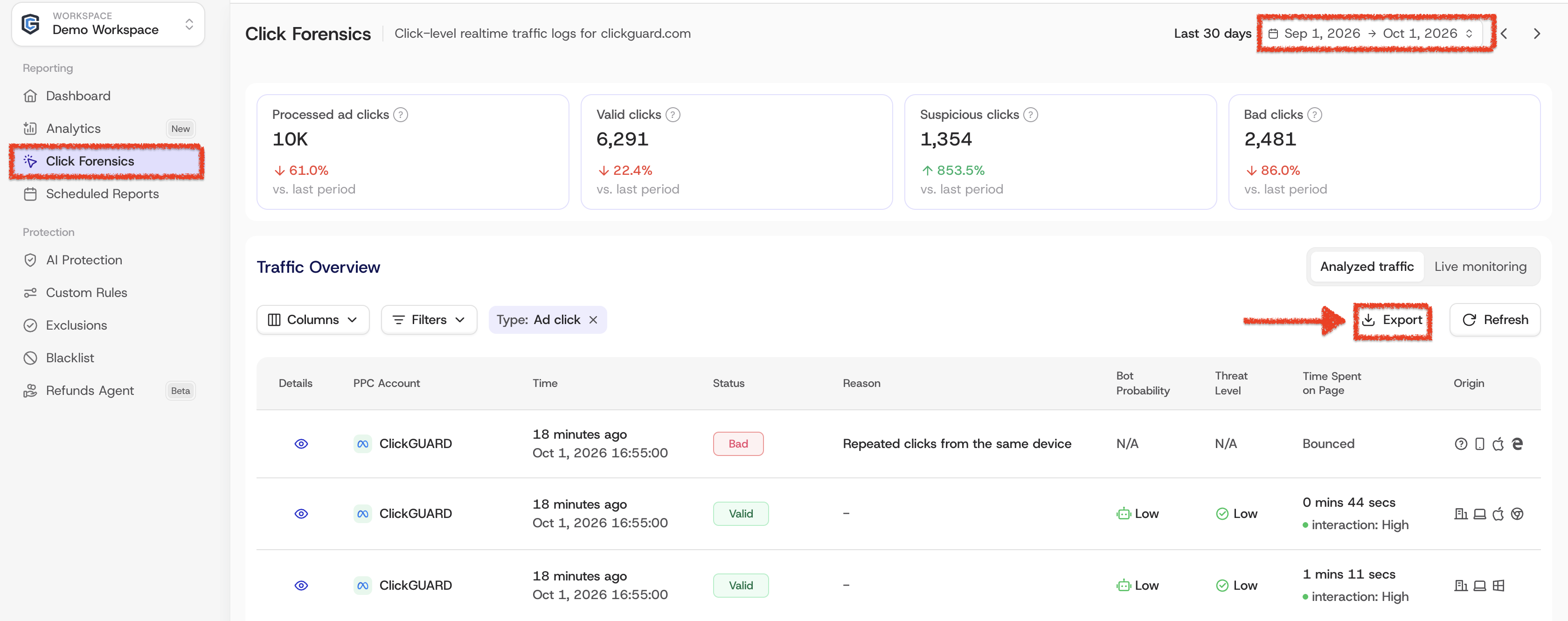
The data is downloaded in a universal **CSV format**, which can be easily opened with spreadsheet tools like Microsoft Excel or imported into a database for further analysis.
See also: [How to request refunds from Google Ads](https://www.clickguard.com/help/faq/how-to-request-google-ads-refunds).
## Related articles
- [How to request refunds from Google Ads](https://www.clickguard.com/help/faq/how-to-request-google-ads-refunds.md)
---
# How to request refunds from Google Ads
To request a refund from Google Ads for invalid or fraudulent clicks, submit a Click Quality Investigation Request through Google's official form. Support your request with the clicks you suspect: you'll find them in ClickGuard's Click Forensics section by selecting the time period you want Google to review.
Source: https://www.clickguard.com/help/faq/how-to-request-google-ads-refunds
Published: 2026-09-30
Updated: 2026-09-30
Author: Nikola Pejic
To initiate a refund request from Google Ads due to suspected invalid or fraudulent clicks, you must submit a **Click Quality Investigation Request** through Google’s official form, which can be accessed on the link below:
[https://support.google.com/google-ads/contact/click\_quality](https://support.google.com/google-ads/contact/click_quality)
As part of the submission process, Google requires detailed evidence of suspicious activity, specifically a **click log** documenting the potentially fraudulent clicks. You can easily retrieve this information from your ClickGuard dashboard by navigating to the **Click Forensics** section, selecting the specific time period. After that, you can use the **Filters** to list only **Bad** clicks for that specific time period and then download the CSV file via **Export** button.
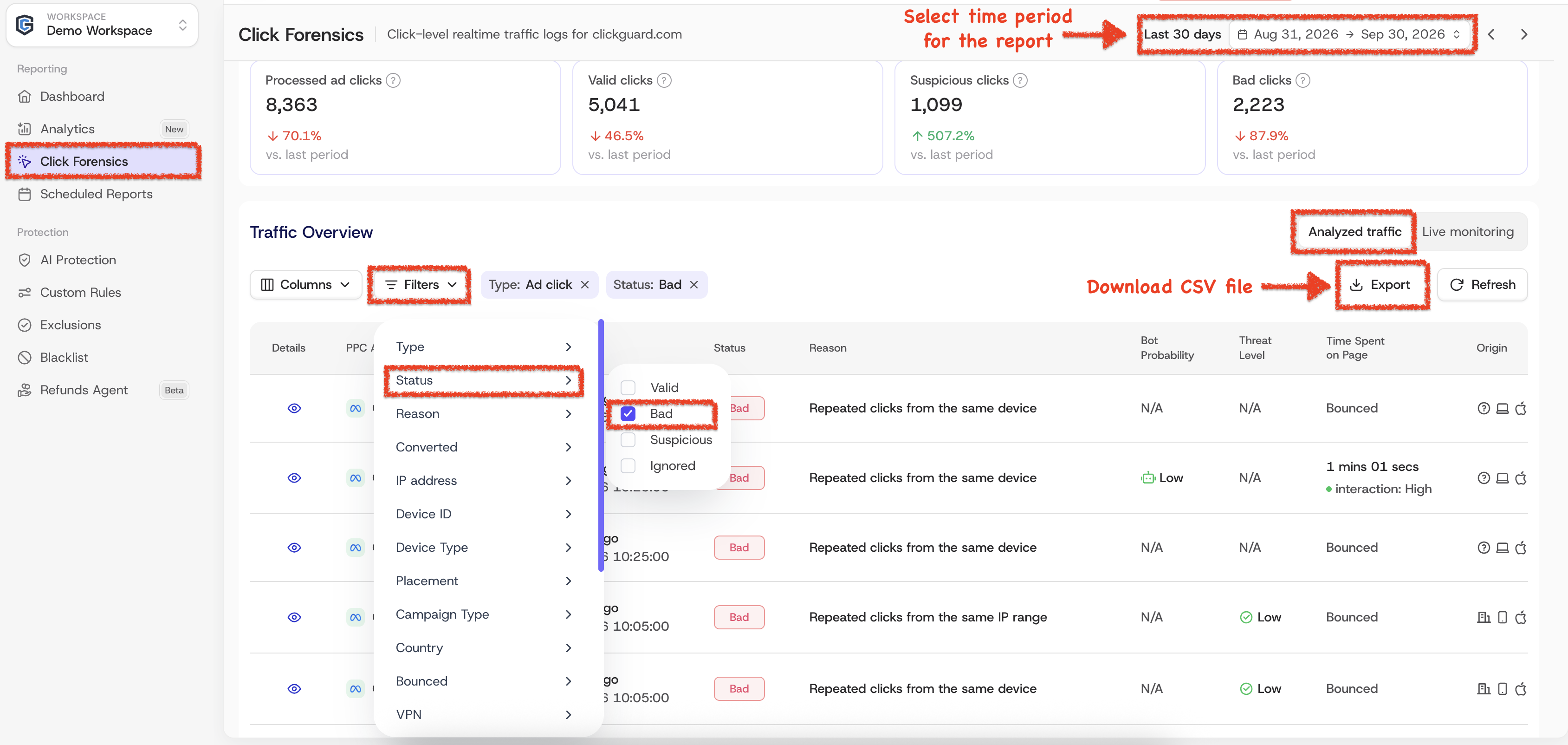
The exported CSV file can be downloaded from the **Scheduled Reports** —> **Downloads** tab.
**Please Note:**
Google only permits one manual click quality investigation request per advertiser account every **60 days**. Therefore, it is essential to compile and submit all relevant evidence and supporting data within a single, comprehensive request to maximize the chances of a favorable outcome.
See also: [How to export click data from your ClickGuard account](https://www.clickguard.com/help/faq/how-to-export-click-data).
## Related articles
- [How to export click data from your ClickGuard account](https://www.clickguard.com/help/faq/how-to-export-click-data.md)
---
# What is ClickGuard's tracking code
ClickGuard's tracking code, or tracking pixel, is a short snippet of JavaScript you install on your website and landing pages. It records what visitors from your ads do after they click, like their device and behavior on your site, which helps ClickGuard tell real visitors from bots and other invalid traffic.
Source: https://www.clickguard.com/help/glossary/what-is-clickguards-tracking-code
Published: 2026-10-01
Updated: 2026-10-01
Author: Nikola Pejic
Tracking code (or tracking pixel) is a short snippet of **JavaScript** code that can be installed on your website and landing pages to enable tracking of post-click behavior data in ClickGuard.
## What information is collected?
By running the tracking code on your website, ClickGuard is able to track the unique device used to make a click and track it across multiple click occurrences, as well as to track visitor behavior after they click on your ad and land on your website.
Organic clicks are tracked as well; they enable additional actionable information about the visitor, such as time spent on the site and conversion information.
## Where can I find my tracking code?
You can find the tracking code in your ClickGuard account dashboard by visiting the **Settings** and then clicking on the **Tracking code** → **Standard tracking** → **Install manually**
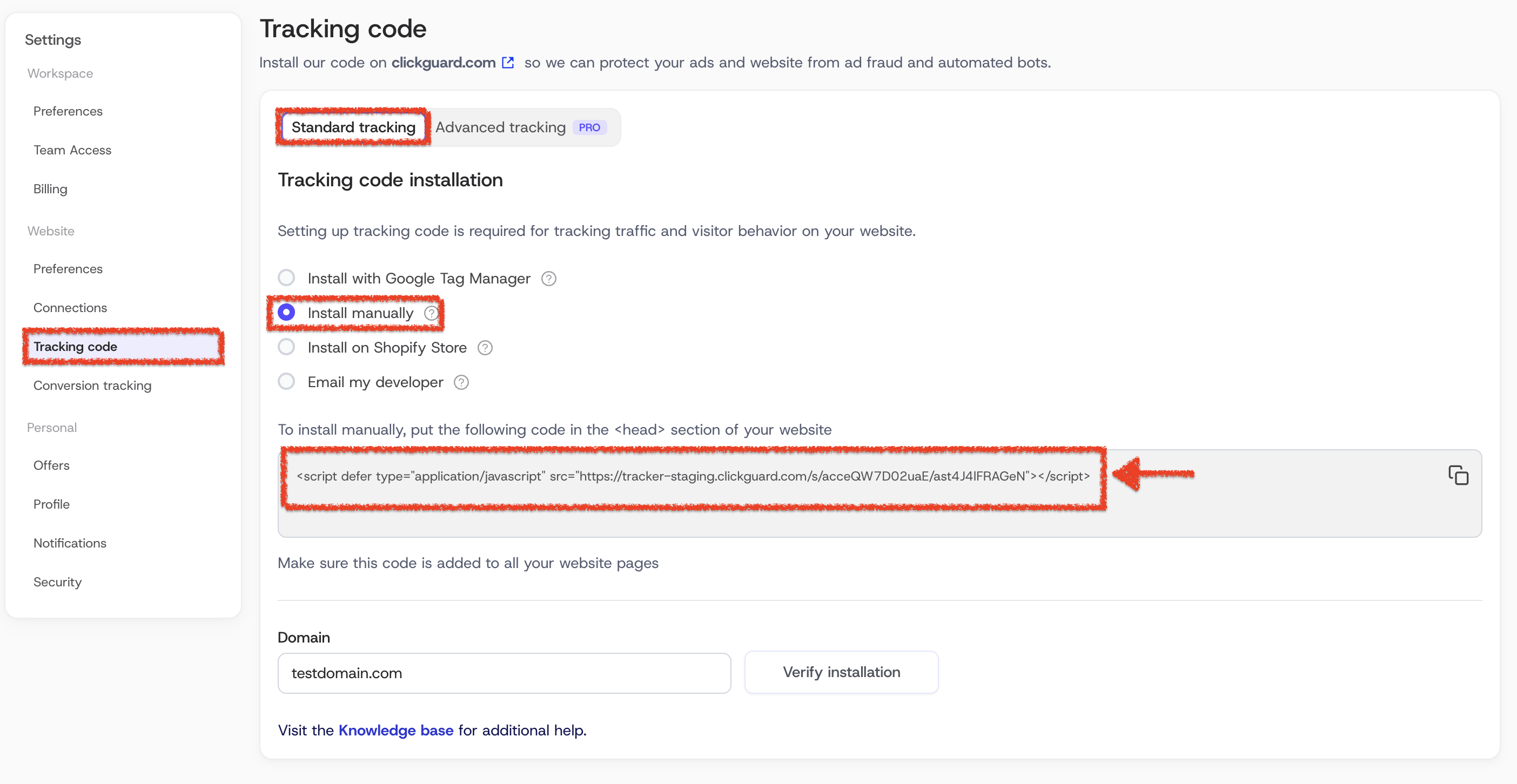
See also: [Install ClickGuard's tracking code](https://www.clickguard.com/help/getting-started/install-clickguards-tracking-code).
## Related articles
- [Install ClickGuard's tracking code](https://www.clickguard.com/help/getting-started/install-clickguards-tracking-code.md)
---
# What is server-side tracking
Server-side tracking sends ClickGuard's tracking data through a subdomain of your own website instead of a third-party address. Ad blockers and browser privacy features don't block it, so ClickGuard sees almost every ad click and visit and spots fraud earlier. It's available on the Pro and Custom plans.
Source: https://www.clickguard.com/help/glossary/what-is-server-side-tracking
Published: 2026-10-12
Updated: 2026-10-12
Author: Nikola Pejic
ClickGuard's tracking code records every visit from your ads: which ad was clicked, the visitor's IP address, device and behavior on your website. By default, that data goes from the visitor's browser straight to ClickGuard. Server-side tracking routes it through a subdomain of your own website instead, so nothing in the browser can stop it on the way.
## Client-side vs server-side tracking
**Client-side tracking** is the standard setup. The tracking code runs in the visitor's browser and sends data to ClickGuard's servers. Because ClickGuard's address is a third party to your website, ad blockers, privacy extensions and some browsers' built-in protections can block those requests.
**Server-side tracking** sends the same data to a subdomain you own, such as `track.yourwebsite.com`, which passes it on to ClickGuard. To the browser it looks like part of your own website, a first-party request, so blockers leave it alone.
| | Client-side (standard) | Server-side (advanced) |
| --- | --- | --- |
| **Where data is sent** | ClickGuard's servers, a third-party address | A subdomain of your website, then ClickGuard |
| **Blocked by ad blockers** | Often | Almost never |
## Why it matters for click fraud protection
ClickGuard can only judge a click it can see. When an ad blocker stops the tracking code, the click still costs you money, but ClickGuard has no visit to analyze: no device, no behavior, no session. Bots and fraudsters are also more likely than real visitors to block scripts, so the clicks that go missing are often the ones you most need to catch.
With server-side tracking, ClickGuard records almost every ad click and visit, so you:
- **Bypass ad blockers** and browser tracking limitations.
- **Identify fraudulent behavior earlier** and more clearly.
- **Turn wasted spend** into conversions faster.
ClickGuard is the only click fraud protection software that offers this advanced tracking method. It's available on the Pro and Custom plans.
See also: [What is ClickGuard's tracking code](https://www.clickguard.com/help/glossary/what-is-clickguards-tracking-code).
## Related articles
- [What is ClickGuard's tracking code](https://www.clickguard.com/help/glossary/what-is-clickguards-tracking-code.md)
---
# What is device ID in ClickGuard
ClickGuard tracks unique devices across multiple ad clicks and browser visits. Every individual device is assigned a unique device ID that is stored in the visitor's browser for tracking purposes.Tracking devices makes it possible to show detailed analytics for each device within Click Reports > Devices, as well as linking multiple paid or organic clicks to unique devices.
Source: https://www.clickguard.com/help/glossary/what-is-device-id-in-clickguard
Published: 2026-04-18
Updated: 2026-04-18
Author: Nikola Pejic
ClickGuard tracks unique devices across multiple ad clicks and browser visits. Every individual device is assigned a unique device ID that is stored in the visitor's browser for tracking purposes.
Tracking devices makes it possible to show detailed analytics for each device within Click Reports > Devices, as well as linking multiple paid or organic clicks to unique devices.
## Does the device ID reveal any personal information?
The device ID is an anonymized hash that does not reveal any personal information and cannot in any way be linked to a user's behavior outside of ClickGuard:

See also: [How does ClickGuard track unique devices](https://www.clickguard.com/help/faq/how-does-clickguard-track-unique-devices).
## Related articles
- [How does ClickGuard track unique devices](https://www.clickguard.com/help/faq/how-does-clickguard-track-unique-devices.md)
---
# What is visitor behavior tracking in ClickGuard
ClickGuard's monitoring and tracking extend well beyond the initial click on your ad. To empower you with data for making informed decisions, ClickGuard allows you to track visitor behavior after they land on your website and throughout their browsing session—without relying on browser cookies.
Source: https://www.clickguard.com/help/glossary/what-is-visitor-behavior-tracking
Published: 2026-05-18
Updated: 2026-05-18
Author: Nikola Pejic
ClickGuard's monitoring and tracking extend well beyond the initial click on your ad. To empower you with data for making informed decisions, ClickGuard allows you to track visitor behavior after they land on your website and throughout their browsing session—without relying on browser cookies.
## How does visitor behavior tracking work?
To track visitors after they click on your ads, you'll need to install the ClickGuard **website tracking code** on your landing pages. Once this code is active, it will monitor visitor interactions across your website in real-time.
This enables you to gain valuable insights into user behavior, helping you optimize your ad campaigns based on actual visitor activity.
## What data is collected?
ClickGuard's behavior tracking focuses on identifying a unique device ID and capturing key interaction metrics that can be used to configure automated rules.
The data collected includes:
- **Unique devices**: Identifying and tracking individual devices accessing your site.
- **Time spent on site**: Measuring the duration visitors remain on your site.
- **Pageviews**: Tracking how many pages the visitor engages with.
- **Site interaction level**: Analyzing how visitors interact with your site’s content.
- **Bot probability**: Determining the likelihood that the visitor is a bot based on behavioral patterns.
This detailed tracking provides actionable insights, allowing you to refine your campaigns, improve engagement, and reduce wasteful clicks from non-legitimate sources.
See also: [How does ClickGuard track time on website](https://www.clickguard.com/help/faq/how-clickguard-tracks-time-on-website).
## Related articles
- [How does ClickGuard track time on website](https://www.clickguard.com/help/faq/how-clickguard-tracks-time-on-website.md)
---
# What is an IP address threat level
An IP address threat level is ClickGuard's rating of how risky an IP address is. ClickGuard checks each IP against anti-fraud, geolocation and blacklist services to learn whether it's an anonymous proxy, a known attacker or another source of fraud, and uses the result to decide which sources to block.
Source: https://www.clickguard.com/help/glossary/what-is-ip-address-threat-level
Published: 2026-04-18
Updated: 2026-04-18
Author: Nikola Pejic
ClickGuard analyzes many aspects of an IP address in order to assess if an IP address is a known threat. This includes fetching IP information from various anti-fraud, geo-location, and blacklist services.
That means ClickGuard is able to learn if an IP address is:
- an **anonymous proxy** (exit address for anonymizing services such as HTTP/Socks proxies, VPNs, or Tor)
- a **fake crawler** (Suspicious web scraper impersonating popular and legitimate crawlers)
- a **port scanner** (port scanning as in a common way to search for exploitable security vulnerabilities in running network services)
- an **attack source** (a known source of various cyber attacks), including the type of the attack (web, mail, SSH, FTP, SIP, etc.)
- **hosting a bot** (part of a malicious botnet), including botnet type (bad, brute force, scan, spam, referrer spam, etc.)
- **blacklisted** for any other fraud or abuse-related reason
By cross-referencing the information about an IP address across multiple services ClickGuard is able to determine the threat level and classify it as:
- **low** - the default for IP addresses not associated with bad behavior
- **medium** - high probability for unwanted ad clicks
- **high** - high probability for abusive, disruptive, and fraudulent ad clicks
See also: [How ClickGuard detects VPN, proxy, and Tor traffic](https://www.clickguard.com/help/faq/how-clickguard-detects-vpn-proxy-tor).
## Related articles
- [How ClickGuard detects VPN, proxy, and Tor traffic](https://www.clickguard.com/help/faq/how-clickguard-detects-vpn-proxy-tor.md)
---
# What is AI-Driven mode in ClickGuard
ClickGuard's AI-driven mode utilizes cutting-edge algorithms and machine learning to elevate your defense against invalid and fraudulent ad clicks. By automatically analyzing click patterns, device behaviors, and various other data points that signal potential threats, this advanced system allows for the real-time detection and prevention of fraudulent activity.
Source: https://www.clickguard.com/help/glossary/what-is-ai-driven-mode
Published: 2026-04-18
Updated: 2026-04-18
Author: Nikola Pejic
## AI-driven mode in ClickGuard: Advanced click fraud protection
ClickGuard's AI-driven mode utilizes cutting-edge algorithms and machine learning to elevate your defense against invalid and fraudulent ad clicks. By automatically analyzing click patterns, device behaviors, and various other data points that signal potential threats, this advanced system allows for the real-time detection and prevention of fraudulent activity.
With AI at its core, ClickGuard continuously optimizes your campaigns, ensuring that you receive high-quality traffic while minimizing the risk of wasted ad spend due to click fraud. This self-learning system improves its fraud detection capabilities over time, adapting to new data and evolving threats to provide even stronger protection.
The AI-powered automation also simplifies the management of your ad protection rules, allowing you to safeguard your campaigns without needing constant manual intervention. This ensures peace of mind and allows you to focus on driving results rather than monitoring for fraud.
## Customizable and automated protection rules in ClickGuard
ClickGuard's protection rules are designed to give you full control over how you protect your campaigns from click fraud, while also providing automation for ease of use.
- **Custom Rules Management:** Set your own click thresholds, such as the number of paid clicks you allow from the same IP address or ad placement within a specified time period.
- **Fully Customizable Conditions:** Define custom conditions for different campaign types, such as Search vs. Display campaigns, or for specific keywords and ad groups. You can also create rules that target only high-level threats to ensure a tailored approach.
- **Performance Measurement:** The impact of each rule is tracked and measured, so you can evaluate which rules are most effective and fine-tune them as needed.
The best part of ClickGuard's protection rules is their full automation. Once you set your thresholds and activate the rules, ClickGuard automatically applies them to every click that passes through our tracking template or website tracking code, ensuring ongoing protection without manual oversight.
## What you can achieve with ClickGuard's automated rules
ClickGuard's automated rules allow you to take control of your ad protection strategy with powerful capabilities, such as:
- **IP and IP Range Blocking:** Automatically block specific IP addresses or IP ranges from seeing your ads in Google Ads, preventing suspicious or wasteful clicks.
- **Device Flagging and IP Blocking:** Flag unique devices involved in fraudulent activity and block all related IP addresses from viewing your ads.
- **Ad Placement Exclusions:** Exclude specific ad placements from serving your Display ads, preventing your campaigns from running on low-quality or fraudulent sites.
With these automated tools, ClickGuard makes it easier than ever to protect your campaigns from fraud and optimize your ad spend for maximum ROI.
See also: [Disabled AI-driven vs monitoring mode](https://www.clickguard.com/help/faq/disabled-ai-driven-vs-monitoring-mode).
## Related articles
- [Disabled AI-driven vs monitoring mode](https://www.clickguard.com/help/faq/disabled-ai-driven-vs-monitoring-mode.md)
---
# What is Google Ads' final URL suffix
The final URL suffix is a Google Ads setting that adds tracking parameters to the end of your landing page URL when someone clicks your ad. ClickGuard uses it to know which campaign, ad group and keyword each click came from.
Source: https://www.clickguard.com/help/glossary/google-ads-final-url-suffix
Published: 2026-10-11
Updated: 2026-10-11
Author: Nikola Pejic
The final URL suffix is a Google Ads setting that adds tracking parameters to the end of your landing page URL when someone clicks your ad. The page itself doesn't change: the parameters just travel with the click, so tools like ClickGuard can read where it came from.
For example, if your final URL is `https://example.com/pricing`, a click lands on `https://example.com/pricing?cid=123&kw=click+fraud`.
## How ClickGuard uses it
ClickGuard adds its own parameters to your final URL suffix. Google Ads fills them in on every click with details like the campaign, ad group, ad, keyword, network, device and placement. That's how ClickGuard traces which campaigns, ad groups and keywords are driving bad traffic, so exclusions are made in the right place.
ClickGuard's suffix looks like this:
```
tm=tc&ap=gads&aaid={aaid}&cid={campaignid}&agid={adgroupid}&aid={creative}&kid={targetid}&kw={keyword}&nw={network}&dv={device}&mt={matchtype}&pl={placement}
```
The values in curly brackets are ValueTrack parameters: Google Ads replaces each one with the real value when someone clicks.
## Account, campaign, ad group and ad level
You can set a final URL suffix on your account, a campaign, an ad group or an individual ad. Google Ads uses the most specific one: a suffix on a campaign replaces the account's for that campaign, and one on an ad group replaces the campaign's.
That's why ClickGuard sets it up at more than one level when you connect a Google Ads account:
- **Account:** ClickGuard adds its parameters automatically.
- **Campaigns with their own suffix:** ClickGuard adds its parameters to the end of what they already have, so nothing is removed.
- **Ad groups and ads:** ClickGuard doesn't change these. If any of them have their own suffix, copy ClickGuard's parameters to the end of it, or ClickGuard can't analyze their clicks.
See [How to add more ad accounts](https://www.clickguard.com/help/managing-your-account/how-to-add-more-ad-accounts) for the full setup.
## Final URL suffix vs tracking template
Both settings help track ad clicks. The final URL suffix only adds parameters to the end of the URL, while the [tracking template](https://www.clickguard.com/help/glossary/what-is-google-ads-tracking-template) tells Google Ads how to build the whole ad URL. ClickGuard needs at least one of them, but using both gives the most accurate click fraud detection.
## Related articles
- [How to add more ad accounts](https://www.clickguard.com/help/managing-your-account/how-to-add-more-ad-accounts.md)
- [What is Google Ads' tracking template](https://www.clickguard.com/help/glossary/what-is-google-ads-tracking-template.md)
---
# Black Friday presale 2026
Get ready for Q4 before the Black Friday rush. For a limited time, when you sign up for a year subscription, you get 35% off your first year, plus 3x your monthly ad spend protection limit through the holiday season.
Source: https://www.clickguard.com/help/billing-and-subscriptions/black-friday-presale-2026
Published: 2026-10-07
Updated: 2026-10-07
Author: Nikola Pejic
Get ready for Q4 before the Black Friday rush. For a limited time, when you sign up for a year subscription, you get **35% off your first year**, plus **3x your monthly ad spend protection** limit through **the holiday season**.
The offer is available if you switch your current monthly plan to an annual plan, or if you start a new annual subscription while the offer is active.
The offer runs from **October 15, 2026** until **November 20, 2026 at 11:59 PM ET**, and it's available only inside the ClickGuard app.
## What's included
### 35% off your first year on an annual plan
Get 35% off your first year on an annual plan, instead of the standard 20% annual discount.
**Example (Pro plan, up to $20,000 in monthly ad spend):**
| | **Monthly price** | **Price per year** |
| --- | --- | --- |
| Monthly plan | $359 | $4,308 |
| Default annual plan (20% off) | $287 | $3,444 |
| **Black Friday Pre-Sale (35% off)** | **$233.35** | **$2,800.20** |
With the Black Friday special conditions, you would **save ~$1,500** on your first year compared to the monthly plan!
### 3x ad spend protection limit
Your plan's monthly ad spend protection limit triples until your usage reset date in January 2027. You can scale your campaigns through Black Friday, Cyber Monday, and the holiday season without upgrading to a higher plan.
**Example:** On the Pro plan with a $20,000 monthly ad spend limit, you can protect up to $60,000 per month until your January 2027 usage reset.
Your limit returns to your plan's standard limit on your usage reset date in January 2027. For example, if your usage resets on the 15th of each month, the 3x limit stays active until January 15, 2027.
You can find your usage reset date in ****Settings** › **Billing****.
## How to claim the offer
### If you're on a monthly plan or a monthly free trial
1. Log in to your ClickGuard account.
2. Click **Claim this offer** in the banner at the top of the page, or **Claim your offer** in the pop-up.
3. Confirm the switch to your annual plan.
Your plan switches to annual on your next renewal date. If you're on a free trial, it switches when your trial ends. The pop-up shows this date below the **Claim your offer** button.
### If you're starting a new subscription
This includes new ClickGuard customers and existing customers subscribing a new workspace.
1. When you select your plan, choose **Yearly**. The yearly price shows the Black Friday discount and the offer conditions.
2. Complete your subscription.
The 35% discount and the 3x ad spend limit apply from the day your subscription starts.
## FAQs
**Who is eligible?**
- Customers with an active paid monthly ClickGuard plan.
- Customers on a free trial of a monthly plan.
- New customers starting a subscription.
- Existing customers starting a subscription for a new workspace.
**When will I be charged?**
- **Switching from a monthly plan:** on your next renewal date. Your current monthly plan runs until then, and your annual plan starts on that date at the discounted annual price.
- **Switching from a free trial:** when your trial ends, at the discounted annual price.
- **New subscription:** when your trial ends, at the discounted annual price.
**What happens after my first year?**
Your plan renews at the standard annual price, with the standard 20% annual discount.
**Can I combine this offer with other discounts?**
No. This offer cannot be combined with other promotions, coupons, or discounts.
If a coupon or discounted price is already applied, the 35 % discount is calculated on the plan’s full price.
**When does the 3x ad spend limit end?**
On your usage reset date in January 2027, which you can find in ****Settings** › **Billing****. Your usage reset date is the day of the month your ad spend usage starts counting from zero. For example, if it's the 5th, your 3x limit ends on January 5, 2027. If it's the 20th, it ends on January 20, 2027.
For new subscriptions, your usage resets on the same day of the month you subscribed. For example, if you subscribe on November 10, 2026, your 3x limit ends on January 10, 2027.
**What happens to my ad spend limit after that?**
On your January usage reset date, your ad spend usage resets to zero and your limit returns to your plan's standard monthly ad spend protection limit.
**Can I cancel or get a refund?**
The same cancellation and refund terms as any other ClickGuard annual plan apply.
**When does the offer end?**
The offer ends on **November 20, 2026 at 11:59 PM Eastern Time (ET)**.
## Need help?
Contact our support team at [support@clickguard.com](mailto:support@clickguard.com) or through the in-app chat. We will be happy to help!
See also: [How ClickGuard usage limits work](https://www.clickguard.com/help/billing-and-subscriptions/how-clickguard-usage-limits-work).
## Related articles
- [How ClickGuard usage limits work](https://www.clickguard.com/help/billing-and-subscriptions/how-clickguard-usage-limits-work.md)
---
# ✨ What's New: October, 2026
This month's ClickGuard update features our Chrome extension for Meta Ads, so your protection data sits next to your campaign metrics, ISP and ASN conditions that block bad traffic by network, and all-new Support Center that makes ClickGuard easier to learn and master.
Source: https://www.clickguard.com/changelog/2026-11-09-whats-new-october-2026
Published: 2026-11-09
Author: Gustavo Mello
Welcome to this month's [ClickGuard's](https://www.clickguard.com/) updates!
To those of you who are new, welcome! And to those who have been here for a while, thanks as always for your support. Let's dive in 👇
### 🧩 Traffic quality stats now inside Meta Ads
The ClickGuard **Chrome extension** already brought your protection data into Google Ads. Now it works in **Meta Ads Manager** too\*. Your ClickGuard numbers sit right next to the campaign metrics you already review, so you can see where budget leaks without leaving Meta.
_\*Available on Standard, Pro and Custom plans_
Install it and see the setup steps [here](https://www.clickguard.com/help/getting-started/clickguard-extension).
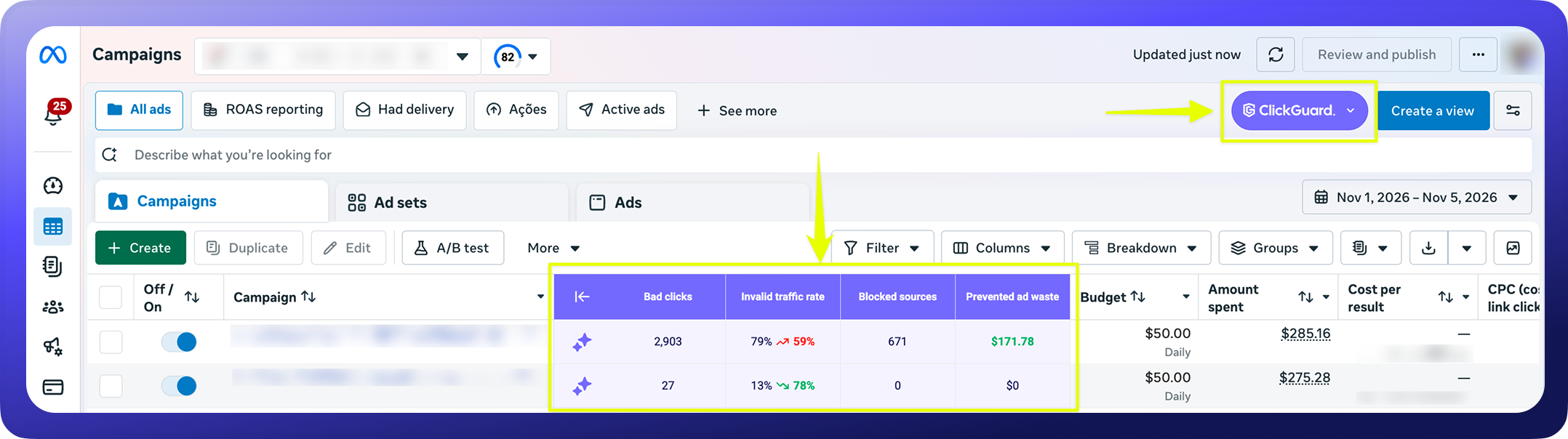
### 🌐 Blocking bad traffic by Network enabled via custom rules
Blocking IPs one by one won't stop bots that rotate addresses inside the same data center. Custom rules now take two new conditions: Internet provider (ISP) and Network (ASN). Target the network a click comes from, and the rule fires no matter which IP on that network it uses.
Pick from the ISPs and ASNs that sent you clicks in the last 30 days, or add one you haven't seen yet.
Go to **Custom Rules**, click **Add rule**, and **pick ISP** or **ASN** from the conditions list.
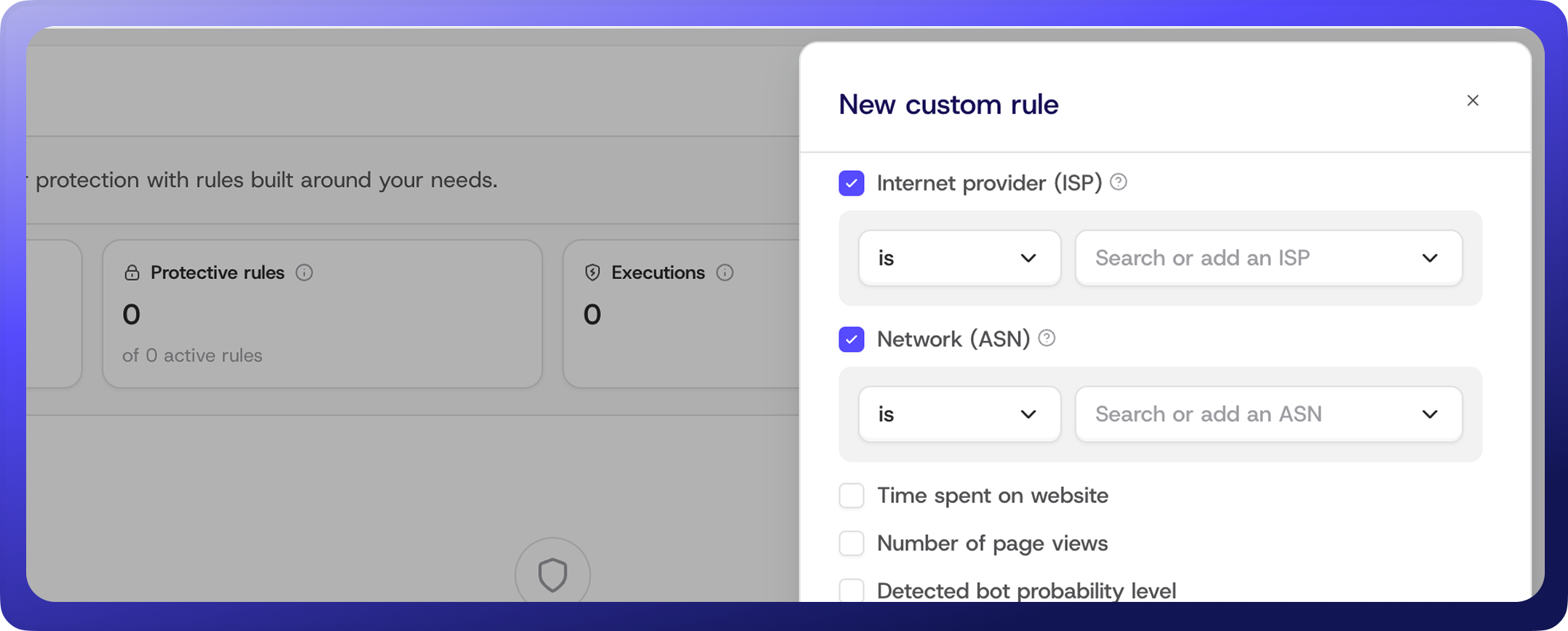
### 📚 All-new Support center
Getting the most out of ClickGuard shouldn't depend on waiting for a reply from support. We rebuilt our Support Center from scratch so you can find the answer yourself, when you need it.
Whether you're setting up your first website or fine-tuning protection rules across client accounts, start [here](https://www.clickguard.com/help).
Already in ClickGuard app? Click the "?" icon in the top-right corner to open the Support Center without leaving the app.
Make sure to follow us for more updates
[x.com/ClickGUARD](https://x.com/ClickGUARD)
[instagram.com/clickguard/](https://instagram.com/clickguard/)
[https://www.linkedin.com/company/clickguard/](https://www.linkedin.com/company/clickguard/)
---
# ✨ What's New: September, 2026
This month: NEW Analytics: custom reports, scheduling, sharing, white-label, Custom Rules new UI, Custom rules templates and New AI Protection page.
Source: https://www.clickguard.com/changelog/2026-10-06-whats-new-september-2026
Published: 2026-10-06
Author: Gustavo Mello
Welcome to this month's [ClickGuard's](https://www.clickguard.com/) updates!
To those of you who are new, welcome! And to those who have been here for a while, thanks as always for your support. Let's dive in 👇
## 📊 NEW Analytics: custom reports, scheduling, sharing, white-label
The new Analytics page lets you build a custom report from the metrics and breakdowns that matter: prevented ad waste, bad traffic rate, bad clicks by keyword, ad clicks by IP usage, and more. Save it as a view, download it as a PDF, or schedule it so it goes out on time without anyone remembering to send it.
For **agencies**, that also brings exciting news:
- **Shared views:** share a view with everyone in your workspace. Your best report becomes a template for every client, not just the one it was built for.
- **White-label:** export with your brand color and your workspace logo, or the client's website logo. Available on Pro and Custom plans.
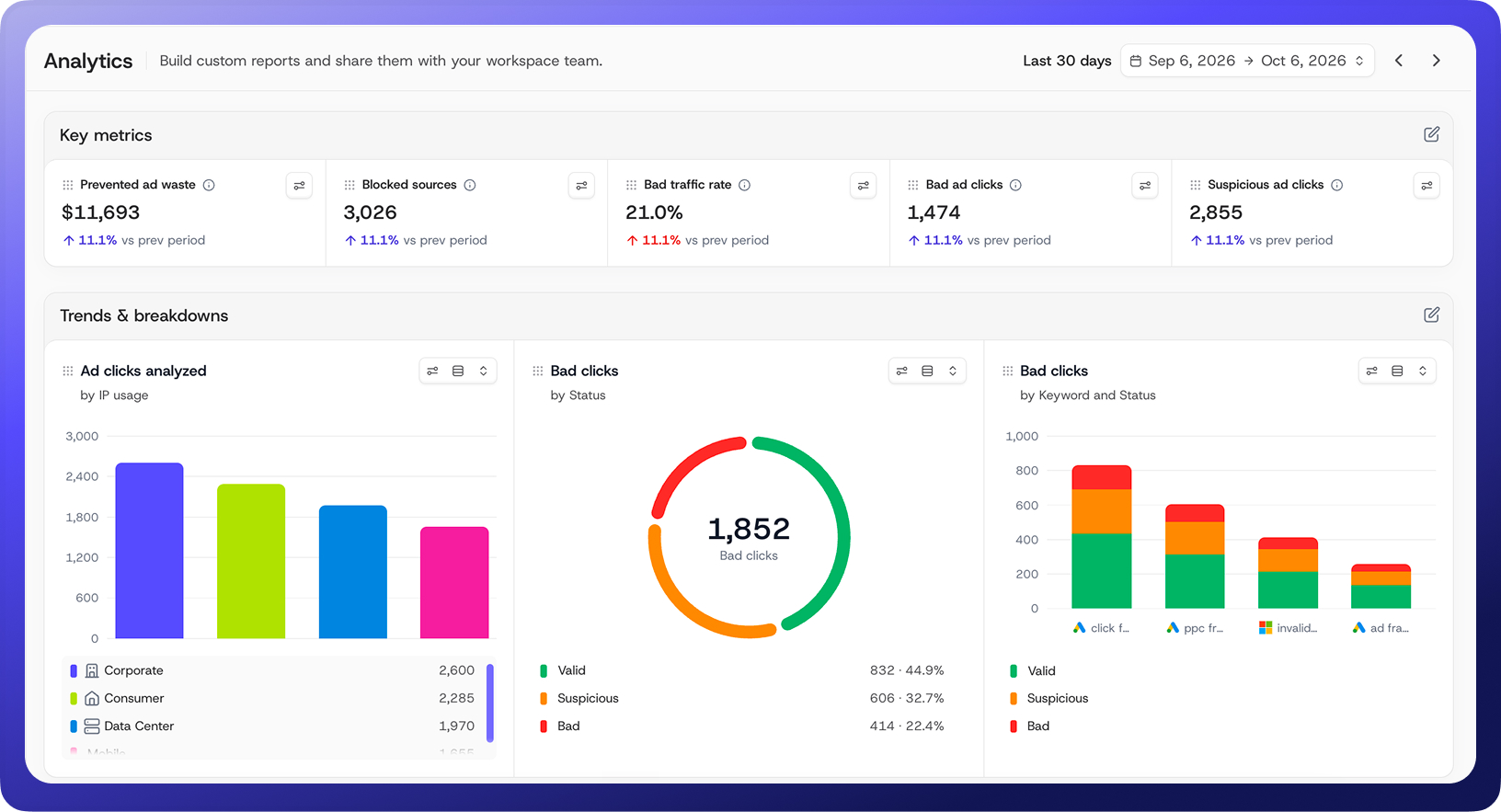
## 🧩 Custom Rules new UI
Custom Rules also has its own page now. See active rules, executions, and blocked sources at a glance, then search, filter, and edit without digging.
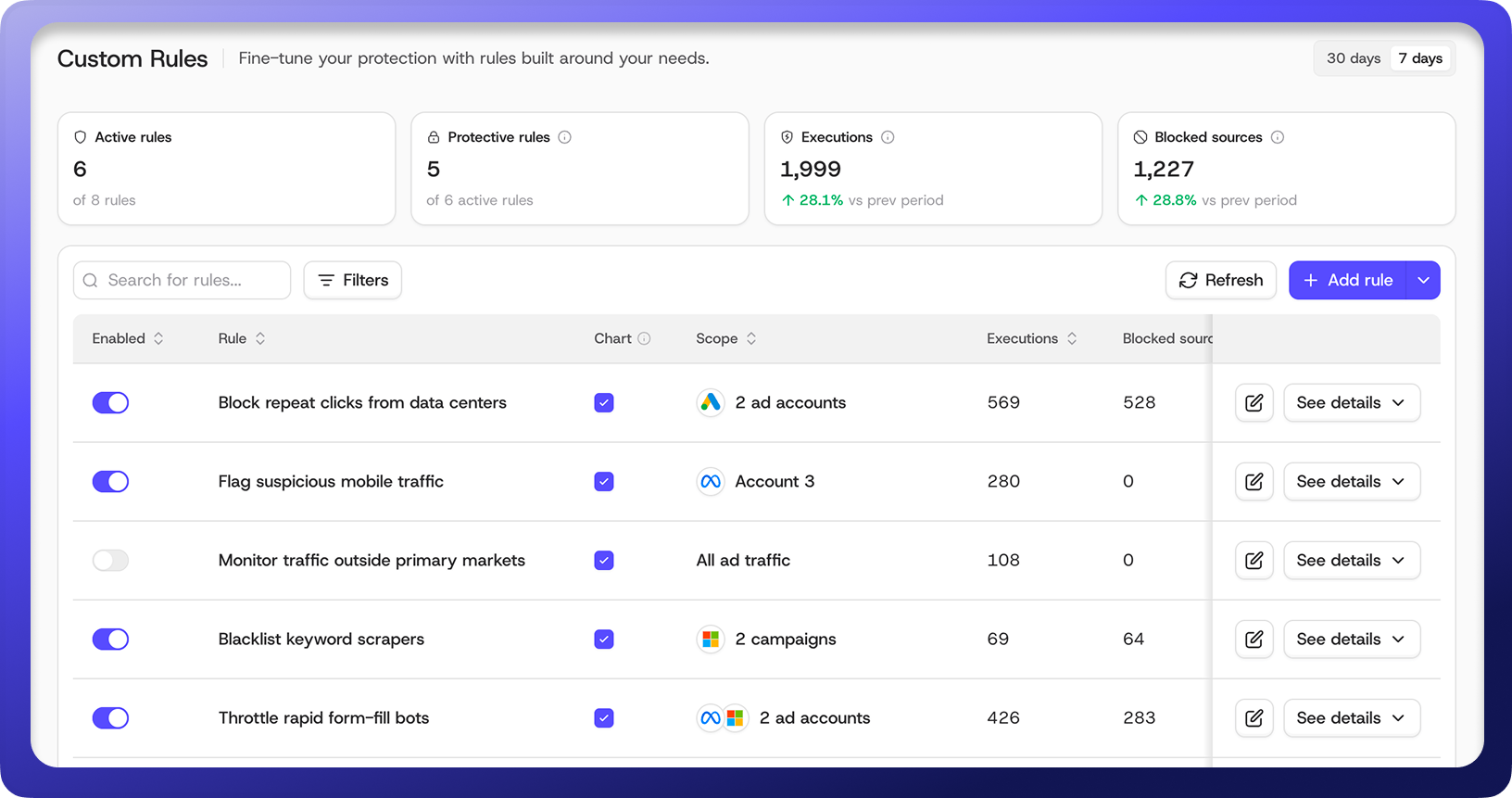
## 🚀 Custom rules templates
Save any rule and apply it to new websites in a couple of clicks, or share it with your workspace so the whole team starts from the same proven baseline. Click the arrow next to **Add rule** to pick from My rules or Shared rules.
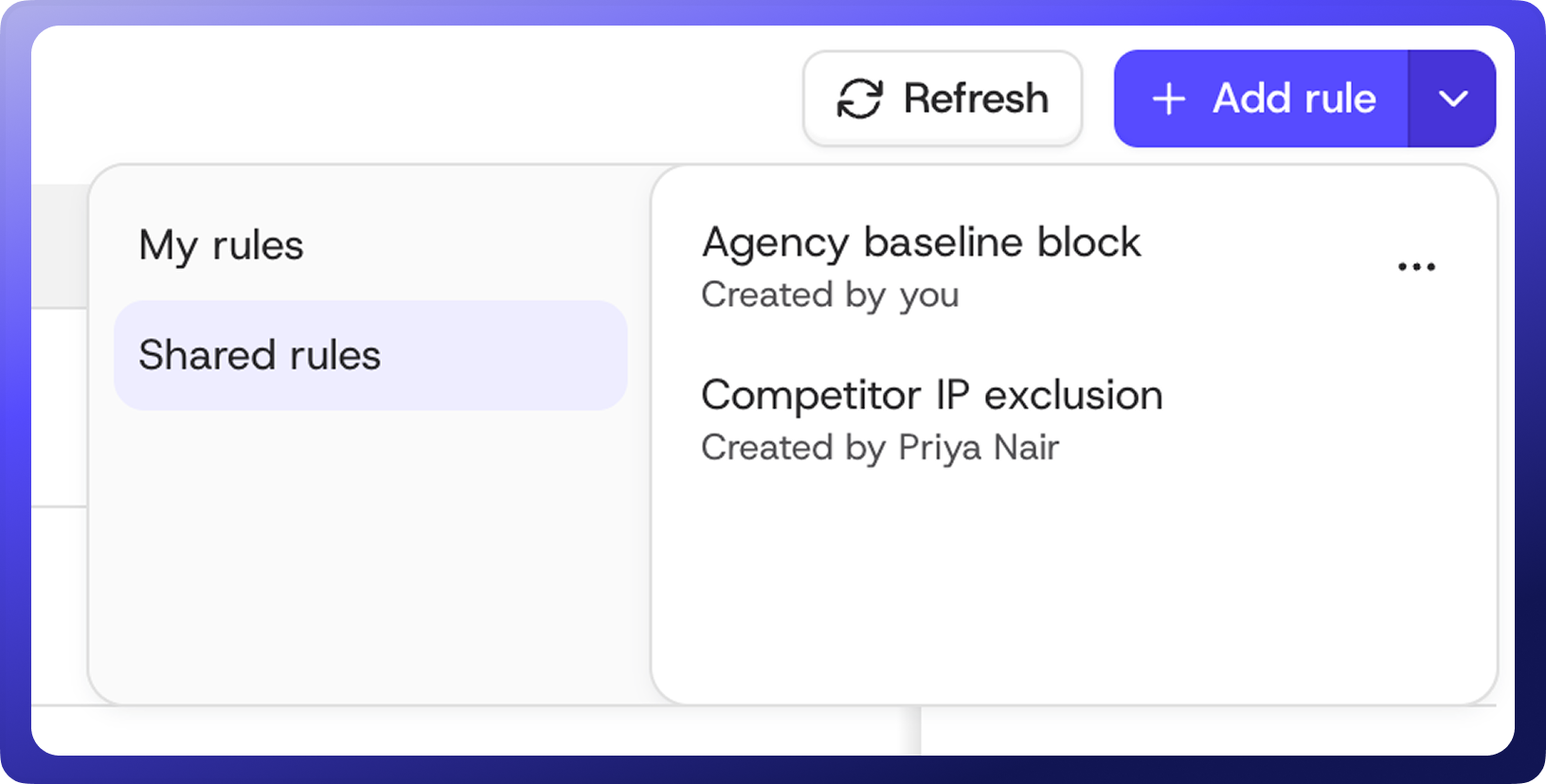
## 🛡️ New AI Protection page
Website protection setup now lives on its own **AI Protection** page, making customization and management even easier!
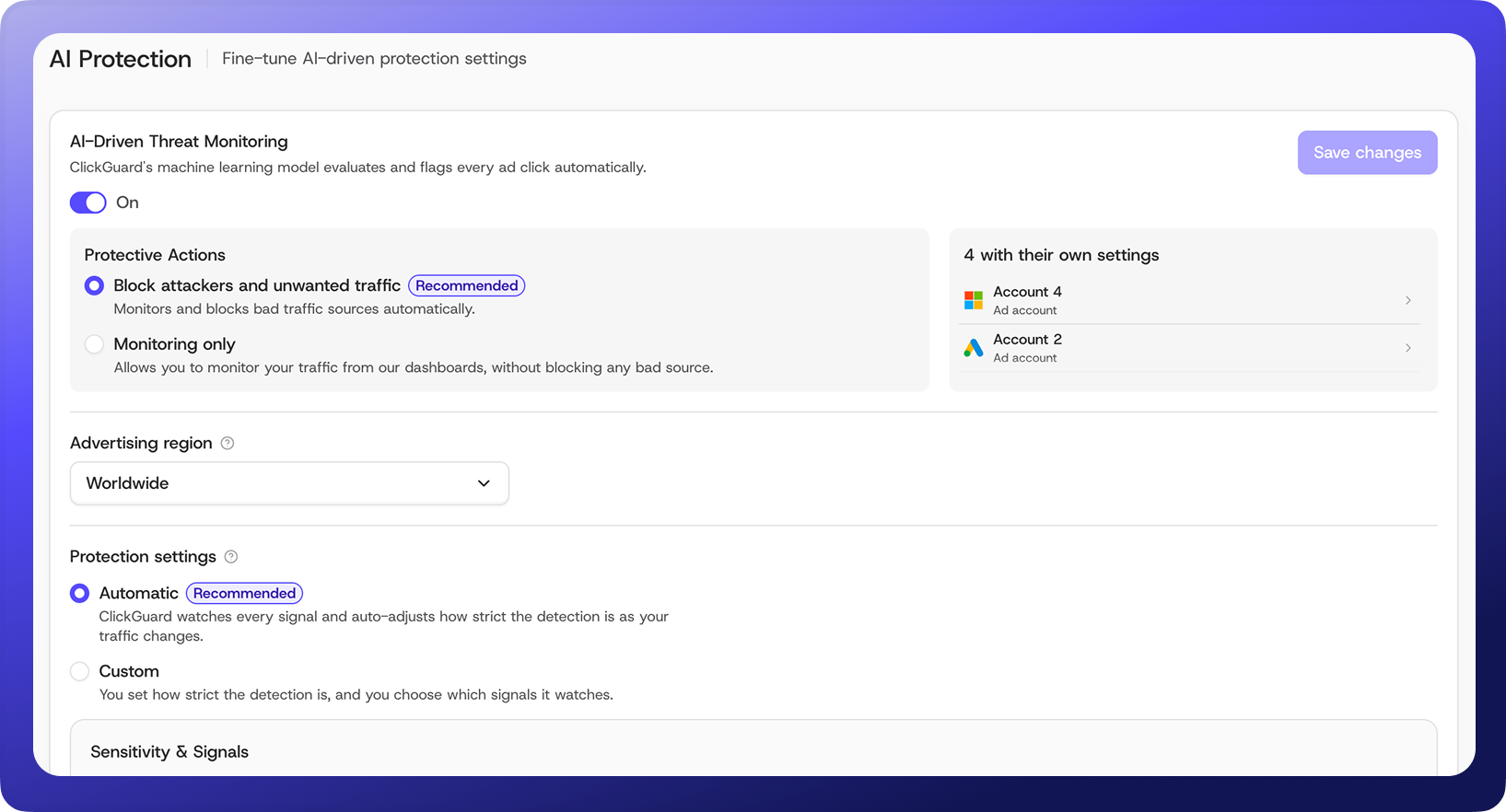
Need different settings for one ad account or campaign? Say, full blocking on a single campaign while the rest of the ad account stays on monitoring only. Go to **Settings > Connections > Ad accounts** and click the gear icon next to the ad account or campaign. Campaigns follow their ad account's settings by default. Untick "Inherit ad account protection settings" to give one its own.
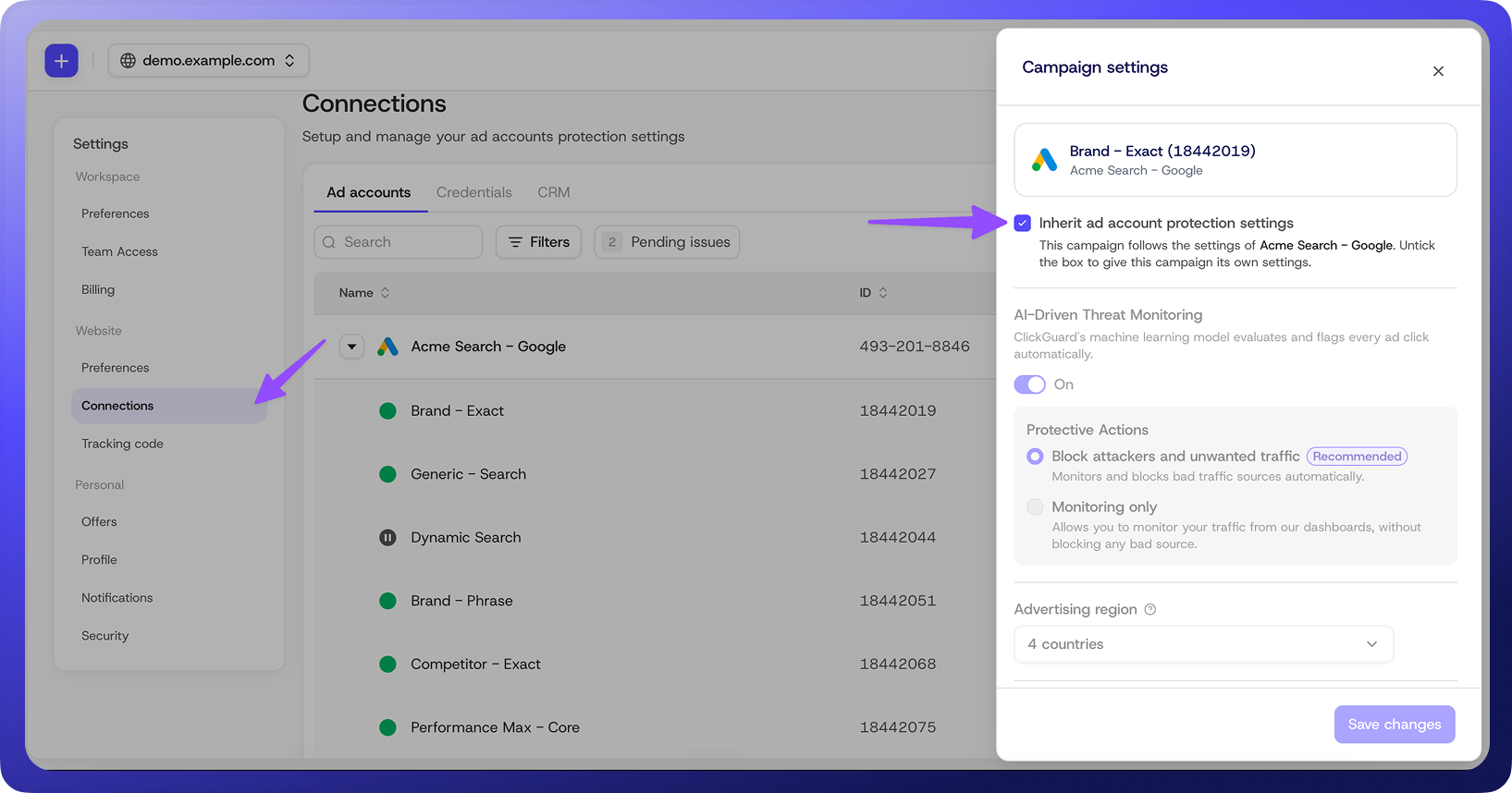
Make sure to follow us for more updates
[x.com/ClickGUARD](https://x.com/ClickGUARD)
[instagram.com/clickguard/](https://instagram.com/clickguard/)
[https://www.linkedin.com/company/clickguard/](https://www.linkedin.com/company/clickguard/)
---
# ✨ What's New: August, 2026
This month: Dark mode, Google Ads Video campaign support and Campaign status in the campaign selector.
Source: https://www.clickguard.com/changelog/2026-09-04-whats-new-august-2026
Published: 2026-09-04
Author: Gustavo Mello
Welcome to this month's [ClickGuard's](https://www.clickguard.com/) updates!
To those of you who are new, welcome! And to those who have been here for a while, thanks as always for your support. Let's dive in 👇
## 🌙 Dark mode
Some of you want it because you're optimizing campaigns at night, or in low light. Some need it for accessibility reasons. Some just prefer it. That's fair too!
Whatever your reason, dark mode is now live in ClickGuard! Turn it on from your profile menu and it sticks across sessions and devices.
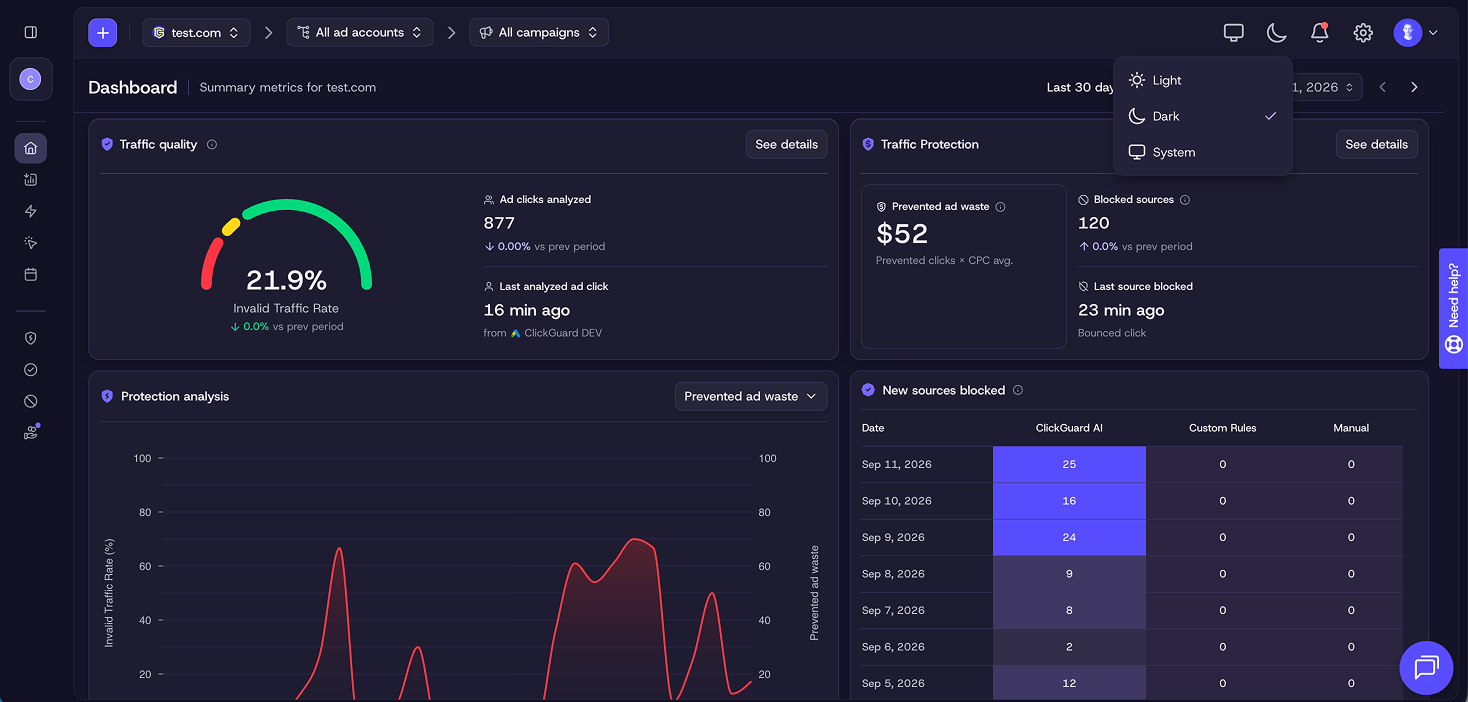
## 🎥 Google Ads Video campaign support
Video campaigns are no longer a blind spot. ClickGuard now protects them too, so you can scale your video ads with confidence. Exclusions are applied at the account level, so a blocked source stops wasting budget everywhere, not just in one campaign.
## 🔍 Campaign status in the campaign selector
Most accounts carry far more paused campaigns than active ones. The campaign selector now shows status upfront: counts for Active, Paused, and Removed at the top, and a status icon next to every campaign in the list. Filter to your active campaigns in one click and go straight to the data that matters today.
Make sure to follow us for more updates
[x.com/ClickGUARD](https://x.com/ClickGUARD)
[instagram.com/clickguard/](https://instagram.com/clickguard/)
[https://www.linkedin.com/company/clickguard/](https://www.linkedin.com/company/clickguard/)
---
# ✨ What's New: July, 2026
This month: Ad Accounts management made easier, Custom rules now supports IP range blocking and A cleaner Settings experience.
Source: https://www.clickguard.com/changelog/2026-08-06-whats-new-july-2026
Published: 2026-08-06
Author: Gustavo Mello
Welcome to this month's [ClickGuard's](https://www.clickguard.com/) updates!
To those of you who are new, welcome! And to those who have been here for a while, thanks as always for your support. Let's dive in 👇
## 🔌 Ad Accounts management made easier
Now every ad account attached to each website sits in one place: Settings > Connections > Ad Accounts.
The new tab shows each account's connection status and tracking setup side by side, so you can see what's live, what needs attention, and what's still missing. Configuring connection and tracking settings takes a few clicks.
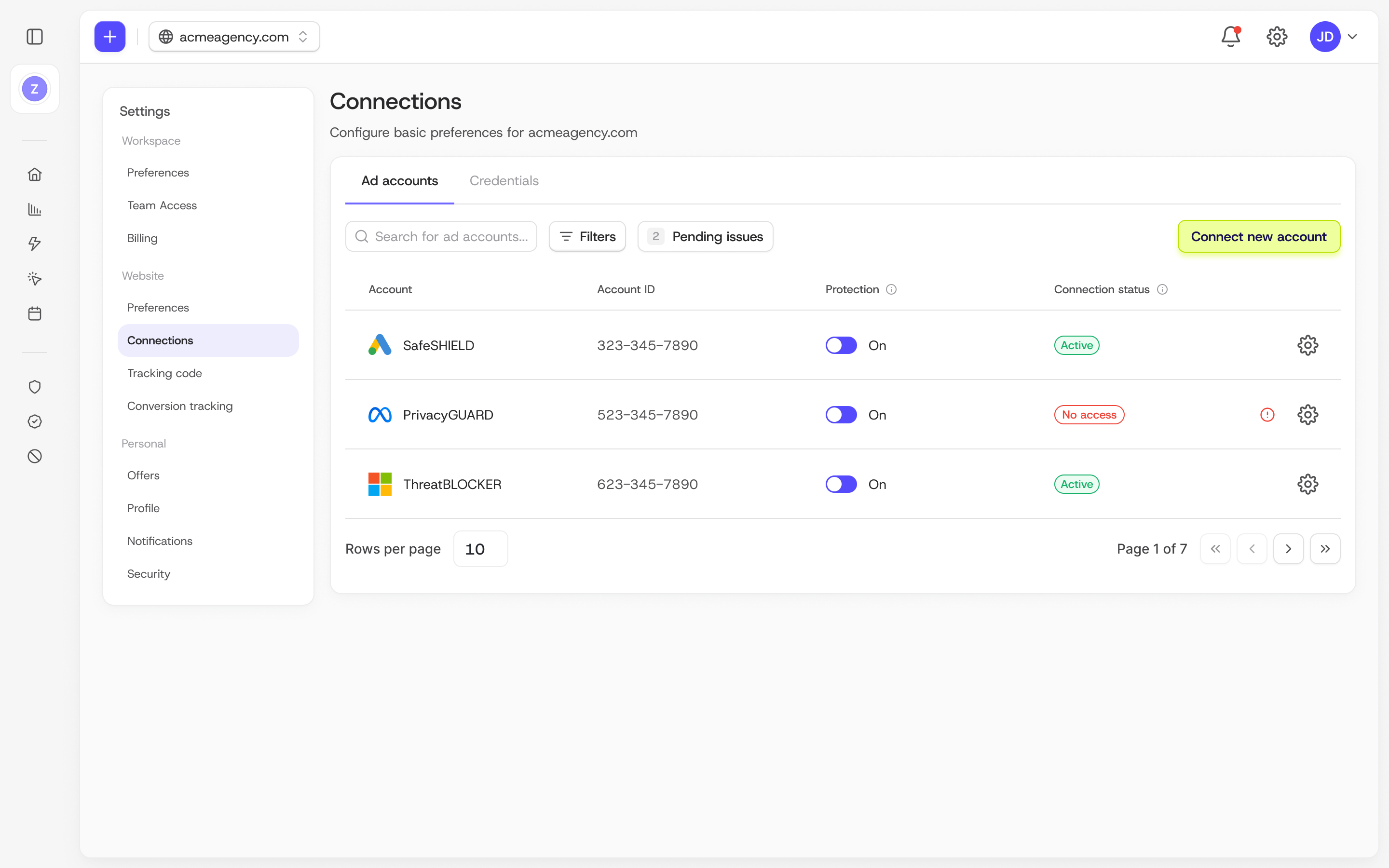
## 📊 Custom rules now supports IP range blocking
Set your trigger to X clicks in Y days from the same **IP range**, and the Actions list gives you a new option: Temporarily exclude IP range on targeted campaign.
## ⚙️ A cleaner Settings experience
We rebuilt the Settings page for easier navigation, especially around your subscription and monthly usage. Cleaner look, and account management takes fewer clicks across the board.
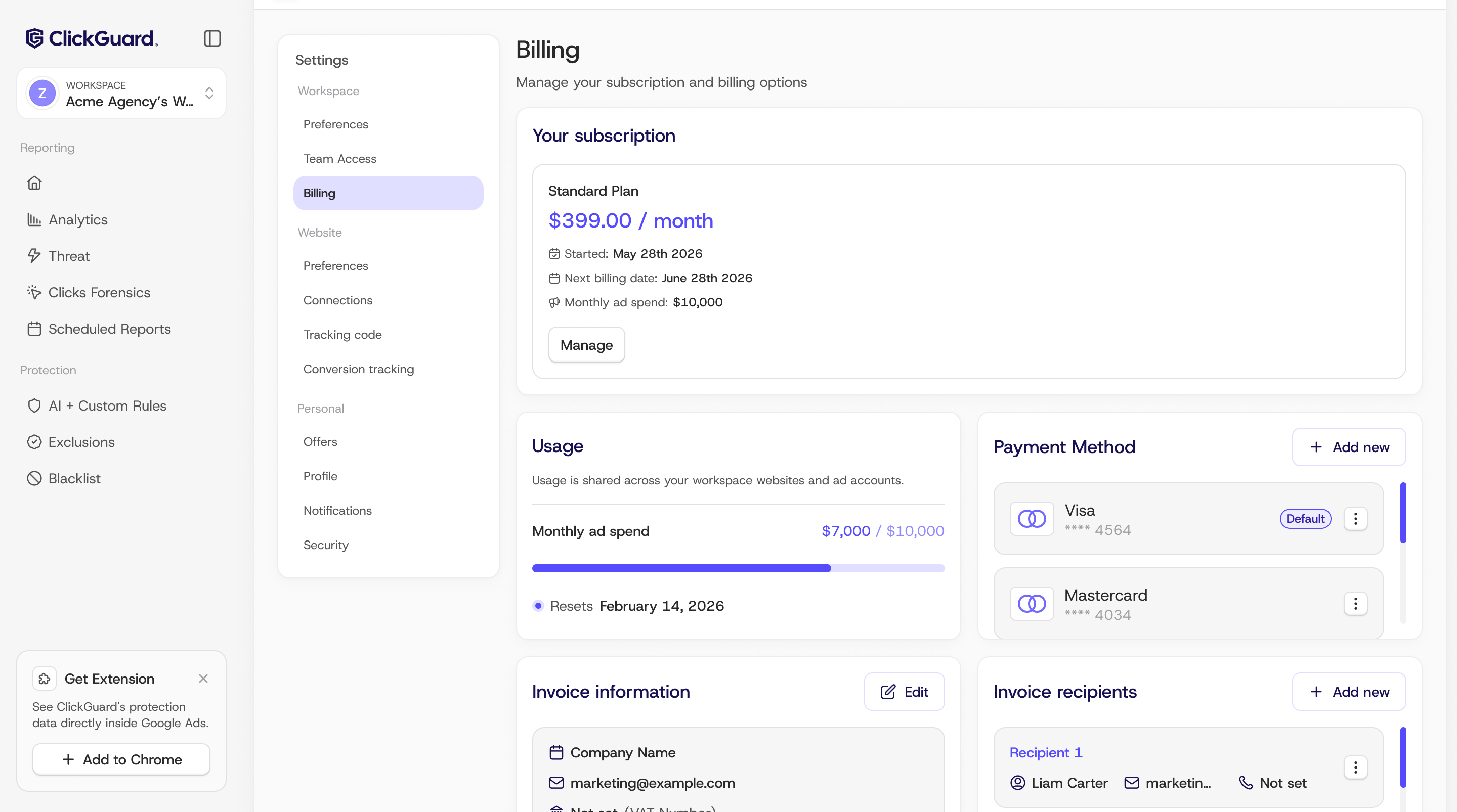
That's it for this month. Can't get enough?
Make sure to follow us for more updates
[x.com/ClickGUARD](https://x.com/ClickGUARD)
[instagram.com/clickguard/](https://instagram.com/clickguard/)
[https://www.linkedin.com/company/clickguard/](https://www.linkedin.com/company/clickguard/)
---
# ✨ What's New: June, 2026
This month: One view for every site, account, and workspace, A sharper read on traffic quality and protection, Tracking setup that covers your campaigns automatically and Filter campaigns by status in one click.
Source: https://www.clickguard.com/changelog/2026-07-01-whats-new-june-2026
Published: 2026-07-01
Author: Gustavo Mello
Welcome to this month's [ClickGuard's](https://www.clickguard.com/) updates!
To those of you who are new, welcome! And to those who have been here for a while, thanks as always for your support. Let's dive in 👇
## 🖥️ One view for every site, account, and workspace
For agencies and teams juggling multiple clients, checking protection health meant hopping between workspaces and websites one by one. Not anymore. The new Account Overview dashboard brings every website, ad account, and workspace you manage into a single dashboard, with protection status, invalid traffic trends, and usage at a glance.
Spot a site with pending issues or invalid traffic trending up, then jump straight into the workspace that needs attention. Open it from the new monitor icon in the header.
To open the Account Overview, click the 🖥️ icon next to Notifications in the top-right corner.
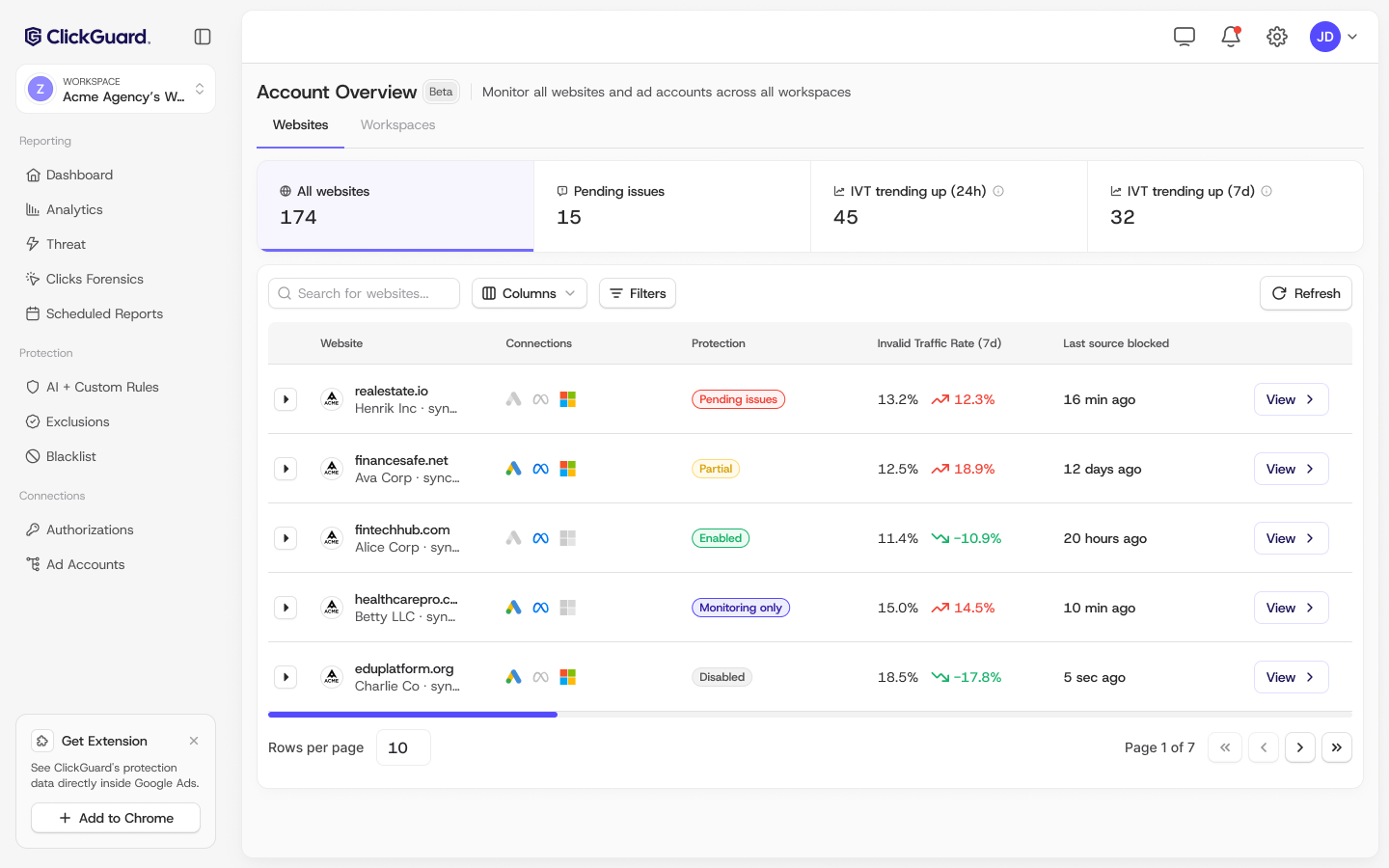
## 📊 A sharper read on traffic quality and protection
The two top dashboard widgets got a full redesign. Traffic Quality shows your invalid traffic rate, how it is trending, and analyzed ad clicks in a gauge split by valid, suspicious, and bad clicks. Click any segment to drop straight into Click Forensics, already filtered.
Traffic Protection puts the payoff up front: budget saved, sources blocked, and the most recent block with its reason. One click takes you to the Exclusions page, to drill down on the malicious sources ClickGuard is blocking.
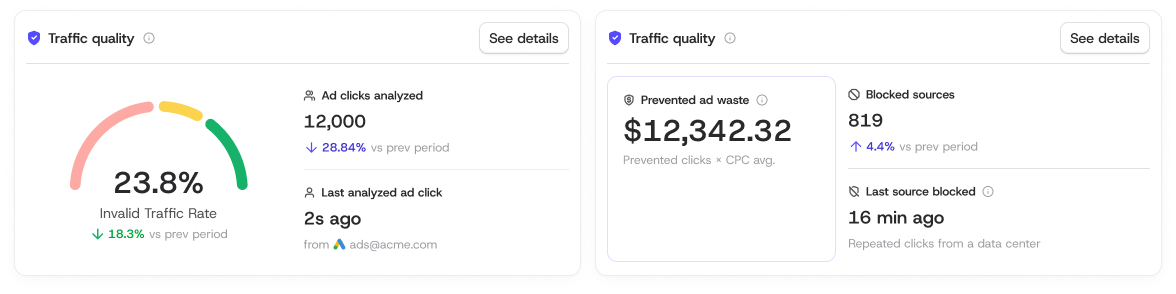
## ⚙️ Tracking setup that covers your campaigns automatically
When you connect a new ad account, ClickGuard already sets up tracking automatically. Now it goes one level deeper. Campaigns running their own tracking parameters, overriding the account settings, get ClickGuard's parameters applied too, in the same one-click confirmation.
No manual edits, no campaigns slipping through with unprotected tracking. Works across Google Ads and Microsoft Ads.
## 🔍 Filter campaigns by status in one click
The Campaigns dropdown now has Active and Paused filters at the top, so you can narrow to the campaigns you care about without scrolling past the ones you don't. Active is on by default. Works across Google, Meta, and Microsoft Ads.
That's it for this month. Can't get enough?
Make sure to follow us for more updates
[x.com/ClickGUARD](https://x.com/ClickGUARD)
[instagram.com/clickguard/](https://instagram.com/clickguard/)
[https://www.linkedin.com/company/clickguard/](https://www.linkedin.com/company/clickguard/)
---
# ✨ What's New: May, 2026
This month: A Fresh New Look, Your Protection Metrics, Right Inside Google Ads and The new Monitoring Mode.
Source: https://www.clickguard.com/changelog/2026-06-05-whats-new-may-2026
Published: 2026-06-05
Author: Gustavo Mello
Welcome to this month's [ClickGuard's](https://www.clickguard.com/) updates!
To those of you who are new, welcome! And to those who have been here for a while, thanks as always for your support. Let's dive in 👇
## 🎨 A Fresh New Look
The platform now looks like what it does. We've rebuilt the interface from the ground up: a cleaner design, a full-height sidebar, and a workspace selector that's the first thing you see. Switching between workspaces, websites, and ad accounts is faster, and a new date picker lets you move across date ranges from any page without losing your place. Nothing you've configured changes, only how it feels to use every day.
[Click here](https://www.clickguard.com/changelog/2026-05-27-full-ui-refresh-smarter-navigation) to know more about the changes.
## 🧩 Your Protection Metrics, Right Inside Google Ads
Our new Chrome extension brings ClickGuard data into Google Ads, so you don't have to switch tabs to check it. Once installed, it adds ClickGuard columns to your Campaign Performance tables: bad clicks, invalid traffic rate, blocked sources, and estimated ad waste prevented, sitting right next to your standard metrics. It works on both standard and manager (MCC) accounts. Now the protection stats live where you already spend your time.
Install it and see the setup steps [here](https://www.clickguard.com/help/getting-started/clickguard-extension).
## 👁️ The new Monitoring Mode
You can now keep ClickGuard watching your traffic without it excluding its sources. In Monitoring Mode, detection runs exactly as it normally would, flagging invalid clicks, bots, and wasteful sources in real time, but the system holds off on the exclusion actions that block those sources from your campaigns. It's built for anyone who wants full visibility before committing to blocking, or who needs to see what would be excluded before it happens. Turn it on, watch the data, and switch protection on when you're ready.
That's it for this month. Can't get enough?
Make sure to follow us for more updates
[x.com/ClickGUARD](https://x.com/ClickGUARD)
[instagram.com/clickguard/](https://instagram.com/clickguard/)
[https://www.linkedin.com/company/clickguard/](https://www.linkedin.com/company/clickguard/)
---
# 🚀 Full UI Refresh & Smarter Navigation
This week's ClickGuard update features a refreshed interface, faster navigation across workspaces, websites and ad accounts, and a new date picker in the header.
Source: https://www.clickguard.com/changelog/2026-05-27-full-ui-refresh-smarter-navigation
Published: 2026-05-27
Author: Gustavo Mello
This week's ClickGuard update features a refreshed interface, faster navigation across workspaces, websites and ad accounts, and a new date picker in the header.
## 🎨 A cleaner interface, built for daily use
ClickGuard has a new look. Every screen you use every day — the sidebar, the header, the navigation labels and icons — has been updated to match a modern design system. The changes aren't cosmetic for the sake of it: we rebuilt the shell to make the platform faster and easier to use, especially for teams managing multiple workspaces or accounts.
The sidebar is now full-height and anchored to the screen. The header stays fixed at the top as you scroll. Controls that used to require a few clicks to reach are now a single click away. The platform should feel immediately more familiar to use, and less in the way of the work you're actually trying to do.
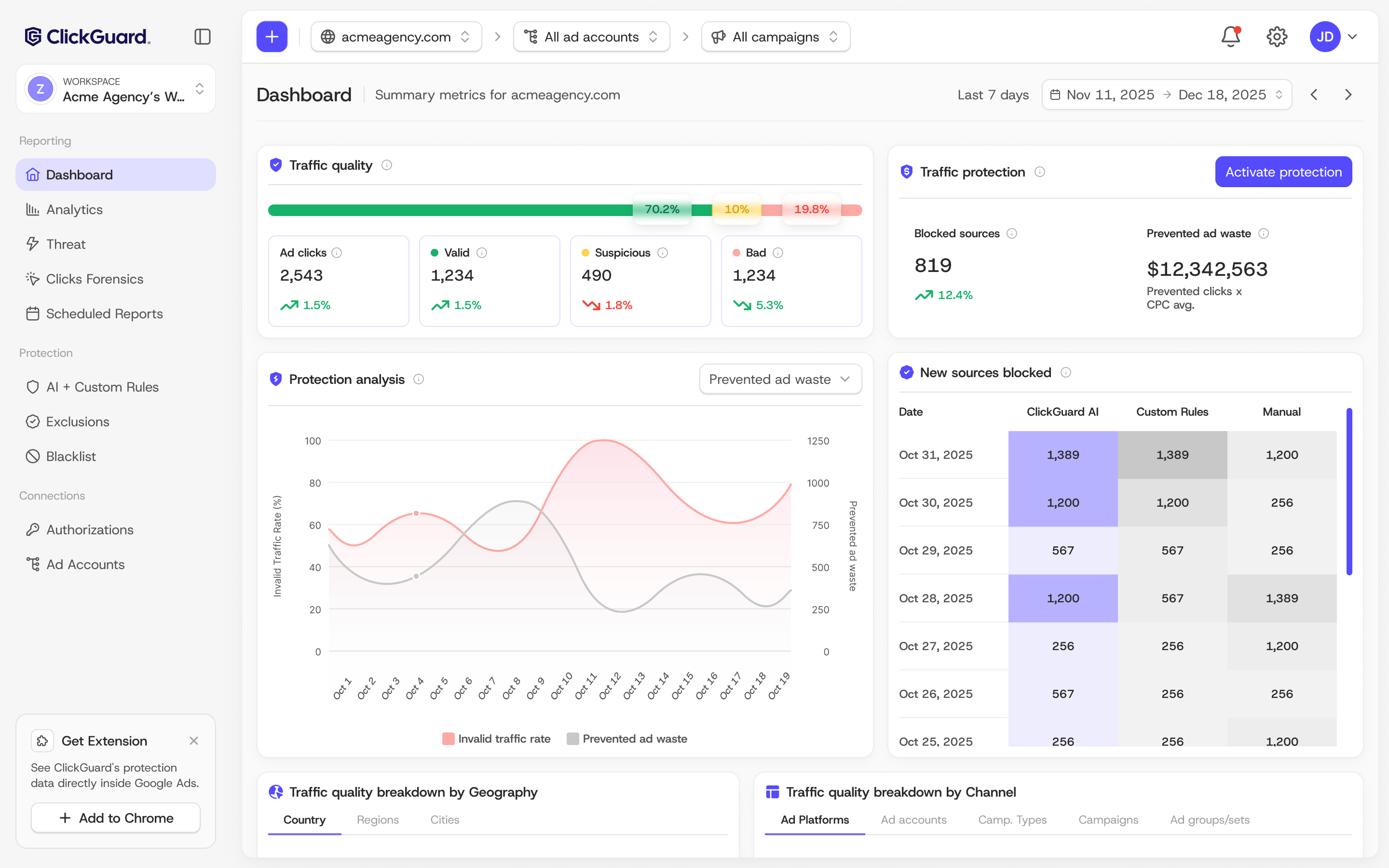
## 🗂️ Navigate workspaces, websites and ad accounts faster
If you manage more than one workspace, website, or ad account, this one's for you. The Workspace Selector now sits at the very top of the sidebar — always visible, always accessible. A new breadcrumb in the header lets you move between websites, ad accounts, and campaigns without losing your place in the platform.
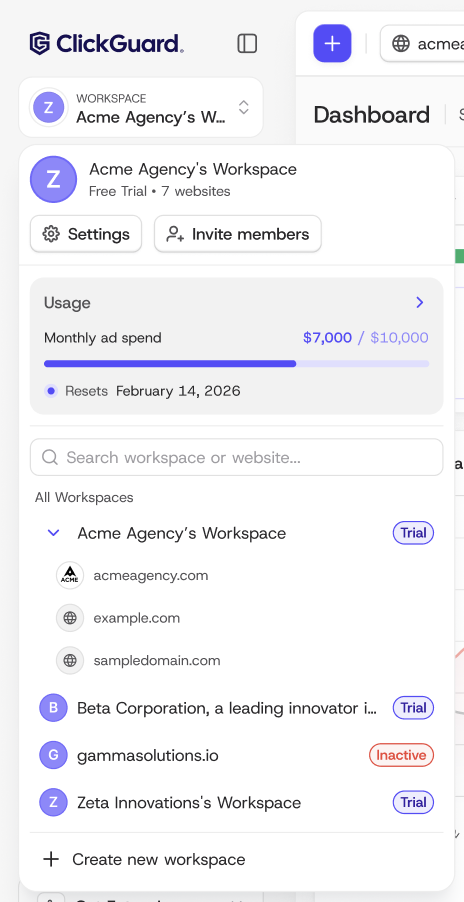
Account settings, support, and other actions have been consolidated into a cleaner overflow menu off your avatar in the header. Less digging, fewer steps, same access.

## 📅 New date range selection experience
There's now a date picker in the header, available on every page. You no longer need to navigate away from your current view to change the time range you're looking at. Pick your dates, and the data updates in place. Small change, meaningful difference when you're moving fast.

---
# 🚀 Introducing our new Chrome Extension!
The ClickGuard Extension brings your click fraud protection stats directly into Google Ads – bad clicks, blocked sources, prevented ad waste, and more – without leaving the platform. It adds a dedicated set of ClickGuard columns to your Campaigns performance table, right alongside your standard metrics!
Source: https://www.clickguard.com/changelog/2026-05-18-introducing-our-new-chrome-extension
Published: 2026-05-18
Author: Gustavo Mello
The ClickGuard Extension brings your click fraud protection stats directly into Google Ads – bad clicks, blocked sources, prevented ad waste, and more – without leaving the platform. It adds a dedicated set of ClickGuard columns to your Campaigns performance table, right alongside your standard metrics!
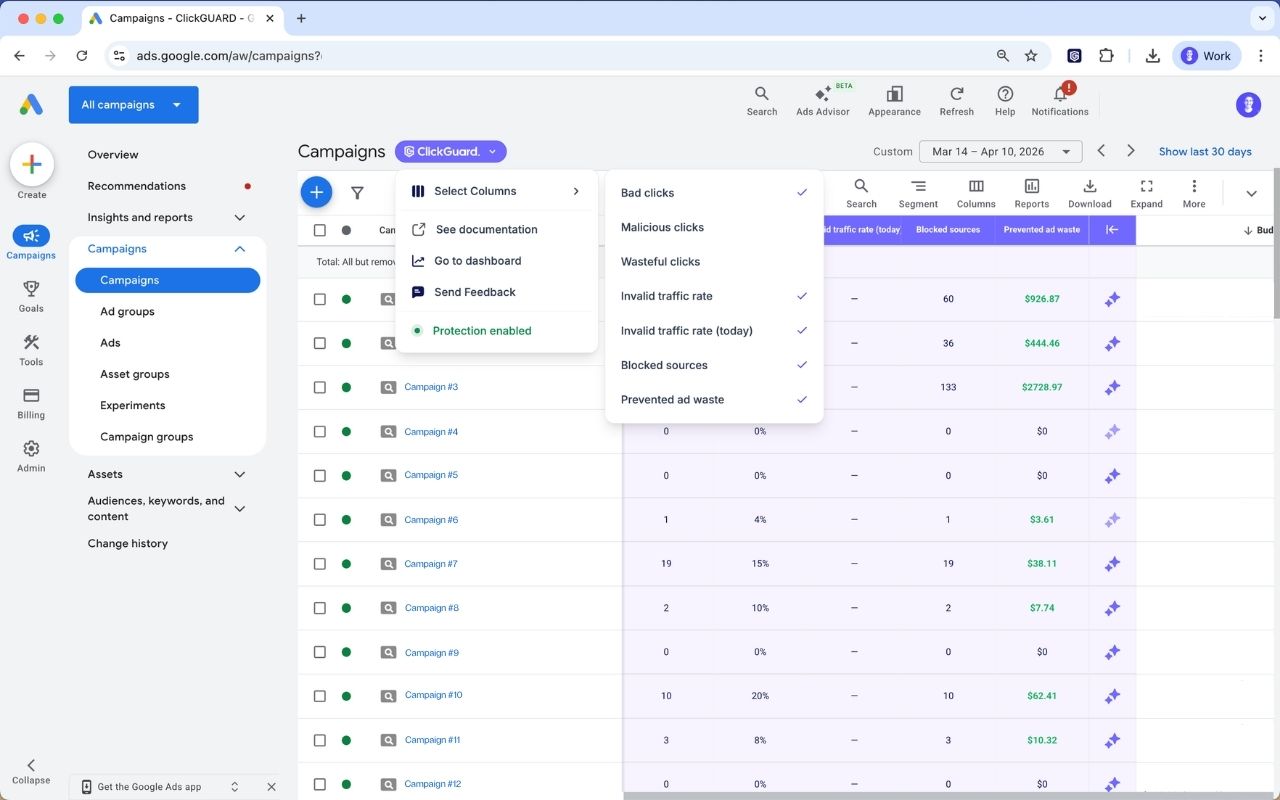
To install the extension, please follow the instructions from [this link](https://www.clickguard.com/help/getting-started/clickguard-extension).
---
# ✨ What's New: April, 2026
This month: Google Ads Tracking, Configured Automatically, Documentation and Updates, right inside the and IP Range blocking now works for both IPv4 and IPv6.
Source: https://www.clickguard.com/changelog/2026-05-05-whats-new-april-2026
Published: 2026-05-05
Author: Gustavo Mello
Welcome to this month's [ClickGuard's](https://www.clickguard.com/) updates!
To those of you who are new, welcome! And to those who have been here for a while, thanks as always for your support. Let's dive in 👇
## ⚙️ Google Ads Tracking, Configured Automatically
The moment you select a new ad account to connect to ClickGuard, we will detect your current tracking setup and suggests the right configuration. If you have an existing Tracking Template you want to keep, we'll add our parameters to your Final URL Suffix without touching anything else. If you'd prefer to start fresh, just confirm and we'll apply the new settings automatically. Either way, **one click** and your account is properly configured!
__Note: if any of your campaigns have campaign-level tracking settings, those will need to be updated separately. Add ClickGuard's parameters to the end of their URL Suffix, or delete the settings if they're no longer in use.__
## 📚 Documentation and Updates, right inside the
No more switching tabs to find a help article or check what's new. The in-app Resource Center gives you direct access to ClickGuard's documentation and product updates from anywhere inside the platform.
Whatever you're doing, the answers are one click away.
## 🛡️ IP Range blocking now works for both IPv4 and IPv6.
IP Range blocking now extends to IPv6 addresses, giving you broader control over the traffic you let through. If you're seeing suspicious activity originating from specific IPv6 ranges, you can now block them directly, the same way you would with any other IP-based threat.
That's it for this month. Can't get enough?
Make sure to follow us for more updates
[x.com/ClickGUARD](https://x.com/ClickGUARD)
[instagram.com/clickguard/](https://instagram.com/clickguard/)
[https://www.linkedin.com/company/clickguard/](https://www.linkedin.com/company/clickguard/)
---
# ✨ What's New: March, 2026
This month: New Onboarding gets your website protected in minutes, New Invalid Traffic breakdown widgets, New "Reason" filter: see Exactly why a click was blocked and Billing that's easy to read and easy to Share.
Source: https://www.clickguard.com/changelog/2026-03-31-whats-new-march-2026
Published: 2026-03-31
Author: Gustavo Mello
Welcome to this month's [ClickGuard's](https://www.clickguard.com/) updates!
To those of you who are new, welcome! And to those who have been here for a while, thanks as always for your support. Let's dive in 👇
## 🚀 New Onboarding gets your website protected in minutes
Setting up ClickGuard used to require a technical setup session. The new onboarding changes that completely. Whether you're protecting a new website, connecting an ad account, or creating a whole new workspace, the process is now guided, fast, and clear from the first step.
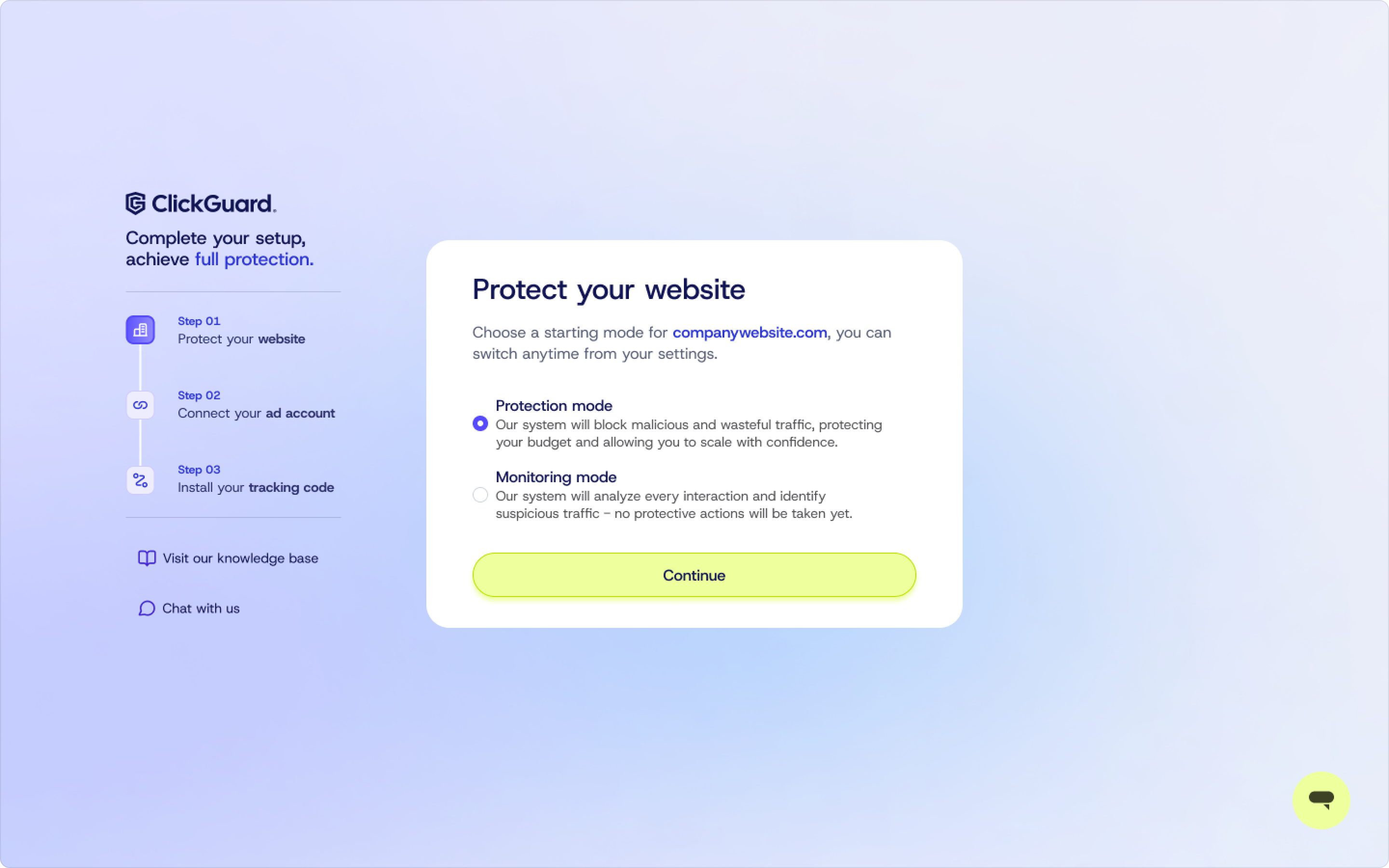
What used to be a multi-step technical process now takes minutes. Get a brand new website protected from scratch without needing to figure anything out along the way.
## 📊 New Invalid Traffic breakdown widgets
Knowing you have invalid traffic is useful. Knowing which campaigns, platforms, or cities it's coming from is what lets you do something about it.
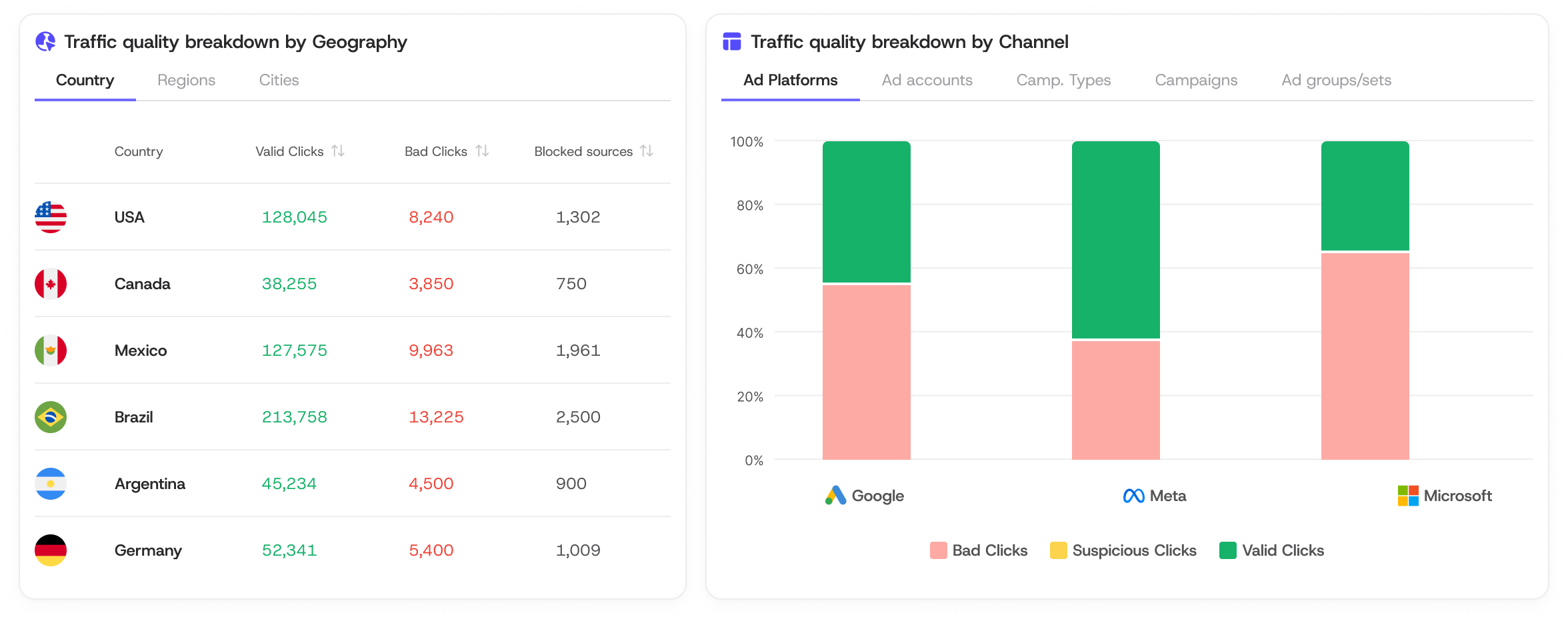
The main dashboard now has new widgets that organizes invalid traffic trends by Channel, covering ad platform, ad account, campaign type, campaign, and ad group or set, and by Geography, down to country, region, and city level. Instead of staring at aggregate numbers, you can pinpoint exactly where low-quality traffic is entering and respond with precision.
## 🔎 New "Reason" filter: see Exactly why a click was blocked
Not all blocked clicks are blocked for the same reason, and grouping them together makes investigation harder than it needs to be. Click Forensics now lets you filter by **Reason**. Isolate clicks flagged for datacenter traffic, VPN usage, or your custom rules with a single selection. If you've ever wanted to know whether it's automated bot traffic or a specific rule doing the work, you can now see it directly in the report.
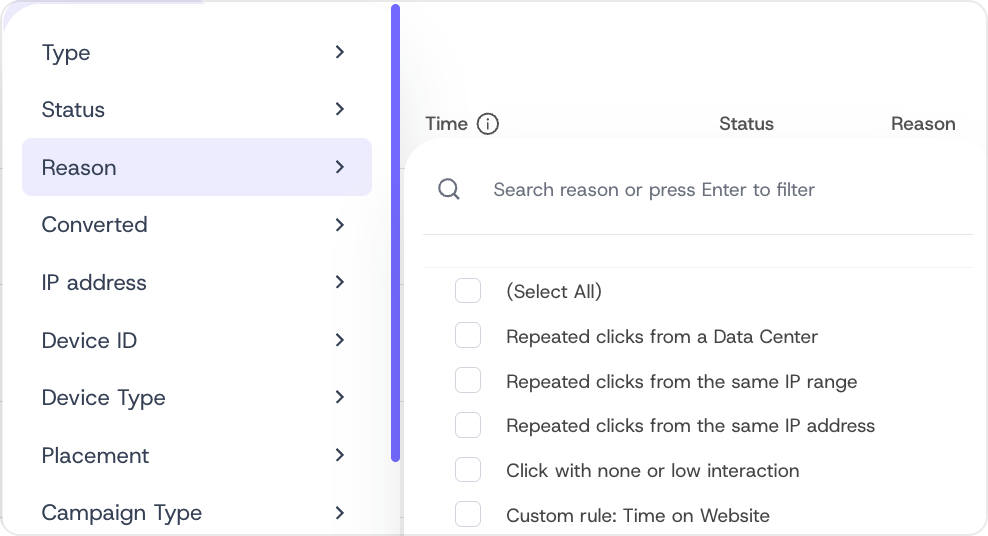
## 🧾 Billing that's easy to read and easy to Share
The redesigned layout makes it immediately clear where you stand in your current cycle, with no ambiguity. And if your invoices need to reach more than one person, an accountant, a client, or a finance team, **you can now send them to multiple recipients** directly from the page.
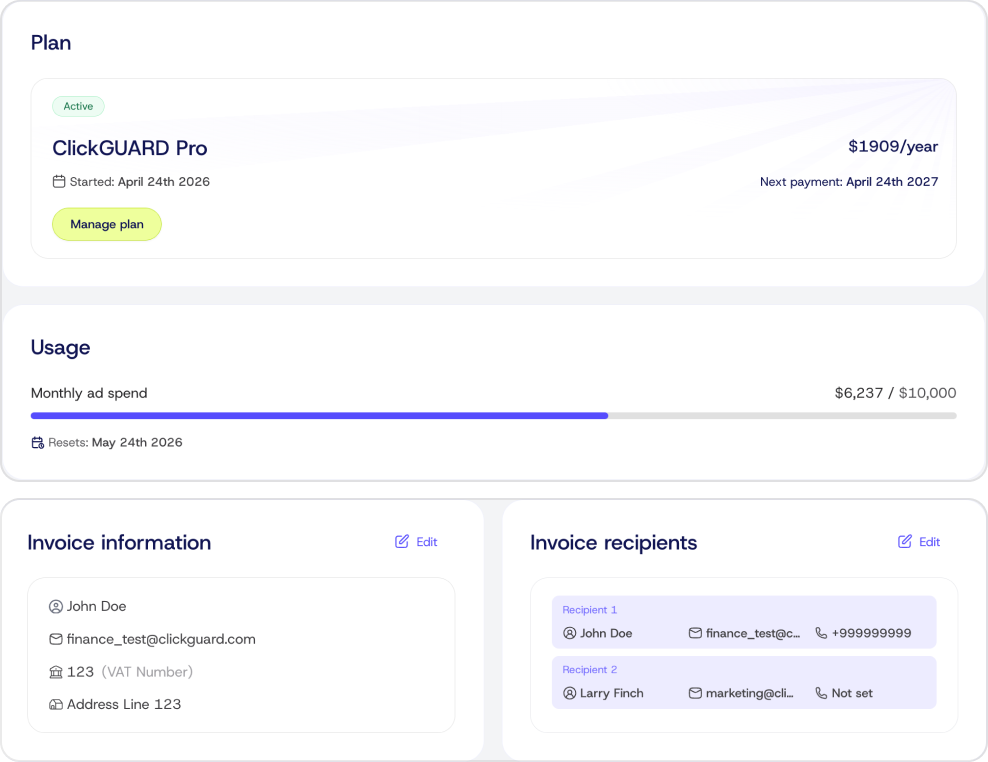
That's it for this month. Can't get enough?
Make sure to follow us for more updates
[x.com/ClickGUARD](https://x.com/ClickGUARD)
[instagram.com/clickguard/](https://instagram.com/clickguard/)
[https://www.linkedin.com/company/clickguard/](https://www.linkedin.com/company/clickguard/)
---
# ✨ What's New: February, 2026
This month: Advanced tracking for enhanced protection, See exactly how your Custom Rules are working, Your dashboard is now interactive and Redesigned Click Forensics page.
Source: https://www.clickguard.com/changelog/2026-02-28-whats-new-february-2026
Published: 2026-02-28
Author: Gustavo Mello
Welcome to this month's [ClickGuard's](https://www.clickguard.com/) updates!
To those of you who are new, welcome! And to those who have been here for a while, thanks as always for your support. Let's dive in 👇
## 🔍 Advanced tracking for enhanced protection
Ad blockers don't just block ads. They block your tracking data, creating gaps in your traffic analysis and letting fraud pass through undetected. **Server-side tracking** closes that gap.
Enable it under __Settings → Tracking Code →__ __Advanced Tracking.__ The result is sharper traffic insights, earlier fraud detection, and cleaner signals feeding your campaigns.
__\*Available for Pro and Custom plans__
## 📊 See exactly how your Custom Rules are working
You built custom rules to catch the fraud patterns specific to your traffic. But without knowing how often they actually fire, you can't tell if they're doing their job or just sitting idle.
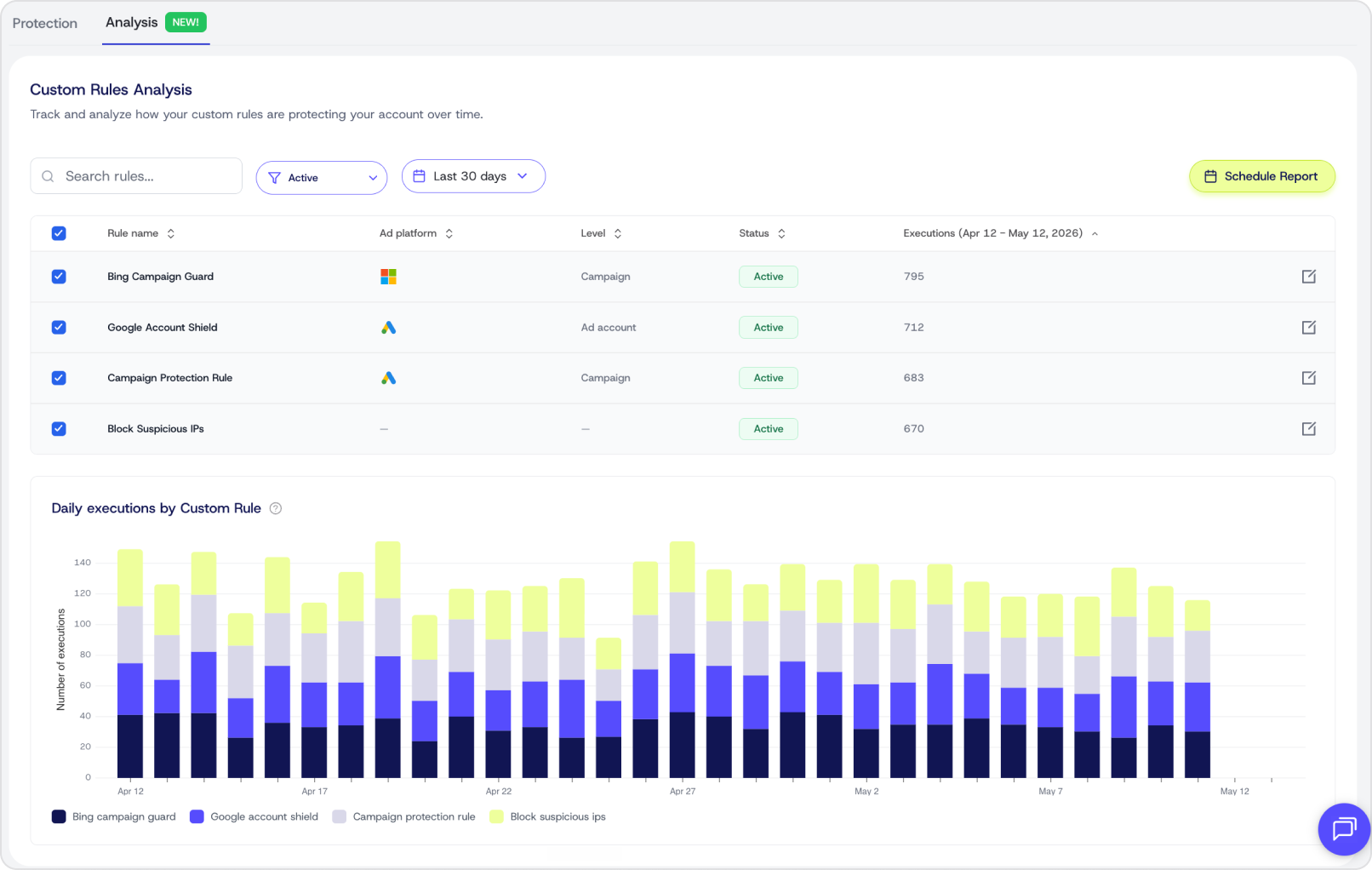
The new Analysis tab under AI + Custom Rules gives you a full breakdown of every rule you've created, how many times each was triggered over your selected date range, and how that volume trends over time. Notice a rule that's over- or under-firing? Hit the pencil icon to adjust its threshold on the spot.
## ⚡ Your dashboard is now interactive
Your dashboard shows you the numbers. Now it takes you directly to what's behind them. Click the valid, suspicious, or bad clicks cards on the traffic quality section and you'll land in Click Forensics with that filter already applied, ready to investigate.
The __new blocked sources__ table works the same way. Click any row and go straight to the report showing which custom rules were triggered, which sources were blocked, and how that plays out day by day. No extra steps, no manual filtering.
## 🗂️ Redesigned Click Forensics page
Navigating click-level data used to mean fighting a cluttered interface. The redesigned Clicks page clears that out. It's clean, easy to scan, and built so you can move through your traffic without losing track of what you're looking at.
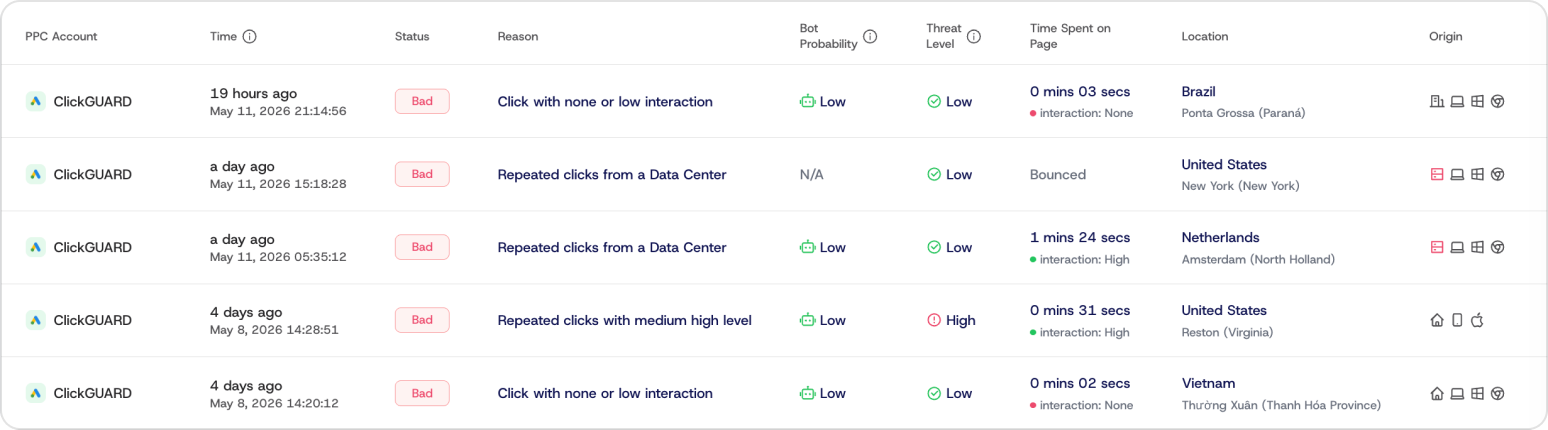
That's it for this month. Can't get enough?
Make sure to follow us for more updates
[x.com/ClickGUARD](https://x.com/ClickGUARD)
[instagram.com/clickguard/](https://instagram.com/clickguard/)
[https://www.linkedin.com/company/clickguard/](https://www.linkedin.com/company/clickguard/)
---
# 🚀 New advanced tracking available
Server-side tracking bypasses ad blockers, so ClickGuard identifies fraud earlier. Available on Pro and Custom plans.
Source: https://www.clickguard.com/changelog/2026-02-02-new-advanced-tracking-available
Published: 2026-02-02
Author: Gustavo Mello
You can now enable **server-side tracking**\* to bypass ad blockers, identify fraud earlier and turn wasted spend into conversions faster. Your traffic insights are now sharper than ever!
Install this advanced tracking method by navigating to **Settings** › **Tracking code** › **Advanced tracking**.
\*Available for Pro and Custom plans.