Loading article introduction…
Loading article body…
If you connected Google Ads through OAuth, our support team can't see the account, so sometimes they can't help you configure it. Invite ClickGuard's support email to your Google Ads account with Read only access. Accounts linked through ClickGuard's manager account already give us access, so they don't need this.
If you've linked Google Ads with ClickGuard by adding it to ClickGuard's manager account, we can already access it, therefore this manual is reserved for accounts added via oAuth.
There are cases when ClickGuard is unable to help you configure your Google Ads account without temporarily accessing your Google Ads account. In these cases, we might ask you to provide temporary access to your account for our support team. In order to do so, please follow these steps:
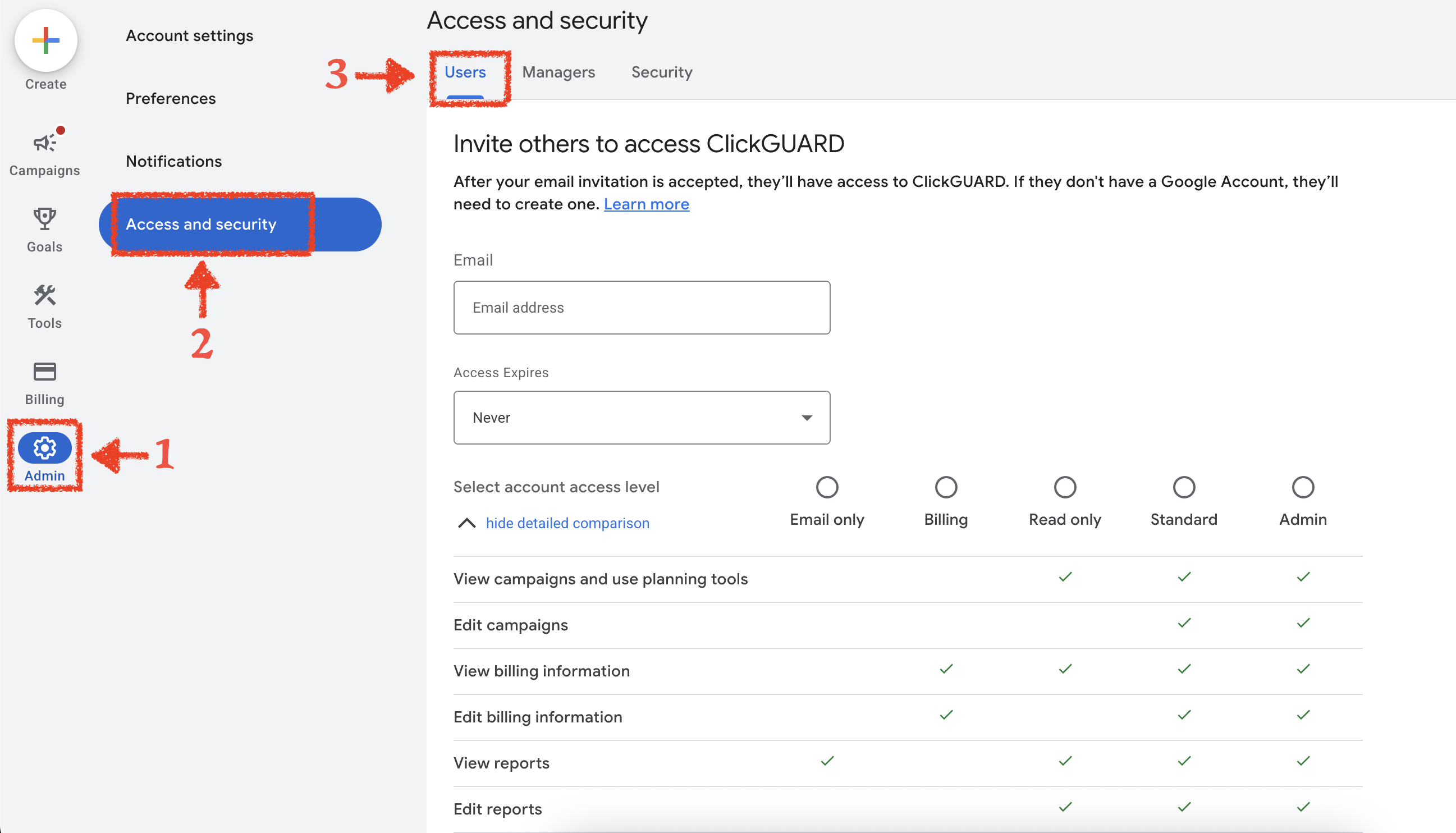
Login to Google Ads and go to "Admin"→ "Access and security"→ "Users":
Within the "Users" tab, add the [email protected], select "Read only" access and send the invitation.
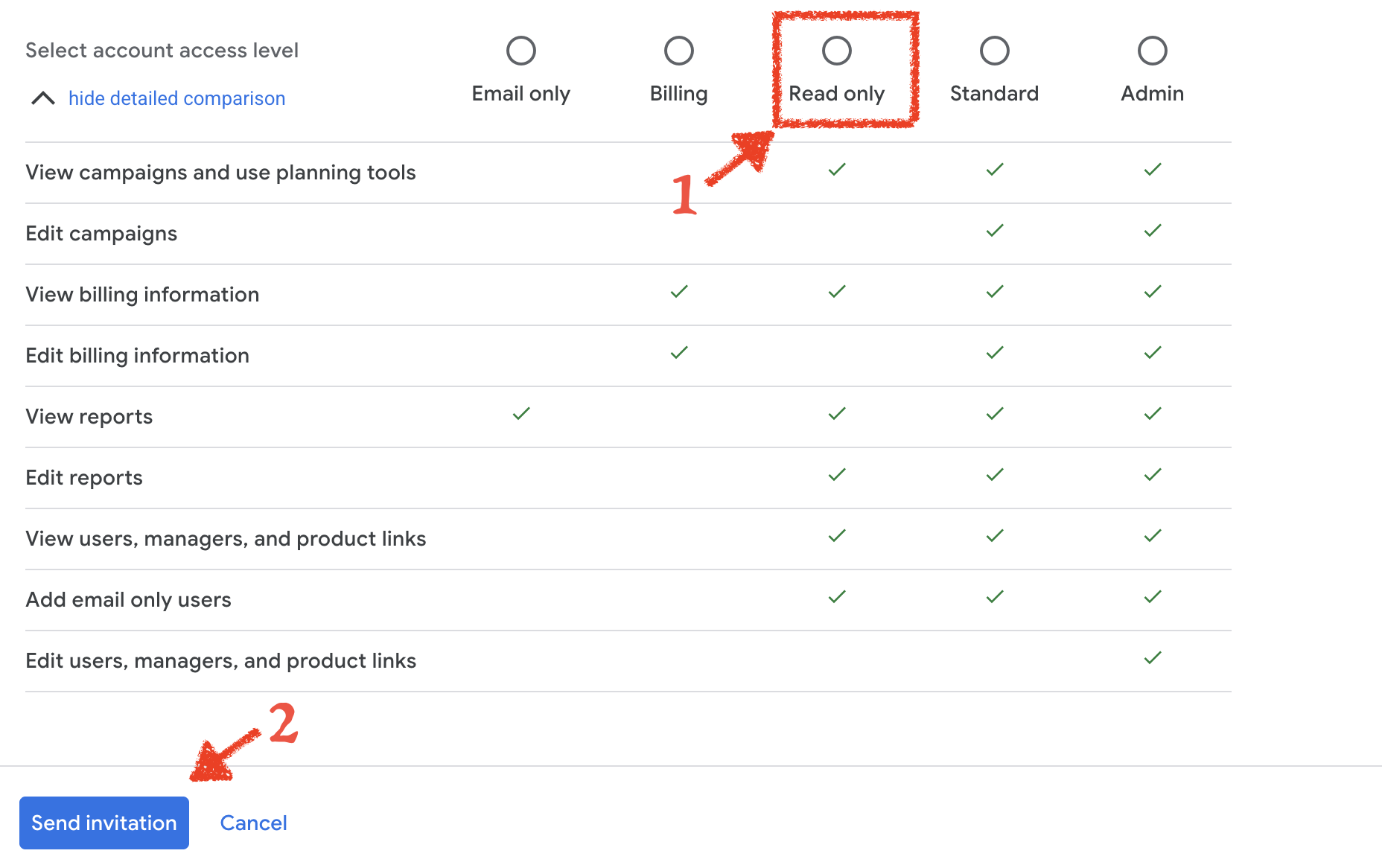
After our support team accepts the invite, we will have access to your Ads account and will be able to better assist you.
You can remove access after receiving support. It is not required for ClickGuard to work with your Google Ads account.
See also: How to fix support access invitation error in Google Ads.