Loading article introduction…
Loading article body…
If your Microsoft Ads clicks aren't showing in ClickGuard, check the tracking template first. When you link the account, choose Automatically configure click tracking so ClickGuard places its template in the account-level Tracking Template field. Templates set on campaigns, ad groups or ads override it, so ClickGuard can't see those clicks.
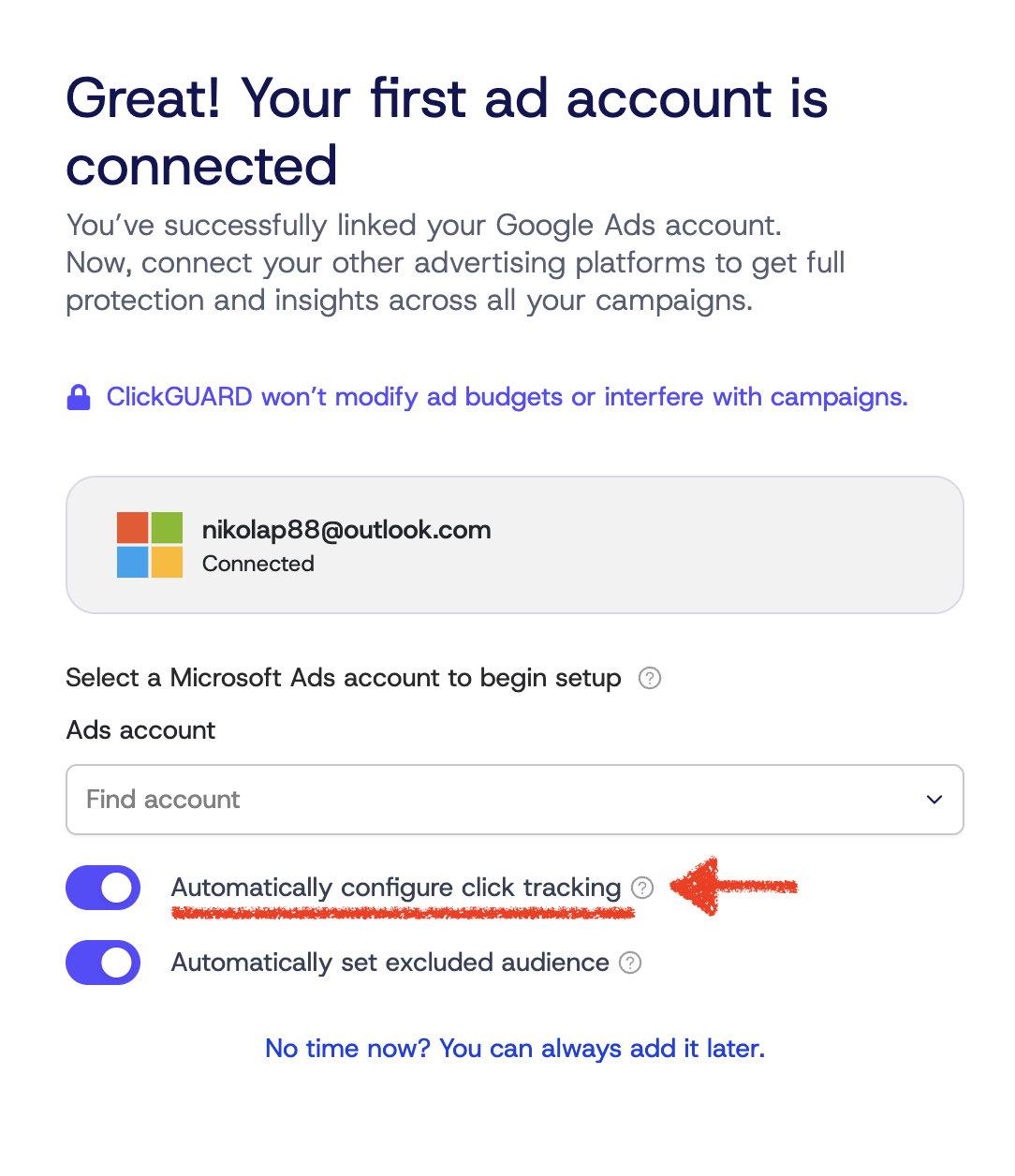
During the initial account linking you will be offered an option to Automatically configure click tracking.
This will automatically place our tracking template in the account level Tracking Template field.
This is a recommended method of installing Tracking Template.
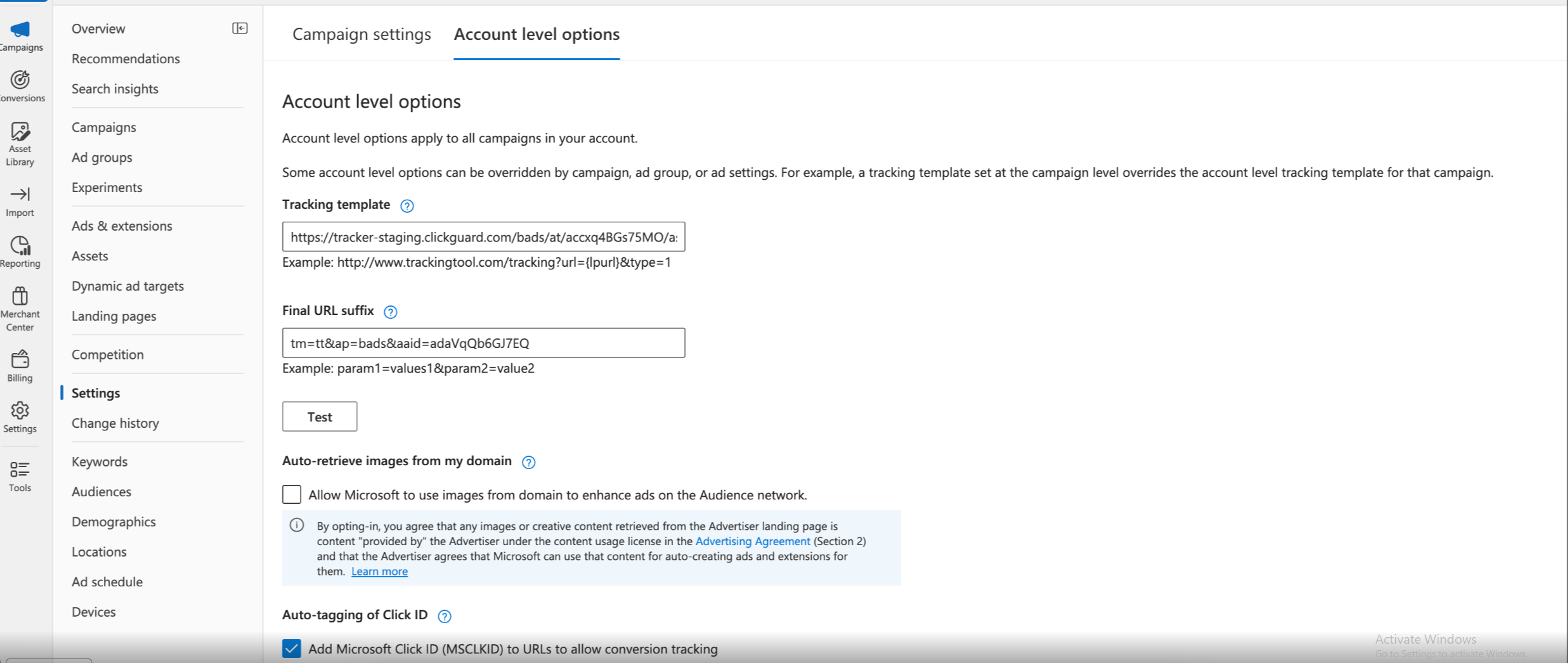
In order to work, tracking template must be placed at the account level Tracking Template field and it should look like this:
In case you have unchecked this option at the beginning, you may change it when account is created.
To enable the automatic setup of click tracking, go to Connections then Ad Accounts, select your Microsoft Ads account, and click on Configure button. On the new window page, select as shown in the screenshot below and Save it.

Yes, if you're already using a tracking template (ie. HubSpot), you can configure click tracking with URL suffix only, that way the system will track clicks from the landing page as they happen. 
You can manually set the tracking template and final URL suffix on the account level tracking field in your Google Ads. Tracking template code is unique for each account and can be found by going to Settings → PPC accounts → Configure then under Click Tracking change to Manual setup, the tracking template code will be just below which you can copy.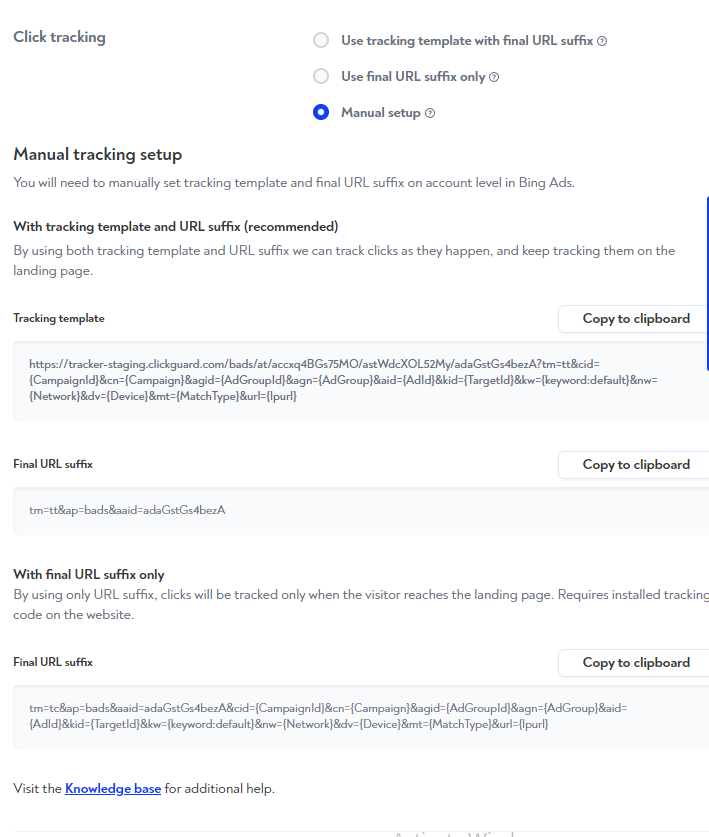
Note: Tracking template code is unique and different for each account
See also: Low-level tracking templates override account-level.