Loading article introduction…
Loading article body…
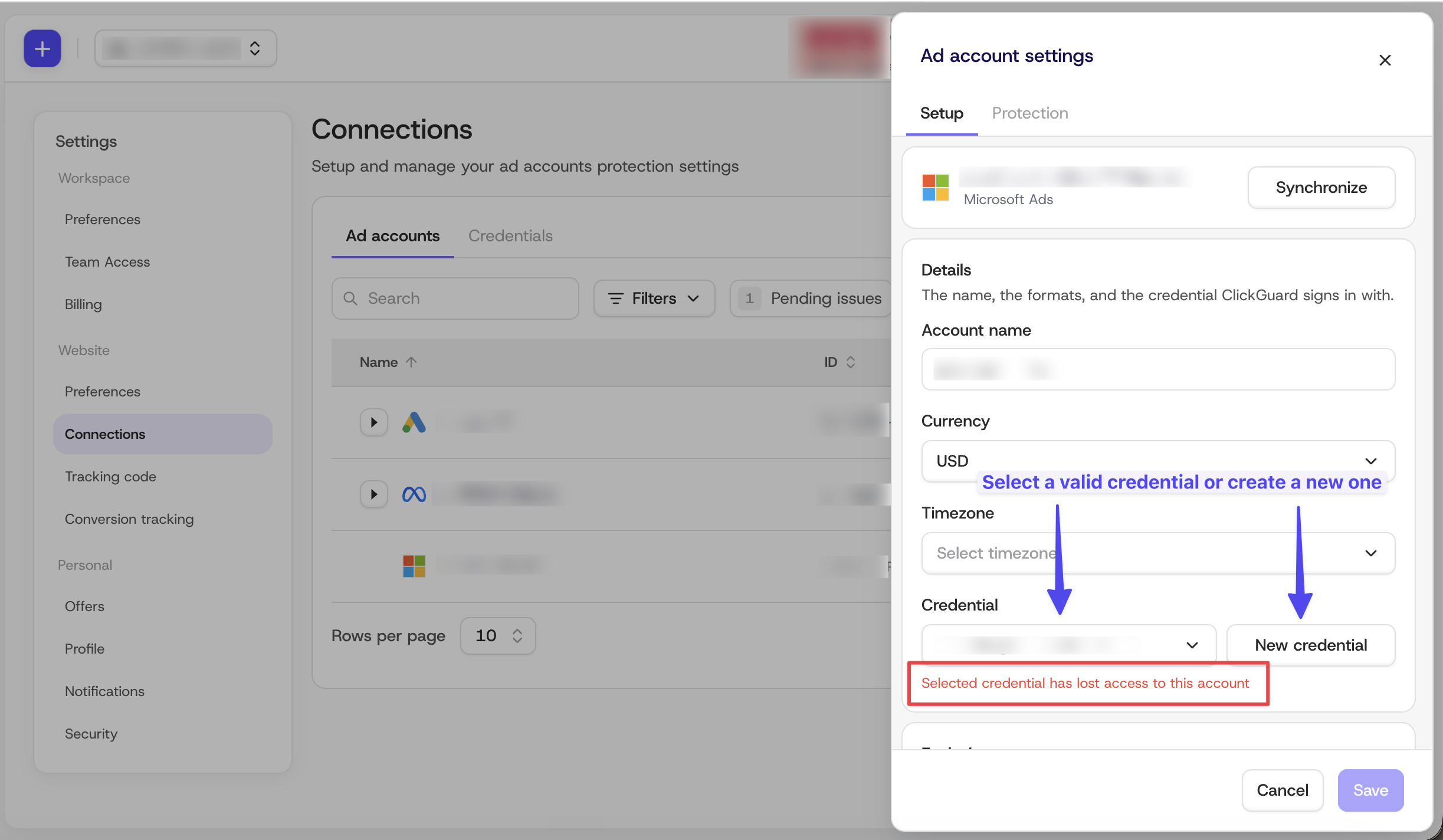
“No access” means ClickGuard can no longer reach an ad account that has Click detection turned on, so that account isn’t protected. It usually happens when the credential used to connect it lost permission. To fix it, open the account’s settings in Connections and select a valid credential or create a new one.
A yellow banner at the top of your dashboard saying “Your ad account is disconnected.” In Settings > Connections > Ad accounts, the affected account shows a red No access label next to its Click detection toggle.
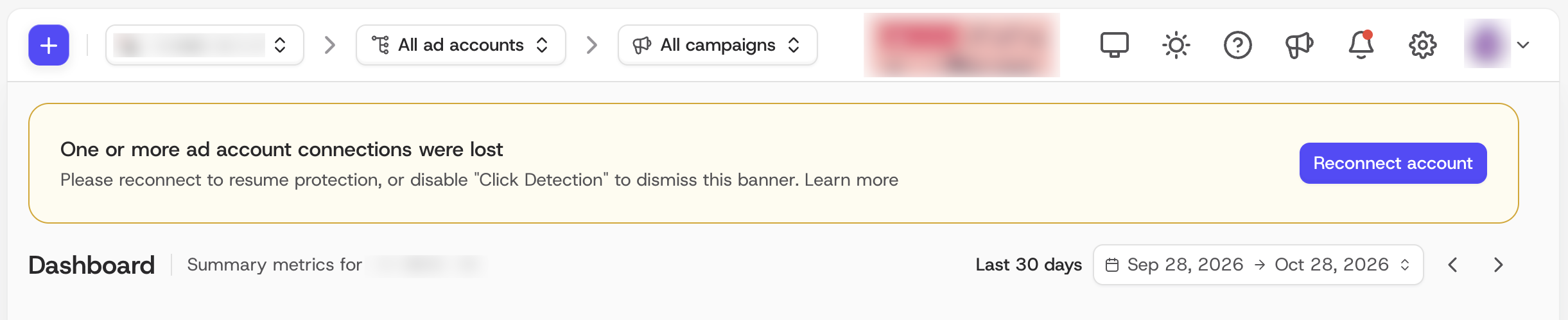
ClickGuard has lost access to at least one ad account that has Click detection turned on. We should be analyzing that account’s clicks, but we can’t reach its data. Until access is restored, the account is not protected.
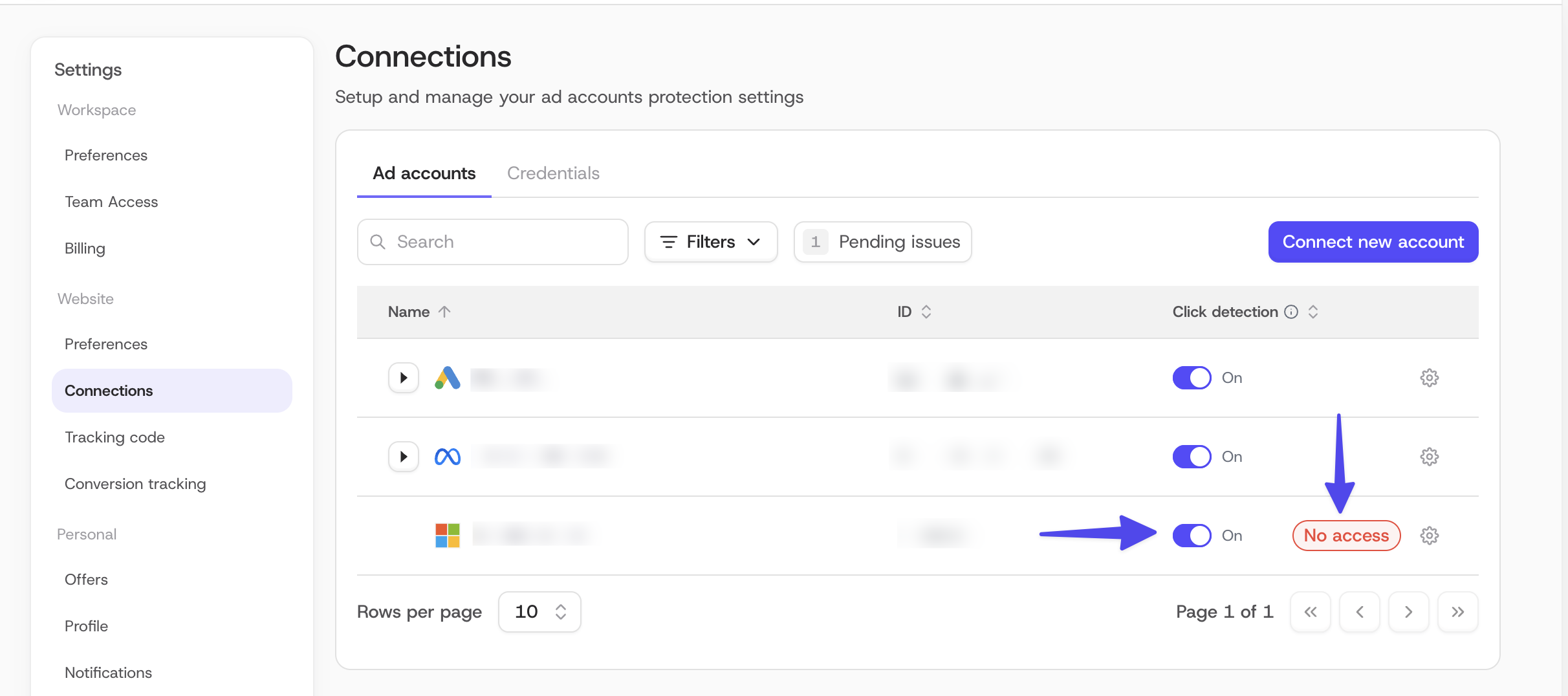
The credential ClickGuard uses to connect to the account no longer has access to it. Common causes:
The person who originally connected the account left your company, and their email was removed from the ad account.
You’re an agency connecting through your MCC (manager account), and the client removed your access when they left.
Click the "Reconnect account" button on the banner or go to Settings > Connections > Ad accounts.
Find the account marked No access and click the gear icon next to it.
In the Setup tab, look at the Credential field.
Fix the credential:
If a valid credential is already available, select it from the dropdown.
If not, click New credential and sign in with a user who has access to the ad account.
Click Save.
Once ClickGuard can access the account again, the No access label and the banner go away and protection resumes.
If the account belongs to a former client or you no longer have access to it, there’s nothing to fix. ClickGuard won’t take any action on an account it can’t access. You can still turn off Click detection or delete the account to clear the banner and keep your Connections page limited to accounts you actively protect. To learn more, see how to disconnect my ad account.