Loading article introduction…
Loading article body…
Click the + icon next to your website's name, select Connect new ad account and follow the steps for the platform. Google Ads and Microsoft Ads use ClickGuard's tracking template or URL suffix; Meta Ads needs the tracking code, accepted audience terms and the campaign ID in your ad URLs.
A website can have more than one ad account, across Google Ads, Microsoft Ads and Meta Ads. You can connect more at any time.
Each platform tracks ad clicks a little differently, so here's what ClickGuard sets up for each one.
To track your ad clicks, ClickGuard uses two settings in your Google Ads account: the tracking template and the final URL suffix. They let ClickGuard trace which campaigns, ad groups, asset groups and keywords are driving bad traffic, so exclusions are made in the right place.
At least one of them is required, but using both guarantees maximum effectiveness.
The setup is automatic. Your account may or may not already have tracking settings in place. Either way, ClickGuard shows what it found and what it will do, so you can confirm it:
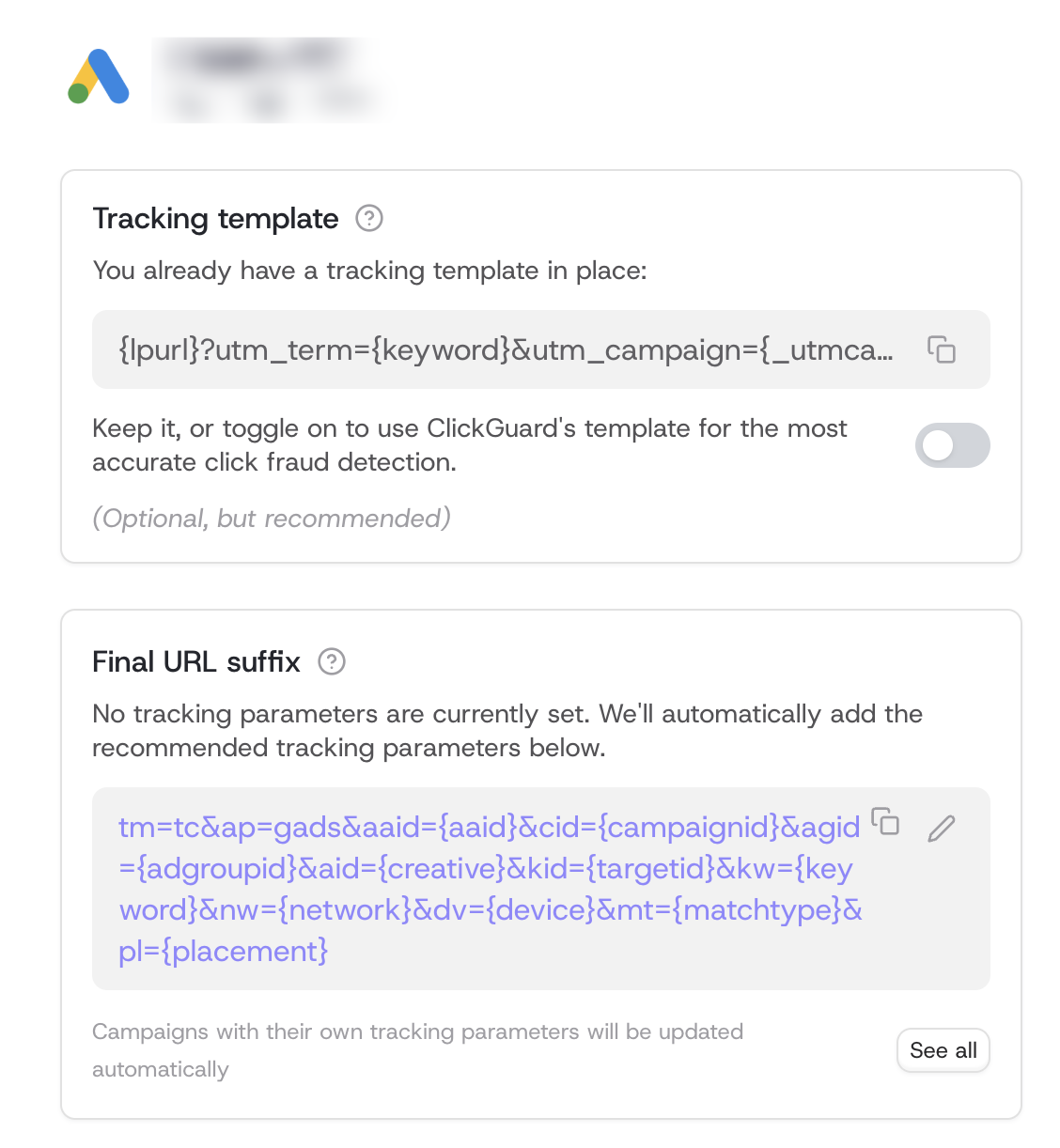
If your account's tracking template is empty, ClickGuard adds its own there.
If you already have one, from HubSpot for example, ClickGuard shows it and you can choose: keep it, or toggle on ClickGuard's template. ClickGuard's template gives you the most accurate click fraud detection, so we recommend it, especially if your existing template is a legacy one that's no longer in use.
If you switch to ClickGuard's template, turn off the automatic tracking setup in the tool that was using your old template. Otherwise it may overwrite ClickGuard's.
ClickGuard adds its tracking parameters to your account's final URL suffix automatically.
Campaigns with their own tracking parameters are updated automatically too. ClickGuard finds the campaigns that need its parameters and adds them to the end of what those campaigns already have, so there's nothing to remove. Click See all to see which campaigns will be updated.
ClickGuard doesn't change tracking settings on ad groups or individual ads. It's not a common setup, but if you have a final URL suffix on an ad group or ad, copy the final URL suffix shown on this page and paste it at the end of the suffix on each of those ad groups or ads. Otherwise ClickGuard can't analyze their clicks.
When you set up your website, you most likely already installed ClickGuard's tracking code. To protect Google Ads and Microsoft Ads effectively, we also recommend using ClickGuard's tracking template. Tracking templates only exist in these two platforms, and the two pieces do different jobs:
| Tracking code | Tracking template | |
|---|---|---|
| Where it lives | On your website | In your Google Ads or Microsoft Ads account (with the final URL suffix) |
| What it tells ClickGuard | What visitors do on your site: pages they visit, time on site, interactions and device details | Where each ad click came from: campaign, ad group, keyword, placement and more |
| How it's set up | Installed once per website | Set up for each Google Ads and Microsoft Ads account when you connect it |
You need both: the tracking template tells ClickGuard where a click came from, and the tracking code tells it what that visitor did next. See How to install ClickGuard's tracking code.
For more, see Google Ads clicks not showing in ClickGuard and Use a custom tracking template with ClickGuard.
When you connect a Microsoft Ads account, keep Automatically configure click tracking selected. ClickGuard then places its tracking template in your account-level tracking template field. This is the recommended setup.
If you already use a tracking template, from HubSpot for example, you can track clicks with ClickGuard's URL suffix only, just like in Google Ads. See Microsoft Ads clicks not showing in ClickGuard.
When you connect a Meta Ads account, after selecting the ad account, select the Meta pixel you use on that website from the dropdown on the same page.
Meta Ads doesn't use a tracking template. ClickGuard reads your Meta Ads clicks through the tracking code on your website, so make sure it's installed. Then make sure of two things in Meta Ads. You've probably set both up already:
cgcid, cid, campaign_id or utm_campaign. Most ads already have it; if yours don't, add one of these (you only need one):cgcid={{campaign.id}}
cid={{campaign.id}}
campaign_id={{campaign.id}}
utm_campaign={{campaign.id}}