Loading article introduction…
Loading article body…
After you install ClickGuard's tracking code, check that it's working in three ways. The Action required banner in ClickGuard disappears once the code is detected. Organic traffic shows up in the Live monitoring tab on the Click Forensics page. And paid clicks start showing device and behavior data, like time spent on page and bot probability.
After installing the tracking code, it's essential to verify that it’s functioning properly. There are a few methods you can use to confirm that the tracking code is up and running as expected.
If ClickGuard can't detect the tracking code on your website, you'll see an Action required: tracking code not detected banner. It means the code is either missing or not set up correctly. Click Start verification to check the installation, or talk to our support team for help.

Once ClickGuard detects the tracking code is installed and working, the banner disappears.
Another way to verify the tracking code is functioning is by checking for organic traffic. Go to the Click Forensics page, switch to the Live monitoring tab, and select Organic traffic. If organic traffic is visible in the live monitoring, this confirms that the tracking code is actively collecting data.
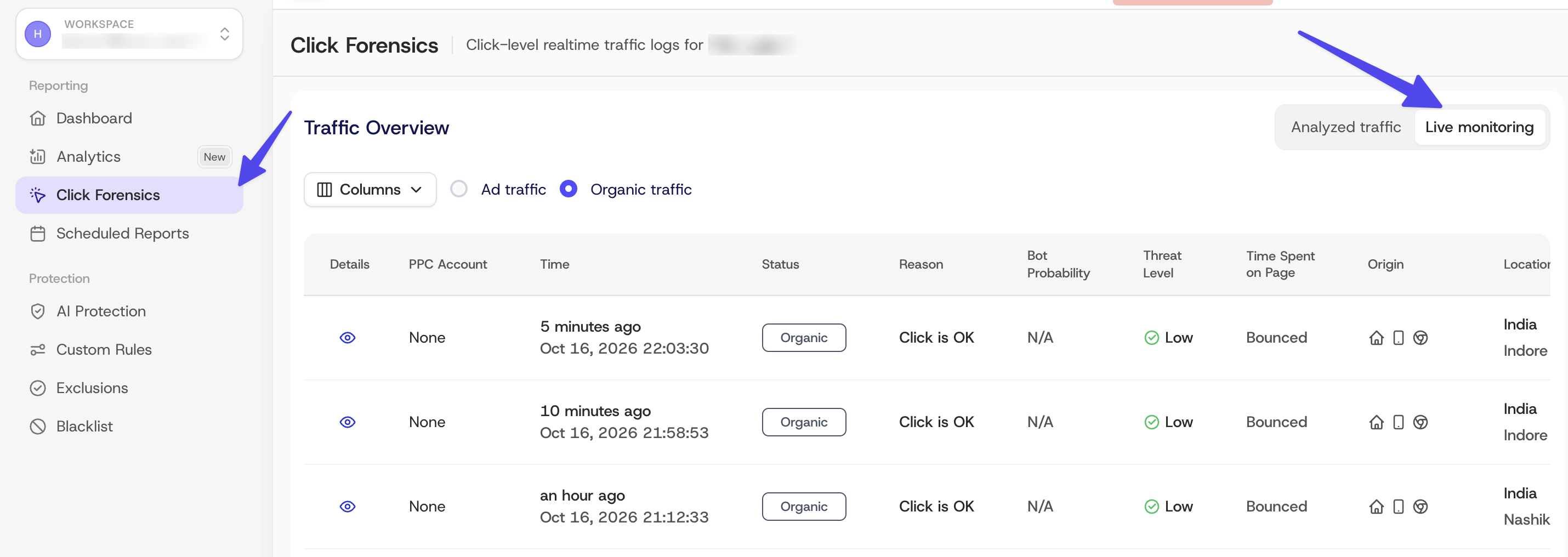
To ensure visitor behavior is being accurately tracked for paid clicks, go to the Click Forensics page and select Ad traffic. You should begin to see device and behavior data, such as Time spent on page and Bot probability, which indicates that the tracking code is functioning correctly for paid traffic.
By following these steps, you can be confident that your tracking code is successfully capturing the necessary data to support your ClickGuard operations.
See also: Install ClickGuard's tracking code.