Loading article introduction…
Loading article body…
The ClickGuard tracking code goes on every page of your website, so ClickGuard sees each visit from your ads. ClickGuard can install it for you with Google Tag Manager while you set up your website's protection, or you can install it yourself: manually, on Shopify, on Wix or in Google Tag Manager.
The ClickGuard tracking code goes on every page of your website, so ClickGuard sees each visit from your ads. The easiest way to install it is to let ClickGuard do it for you with Google Tag Manager while you set up your website's protection.
When you reach the tracking code step while configuring your website's protection:
Select Install with Google Tag Manager.
Under Authorized with, select a credential that has access to the Google Tag Manager account you want to use. If you don't have one yet, click New authorization.
Select the GTM Account, the Container and the Workspace.
Click Install Tracking Code.
ClickGuard creates a new tag with your tracking code and publishes it to the workspace you selected, so there's nothing else to do. If someone else manages your Google Tag Manager, click Invite a team member to complete this step.
If you prefer to install the code yourself, pick the option below that fits how your site is managed.
Follow the steps below to install the tracking code properly:
Log in to your ClickGuard account.
Navigate to Settings › Tracking code › Standard tracking.
Select Install manually.
Copy the provided JavaScript tracking snippet. This code is unique to your account and website.
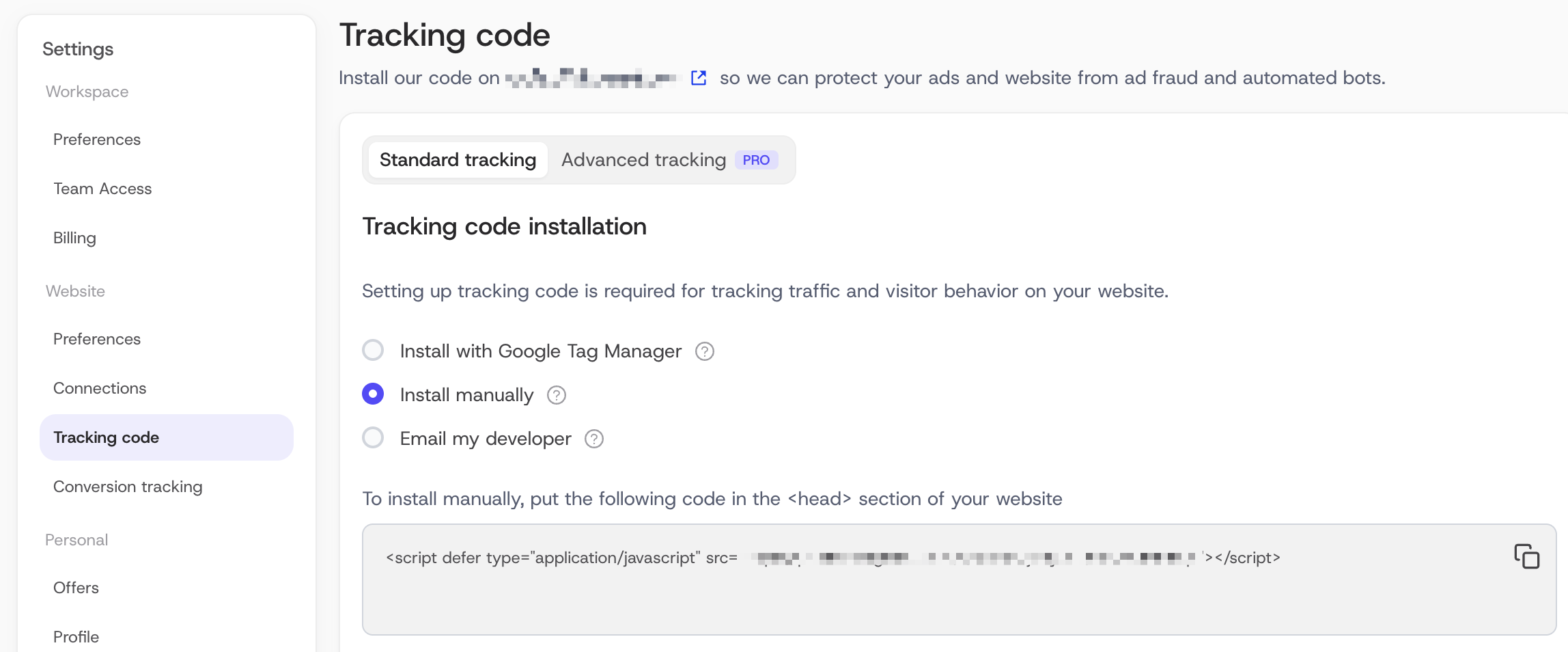
The tracking code must be placed immediately before the closing </head> tag on every page where you wish to track activity.
Static HTML websites
Paste the tracking code into the <head> section of each HTML file.
<head>
  <!-- Other head elements -->
  <script>/* Your ClickGuard tracking code */</script>
</head>
CMS-based websites (e.g., WordPress)
Access your theme settings or install a plugin that supports custom script injection into the <head>.
Paste the tracking code and save your changes.
On Shopify, the tracking code goes in your store's theme. Log in to your Shopify store and follow these steps.
Note: ClickGuard can't track visitor behavior on Shopify's checkout page. If you're on Shopify Plus, ask your Merchant Success Manager how to add the code to checkout too.
In your Shopify dashboard, click Online Store.
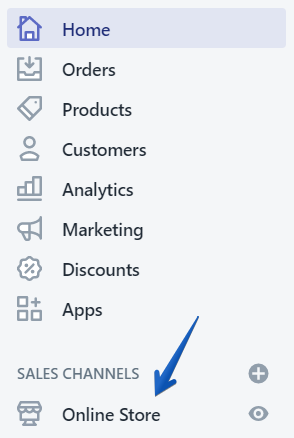
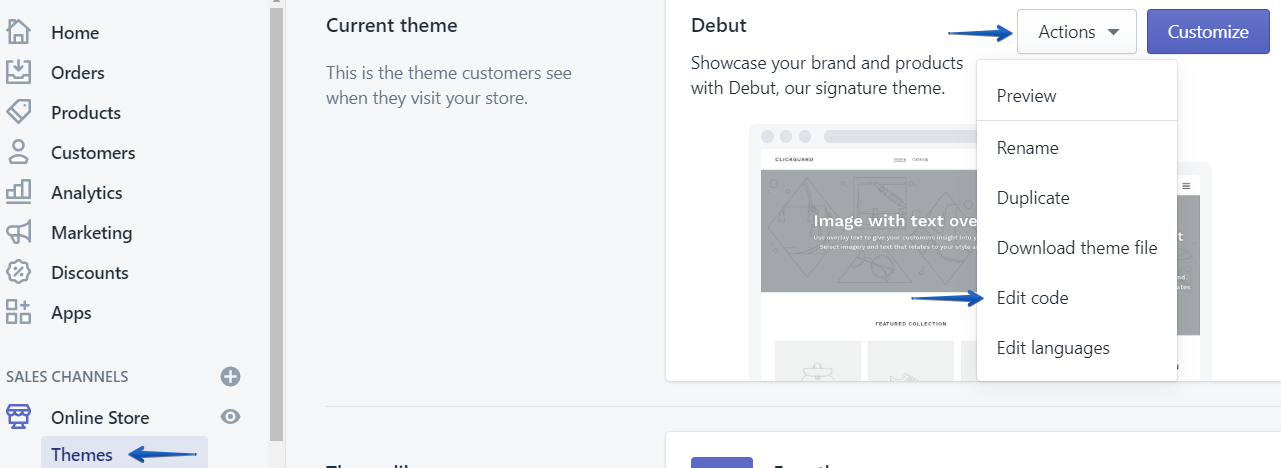
Click Themes, then the Actions button at the top right, and choose Edit code.
Under Layout, select theme.liquid and scroll down until you find the closing </body> tag.
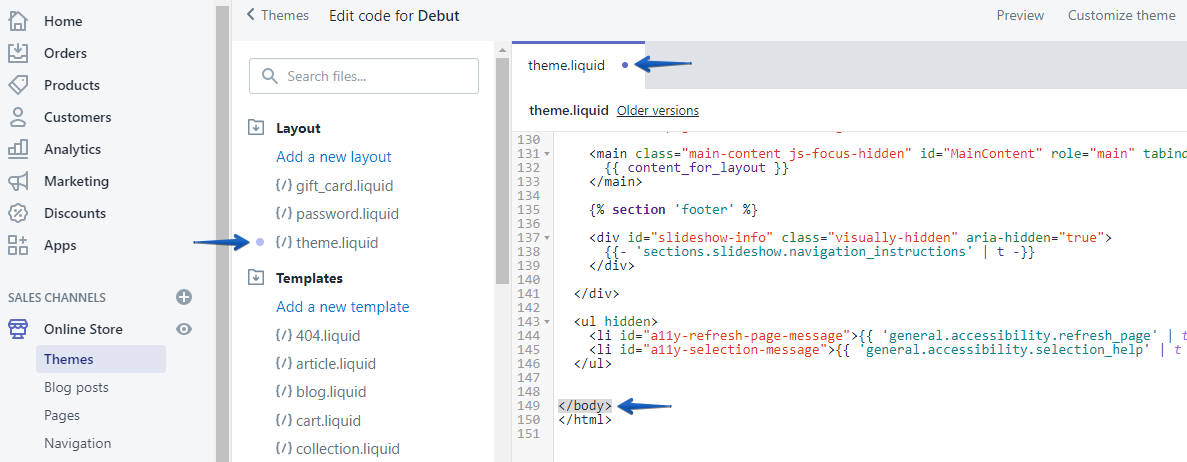
Paste your ClickGuard tracking code just before the closing </body> tag. You can copy it from Settings › Website › Tracking code.
Click Save, then publish your theme to apply the change.
Note: this works only for Wix sites with a connected domain.
Open Settings in your Wix site's dashboard.
Under Advanced Settings, click the Tracking & Analytics tab.
Click + New Tool and select Custom from the dropdown.
Paste your ClickGuard tracking code into the box. You can copy it from Settings › Website › Tracking code.
Select the domain you're adding the code to. This option only appears if you have more than one domain.
Give it a name you'll recognise, for example “ClickGuard”.
Select All Pages so ClickGuard can track visitor behavior across your site, and choose Load code once. Under Place Code in, select Body - end.
Click Apply. ClickGuard can now track visitor behavior on your Wix site.
If you're using Google Tag Manager (GTM) to manage website scripts, you can easily install the ClickGuard tracking code without touching your site's source code directly. Follow the steps below to complete the setup.
Open your Google Tag Manager account.
Select the appropriate container for your website.
Click on Tags in the left-hand menu, then click New Tag.
Name your tag (e.g., ClickGuard Tracking).
Log in to your ClickGuard Account dashboard.
Navigate to Settings › Tracking code › Standard tracking.
Copy the full JavaScript tracking snippet provided for your account.
Click Tag Configuration.
Choose Custom HTML as the tag type.
Paste the ClickGuard tracking code into the HTML field.
Click Triggering.
Select the trigger type: All Pages – this ensures the tracking code loads on every page of your website.
Click Save to finish creating the tag.
Click Submit in the top-right corner of GTM.
Add a version name (e.g., ClickGuard Installation) and click Publish.
Your ClickGuard tracking code is now active via Google Tag Manager. ClickGuard will begin monitoring visitor sessions and protecting your ad campaigns immediately.
Once the code has been added:
Visit your website and navigate through several pages.
Return to your ClickGuard dashboard.
Go to Clicks › Live monitoring › Organic traffic to confirm that organic clicks are being tracked.
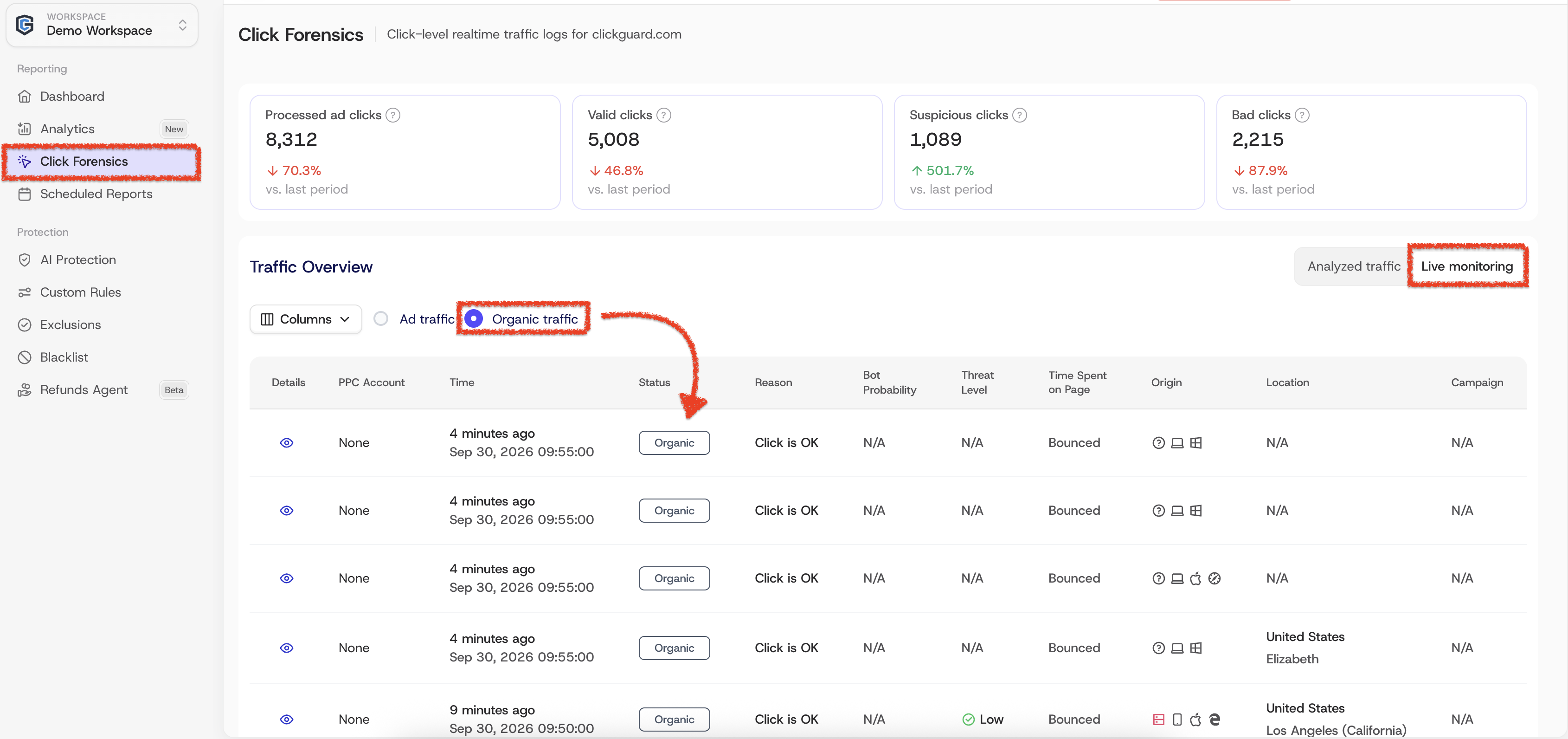
If no data appears after a few minutes, verify that the script is correctly placed and is not being blocked by browser extensions or cookie consent settings.
Important: add the tracking code to your website's global layout or template so it loads on every page. That way no visit goes unrecorded.
Once installed, ClickGuard will begin analyzing and protecting your traffic in real time. If you encounter any issues during installation, please contact ClickGuard support.
See also: Check tracking code installation.