Loading article introduction…
Loading article body…
Add a website from the + icon next to your website's name and select Protect a new website. To remove a website for good, go to Settings › Website › Preferences and click Delete. To pause protection for a while instead, turn off AI-Driven Threat Monitoring in AI Protection.
Each website you protect with ClickGuard has its own ad accounts, settings and click data. You can add a new website at any time, remove one for good, or pause protection on one for a while.
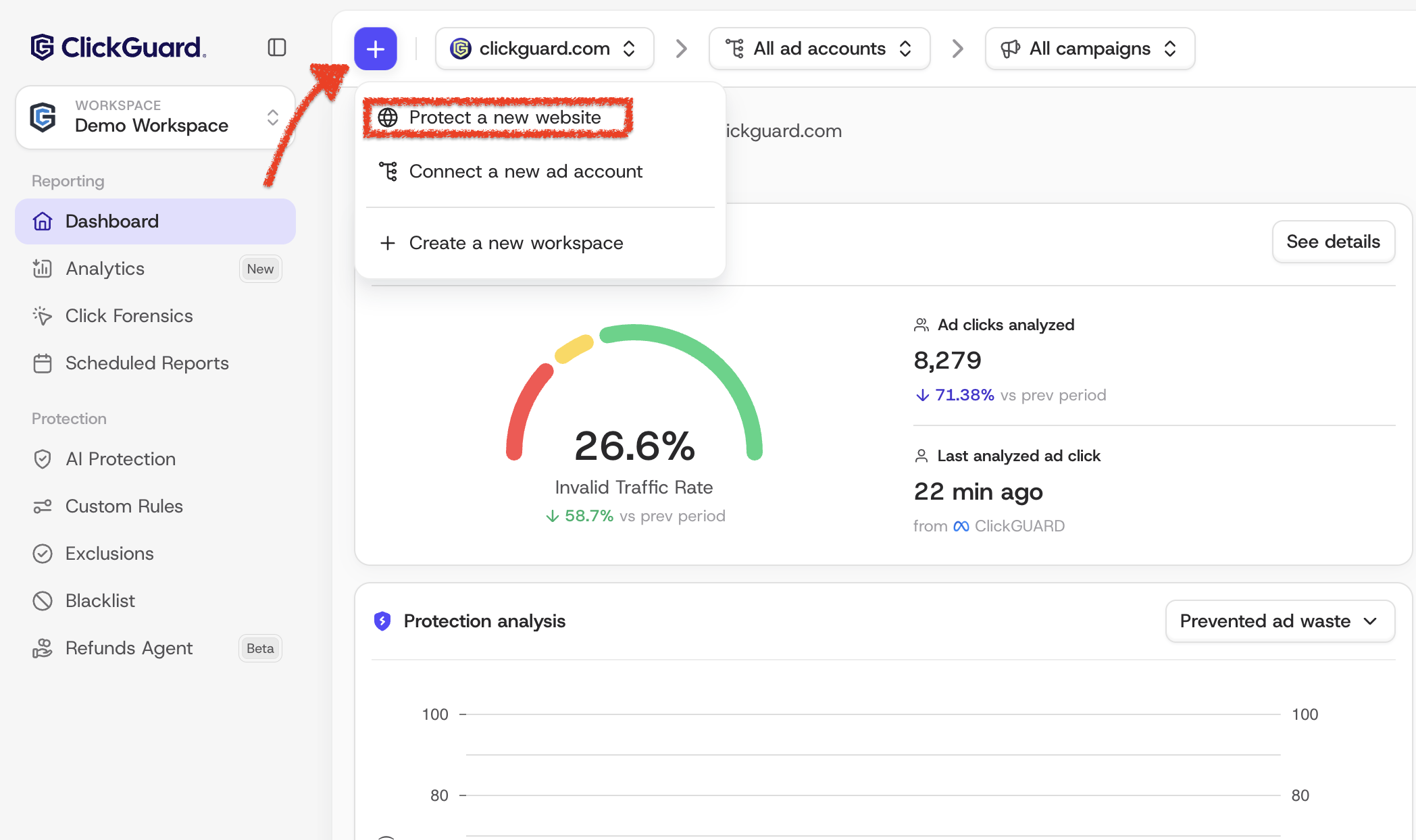
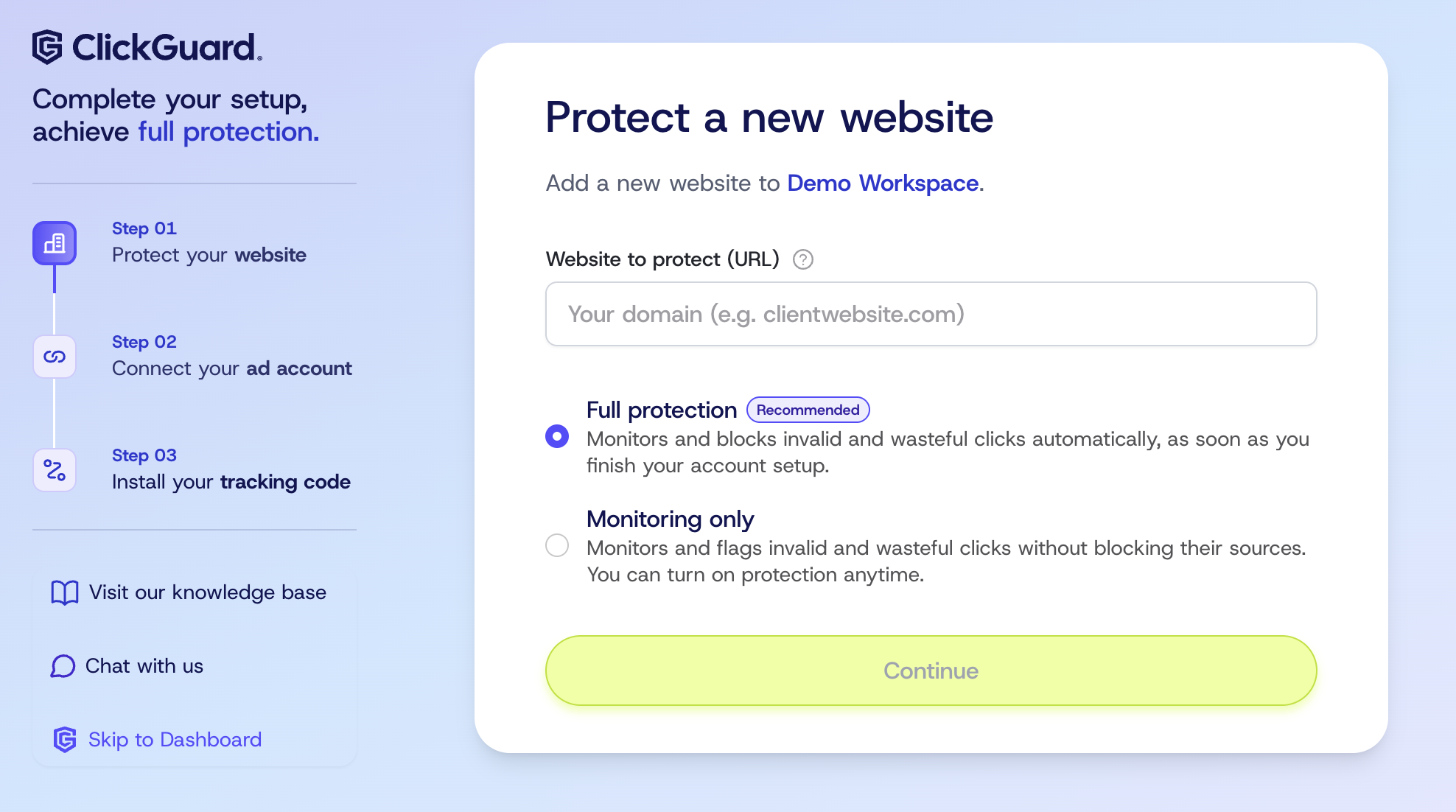
ClickGuard creates the website and starts setting up the ad account you connected right away.
Note: every website needs at least one ad account, so you can't add a website without connecting one.
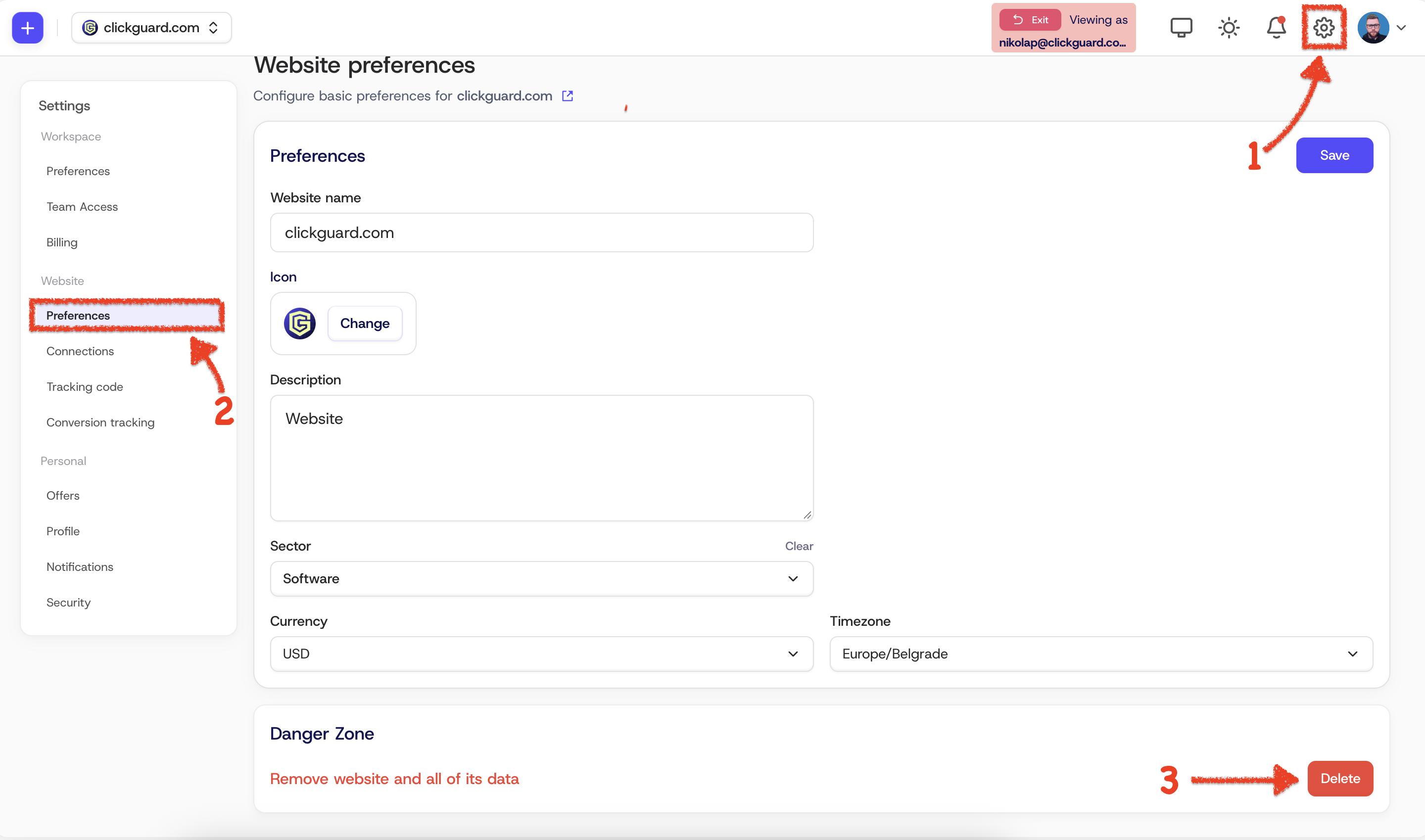
Removing a website permanently deletes it together with its connected ad accounts and all the click data ClickGuard recorded for it. This can't be undone.
If you only want to stop protecting a website for a while, you don't need to remove it. Turn off its threat monitoring instead:
ClickGuard stops evaluating and flagging that website's ad clicks. Click detection is turned off for all of the website's ad accounts too, so their ad spend no longer counts toward your usage. The website keeps its ad accounts, settings and data, so you can switch monitoring back on at any time.
To turn off the automatic AI protection but keep protecting the website with your custom rules, check Keep detecting clicks from your ad accounts right below the toggle. Your custom rules keep flagging and blocking threats, and the website's ad spend still counts toward your monthly usage.
See also: How to add more ad accounts.