Loading article introduction…
Loading article body…
The ClickGuard Extension brings your click fraud protection stats directly into Google Ads – bad clicks, blocked sources, prevented ad waste, and more – without leaving the platform. It adds a dedicated set of ClickGuard columns to your Campaigns performance table, right alongside your standard metrics.
The ClickGuard Extension brings your click fraud protection stats directly into Google Ads – bad clicks, blocked sources, prevented ad waste, and more – without leaving the platform. It adds a dedicated set of ClickGuard columns to your Campaigns performance table, right alongside your standard metrics.
Open Chrome and go to the ClickGuard Extension page on the Chrome Web Store. Click Add to Chrome, then confirm by clicking Add extension in the dialog that appears. The ClickGuard icon will appear in your Chrome extensions bar once it's installed.
Tip: We recommend pinning the extension to your toolbar for quick access. Click the puzzle piece icon in the top-right corner of Chrome, find ClickGuard in the list, and click the pin icon next to it. The ClickGuard icon will stay visible in your toolbar at all times.
Click the ClickGuard icon in your browser's extensions bar and log in. The extension panel gives you a snapshot of your website's fraud protection metrics – bad clicks, blocked sources, and more – for any connected website, without opening the full platform.
Available on all plans.
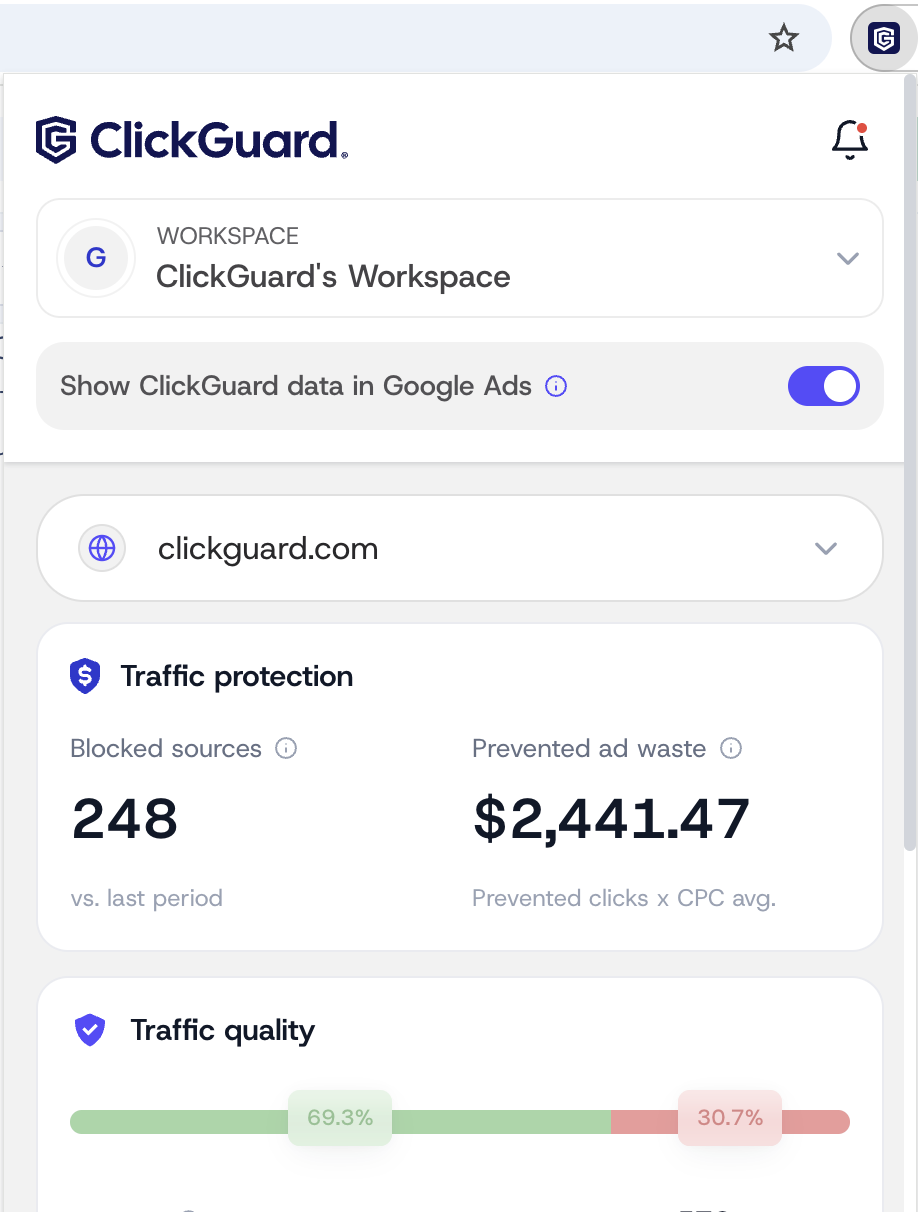
Click the ClickGuard icon in your extensions bar and make sure the "Display ClickGuard data in Google Ads" toggle is ON. This advanced feature is available for Standard, Pro and Custom plans and works both on standard and MCC accounts.
Navigate to Google Ads > Campaigns > Campaigns > Campaigns. You'll see a set of purple ClickGuard columns added to the Campaign Performance table.
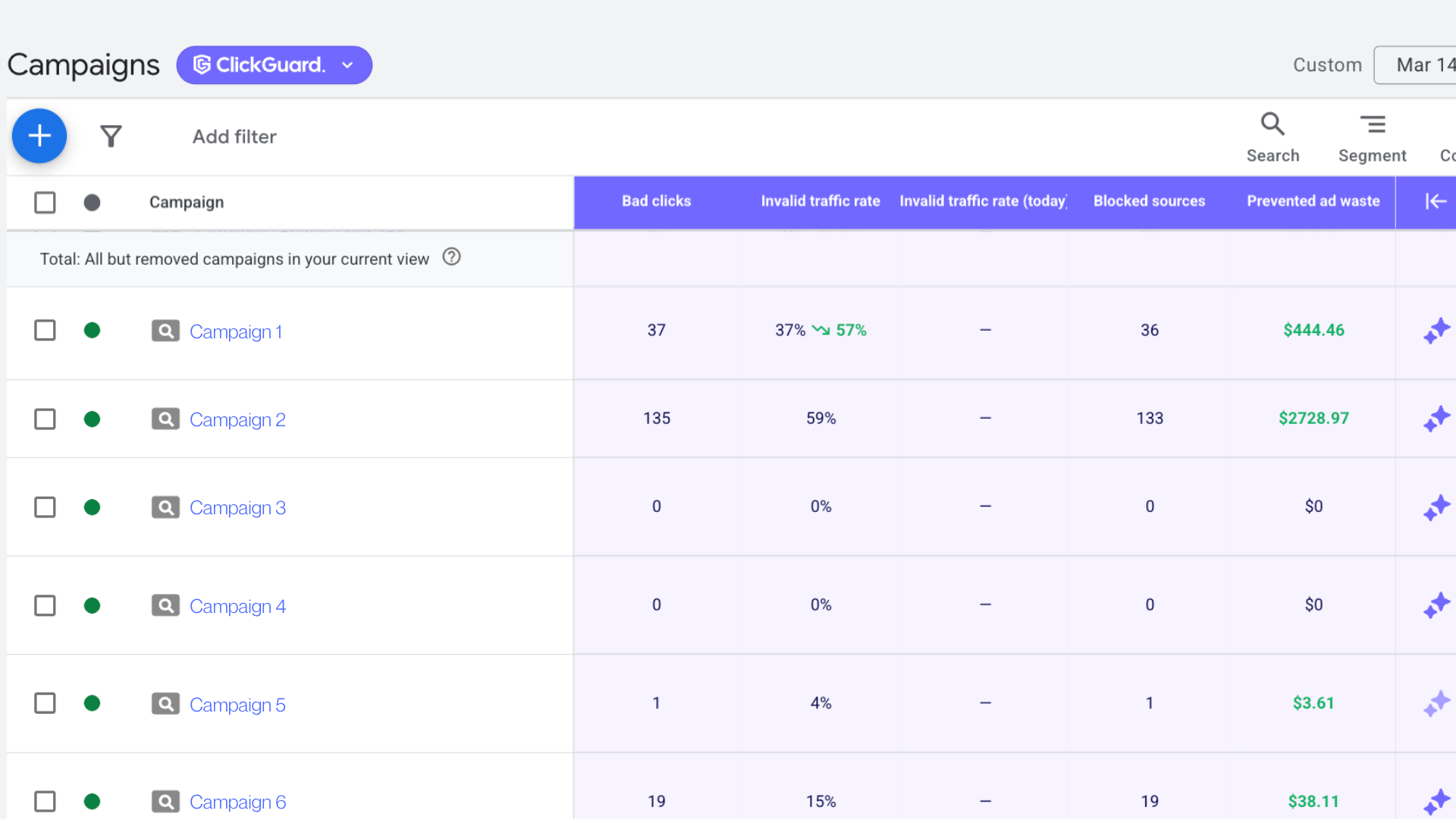
If you need a screenshot without ClickGuard stats visible, click the ClickGuard icon in your extensions bar and disable Show ClickGuard data in Google Ads. The columns will be hidden instantly. Re-enable the toggle when you're done.
All metrics reflect the date range currently selected in Google Ads – except Invalid traffic rate (today), which always shows data for the current day only.
Q: I logged in to the Extension but don't see any workspaces. Why?
A: Your workspace must be on an active paid plan or free trial to access the Extension Dashboard. If your trial has expired or your subscription is inactive, the Extension won't display any workspaces.
Q: The ClickGuard columns aren't showing up in my Campaigns table. What should I check?
A: Make sure the Show ClickGuard data in Google Ads toggle is enabled in the extension panel. If it's on but columns still aren't appearing, try refreshing the Google Ads page. If the issue persists, log in to the ClickGuard platform, select your workspace and website, and go to the Ad Accounts page to confirm your Google Ads account is connected.
Q: Why does "Invalid traffic rate (today)" show a different number than the other metrics for the same period?
A: That's by design. The "today" metric always reflects the current day only – it ignores the date range selected in Google Ads. All other metrics follow that range.
Q: I manage multiple clients. Can I switch between workspaces inside the extension?
A: Yes. Use the workspace and website dropdowns inside the extension panel to switch between workspaces and websites.
Q: Why is Prevented ad waste showing $0 for some campaigns?
A: Prevented ad waste is only calculated when ClickGuard has blocked sources that previously clicked on that campaign. If no sources were blocked in the selected date range, the value will be $0.
See also: What is ClickGuard.