Loading article introduction…
Loading article body…
After you start your free trial, a setup wizard walks you through protecting your first website in a few minutes. Choose how ClickGuard starts, connect your Google Ads, Microsoft Ads or Meta Ads account, and install the tracking code, which ClickGuard can do for you with Google Tag Manager.
Once you start your free trial, a setup wizard guides you through protecting your first website, step by step. It only takes a few minutes.
Make sure you have:
ClickGuard tracks your ad clicks with a tracking template and a final URL suffix. The setup is automatic: ClickGuard shows you exactly what it will apply, and you just confirm.
cgcid, cid, campaign_id or utm_campaign parameter. Most ads already have it.For more detail on each platform, see How to add more ad accounts.
The last step is installing ClickGuard's tracking code on your website. It analyzes what visitors do on your site, which is what lets ClickGuard identify bad quality traffic.
With Google Tag Manager, ClickGuard installs it for you automatically. To install it yourself, see How to install ClickGuard's tracking code.
On a Pro or Custom plan? You can also set up server-side tracking, an advanced method that sends click and visitor data from your website's server straight to ClickGuard, so browsers and ad blockers can't interfere. It tracks nearly every ad click. The wizard gives you all the instructions to set it up.
When you finish the setup, you land on your ClickGuard dashboard.
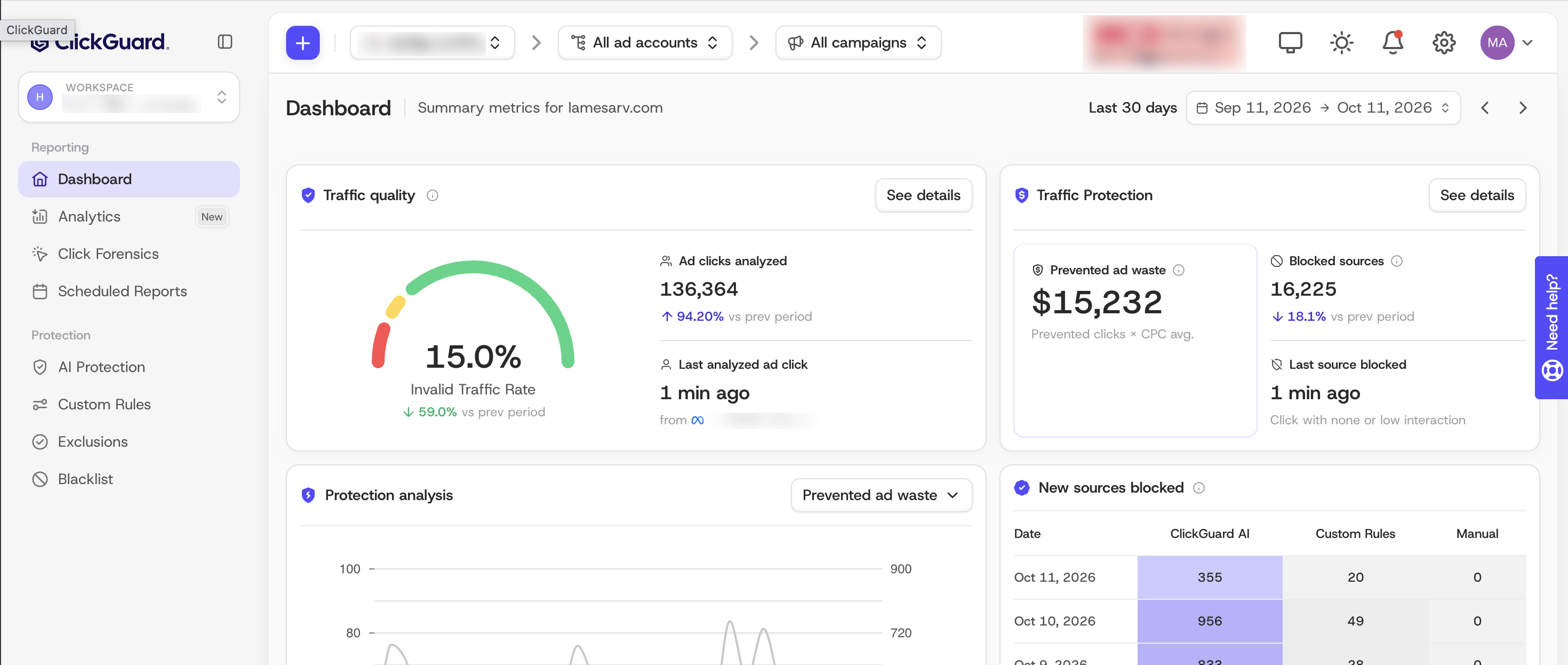
For a while, ClickGuard's algorithm analyzes your incoming visitors and learns your traffic patterns. Soon you'll see the Invalid Traffic Rate start to fill in.
If your website is in Monitoring mode, Prevented ad waste and Blocked sources stay at zero. In this mode ClickGuard detects invalid traffic but doesn't block it. To start blocking, switch to full protection in the AI Protection menu.