You’ve probably spent hours tweaking ad copy, adjusting bids, and testing new audiences in Google Ads. But what happens after the click? That’s where most campaigns lose their edge. Even if your ads are performing well, poor landing page engagement can quietly drain your ROI. And the truth is, traditional metrics like bounce rate or average session duration don’t always tell the full story of what’s going on.
That’s where heatmap tools come in. A heatmap visually shows where users click, scroll, and move on your landing page, helping you understand how people actually interact with your content.
In this guide, we’ll break down how to use heatmap analytics in Google Ads — from setup to optimization. You’ll learn how to use visual data to make smarter decisions, improve conversion rates, and turn every click into a real opportunity.
What Are Heatmap Tools and Why They Matter for Google Ads
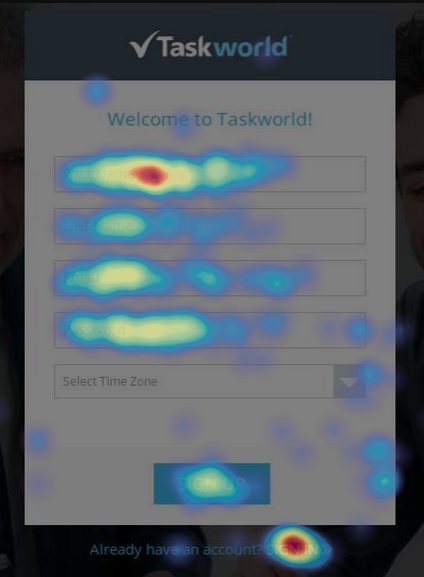
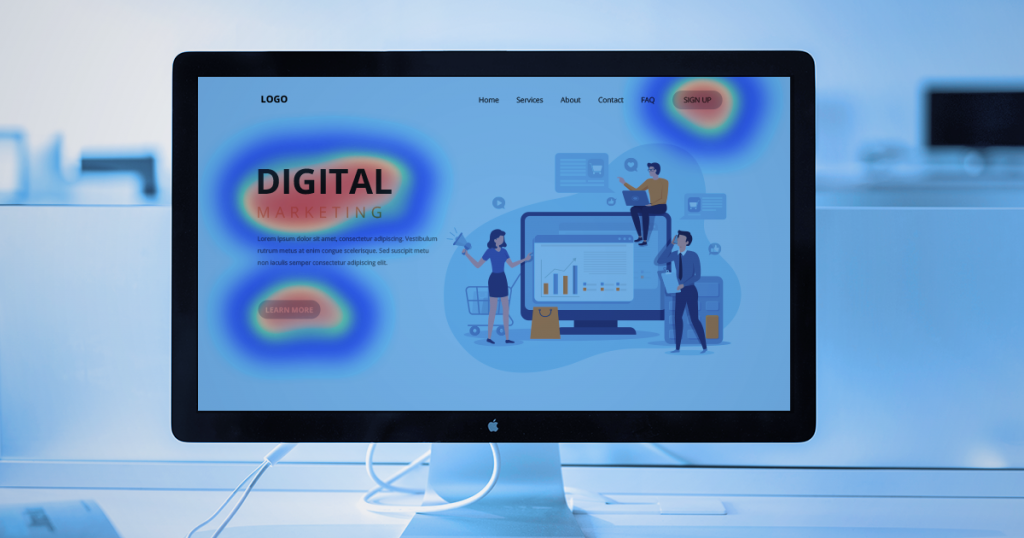
A heatmap tool is a visual analytics solution that shows how users interact with a webpage. It uses color-coded maps to represent activity: warm colors, such as red and orange, indicate high-engagement areas, while cooler colors, like blue, highlight sections that users ignore.

Tools like Hotjar, Crazy Egg, Microsoft Clarity, and even Google Analytics heatmaps (through integrations or third-party add-ons) show patterns that numbers alone can’t. These visual insights help you understand what catches a user’s attention, what confuses them, and where you might be losing valuable conversions.
What Heatmaps Show About Real User Behavior
A heatmap in Google Analytics or any similar tool highlights real user interactions, not just vanity metrics like visits or impressions. You can spot patterns such as:
- Click concentration: Which buttons or elements get the most clicks (and which get ignored).
- Scroll depth: How far users scroll before dropping off.
- Mouse movement: Which areas attract attention and which go unnoticed.
This kind of insight reveals intent and friction in real time. For example, a “Contact Us” button that’s barely clicked might not be the wrong CTA, it could just be placed too low on the page. With heatmaps Google Analytics integrations, you can back up your redesign ideas with data, not guesses.
Why Behavioral Data Matters for Ad ROI
Every wasted click eats into your ad spend. Behavioral data from heatmaps helps you connect ad performance with on-page behavior. When you see where users stop engaging or abandon a page, you can identify exactly what’s killing conversions.
Let’s say your Google heatmap website data shows users are clicking an image that isn’t linked — that’s a conversion blocker. Fix it, and you might turn those clicks into leads. Over time, these small optimizations reduce wasted spend and improve return on ad spend (ROAS).
The Link Between Landing Page Engagement and Quality Score
Google rewards relevance. If users quickly bounce from your landing page or don’t interact with it, your Quality Score can take a hit. Heatmaps help identify and fix those engagement issues before they impact your campaigns.
For instance, if your heatmap data shows users don’t scroll past the first section, your headline or offer might not be aligned with the ad message. When you improve that alignment, engagement rises, and so does your Quality Score.
In the end, heatmap tools make your ads more cost-effective. By connecting visual behavior data with ad metrics, you create campaigns that attract clicks and convert them.
Now that you know what heatmaps reveal and why they’re so valuable for PPC, let’s look at how to use heatmap tools effectively to improve your Google Ads landing pages.
Step 1: Set Up a Heatmap Tool
To use a heatmap tool, you’ll first need to set it up on your landing page. Tools like Hotjar, Crazy Egg, and Microsoft Clarity are among the most popular options — and they all integrate easily with your site. We’ll talk more about them in a later section.
To get started, install your chosen tool’s tracking code. You can add it directly to your website’s header or set it up through Google Tag Manager for easier management. Once installed, the tool begins recording how users interact with your page — every click, scroll, and movement.
Then, wait until you have enough data to make reliable observations. A few dozen visits won’t cut it; you’ll need statistically valid traffic to identify clear behavioral patterns. The more data you collect, the more accurate your heatmaps, and the better your optimization decisions will be.
Discover how much you can save on your ad spend. Calculate your potential savings for free with ClickGuard’s Click Fraud Calculator.

Step 2: Analyze the Visual Data
Once your heatmap tool has collected enough data, it’s time to analyze what’s really happening on your landing page. This step is where heatmaps turn into actionable insights that can improve your conversion rates and ad performance.
Click Maps: Where Users Engage Most

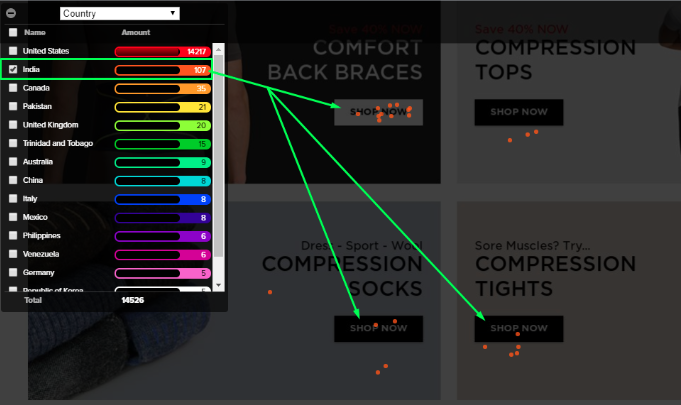
Click maps show you exactly where users tap or click on your page. You’ll see which CTAs attract attention and which elements go unnoticed. For example, if visitors often click non-clickable items like images or decorative icons, that’s a sign your layout or copy might be confusing. Understanding where people expect to interact helps you refine design and guide clicks toward high-value actions, like “Add to Cart” or “Request a Demo.”
Scroll Maps: How Far Users Go Before Dropping Off

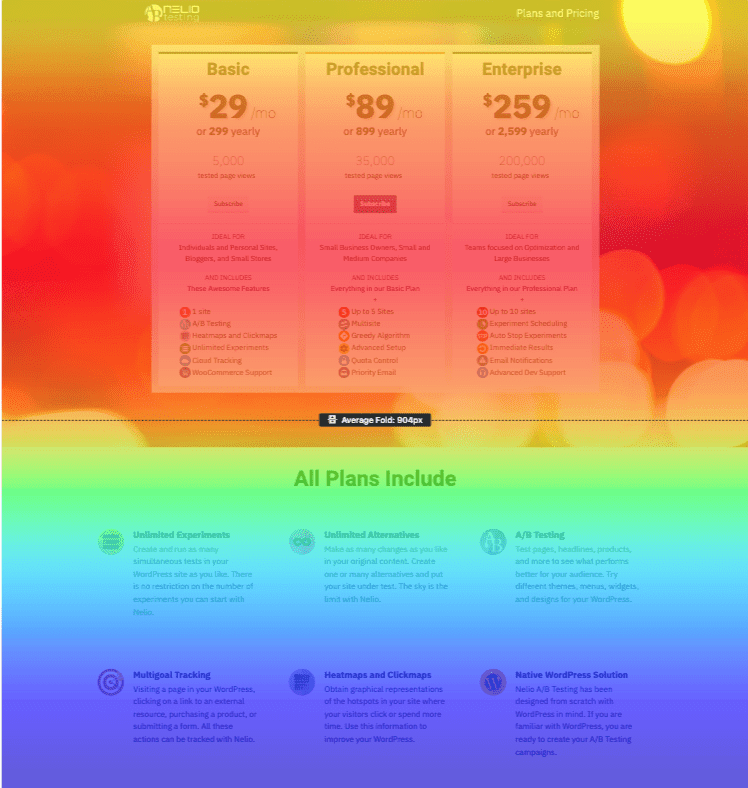
Scroll maps reveal how far down the page people actually scroll. If you notice most users stop halfway, your key message or CTA might be too far down. This insight helps you reposition important elements where they’ll be seen. It’s one of the easiest ways to boost engagement and lower bounce rates, especially on mobile, where screen space is limited. For example, an agency was able to reduce bounce rate by 32% for Samsung by using Hotjar.
Move Maps: Tracking Mouse Attention Flow

Move maps (or hover maps) visualize where users move their mouse on desktop. While not perfect indicators of eye movement, they show which parts of the page capture attention. If users spend time hovering near product descriptions or pricing but don’t convert, you might need clearer CTAs or simplified layouts.
Identify “Hot” and “Cold” Zones
Hot zones are areas that attract attention and clicks, while cold zones are ignored. Your goal is to align your most important content — like CTAs, offers, and form fields — with these hot zones. If key sections of your page are cold, experiment with repositioning or redesigning them to attract engagement.
Spot Usability Issues (Dead or Rage Clicks)
Heatmap tools like Microsoft Clarity and Hotjar can highlight “dead clicks” (taps on non-interactive elements) and “rage clicks” (repeated rapid clicks). Both signal frustration. If users rage-click buttons that don’t respond, it’s time to fix broken links or an unresponsive design. These insights help eliminate friction, leading to smoother user journeys and more conversions.
Step 3: Formulate Hypotheses and Take Action
Now, you’ll need to form hypotheses — educated guesses about what’s causing users to behave a certain way — and then test those ideas to improve performance.
Example Hypotheses From Heatmap Patterns
Heatmaps often reveal patterns that point directly to user experience or conversion issues. For example:
- Users aren’t scrolling past the first third of the page — maybe your content or offer isn’t engaging enough early on.
- Clicks are clustering on non-clickable elements (like images or text), suggesting confusion or unclear CTAs.
- A call-to-action button gets clicks but few conversions, meaning something on the next page might be breaking trust or adding friction.
How to Fix UX and Conversion Issues
Use what you’ve learned from your heatmap to make targeted adjustments. Move key CTAs higher on the page, simplify your copy, or redesign distracting elements. If scroll maps show users aren’t reaching your form, shorten the page or test a sticky CTA that follows them. The goal is to reduce friction and guide visitors toward action without overwhelming them.
Use A/B Testing to Validate Page Improvements
Every change you make should be tested before rolling it out widely. Tools like Google Optimize (or alternatives like VWO and Optimizely) let you compare two page versions — one with your new idea and one with the original. If the variation consistently drives higher conversions, you’ve got data-backed proof that your hypothesis was right. Over time, this process compounds into measurable improvements in click-through rates, CVR, and overall Google Ads ROI.
Step 4: Iterate and Optimize Continuously
After implementing changes based on your heatmap insights, the work isn’t done — optimization is an ongoing process. To get the most out of your Google Ads landing pages, you need to iterate and refine continuously.
- Re-test after design changes: Every time you adjust a landing page element, run another round of heatmap tracking. This lets you see whether users interact with the new layout as intended and whether your changes are having the desired effect. Without re-testing, it’s easy to assume improvements worked when they might not.
- Track improvement over time: Keep a historical record of your heatmap data. Monitoring trends over weeks or months helps you spot long-term behavior changes and identify which tweaks consistently boost engagement. This also allows you to measure seasonality or shifts in user behavior that might affect ad performance.
- Combine with Google Ads metrics like CTR and CVR: Heatmaps alone tell you what users do on your page, but pairing this data with Google Ads metrics shows the full picture. Check CTRs, conversion rates, and cost-per-conversion to see whether your visual insights are translating into tangible ROI. This combination of behavioral and performance data is key to creating landing pages that consistently convert.
Discover how much you can save on your ad spend. Calculate your potential savings for free with ClickGuard’s Click Fraud Calculator.

How Heatmaps Improve Google Ads Performance
And talking about Google Ads, heatmaps don’t just help you understand user behavior. They can directly improve your campaign performance. By connecting what users do on your landing pages with your ad strategy, you can make smarter decisions that boost conversions and lower wasted spend.
- Aligning ad message with user journey: Heatmaps show which parts of your landing page capture attention and which get ignored. Use this insight to make sure your ad promises match the content users actually see, potentially improving overall campaign efficiency.
- Boosting conversions and Quality Score: Google rewards landing pages that provide a smooth user experience and relevant content. By optimizing based on heatmap data, you can increase dwell time, reduce bounce rates, and highlight key conversion points. This not only lifts conversions but also enhances your Quality Score, which can lower CPCs and improve ad placement.
- Using insights to improve ad creatives and keywords: Behavioral data from heatmaps can reveal what messaging resonates most with your audience. If certain sections or CTAs attract attention, incorporate similar language or visuals in your ads. Similarly, observing which keywords drive interaction on your landing page helps refine your search targeting, creating a feedback loop between ad copy, keywords, and on-page performance.
Best Heatmap Tools for PPC Optimization
When it comes to improving your Google Ads landing pages, choosing the right heatmap tool can make a big difference. Each platform has its strengths, so picking one that fits your goals is key.
Hotjar – Best for UX Testing
Hotjar is a go-to for understanding how users interact with your pages. It provides click maps, scroll maps, and visitor recordings, making it easy to spot friction points and optimize for conversions. You can also create surveys and feedback polls to gather direct insights from users. Its simple interface helps teams quickly identify UX problems without needing a developer.
Microsoft Clarity – Free and Great for Rage Click Detection
Clarity offers robust heatmap analytics at no cost. Its standout feature is detecting rage clicks — repeated clicks on elements that don’t respond — which can highlight major UX issues impacting conversions.
You also get session recordings and detailed dashboards showing where visitors struggle or drop off. Since it’s free, Microsoft Clarity is perfect for testing hypotheses before investing in premium tools.
Crazy Egg – Powerful Scroll Tracking

Crazy Egg excels at scroll maps, showing how far visitors go on your pages. This helps you position CTAs and key content where users are most likely to see and interact with them. Additionally, Crazy Egg provides A/B testing capabilities to validate changes and improve conversion rates. Its confetti reports break down clicks by referral source, giving insight into which traffic sources perform best.
Mouseflow – Session Replay and Funnel Tracking

Mouseflow combines heatmaps with session replays, letting you watch real user journeys. Its funnel tracking helps pinpoint exactly where visitors drop off, giving actionable insights for page optimization. Mouseflow also captures form analytics, so you can see which fields users abandon most often. With its detailed filtering options, you can analyze behavior by traffic source, device, or location.
Lucky Orange – Combined Chat and Heatmap Data

Lucky Orange blends heatmaps with live chat and visitor recordings. This dual approach gives context to user behavior, helping you understand not just what users do, but why they do it, which is a huge advantage for refining ad-driven landing pages.
It also offers conversion funnels and form analytics, so you can identify and fix drop-off points quickly. Real-time visitor monitoring lets teams intervene and engage directly with users for immediate feedback.
Discover how much you can save on your ad spend. Calculate your potential savings for free with ClickGuard’s Click Fraud Calculator.

Common Mistakes to Avoid When Using Heatmap Tools
Even with the best heatmap tools, misreading the data can lead to wasted effort or misguided changes. Here are the most frequent mistakes marketers make and how to avoid them.
- Acting on too little data: Making changes based on a handful of sessions or clicks can lead to misleading conclusions. Heatmaps show patterns, not single events, so it’s crucial to wait until you have statistically significant data. Otherwise, you might optimize for a rare behavior instead of the norm.
- Ignoring device-level differences: User behavior varies widely between mobile, tablet, and desktop devices. A heat map in Google Analytics for desktop might look very different from mobile interactions. Ignoring these differences can result in landing pages or ad creatives that underperform on certain devices. Always segment your data by device before making decisions.
- Misinterpreting engagement zones: Not all “hot” areas indicate positive engagement, and not all “cold” zones are failures. For example, high clicks on a non-clickable element (rage clicks) can signal frustration rather than interest. Similarly, low activity in a section that users skim for information may be perfectly fine. Understanding context is key to making effective adjustments.
How ClickGuard Improves Heatmap Accuracy
When it comes to analyzing heatmaps, having clean data is everything. One of the biggest challenges is that not all clicks come from real users—bots, click farms, and other invalid traffic can skew your insights. That’s where ClickGuard comes in. ClickGuard is a click fraud protection platform that automatically identifies and blocks suspicious activity, making sure your heatmap data reflects genuine user behavior.
By filtering out fake clicks, ClickGuard ensures your visual analytics—like click maps, scroll maps, and attention flows—are based on real interactions made by real potential buyers. This means you can trust that the “hot” and “cold” zones on your pages actually represent what real visitors are doing.
Moreover, ClickGuard integrates seamlessly with your existing analytics setup, combining traffic filtering with on-page insights. This allows you to connect clean, verified behavioral data directly to your Google Ads metrics, so decisions about ad creatives, landing page changes, and optimization strategies are grounded in reality.
Conclusion: Turn Heatmap Data Into Google Ads Wins
In the end, heatmaps are a window into how real users interact with your landing pages. By understanding where attention goes, where clicks happen, and where visitors drop off, you gain actionable insights that can directly improve your Google Ads performance. Visual data equals real conversion insights, helping you spot opportunities to refine ad messaging, tweak CTAs, and optimize page layout.
But the power of heatmaps really comes through when you combine them with clean, reliable traffic. Tools like ClickGuard filter out bots and invalid clicks, so the behavioral data you rely on reflects real users, not inflated numbers. When clean traffic meets detailed heatmap analytics, you get a clear picture of what’s working and what isn’t, letting you make smarter decisions, improve conversions, and boost ROI across your campaigns.
FAQ
How to do heatmap analysis?
Heatmap analysis starts by collecting enough user data from your landing pages using a heatmap tool. Look at where users click, how far they scroll, and how their mouse moves. Identify patterns, hotspots, and areas that get little attention. The goal is to see what draws attention and what gets ignored so you can adjust layout, messaging, and CTAs for better engagement.
How do you interpret the results of a heatmap?
Interpretation focuses on understanding user behavior, not just the colors on the map. High activity areas show what’s catching attention, while low activity zones may indicate confusion or unimportant content. Look for dead clicks, rage clicks, or unusual patterns that could signal frustration. Combine these insights with conversion metrics to decide what changes will actually improve performance.
How are heatmaps typically used?
Heatmaps are used to optimize landing pages, improve UX experience, and increase conversions. They help pinpoint which sections of a page work well and which cause drop-offs. Advertisers also use heatmaps to align ad messaging with user behavior, test new designs, and evaluate changes over time. They’re especially useful for spotting hidden usability issues that analytics alone can’t reveal.
How do heatmaps help optimize Google Ads campaigns?
Heatmaps show how visitors interact with the pages your Google Ads drive traffic to. By understanding click behavior, scroll depth, and attention flow, you can refine landing pages to boost engagement, lower bounce rates, and improve conversion rates. This, in turn, enhances Quality Score, reduces wasted spend, and makes every ad dollar more effective.
What is the best heatmap tool for PPC landing pages?
There isn’t a single “best” tool because it depends on your needs. Hotjar is great for UX testing, Microsoft Clarity is free and excellent for spotting rage clicks, Crazy Egg excels at scroll tracking, Mouseflow offers session replays and funnel analysis, and Lucky Orange combines heatmaps with live chat insights. For reliable results, pairing any of these tools with ClickGuard helps filter out invalid clicks, giving you data that truly reflects real user behavior.